
MGX Series Setup Guide
Get started now
1. Checking the accessories
Make sure that the following accessories have been included.
・ Power Adapter (including power cord) × 1
・ MGX16V MGX16 MGX12V MGX12 Safety Guide × 1
・ MGX16V MGX16 MGX12V MGX12 Start Guide × 1
・ Cubase AI License Card × 1
・ Basic FX Suite License Card × 1
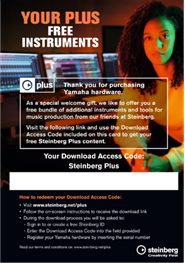
・ Steinberg Plus License Card × 1
NOTE A USB cable is not included with this product. |
2. Installing TOOLS for MGX/URX
TOOLS for MGX/URX is a software package that’s necessary for connecting and using this product with your computer. Follow the steps below to install TOOLS for MGX/URX on your computer.
1. Access the following website to download TOOLS for MGX/URX
2. Decompress (extract) the downloaded file
3. Launch TOOLS for MGX/URX Installer
4. Follow the onscreen instructions to install the software
This completes the installation of TOOLS for MGX/URX.
3. Connect the power adapter
Connect the included power adapter to the DC IN port on the rear panel of the unit in the order shown in the illustration below.
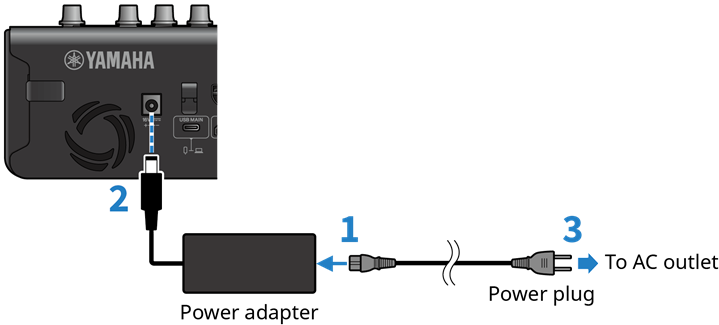
・ Use the supplied adapter only. Using the wrong adapter can result in damage to the product or overheating. ・ When setting up the product, make sure that the AC outlet you are using is easily accessible. If some trouble or malfunction occurs, immediately turn off the power switch and disconnect the plug from the outlet. |

4. Connecting to your computer
Connect the product to your computer and perform the initial setup operations below.
What you need
・ Windows or Mac computer
・ A commercially available USB cable that meets the following specifications. (A USB cable is not included with this product.)
◦ MGX16V, MGX12V: USB 3.0 (Super Speed)
◦ MGX16, MGX12: USB 2.0 (High Speed) or higher
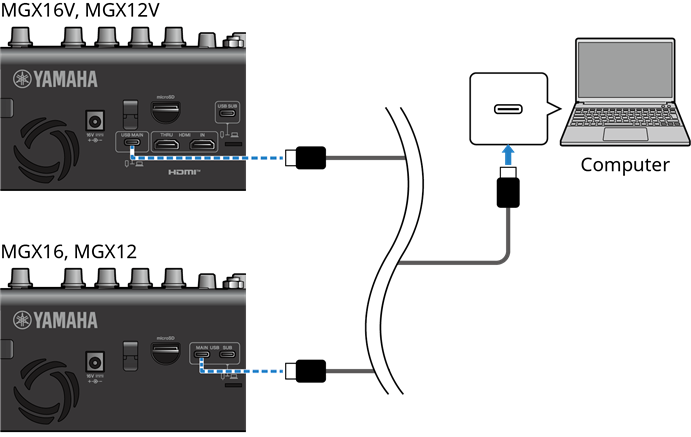
1. Use a USB cable to connect the [USB MAIN] port on the rear panel of the unit to the USB port on your computer
2. Make sure that the volume on this product and on the connected device is turned all the way down
3. Press the [ ] (power) switch on the top panel of the unit to turn it on
4. When you first start the device, follow the instructions on the screen to set the language and date/time
5. On the Operation Mode screen, select Simple Mode or Standard Mode
6. If you select Simple Mode in step 5, follow the on-screen instructions to proceed with the setup
NOTE For more information about Operation Mode, please refer to the User Guide. |
5. Updating the firmware
Make sure to update the firmware to the latest version to ensure optimum use of all the features of this product.
1. Access the Device List screen in Device Center
To update the firmware for this product, use the device configuration software “Device Center.” Device Center is included in TOOLS for MGX/URX. Follow the steps below to launch Device Center and display the Device List screen.
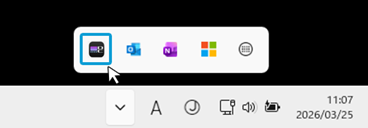
・ Windows: Launch Device Center from the notification area on the taskbar
・ Mac: Launch the Device Center from the Applications folder
2. On the Device Center Device List screen, select the MGX for which you want to update the firmware
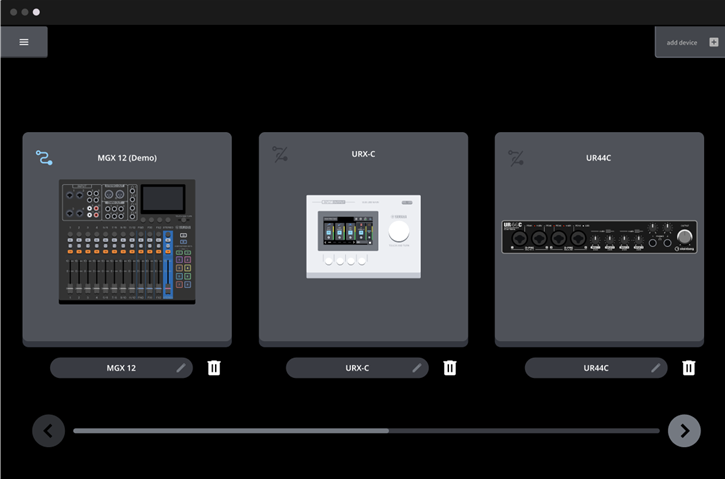
3. Disconnect all Yamaha products other than the selected MGX from your computer
4. Click [ ] (Firmware Update) in Device Center
5. Follow the on-screen instructions to update the firmware
6. When the screen indicating the update is complete appears, click [Close]
This completes the preparations for using MGX.
If you are unable to set up, please refer to the “Frequently asked questions” section in the User Guide.
Get the tool that's right for you
How Do You Express Yourself?
Choose what you want to do with this product. We'll introduce you to the tools that are right for you.
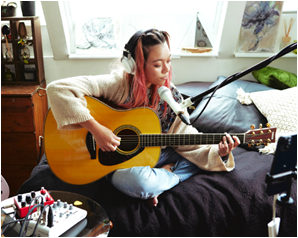
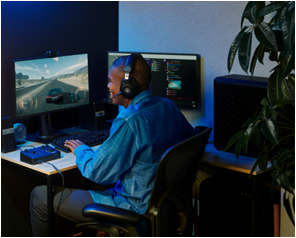
Live Streaming
|
|
|
|
Performance Streaming | Game Streaming | Just Chatting | Podcast |


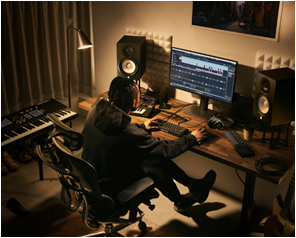
Music Production
|
|
|
Computer Music | Recording | Mixing |


Live Performance
|
|
|
Performance | Hybrid Live | Live Recording |


Here's the tool that’s right for you
Choose what you want to do in “How Do You Express Yourself?” and we'll show you the best tools.
Cubase AI
|
Cubase AI is a special, compact version which uses the same core technologies as Cubase Pro, and is exclusive to customers of selected Steinberg and Yamaha hardware products. It provides all the basic tools for recording, editing and mixing—from the initial idea to the final masterpiece. Cubase AI is the perfect entry into the world of computer-based music production and offers powerful, yet easy-to-use software tools for all genres. To get Cubase AI, you will need the download access code printed on the Cubase AI License Card included.
|

MixKey
|
MixKey is a software mixer for audio routing and sound adjustments involving your computer, essential for live streaming and music production. Equipped with sound pads and a variety of professional-quality effects, its carefully selected and optimized features and intuitive, easy-to-use UI will ensure the success of your content and streaming. |

WaveLab Cast
|
WaveLab Cast is software dedicated for creating podcasts and content for social media platforms such as YouTube and Facebook. It allows you to easily record, edit, finish, and stream with simple operations. It also allows you to easily share audio signals with high-quality sound suitable for streaming. WaveLab Cast To get WaveLab Cast, you will need the download access code printed on the Cubase AI License Card included.
|

Basic FX Suite
|
Basic FX Suite is a VST3/AAX/AU plug-in software suite developed by Yamaha using modeling technology cultivated over many years. Installing Basic FX Suite on your computer gives you access to a variety of high-quality effect plug-ins that can easily polish the audio for recording, music production, and streaming. To get Basic FX Suite, you will need the download access code printed on the Basic FX Suite License Card included.
|

Get your own special offers
|
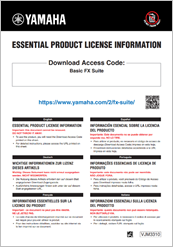
Introducing Steinberg Plus — an exclusive bonus for owners of selected Yamaha or Steinberg hardware. Get a curated collection of high-quality VST instruments and Sounds & Loops sets, completely free of charge. Steinberg Plus To get Steinberg Plus, you will need the download access code printed on the Steinberg Plus License Card included.
|

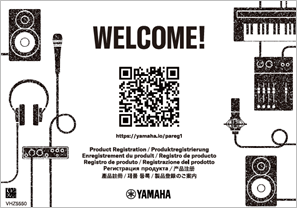
Product registration
Yamaha recommends product registration to ensure long-term, reliable use of your musical instruments and equipment. Registration gives you access to a variety of services, including support and product information. Please note that service content and availability may vary by country or region. For details, please visit the Yamaha website.
Learn more about products
Related Manuals
・ MGX16V MGX16 MGX12V MGX12 User Guide
Explains all the features of this product.
Explains the parameters and terminology commonly used in the effects of Yamaha mixers and audio interfaces.
Related Sites
We've compiled some useful information and related products for creators who want to try their hand at live streaming, music production, and live performance.