


Playing music on a USB device
This explains how to play music and other audio files saved on a USB device on this product.
- Plug the USB device into the USB port.
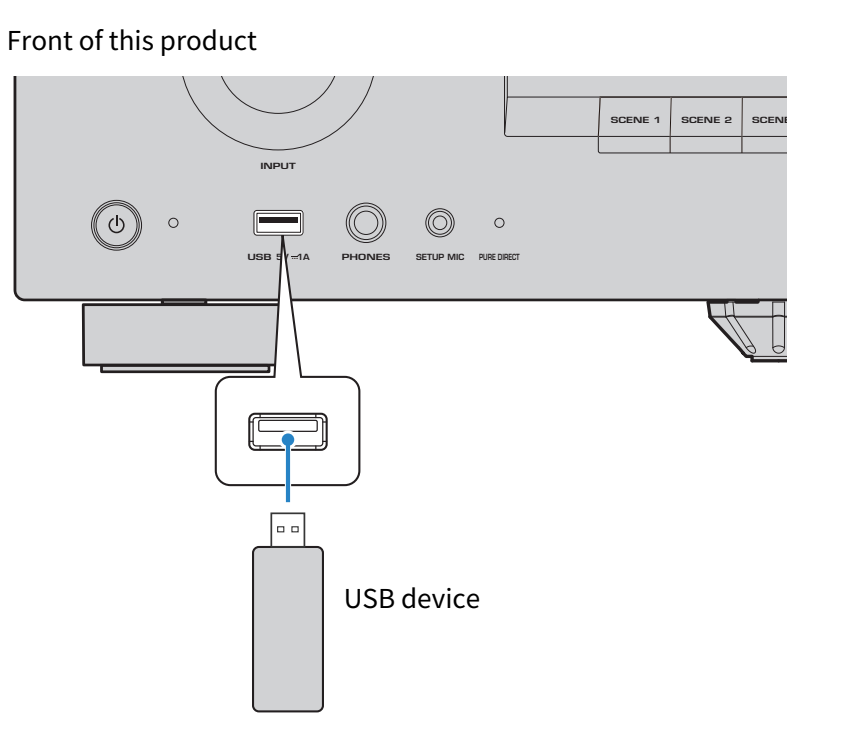
- Switch the input source to “USB”.
- The Browse screen appears on the TV.
- Select content on the Browse screen of the TV.
- Playback of the selected content begins.
- Some USB devices may not operate properly.
- If there are a lot of files, loading may take some time.
- Up to 999 items (folders and files combined) can be displayed on the Browse screen. Folders and file names that exceed this limit are not displayed. Up to 10 levels of folders are supported, including the root level.
- Remove the USB device only after stopping playback.
- Connect the USB device directly to this product’s USB port. Do not use extension cables.
- Power is not supplied to the USB device while the product is in standby.
- Shuffle playback and repeat playback are available.
- When a USB device is connected to this product for the first time, playback will automatically begin from the first track in the top-level (root) folder.
Names of parts and functions on the Browse screen
When a USB device is connected to the USB port, the Browse screen appears on the TV.
The Browse screen consists of the browse part (left side of the screen) and the playback information part (right side of the screen). When playback from the USB device is stopped, only the browse part is displayed.
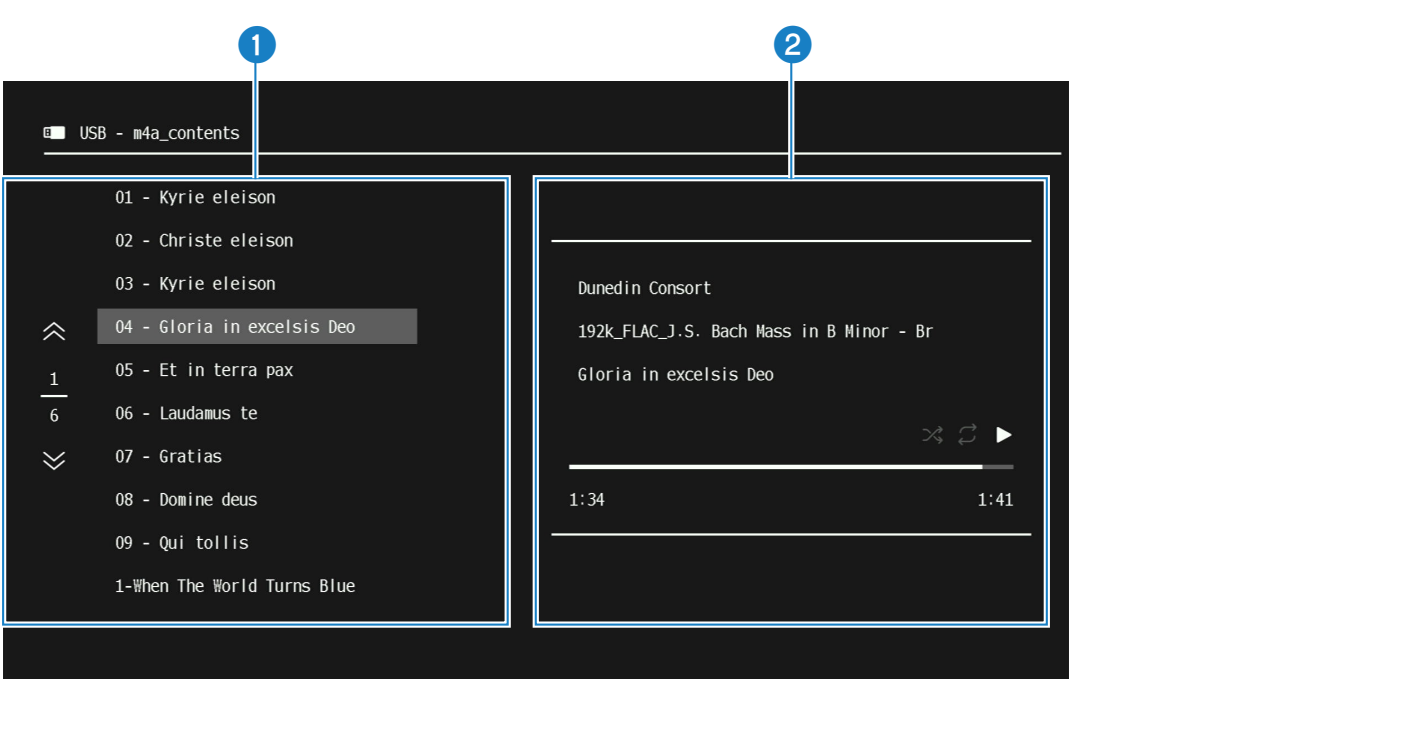
a | Browse part |
b | Playback information part |
Browse part (left side of the screen)
Select the content to play from the USB device.
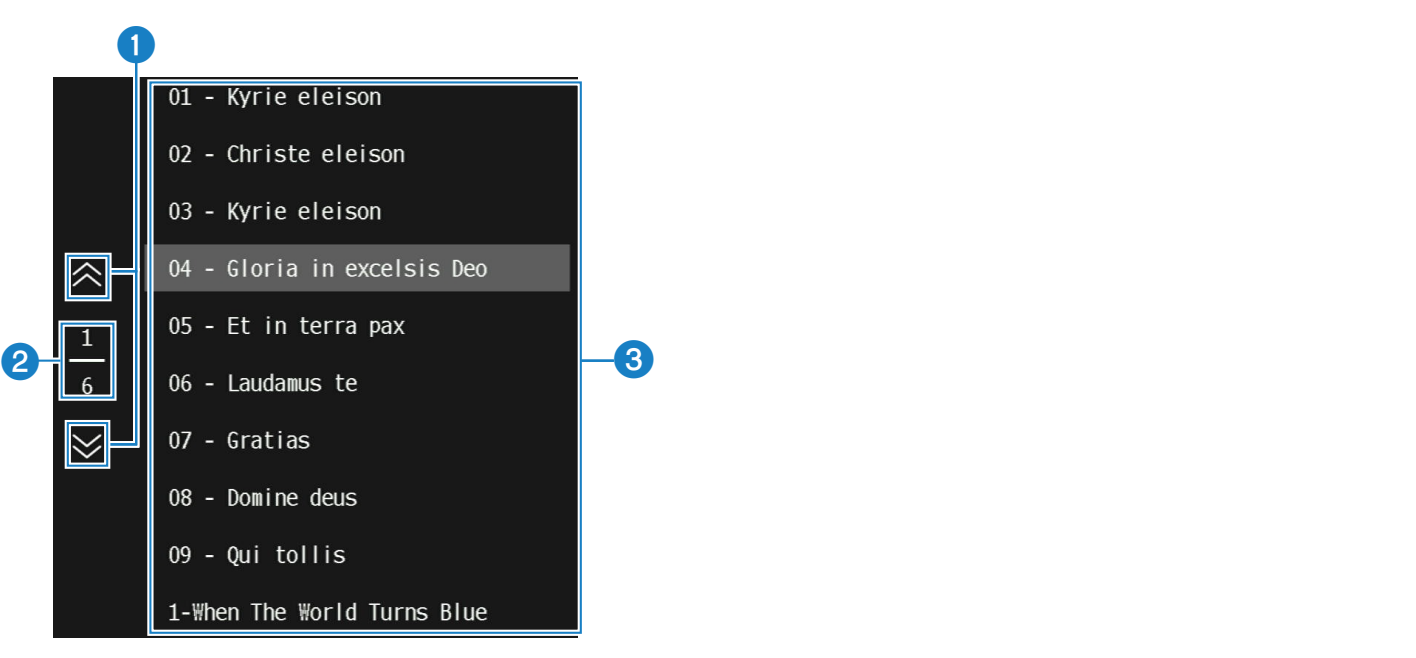
a | Operation buttons Use the cursor keys to select an icon, and press the ENTER key. Moves the list up or down by one page. |
b | Current page/Total number of pages |
c | Content list Displays a list of available content. Use the cursor keys to select the desired content, and press the ENTER key. |
- When playing music from a USB device together with video from another input, a Screen Off button appears below the page number. Press this button to hide the USB device Browse screen. Press the BACK key to display it again.
Playback information part (right side of the screen)
When playback of content starts, the playback information part is displayed.
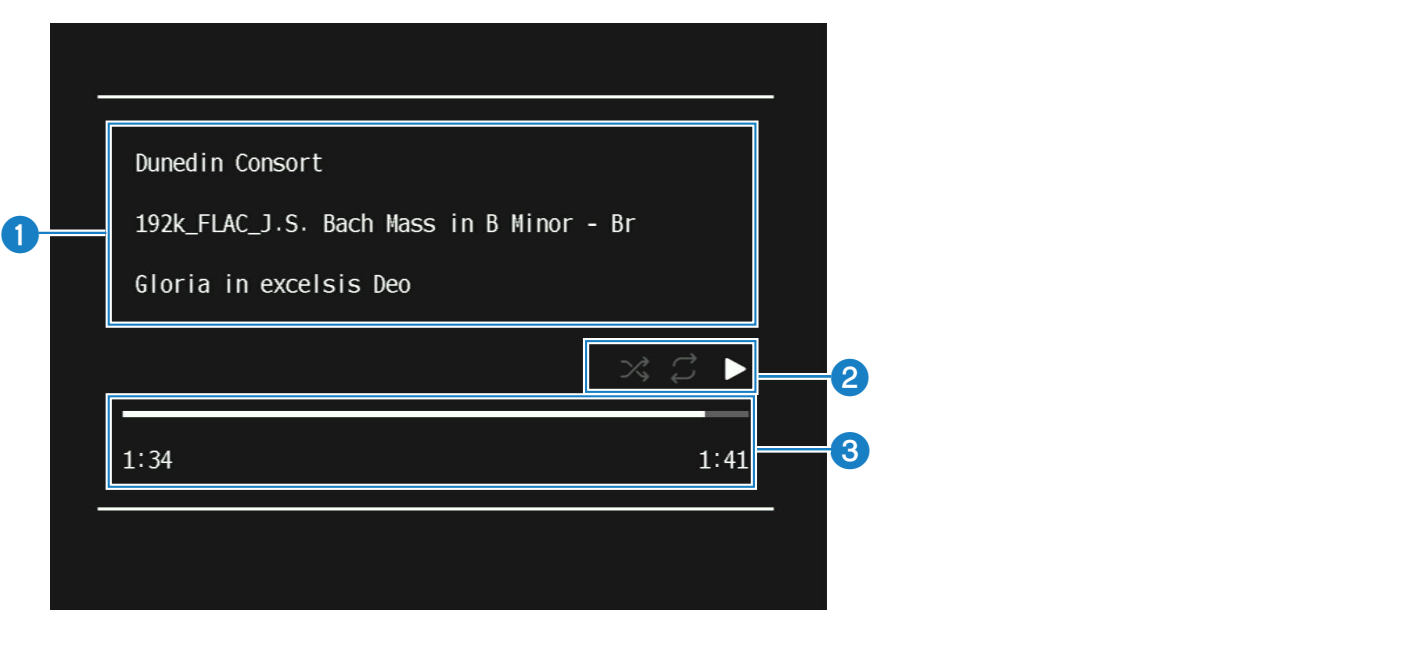
a | Music information The artist name, album name, and song name (track name) are displayed. |
b | Playback information Shuffle playback, repeat playback, and playback status (play/pause, etc.) are displayed. |
c | Progress bar and time The playback time, track length, and progress bar are displayed. |
- The information shown varies depending on the content being played.
 RX300A