
Snapshot Integration with DME
5. Snapshot Integration with DME
5.1. SnapShot Linking Procedure
You can register a scene created with the Sound xR Image Controller to a Provisionare Design snapshot and recall it at the same time.
| Sound xR Image components cannot be registered in a Parameter Set. |
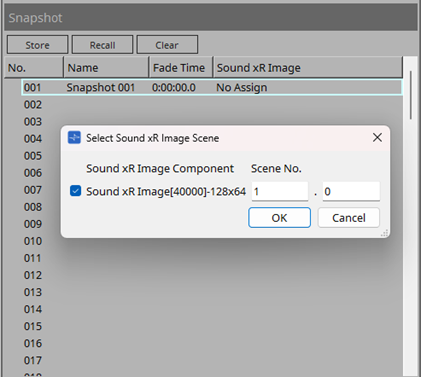
Register a snapshot from Store of Snapshot.
Double-click the Sound xR Image column of the registered snapshot.
In the dialog that appears, register any Sound xR Image component and scene number.
When you click Recall, if a scene with the specified number is registered in the Sound xR Image, that scene will be recalled.
If the scene with the specified number is not registered in the Sound xR Image, nothing will be recalled for the Sound xR Image.
5.2. How to Change Number of In/Out of Placed Sound xR Image Component
Click on a placed Sound xR Image component.
From Property on the right side of the screen, click the Value column of Component > Form.
In the Sound xR Image dialog of Form, change the number of inputs and outputs to the desired number.
