


RECORDER menu
Record
Sets the recording source for recording to the microSD card.
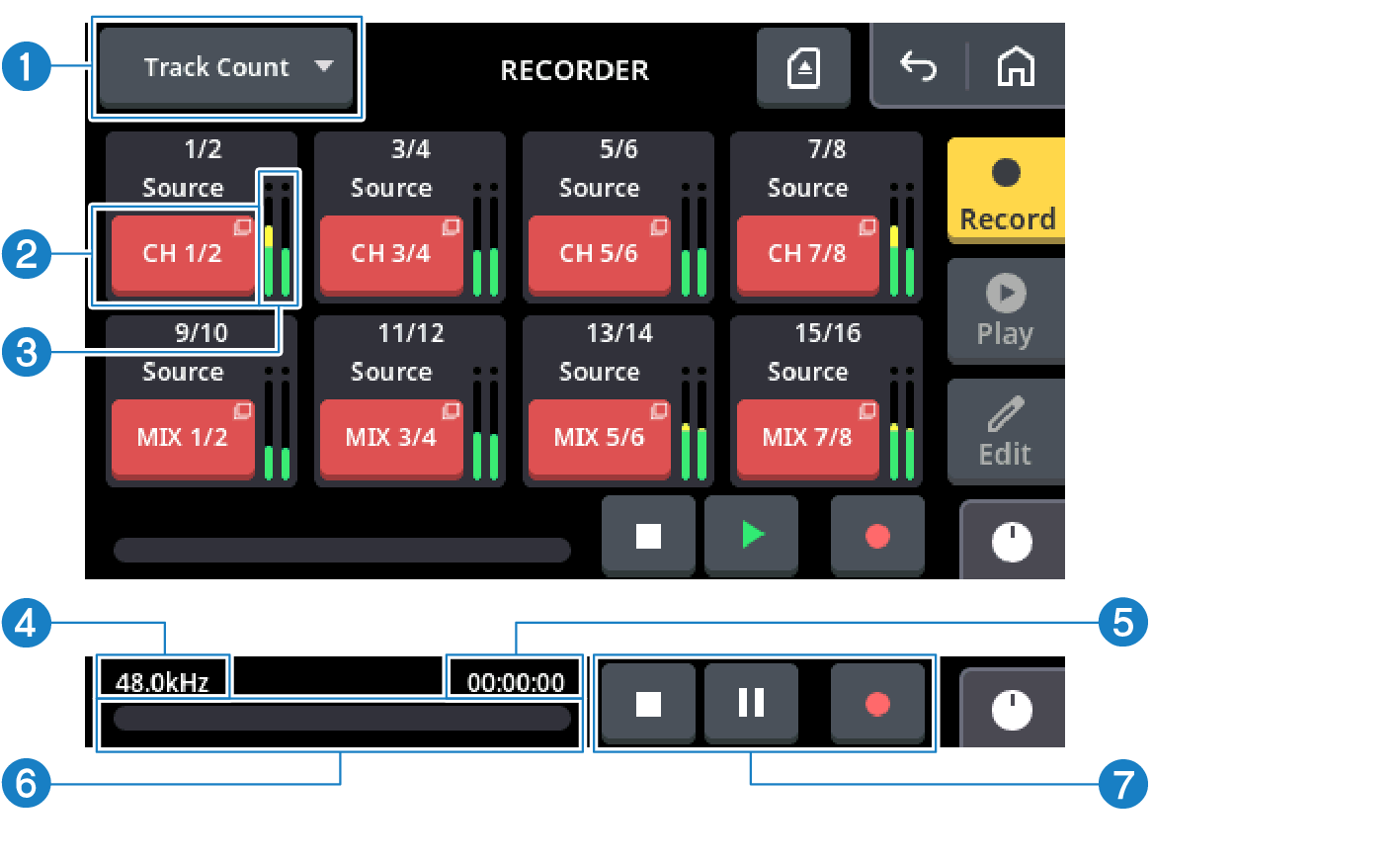
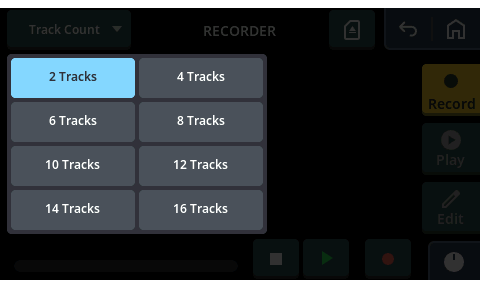
a | [Track Count] Select the number of tracks to record using the pulldown menu that’s shown, in groups of two tracks.
|
b | [Source] select button Touch this button to select the recording source from the screen that’s shown. |
- For purposes of copyright protection, audio that is protected by HDCP cannot be recorded to an SD card. Select “HDMI” for the input source of either input channel to output the HDMI audio to all output channels. If the HDMI input signal is HDCP-protected, the audio sent to the SD card from these channels is automatically muted.
c | Record source meter Shows the recording source level. |
d | Sampling frequency Shows the sampling frequency during recording (only while recording). |
e | Counter Shows the recording time. |
f | Progress bar Shows the remaining free space on the microSD card. |
g | Buttons used for recording
NOTE
|
 [
[ [
[ [
[Play
This menu is for selecting the recorded data or a file that supports playback, and operating the playback features.
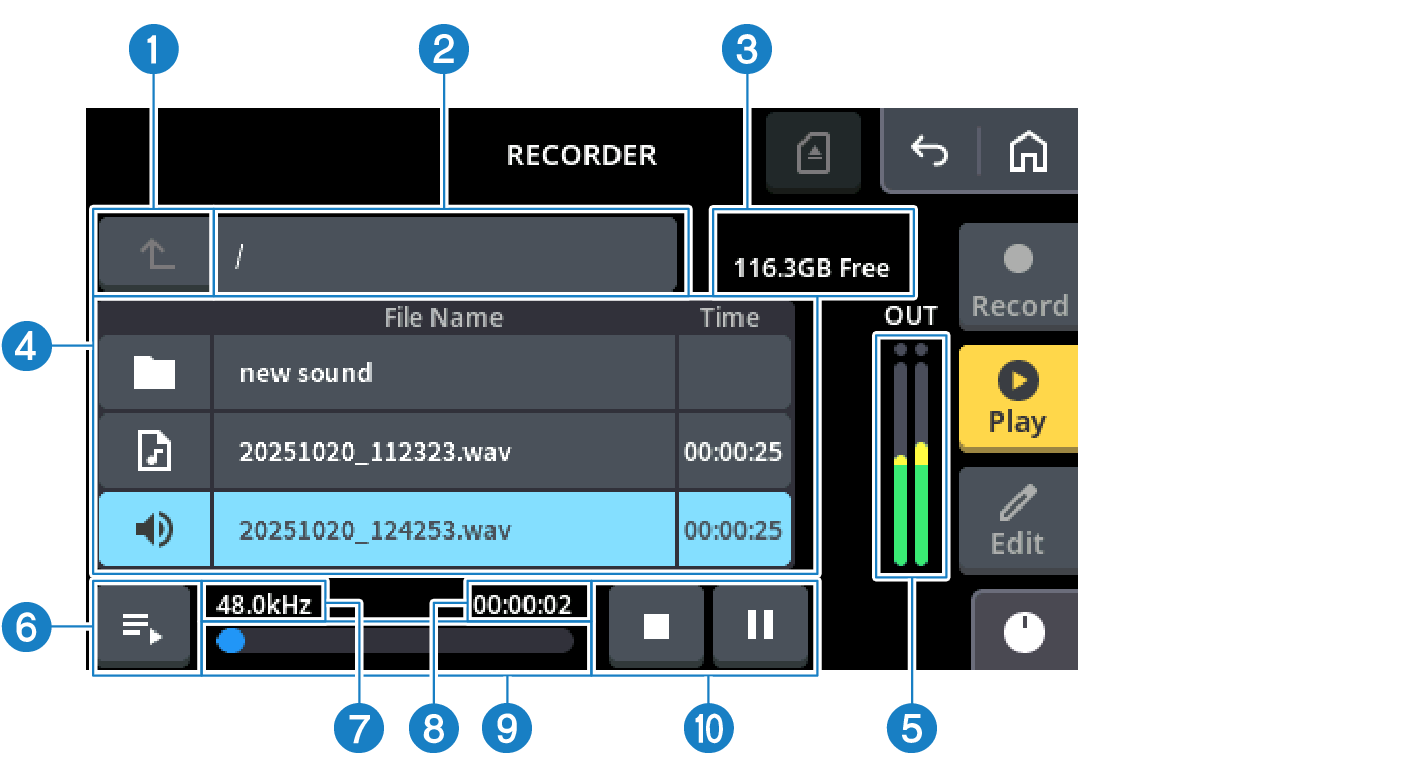
a | [ Moves to the topmost folder in the folder architecture on your microSD card. |
 ] button
b | Folder name display Shows the path from the root directory to the current folder. If the path name doesn’t fit in the display, it is shown from the end. |
c | Volume name/capacity display Shows the name of the microSD card and the remaining free space. |
d | List of files that can be played back Shows the files that can be played back in the selected folder, and the folder one level below. List icons
|
 : Folder one level below
 : Audio file that can be played back
 : Audio file now playing
- The number of the files in a folder should be limited to 128.
- Files can be played back if they meet the following conditions.
- 32-bit, 24-bit, and 16-bit stereo linear PCM audio files in WAV format
- Files with the same sampling frequency as used on this product
e | Meter Shows the meter in stereo for the audio that’s playing back. |
f | [ Touch this button to move the cursor to the file that’s playing back. |
 ] button
g | Sampling frequency display Shows the sampling frequency during playback (only while playing back). |
h | Counter Shows the playback time. |
i | Progress bar Gives a visual indication of the playback time for the file that’s now playing back. |
j | Buttons used for playback The buttons start, pause and otherwise control the playback.
NOTE
|
Edit
This screen is for editing the filenames on the microSD card and for deleting files.
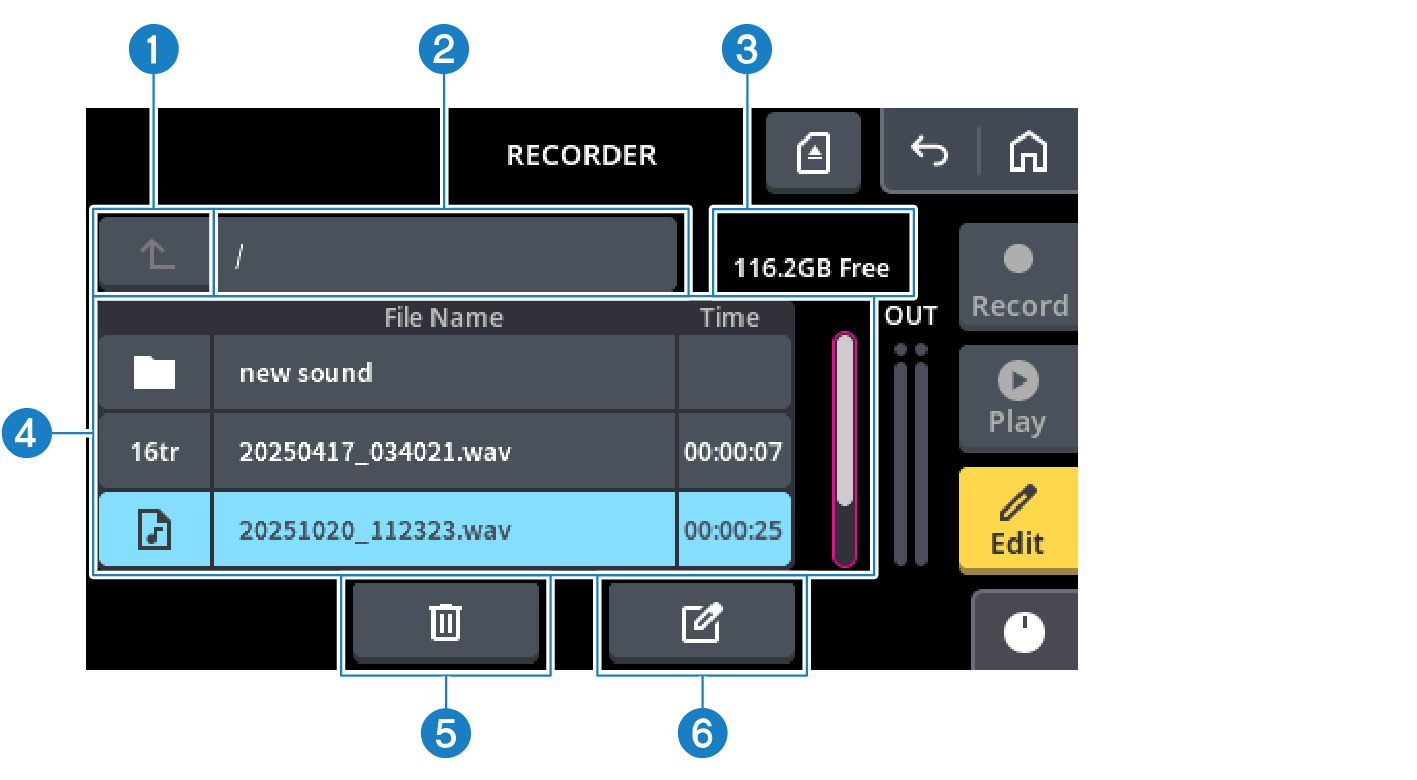
a | [ Moves to the topmost folder in the folder architecture on your microSD card. |
b | Folder name display Shows the path from the root directory to the current folder. If the path name doesn’t fit in the display, it is shown from the end. |
c | Volume name/capacity display Shows the name of the microSD card and the remaining free space. |
d | List of files that can be played back Shows the files that can be played back in the selected folder, and the folder one level below. List icons
4tr–16tr: Number of audio file tracks recorded on this product 44.1 kHz, 48 kHz: 4tr, 6tr, 8tr, 10tr, 12tr, 14tr, 16tr 88.2 kHz, 96 kHz: 4tr, 6tr, 8tr |
 : Audio file that can be played back
e | [ Deletes the selected file. |
 ] button
f | [ Edits the selected filename. |
 ] button
 MGX16V MGX16 MGX12V MGX12