


Registering to a MusicCast network
Connect the sound bar to the MusicCast network. At the same time, connect the sound bar to a wireless network.
To become a registered user of the MusicCast network requires the “MusicCast Controller” smartphone application. Search for “MusicCast Controller” (free) on the App Store or Google Play and install it.
Confirm that your smartphone is connected to your home router before operation.
- Start up the “MusicCast Controller” on your smartphone and tap “Setup”.

- If you have another already registered MusicCast device, tap the “Settings” tab and tap “Add New Device”.
- Follow the instructions in the “MusicCast Controller” and hold down the INPUT/CONNECT button on the sound bar for 5 seconds or longer.
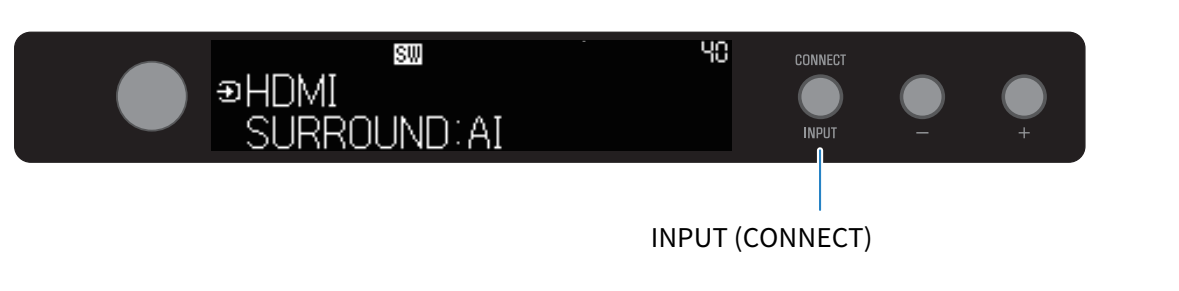
- The
 (wireless LAN) icon starts to flash when entering the registration mode.
- Connect and set up the MusicCast network according to the “MusicCast Controller” instructions.
- This completes your MusicCast network registration.
NOTE
- The sound bar cannot be connected to a wireless LAN router (an access point) if they are far apart. In such a case, install the sound bar and wireless LAN router (access point) close to each other.
- To make a wireless connection to the network, get a wireless LAN router SSID (access point) and set a security key.
- MusicCast Controller screens and menu names are subject to change without notice.
 TRUE X BAR 90A (SR-X90A)