
Connecting to Your Instrument
Follow the steps below to connect the instrument by using the Connection Wizard in Smart Pianist.
NOTICE
All settings on the instrument are replaced by the settings on Smart Pianist when the instrument is connected to Smart Pianist. While Smart Pianist is connected to the instrument, playing the keyboard is the only operation that can be done on the instrument. Use Smart Pianist to control the instrument.
1. Check which model or OS of smart devices can be used.
• iOS/iPadOS: Refer to the Smart Pianist Information on the App Store by searching for it on your smart device.
• Android: Refer to “List of Android devices confirmed to work with Smart Pianist.“
2. Refer to “Setting Up for Connection with Smart Pianist” and select a connection type, and then prepare the necessary connections.
3. Install Smart Pianist on your smart device.
4. Start Smart Pianist on your smart device.

NOTE
・When connecting via Bluetooth, we recommend that you first connect to a Bluetooth Audio-compatible instrument using Bluetooth Audio before starting Smart Pianist. This is because the Connection Wizard covers only Bluetooth MIDI. For details on the Bluetooth Audio connection, refer to the Owner's Manual of your instrument.
・Even when connecting by both Bluetooth MIDI and Bluetooth audio, some functions, such as audio recording, are not available. To enable use of all functions, please connect using a method other than Bluetooth.
5. Tap  (Menu) at the upper left on the display to open the menu.

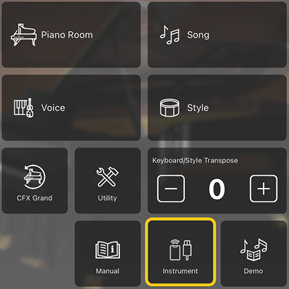
6. Tap [Instrument] to call up the Connection display.

7. Tap [Start Connection Wizard] at the center bottom.

8. Follow the instructions of the Connection Wizard to connect the instrument and the smart device. If the connection is successful, the model name appears in Connection Status with a check mark on the left.

 (Menu) to start using Smart Pianist. You can also check the connection status by the color of
  (instrument) displayed in the upper left of each display. (Green: Connected, White: Disconnected)
◆ Disconnecting the instrument
You can disconnect the instrument from Smart Pianist by closing the app on the smart device. Even if Smart Pianist is disconnected, you can use the instrument with the settings you’ve made on the app maintained until the power of the instrument is turned off.