
6. Drum Tracks
There are seven Drum tracks: KICK, SNARE, CLAP, HAT 1, HAT 2, PERC 1, and PERC 2. You can produce beats by operating the corresponding Track knobs and Drum keys.
6.1 Entering Steps
Press a Drum Track knob to select the Drum track you want to edit. Press a Drum key to turn that step on/off.
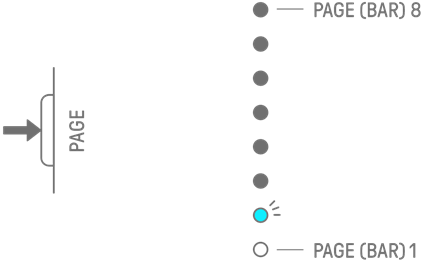
6.2 Switching Pages
Up to 16 steps of a pattern can be displayed on the Drum keys at the same time. This is called a page. If a pattern is 17 or more steps in length, you can switch pages.
To switch pages, press the [PAGE] button, or turn the [ALL] knob while holding down the [PAGE] button. The current page is indicated by a flashing cyan blue on the Global Meter.
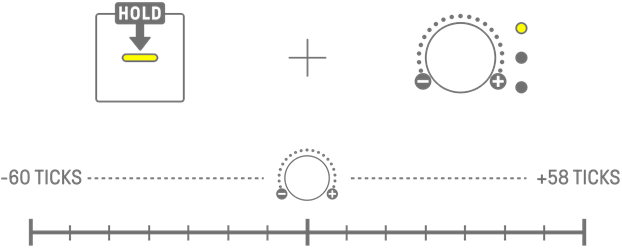
NOTE
・ To change the length of a pattern, see “5.2 Changing the Length of a Pattern.”
6.3 Fine-tuning the Rhythmic Timing of a Step (Micro Timing)
Hold down a Drum key that is on and turn a Track knob to fine-tune the rhythmic timing of that step. At this time, [MICRO TIMING] lights up on the index.
Rhythmic timing can be adjusted in a range from −60 ticks to +59 ticks.
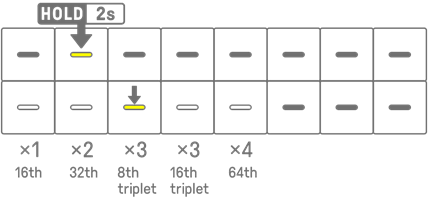
NOTE
・ Hold down multiple Drum keys simultaneously and turn a Track knob to adjust the rhythmic timing of multiple steps.
6.4 Setting the Consecutive Number of Times a Step is Triggered (Substep)
Triggering a single step multiple times is called a Substep. If you press and hold a Drum key that is on for 2 seconds or longer, five Drum keys light up for setting the Substep. You can select No Substep (default), two times, three times (8th note triplet), three times (16th note triplet), or four times.
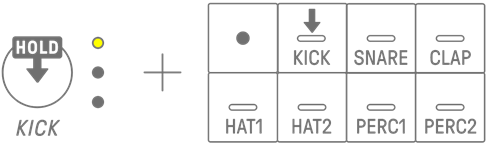
NOTE
・ If the Drum key for which you want to set a Substep is on the upper row, five Drum keys on the lower row will light. If it is on the lower row, five Drum keys on the upper row will light.
6.5 Real-time Input
Hold down one of the Drum Track knobs and press a Synth key to enter Real-time Input mode. In Real-time Input mode, the Synth keys can be used to play Drum tracks in real time. Use the same procedure to exit from Real-time Input mode.
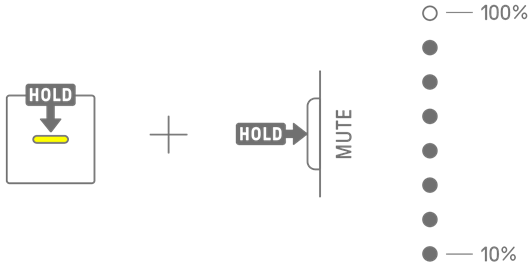
When in Real-time Input mode, press the Record key to start recording. You can record the sounds (note) of the Drum tracks for the Synth keys you press. While recording, the Record key flashes in red and the pattern is displayed on the Drum keys.
NOTE
・ When the power is turned off, Real-time Input mode is automatically disabled.
・ When a count-in is set, the count-in will be played before recording begins.
・ Tracks with a track type of DrumKit or Synth do not produce sound.
6.6 Changing the Probability of Triggering a Step
The probability of triggering the steps of a Drum track can be selected from 8 levels. Hold down a Drum key that is on and press the [MUTE] button to reduce the probability of triggering that step by one level. At this time, the probability of triggering that step is indicated by the number of lights on the Global Meter.
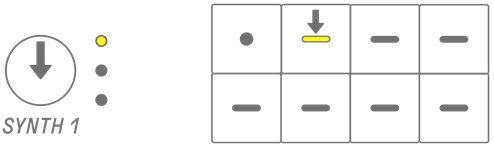
Hold down multiple Drum keys that are on and press the [MUTE] button to reduce the probability of triggering those steps by one level.
NOTE
・ If the probability for triggering a step is changed when it is at the minimum level, it moves to the maximum level.
・ When multiple steps are changed at the same time, the Global Meter indicates the highest probability level.
6.7 Changing the Track Types [OS V2.00]
This allows you to change the track type of a Drum track among three available types: Drum, DrumKit, and Synth.
Type1: Drum (default)
Each Drum track is assigned a single drum sound, and you can input sequences using the Drum keys. This is the basic track type that has been included in previous versions.
Type 2: DrumKit
You can assign a Drum sound to the seven Synth keys and play it.
Immediately after switching to DrumKit, each Synth key is assigned the Drum sound at the top of the following sound categories. Step Input mode is always enabled.
Synth key | Sound Category |
1 | KICK |
2 | SNARE |
3 | CLAP |
4 | CLOSED HIHAT |
5 | OPEN HIHAT |
6 | TOM |
7 | SHAKER/TAMBOURINE |
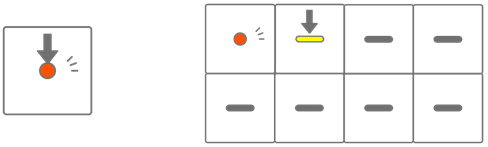
For operating instructions, refer to “8. SAMPLER Track.”
For assignable drum sounds, refer to Drum Sound in the Sound List of the Data List.
NOTE
・ Synth sounds, DX sounds, and SAMPLER sounds cannot be assigned.
・ In a DrumKit, only the waveform of each Drum sound is used. Therefore, even if you assign a Drum sound that has been edited and saved, any edited parameters (such as filter, pitch, etc.) will not be applied.
Type 3: Synth
You can turn a Drum track into an AWM2 Synth sound, effectively expanding the Synth tracks. For example, you could set the KICK track to Full Concert Grand (piano sound) and the SNARE track to Violin (violin sound), and then play them using the Synth keys.
For operating instructions, refer to “7. Synth Tracks (SYNTH1, SYNTH2, DX).”
Procedure for changing the track type
1. Press and hold the Drum Track knob for the track you want to change. Drum keys 9 to 11 will light up (9 = Drum, 10 = DrumKit, 11 = Synth).
2. While holding down the Drum track knob, press and hold the Drum key corresponding to the type you wish to change for five seconds. At this point, the global meter will gradually flash, showing the progress of the type change.
3. When the corresponding Drum key lights up in purple, the type change is complete.
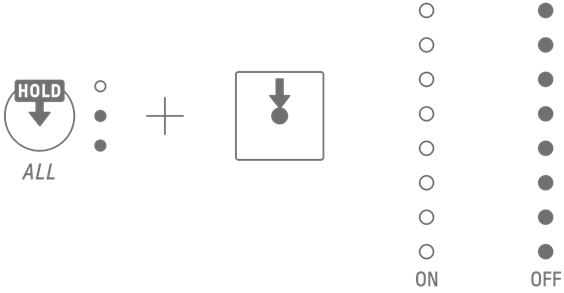
NOTICE
・ When the track type is changed, the sequence data input to the target Drum track will be deleted.
NOTE
・ The track type cannot be changed during project playback.