


Updating the firmware via a network
NOTICE
- Do not operate the sound bar or unplug the power cord or network cable while updating the firmware. In the unlikely event that this process is interrupted, it may not be possible to use the sound bar. In that case, you may have to take it in to have it repaired.
Update using the application
If you are using the MusicCast Controller smartphone application, it will notify you when a firmware update becomes available.
Follow the app screen instructions to update the firmware.
Updating from the Setup menu
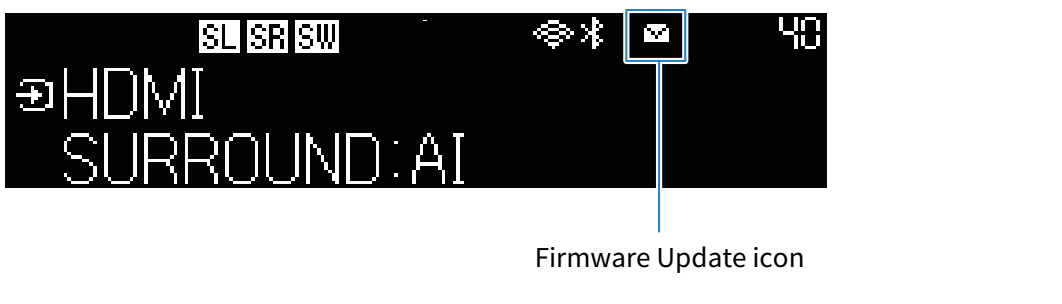
If the sound bar is connected to the Internet, when the sound bar is ready to update to new firmware, the  (Firmware Update) icon on the front display will glow.
In the situation described above, press the ~ (Setup) key and the following message will appear.
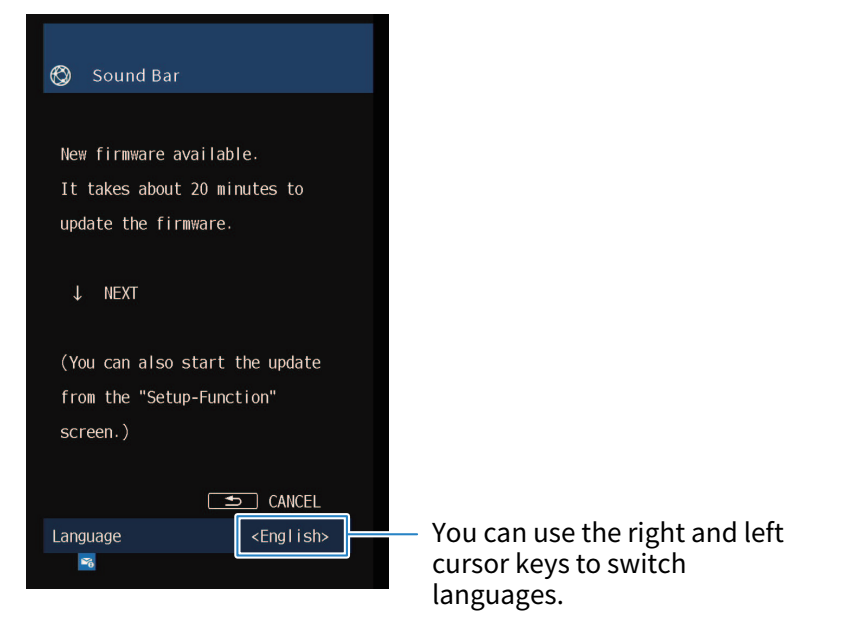
In that screen, follow the following instructions to update the firmware.
- Read the instructions on the screen and press the bottom cursor key.
- The following screen appears.
- Check the information on the screen and press the ENTER key.
- The TV screen clears and the firmware update starts.
- When the message “UPDATE SUCCESS PLEASE POWER OFF!” appears, press the power button on the sound bar.
- This completes the firmware update.
NOTE
- A firmware update takes about 20 minutes.
- If your Internet connection is not fast enough or you are using a wireless network, you may not receive notice of a firmware update. In such a case, it may be better to use a USB flash drive to update the firmware.
- After the firmware of the sound bar has been updated, the firmware of the wireless speakers may be updated automatically.
The firmware is updated when the power is turned off
If you are currently unable to update firmware, make a reservation and the update will be performed the next time the sound bar is powered off.
Proceed as follows.
- Press the cursor down key instead of the ENTER key in step 2 of “Updating the firmware via a network”.
- Press the ENTER key in the next screen.
- A firmware update is reserved.
- If you schedule a firmware update, a message asking you to confirm whether you want to perform the update will appear on the front display when you turn off the power.
- Press the ENTER key to start the update. The power is automatically turned off when the update is complete.
NOTE
- After 2 minutes have elapsed since the update confirmation screen is displayed, the power will turn off without updating.
- Press the - (Return) key to cancel the update and the power is turned off.
- When the sound bar is turned off by the MusicCast Controller, the power is turned off without updating the firmware.
- After the firmware of the sound bar has been updated, the firmware of the wireless speakers may be updated automatically.
 TRUE X BAR 90A (SR-X90A)