


Connecting an AV device to the TV’s HDMI input jack
- Before connecting devices, be sure to read the following precautions.
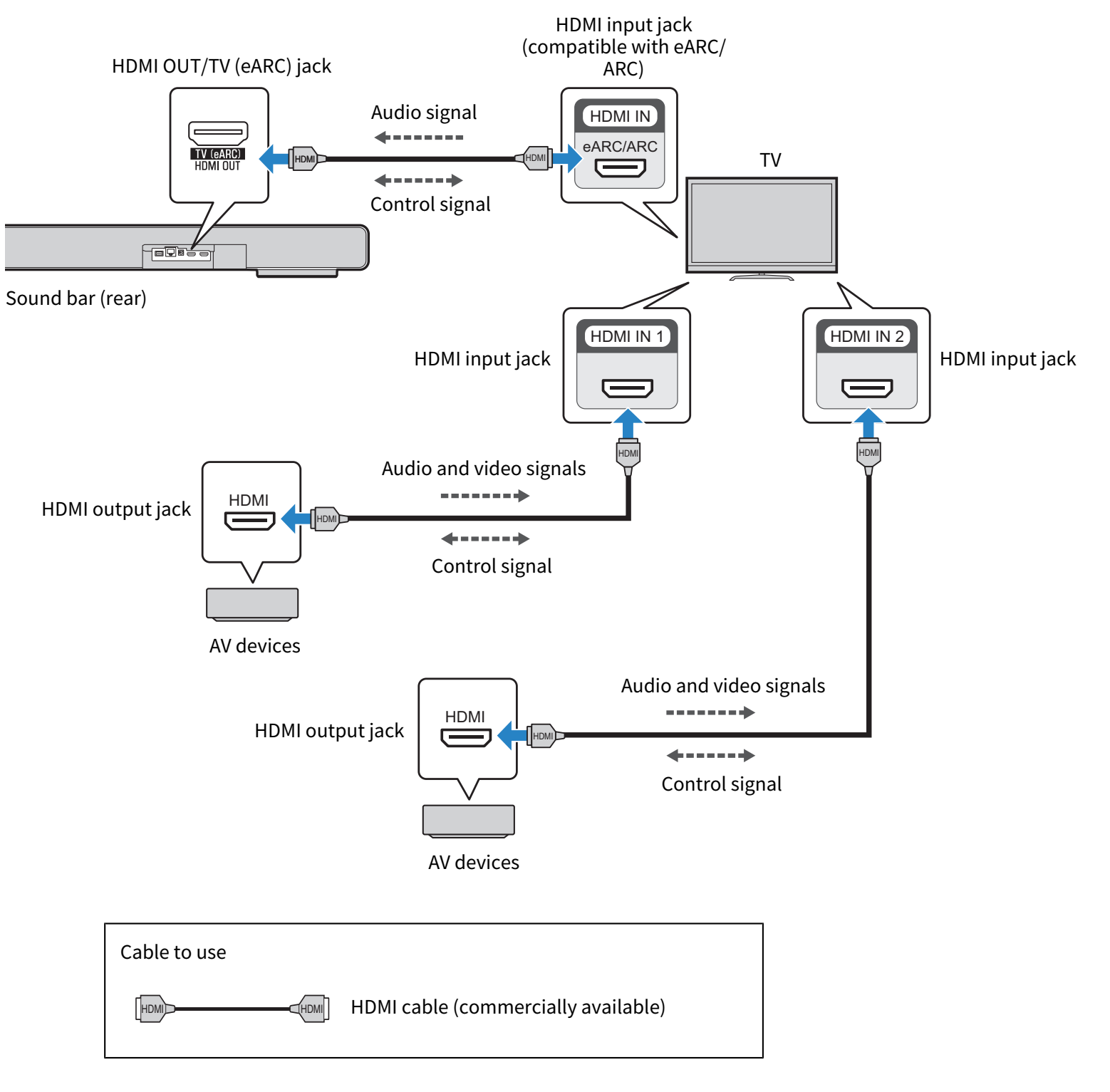
Connect AV devices (such as Blu-ray Disc players or set top boxes) to the TV using an HDMI cable (commercially available) to play music from the sound bar. Use this method to connect multiple AV devices for playback.
Depending on your TV, the high-definition audio signals input from the AV device may be converted to other audio signals before transmission. In order to reproduce sound that makes the most of the characteristics of the audio signals output from the AV device, connect it to the HDMI IN jack on the sound bar.
NOTE
- To play audio from an AV device via the sound bar, set the input sources as follows:
- Sound bar input source: TV (HDMI OUT/TV (eARC))
- TV’s input source: AV device playing the content
- ARC is an abbreviation for Audio Return Channel. By connecting the ARC-compatible HDMI input jack on the TV to the ARC-compatible HDMI output jack on the sound bar or an AV receiver via an HDMI cable, audio from the TV can be played on the sound bar or AV receiver without using an optical cable.
- eARC is an abbreviation for Enhanced Audio Return Channel. It is an extension of the ARC functionality and is capable of transmitting audio signals via a TV that ARC cannot transmit.
- When the sound bar is connected to an ARC-compatible HDMI input jack on the TV, turn On the HDMI Control function on the sound bar.
- Use a 19-pin HDMI cable with an HDMI logo.
- Use an HDMI cable that is as short as possible to prevent any degradation in signal quality.
- To use the eARC or ARC function, use an eARC/ARC-compatible HDMI cable such as an Ethernet-supporting High Speed HDMI cable.
- For playback of 3D and 4K Ultra HD video, use a Premium High Speed HDMI cable or a Premium High-Speed HDMI cable with Ethernet.
Next steps
- Cable connection to a network:
- Wireless connection to a network:
 TRUE X BAR 90A (SR-X90A)