


Configuring for Google Assistant
NOTE
- Currently available languages are English and French. The main or sub language setting on Google Assistant app must be set to the one of the available languages before use:
- Open the MusicCast Controller app.

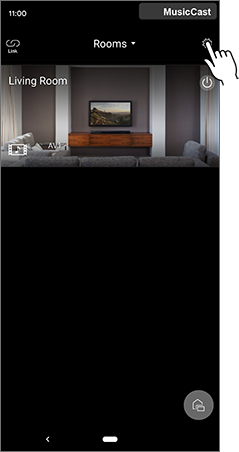
- Tap the settings icon on the home page to open settings.
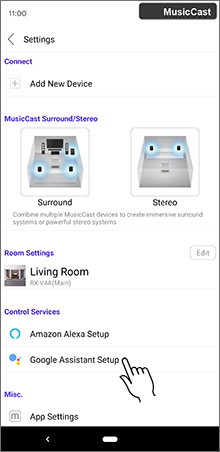
- Tap “Google Assistant Setup.”
- Tap “Start setup.”

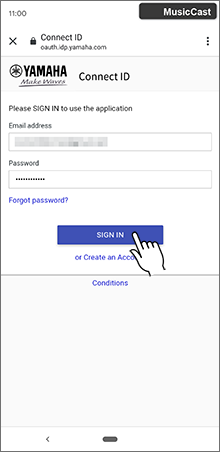
- Fill in the information for the Connect ID to be created, and then tap “SIGN IN.”
NOTE
- If you don’t have a Connect ID, create one before proceeding to the next step. To create a Connect ID, tap “or Create an Account,” and then refer to the section below.
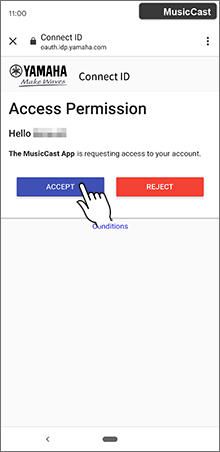
- Tap “ACCEPT.”
- Available device(s) will be listed. Tap “Start.”
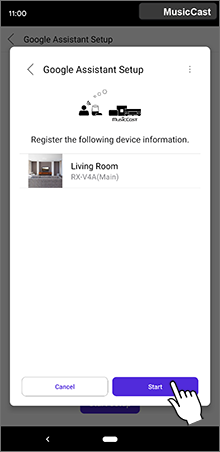
- Tap “Next.”
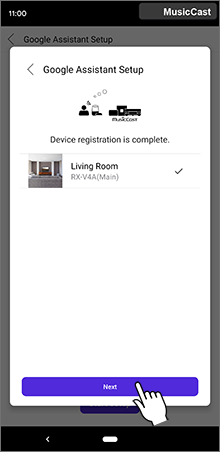
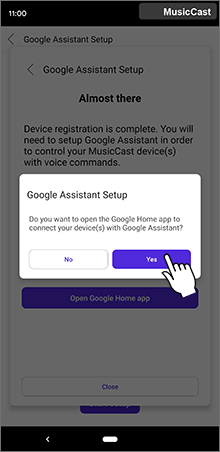
- Tap “Open Google Home app.”

- Tap “Yes.”
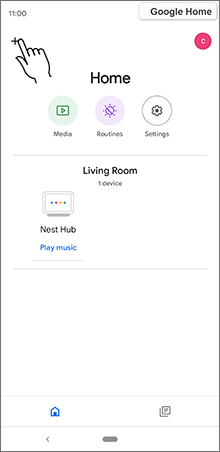
- Tap “+” in upper lefthand corner once the Google Home App opens.
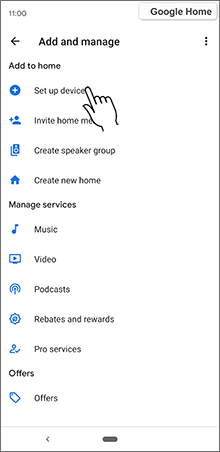
- Tap “Set up device.”
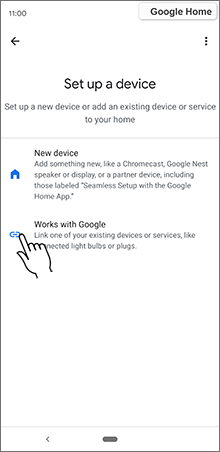
- Tap link icon under “Works with Google.”
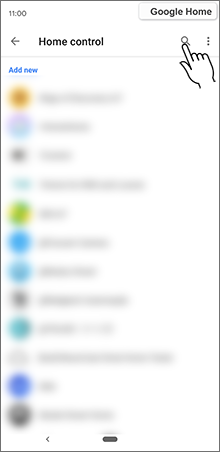
- Tap search (magnifying glass) icon.
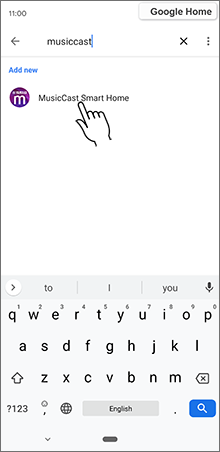
- Type “musiccast” in search window, then tap “MusicCast Smart Home.”
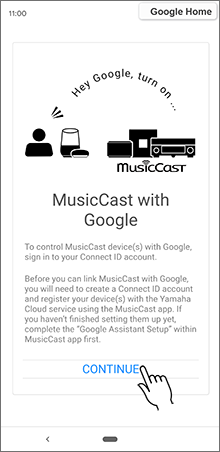
- Tap “CONTINUE.”
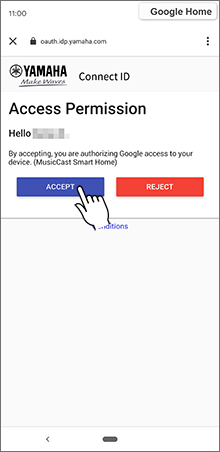
- Tap “ACCEPT.”
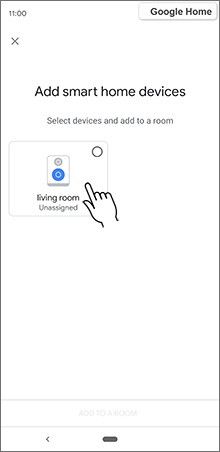
- Select available device(s).
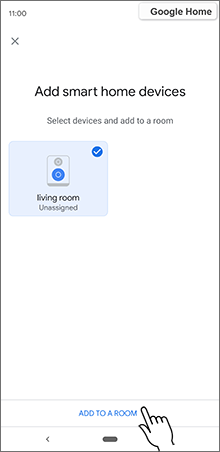
- Tap “ADD TO A ROOM.”
- Designate a room for the device.
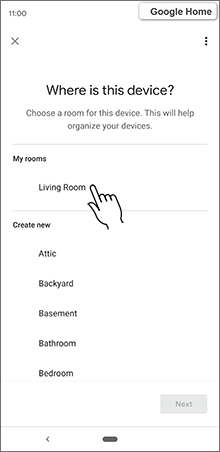
- Tap “Next.”
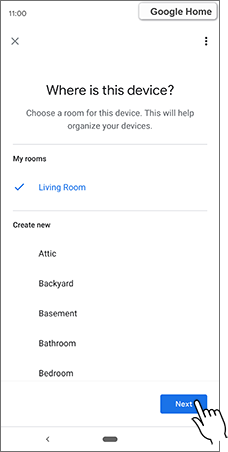
- The device is now assigned to the designated room.
- Tap ”DONE” to return back to Home page.
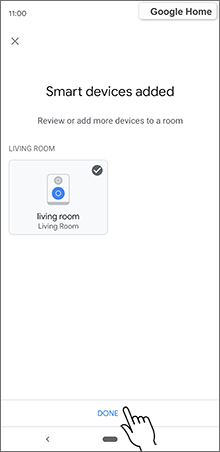
- The added device(s) will now be listed under the assigned room.
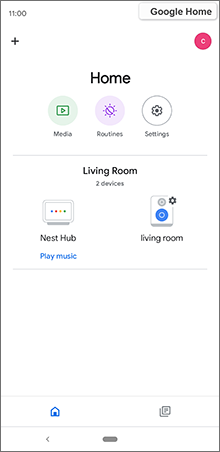
- This completes the setup.
 Google Assistant