


Operating panel
The following explains the names and functions of each component on the operating panel.
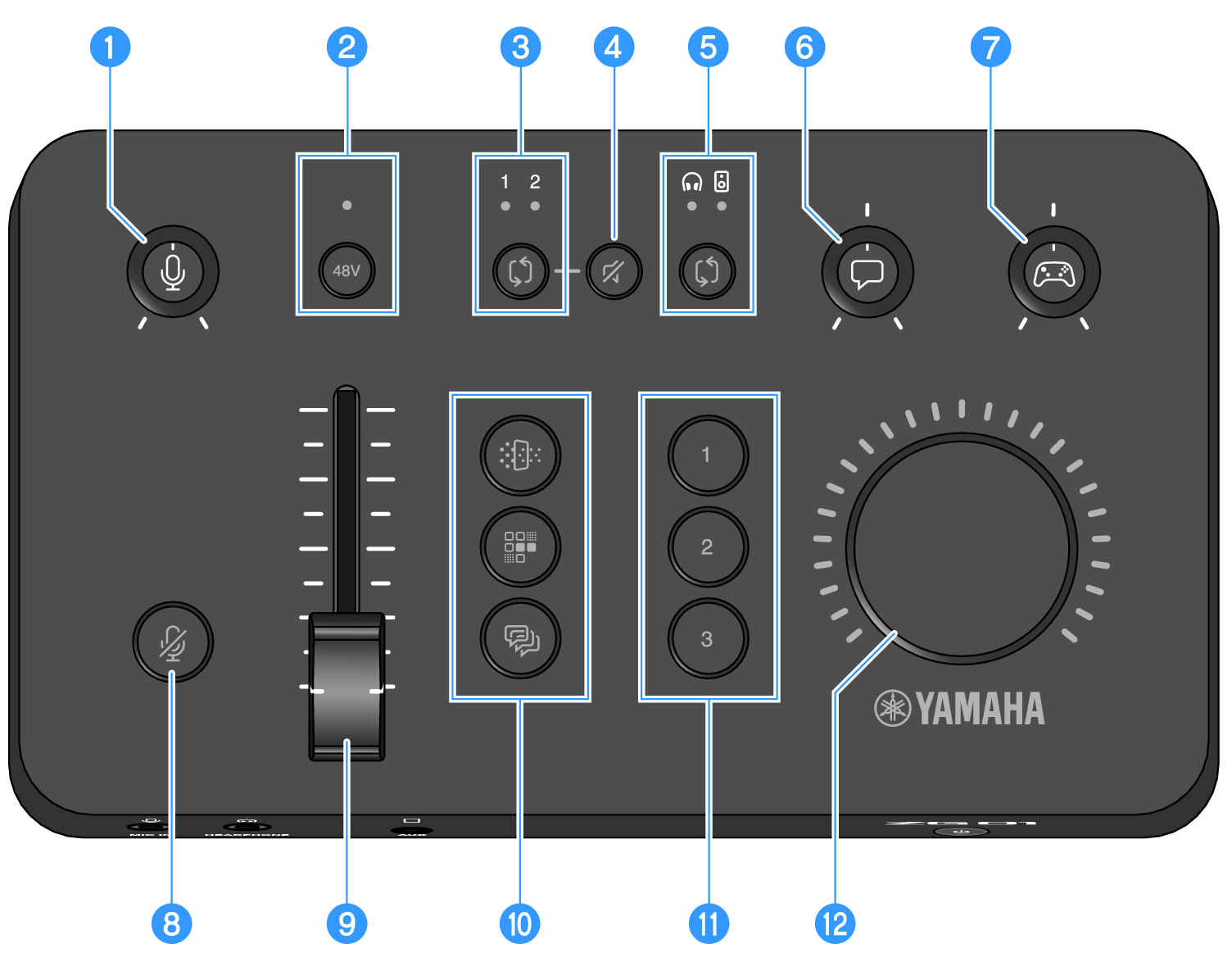
a | Mic gain [M] knob Sets the base level of the mic input. |
b | Phantom [48V] button/LED Switches the phantom power on/off. Hold down the button to toggle between on and off. When the switch is on, DC +48V phantom power is supplied to the mic connected via XLR to the [MIC IN] jack on the rear panel, and the LED will light. Turn this on when you are using a condenser mic. |
- Follow the important precautions below, in order to prevent noise and possible damage to this unit or to any external devices.
- Turn phantom power off when you don’t need it.
- Leave this switch off when you connect a device that does not support phantom power to the [MIC IN] jack on the rear panel.
- Do not connect/disconnect a cable to or from the [MIC IN] jack on the rear panel while this switch is on.
- Before turning the switch on/off, turn the a mic gain [M] knob all the way down and the h mic mute [m] button on.
c | HDMI select [b] button/LED Switches between [HDMI 1] and [HDMI 2] for HDMI input. The LED of the input you select lights up. |
d | HDMI mute [c] button Mutes the HDMI audio input. The button lights when the audio is muted. |
e | Monitor select [b] button/LED Switches the output destination (headphones or speakers) of the monitor audio. The LED of the selected output lights up.
|
 WARNING
f | Voice chat level [v] knob Adjusts the audio volume of the other party in the chat. |
g | Game sound level [g] knob Adjusts the audio volume of the game. Use this knob to adjust both the audio from home gaming devices connected via HDMI and the audio from computers that are connected via USB. |
h | Mic mute [m] button Mutes the mic audio. The button lights when the audio is muted. |
i | Mic level (fader) Adjusts the output level of the mic audio. |
j | Mic effect [f] [d] [e] buttons Adds effects to the mic audio. The button lights while effects are being applied. () |
k | Game effect [1] [2] [3] buttons Adds effects to the game audio and the audio from the party you're chatting with. The button lights when effects are turned on. () |
l | [VOLUME] knob Adjusts the volume of the headphones or the speakers that is selected with the e monitor select [b] button. The volume of the headphones and speakers are remembered separately. |
 ZG01
ZG01