


Basic operations
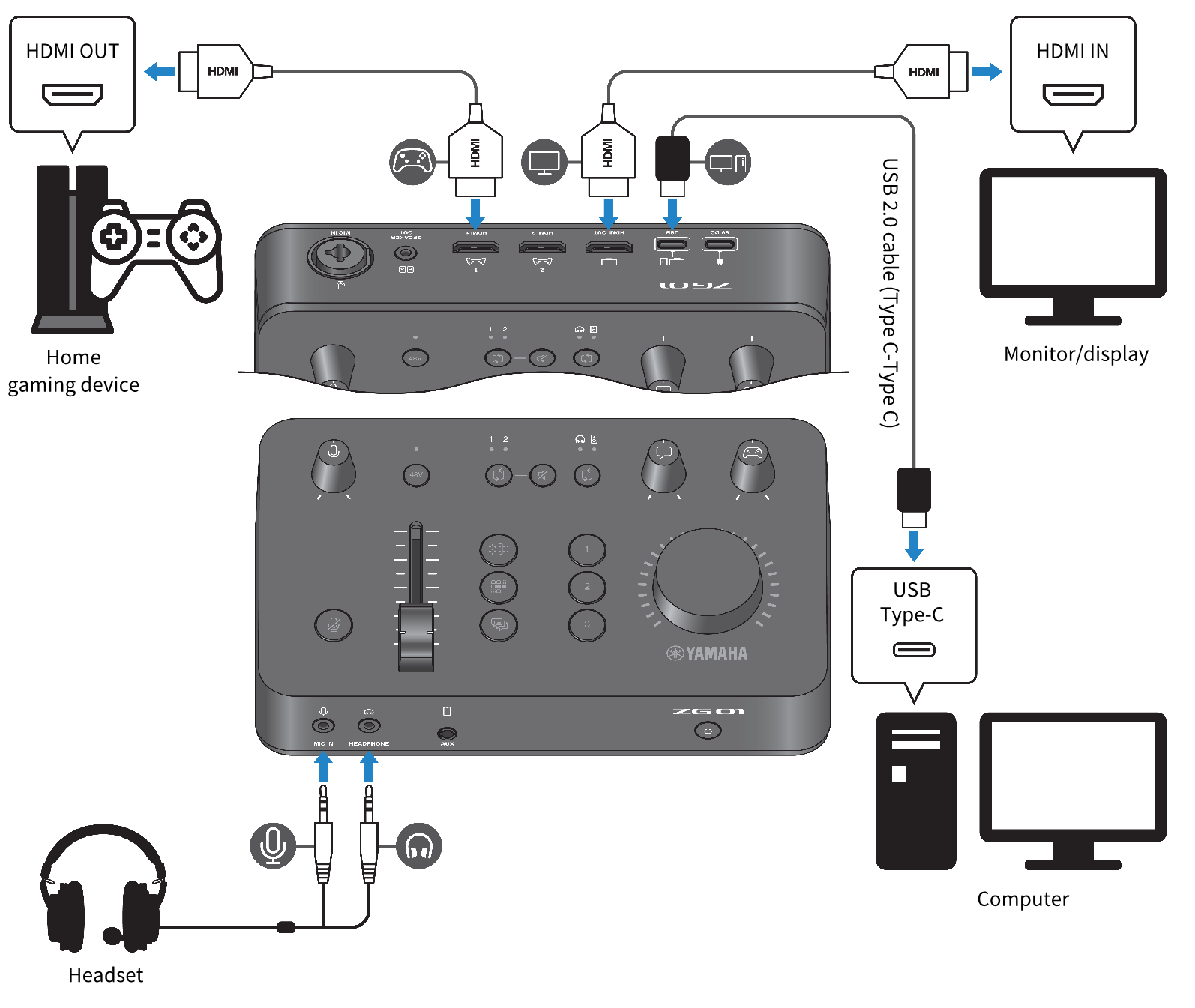
This explains the basic operations for holding a voice chat while playing back the audio from a game. This shows how to operate the unit when connected in the following way.
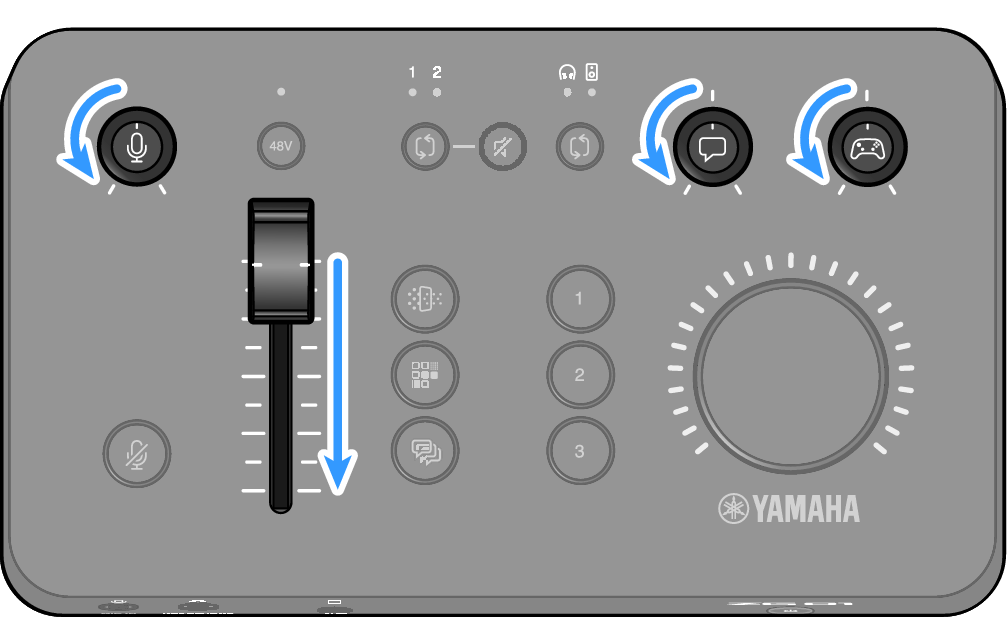
- Before turning on the power, turn all of the following knobs all the way down:
- Mic gain [M], mic level (fader), voice chat level [v], game sound level [g]
- Start up the computer.
- Install “TOOLS for ZG” on your computer beforehand.
- Turn on the ZG01.
- Press the [z] (standby/on) button.

NOTE
- To turn off the power (setting the unit to standby), hold down the [z] (standby/on) button for at least one second.
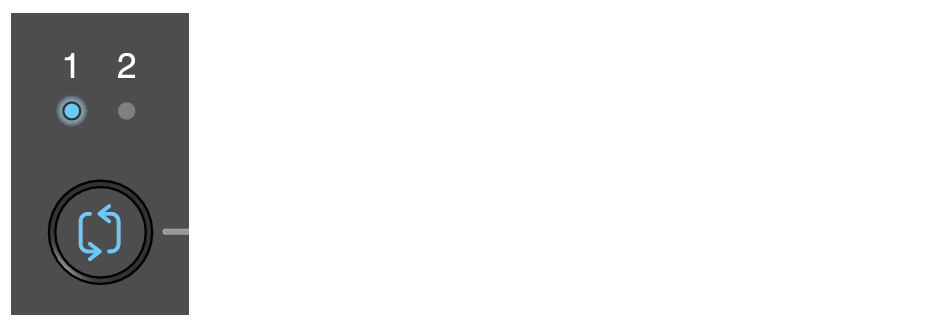
- Select the HDMI input.
- Press the HDMI select [b] button while checking the LED indicator. In this example, we’ve selected HDMI 1, which is where the gaming device is connected.
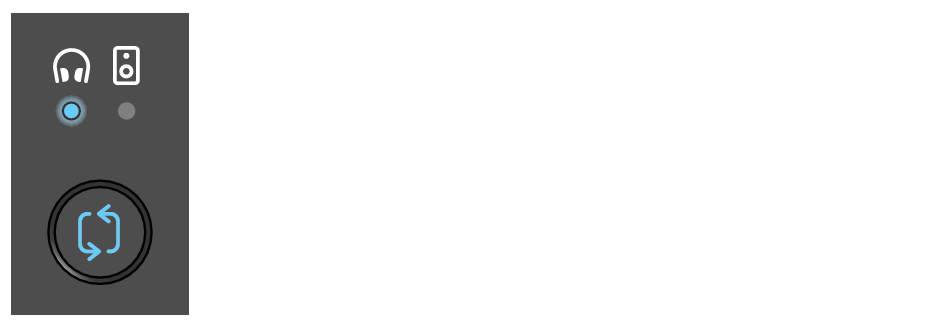
- Select the audio monitor destination.
- Press the monitor select [b] button while checking the LED indicator. In this example, we’ve selected the headphones.
- Adjust the input and output levels for the mic audio.
- Turn each knob to the positions shown in the figure. You’ll hear the sound coming through your headphones when you vocalize into your mic. Adjust the mic audio input level with the mic gain [M] knob, and adjust the mic audio output level with the mic level (fader) so that the levels are appropriate.
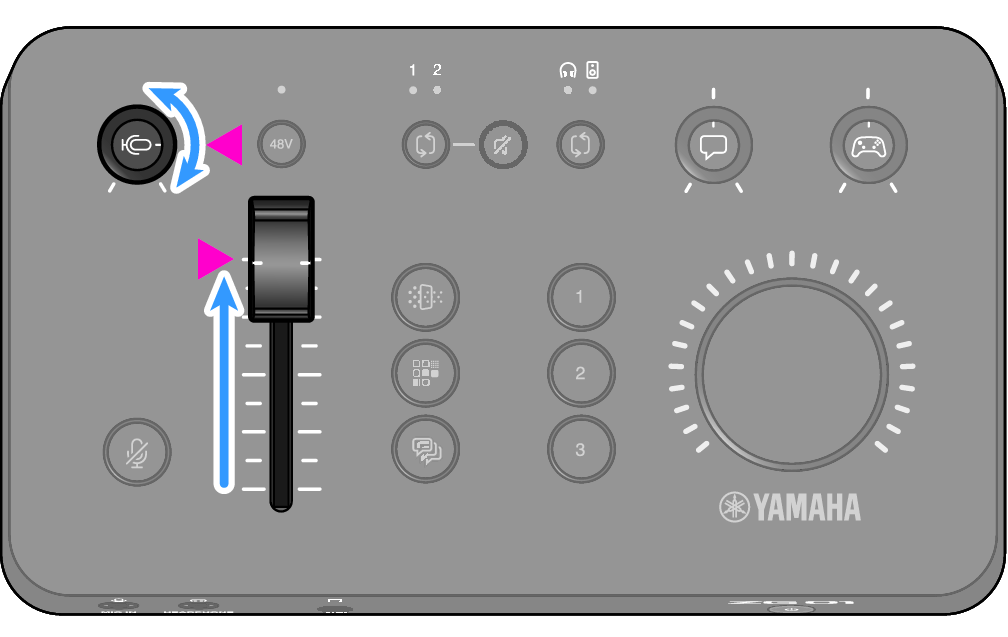
- You can use Yamaha ZG Controller to check the mic input/output levels. Adjust the input level (MIC LEVEL) and output level (OUT LEVEL) while checking the level meters on the “MIC SETTINGS” screen, so that the levels are within the “OK” range.

NOTE
- You can adjust the monitor volume for the mic audio heard through headphones with Yamaha ZG Controller. Adjust the “MIC MONITOR LEVEL” on the “HEADPHONE MONITOR SETTINGS” screen.
- Adjust the volume of the voice chat and game.
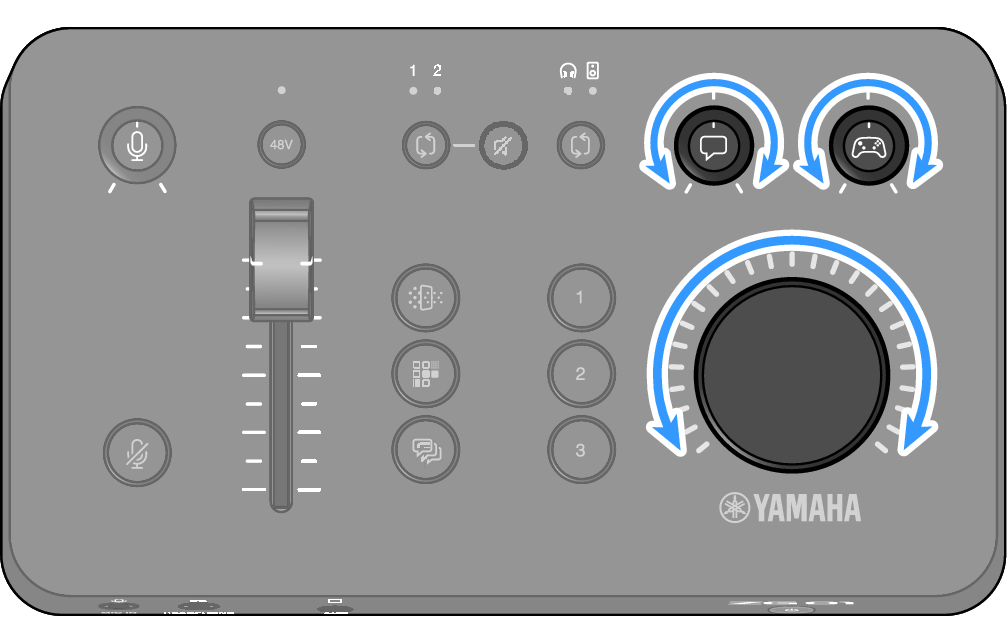
- While the voice chat and gaming device audio is being input, set the voice chat level [v] knob and game sound level [g] knob to the center setting, and turn the [VOLUME] knob to adjust the overall volume. Next, use the voice chat level [v] knob and the game sound level [g] knob to adjust the volume balance for each.
 ZG01
ZG01