

NAME/ICON EDIT popup window
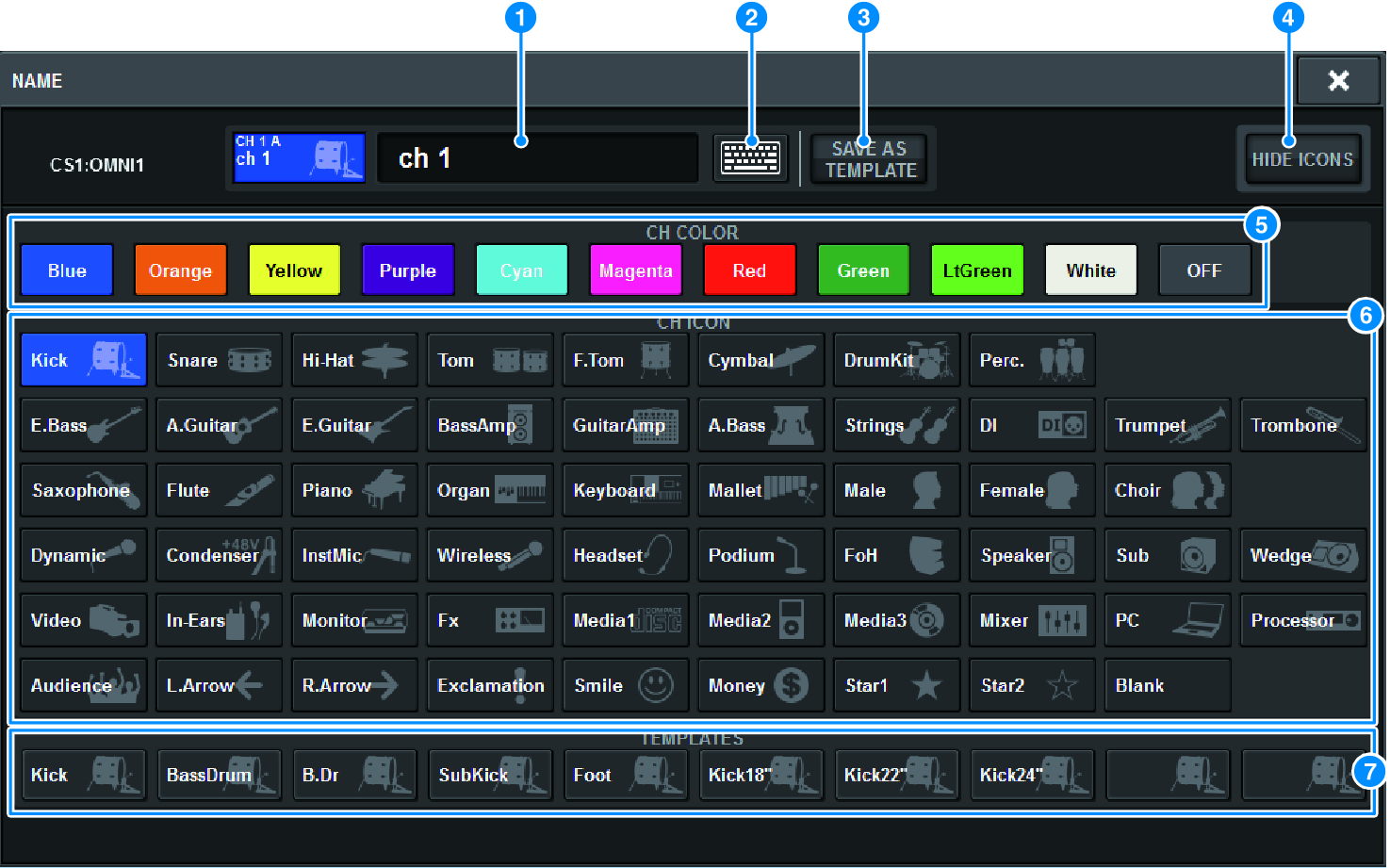
This window contains the following items.
a | Channel name edit box Displays the name of the channel that is currently selected for editing. You can also directly enter the name from the USB keyboard. |
b | Keyboard switch button Toggles between the keyboard window and CH COLOR/ICON popup window. |
c | SAVE AS A TEMPLATE button Turn this button on and press a template select button (7) to store the setting as a template. |
d | HIDE ICON button Press this button to hide the icon. |
e | Channel color select buttons Allows you to select a channel color. Pressing the button will immediately apply the change. If you select OFF, the channel color and icon will be grayed out. |
f | Icon select buttons Allows you to select a channel icon. Pressing the button will immediately apply the change. |
g | Template select buttons Allows you to selects a template. Pressing the button will immediately apply the change. |
- The channel to be operated can be changed by using the keyboard's TAB to move to the next channel and SHIFT + TAB to move to the previous channel.
 RIVAGE PM Series