


Assigning channels to a mute group (Selecting the channels that will belong to a specific mute group)
- Press the CH JOB button on the menu bar, and then select MUTE GROUP ASSIGN.
- When you select MUTE GROUP ASSIGN, the DCA/MUTE ASSIGN window (ALL MUTE) appears.
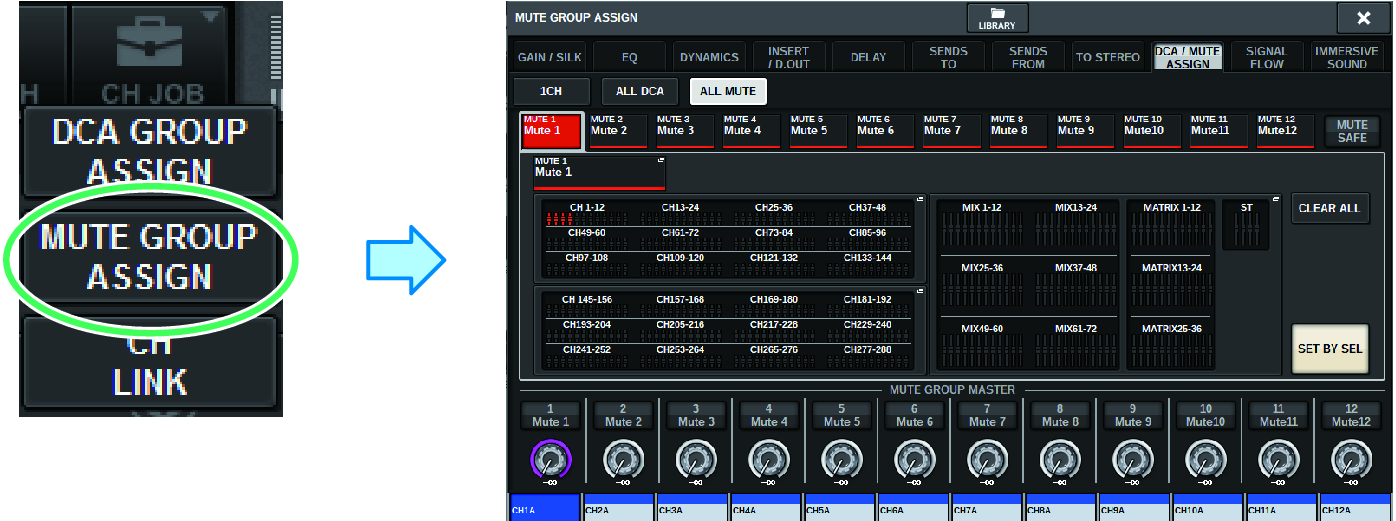
- Use the MUTE GROUP 1–12 buttons to select the mute group to which you want to assign channels.
- Press the [SEL] key for the input channels/output channels that you want to assign (multiple selections are allowed).
- The [SEL] keys of the assigned channels will light, and the corresponding channels will be highlighted in red in the mute group assign indication field. To cancel an assignment, press a lit [SEL] key once again to make it go dark.
- Assign channels to other mute groups in the same way.
NOTE
- You may assign a single channel to more than one mute group.
- When you finish assigning the channels, press the CLOSE button to close the popup window.
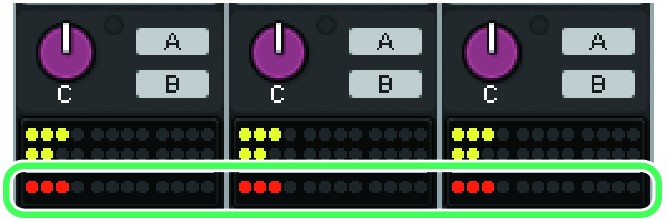
- You will return to the previous screen. The DCA/MUTE ASSIGN field of the OVERVIEW screen indicates the mute group(s) to which each channel is assigned. Indicators that are lit red in the lower line of this field indicate the mute groups to which that channel belongs.
NOTE
- You may assign a single channel to more than one mute group.
- If the dimmer level is set to any level other than –∞ dB, these indicators will light orange.
 RIVAGE PM Series