


SCENE LIST Screen
This screen is used to manage scenes with saved mixer settings.
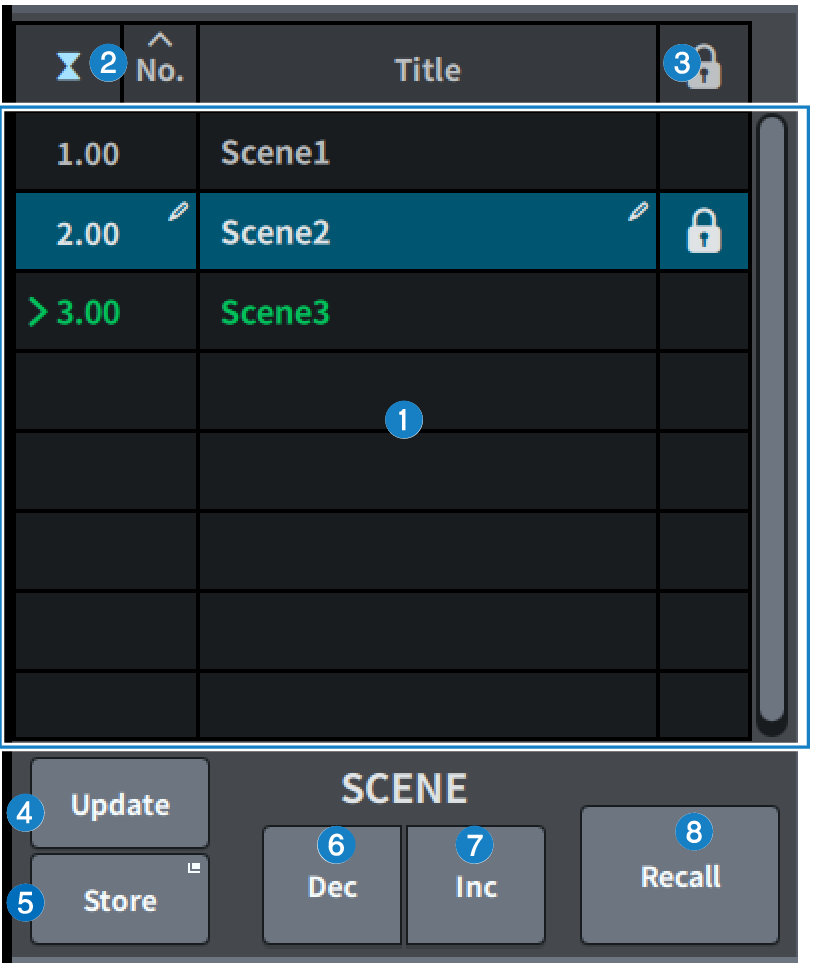
a | Scene list Displays scenes stored in memory. Press No. or Title at the top to sort. The scene highlighted in blue in the list is the currently selected scene. |
b | Current scene select button Press this button to select the scene that was recalled or stored most recently. The current scene is highlighted in green in the list. |
c | Protect (lock) symbol Displays the write protect enabled/disabled status. Press to write-protect the scene, and the button lights up. Press it again to cancel write protection. |
d | Update button Updates scene data by overwriting the scene (that has been recalled or stored most recently) with the current mix data. While the [SHIFT] key is held down, this changes to the Undo Update button. |
e | Store button Creates a new stores for the current mix data. Press to display the SCENE Store screen used to name and save the scene. |
f | Dec button Press this button to move back 1 from the currently-selected scene. While the [SHIFT] key is held down, this changes to the Undo Delete button. |
g | Inc button Press this to move forward 1 from the currently-selected scene. While the [SHIFT] key is held down, this changes to the Delete button. |
h | Recall button Press this button to recall the currently-selected scene. While the [SHIFT] key is held down, this changes to the Undo Recall button. |
 DM7 Series