


Switching the information screen on the front display
The information screen on the front display shows additional information on selected inputs.

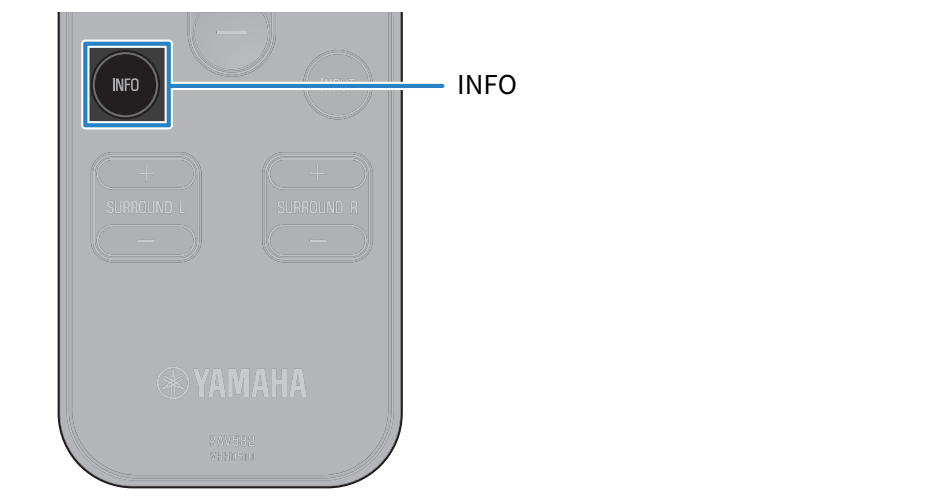
Press the INFO key on the remote control to open the information selection screen on the front display. Use the INFO key to switch between display screens. The bottom of displayed screens show information on displayed items.
Displayed screens vary with input.
Input | Displayed screen | |
|---|---|---|
HDMI TV OPTICAL | Sound mode, audio decoder, output channel, HDMI status, system status | |
NET (network) type input | SERVER Amazon Music AirPlay | Played back track, played back artist, played back album, IP address, MAC address (Ethernet), MAC address (Wi-Fi), sound mode, audio decoder, output channel, HDMI status, system status |
NET RADIO | Broadcasting station, IP address, MAC address (Ethernet), MAC address (Wi-Fi), sound mode, audio decoder, output channel, HDMI status, system status, played back track, played back album | |
Spotify | Information, played back track, played back artist, played back album, IP address, MAC address (Ethernet), MAC address (Wi-Fi), sound mode, audio decoder, output channel, HDMI status, system status | |
Deezer Qobuz TIDAL Connect | Played back track, played back artist, played back album, IP address, MAC address (Ethernet), MAC address (Wi-Fi), sound mode, audio decoder, output channel, HDMI status, system status | |
MusicCast Link | Sound mode, audio decoder, output channel, HDMI status, system status, IP address, MAC address (Ethernet), MAC address (Wi-Fi) | |
SiriusXM* | Played back track, played back artist, played back channel, IP address, MAC address (Ethernet), MAC address (Wi-Fi), sound mode, audio decoder, output channel, HDMI status, system status | |
Pandora* | Played back track, played back album, broadcasting station, IP address, MAC address (Ethernet), MAC address (Wi-Fi), sound mode, audio decoder, output channel, HDMI status, system status | |
Bluetooth | Played back track, played back artist, played back album, sound mode, audio decoder, output channel, HDMI status, system status | |
- U.S.A. and Canada models only.
- These services may not be available in some regions.
- The front display returns to normal display after 5 seconds of inaction.
- The front display example shown here is an English screen.
Sound mode
The selected sound mode (SURROUND:AI/3D MUSIC/STEREO/STRAIGHT/ALL) is displayed.
Audio decoder
Name of CODEC and decoder is displayed.

Output channels
The channel of output sound and level meter are displayed.
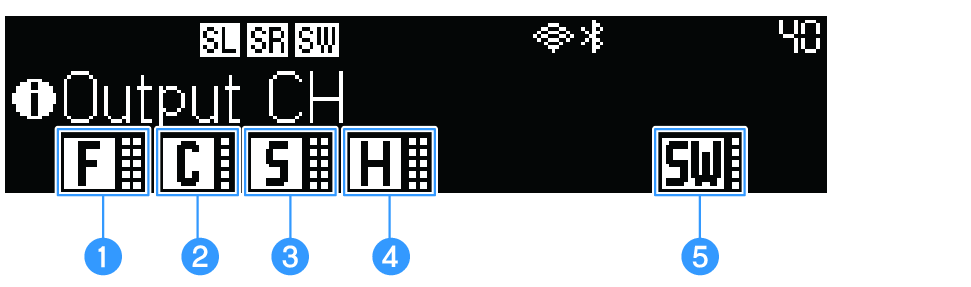
a | Front speaker, front left and right level meters
|
 glows when sound is output from the front speakers.
 shows audio levels for the right and left speakers.
b | Center speaker, center level meter
|
 glows when sound is output from the center speaker.
c | Surround speakers, surround L/R level meters
|
 glows when sound is output from the surround speakers.
d | Height speakers, height left and right level meters
|
 glows when sound is output from the height speakers.
e | Subwoofer, subwoofer level meter
|
 glows when sound is output from the subwoofer.
An underline is displayed if no sound is output.
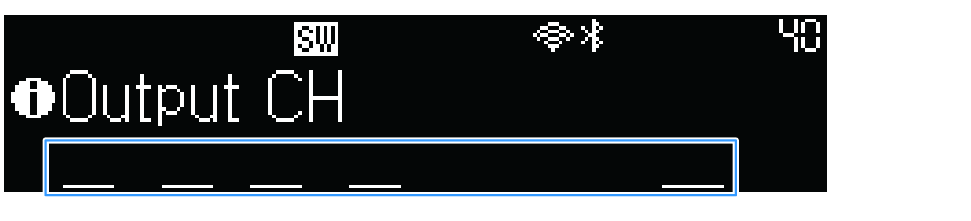
If the surround speakers and the subwoofer are not registered, no underline is displayed.

HDMI status

Indicates whether an input or output signal has been made to the HDMI IN, HDMI OUT/TV (eARC) jack.
 : HDMI input
 : HDMI output
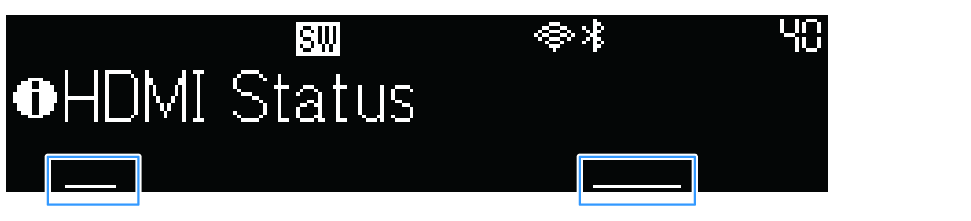
An underline is displayed if no sound is output.
System status
Indicates the functional status of the overall system.
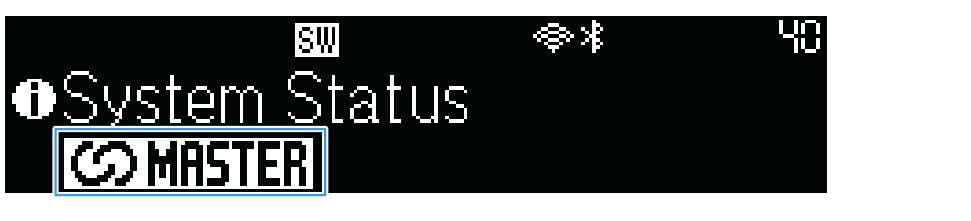
 : Glows when operating as the parent unit of the MusicCast network (and is the link master).
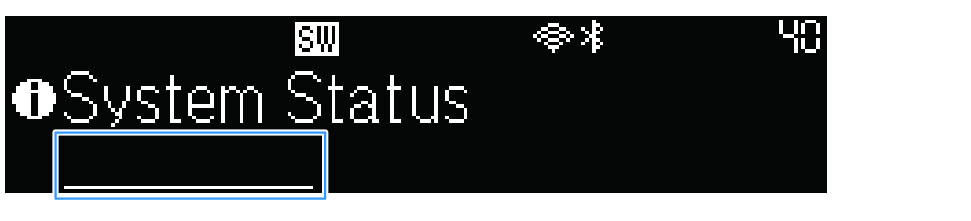
An underline is displayed if it is not the link master.
Short messages
Short messages are displayed during sound bar operations, for example, when selecting inputs or adjusting the volume.
When the operation is completed, the message disappears after a few seconds.
The following figure is an example of a message made during volume adjustment.
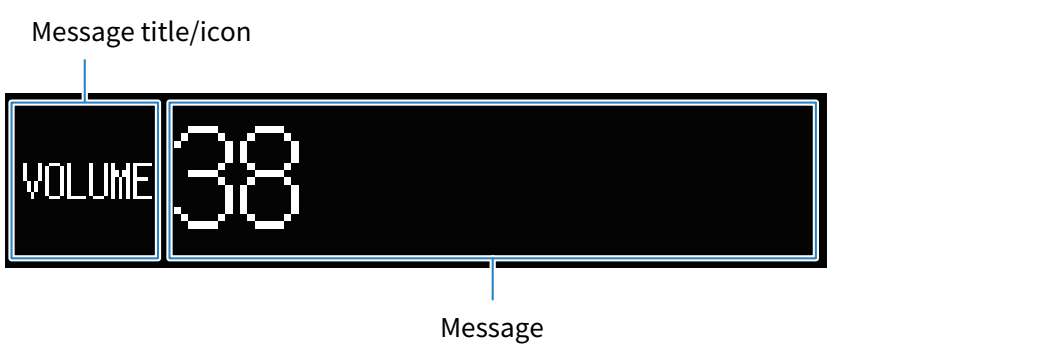
Pressing keys or buttons that are not available causes the message “Not Available” to appear.
 TRUE X BAR 90A (SR-X90A)