


Updating the firmware with a USB flash drive
Use a USB flash drive to update the firmware when the sound bar is not connected to the Internet or when the speed of your Internet connection is not fast enough.
Please visit the Yamaha website for details on how to download the firmware.
- Download the latest version of the firmware for the soundbar to your computer from the Yamaha website.
- For more information, visit the product information page on the Yamaha website.
- Extract the downloaded compressed file, and save the firmware data file to the USB flash drive.
- Be sure to save only the firmware data file to the top folder (root folder) of the USB flash drive.
- Do not change the name of the data file.
- Connect the USB flash drive to the UPDATE ONLY jack on the rear of the sound bar.
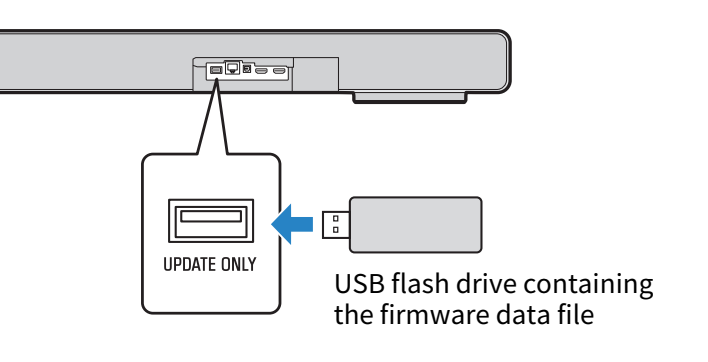
- Press the ~ (Setup) key on the remote control.
- Select “Function” > “Firmware Update” > “USB Update” from the Setup menu on the TV screen.
- The firmware update will start. Never turn off the power while updating the firmware.
- When the message “UPDATE SUCCESS PLEASE POWER OFF!” appears on the front display, turn off the sound bar.
- Make sure that the sound bar is turned off, and then remove the USB flash drive.
This completes the firmware update.
NOTICE
- Do not operate the sound bar or unplug the power cord or network cable while updating the firmware. In the unlikely event that this process is interrupted, it may not be possible to use the sound bar. In that case, you may have to take it in to have it repaired.
- If you are using TRUE X SURROUND, be sure to update the firmware while the wireless speakers are connected.
NOTE
- You can also update the firmware by selecting “Firmware Update” > “USB Update” in the menu on the front display.
 TRUE X BAR 90A (SR-X90A)