


EQ popup window (1ch)
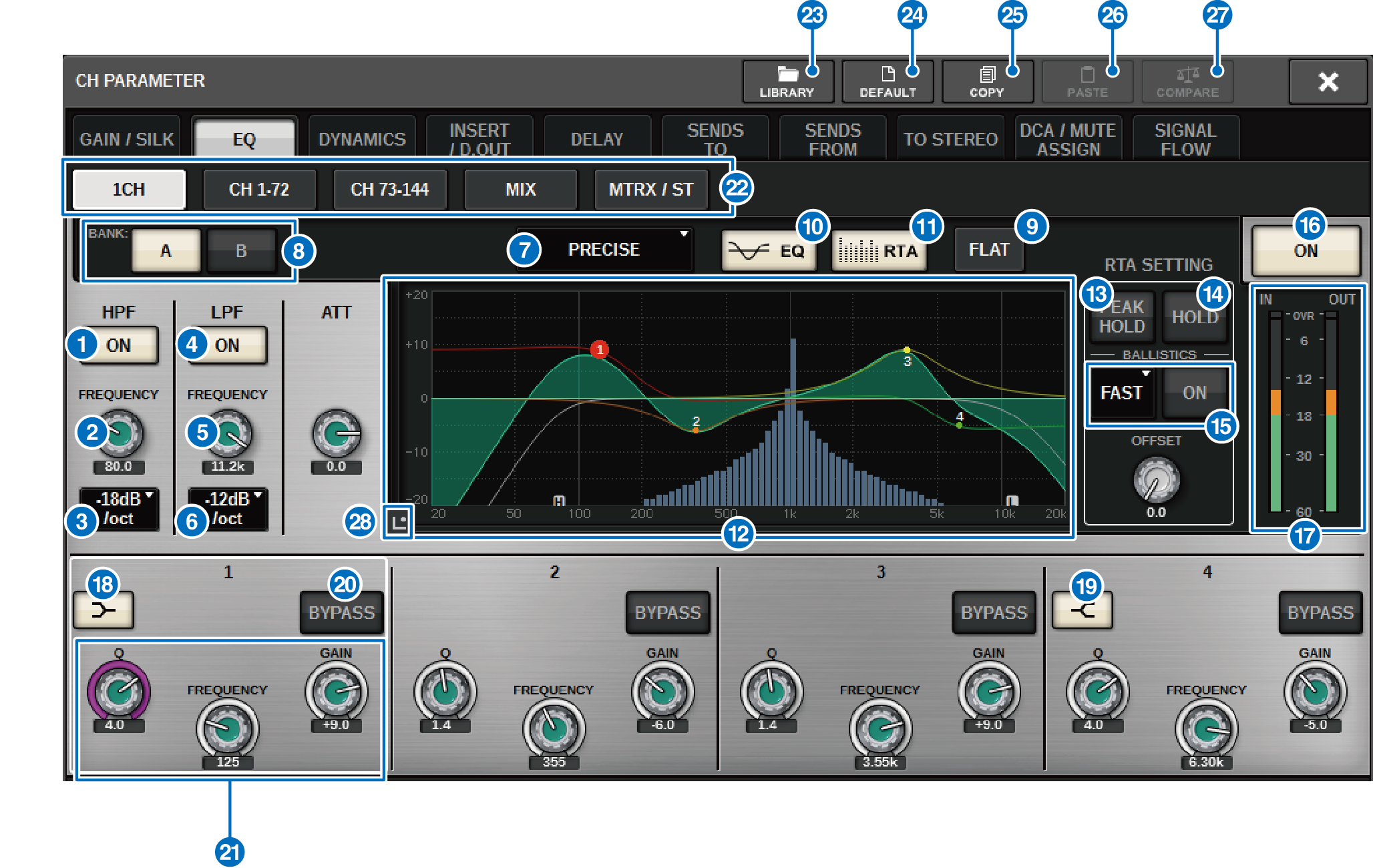
This window enables you to edit all EQ parameters of the currently-selected channel. This is convenient if you want to make detailed EQ settings for a specific channel.
Input channels
Output channels
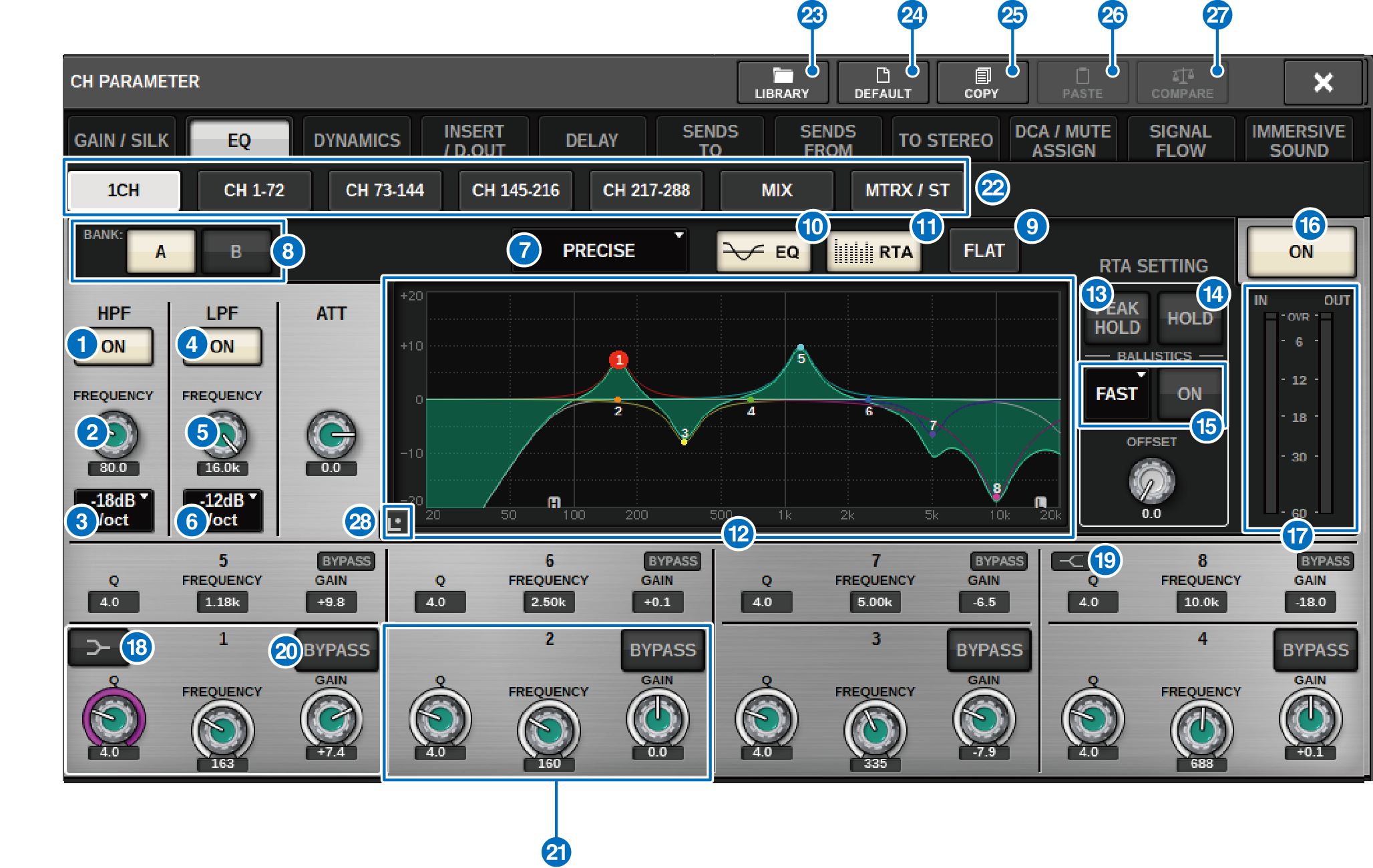
This screen contains the following items.
a | HPF ON/OFF button Switches the HPF on or off. |
b | HPF FREQUENCY knob Indicates the cutoff frequency of the HPF. Use the screen encoder to adjust the value. |
c | HPF type select button Enables you to set the HPF attenuation per octave to −6 dB/oct, −12 dB/oct, −18 dB/oct, or −24 dB/oct. |
d | LPF ON/OFF button Switches the LPF on or off. |
e | LPF FREQUENCY knob Indicates the cutoff frequency of the LPF. Use the screen encoder to adjust the value. |
f | LPF type select button Enables you to set the LPF attenuation per octave to −6 dB/oct, or −12 dB/oct. |
g | EQ type select button Switches the EQ type to PRECISE, AGGRESSIVE, SMOOTH, or LEGACY. |
h | A/B switch buttons Enable you to switch between A and B as the storing destination for the EQ parameters. |
i | EQ FLAT button Press this button to reset the GAIN parameters of all EQ band to 0 dB. |
j | EQ button Press this button to display the EQ graph. |
k | RTA button If this button is on, a semi-opaque frequency analysis graph of the EQ-processed input signal will be superimposed on top of the EQ frequency response graph. |
l | EQ graph Displays the parameter values for the EQ and filters. |
m | PEAK HOLD The frequency response graph holds the peak level indication. |
n | HOLD button If this button is on, the RTA graph will continue to be displayed. |
o | BALLISTICS field
|
p | EQ ON/OFF button Switches the EQ on or off. |
q | EQ IN/OUT level meters Indicate the peak level of signals before and after the EQ. For a stereo channel, these meters indicate the level of both the L and R channels. |
r | LOW SHELVING ON/OFF button Turn on this button to switch the LOW band to a shelving type filter. |
s | HIGH SHELVING ON/OFF button Turn on this button to switch the HIGH band to a shelving type filter. |
t | BYPASS button Temporarily bypasses the EQ. |
u | EQ parameter setting knobs Indicate the Q, FREQUENCY, and GAIN parameters for the LOW, LOW MID, HIGH MID, and HIGH bands. Press this button, and you will be able to use the screen encoder to adjust the value. |
v | Tabs Use these tabs to select a channel that you want to view on the screen. |
w | LIBRARY button Press this button to open the EQ library window. |
x | DEFAULT button Press this button to reset all EQ/filter parameters to the initial values. |
y | COPY button Copies the EQ parameter settings stored in the bank (selected via the A/B switching buttons) to buffer memory. |
z | PASTE button Press this button to paste the settings copied in buffer memory to the EQ of the currently-selected bank. If valid data has not been copied into buffer memory, you will be unable to paste it. |
A | COMPARE button Press this button to switch between and compare the settings stored in buffer memory and the currently-selected settings. If valid data has not been stored in buffer memory, you will be unable to compare the data. |
B | Touch EQ button Press to enlarge the EQ graph and touch to adjust EQ parameters. |
 RIVAGE PM Series