
Startup
Startup
Before Using the Software
dspMixFx is included in TOOLS for UR-C/URX-C.
For installation instructions, refer to the Setup Guide for UR-C/URX-C series devices.
Opening dspMixFx
Windows
[All Programs] or [All apps] → [dspMixFx UR-C]
Mac
[Application] → [dspMixFx UR-C]
Operating the Tool Area
This is the area for configuring the overall common settings of dspMixFx UR-C.

- ➊ Quit
-
Quits dspMixFx UR-C.
- ➋ Minimize
-
Minimizes the dspMixFx UR-C window.
- ➌ File
-
Displays four different menus.
| Menu | Descriptions |
|---|---|
|
Open |
Opens the settings file of dspMixFx UR-C. |
|
Save |
Saves the settings file of dspMixFx UR-C to a computer. |
|
Import Scene |
Imports a scene from a dspMixFx UR-C settings file. Select a file in the dialog box. The [IMPORT SCENE] window is displayed. On the left side of the [IMPORT SCENE] window, select the dspMixFx UR-C settings file and scene to import. On the right side of the [IMPORT SCENE] window, select the import destination. Click [OK] to import the scene. |
|
Initialize All Scenes |
Initialize all the saved scenes. |
- ➍ Scene
-
Indicates the scene name. You can change the scene name by clicking on it. Clicking the button on the right (▼) opens the window for calling up other scenes.Call up the desired scene by clicking it.
- ➎ Store
-
Opens the Scene Store window. Enter the desired scene name into the STORE NAME field. Select the destination for storing the scene in the No. NAME field. Click [OK] to store the scene.
- ➏ Selecting windows
-
Selects the desired dspMixFx UR-C window. The selected window icon lights in green.
| Menu | Description |
|---|---|

|
Main Window |

|
Setup Window |
|
Meter Window |

(UR24C only) |
Indicates the monitor mode settings.
|
Operating the Main Window
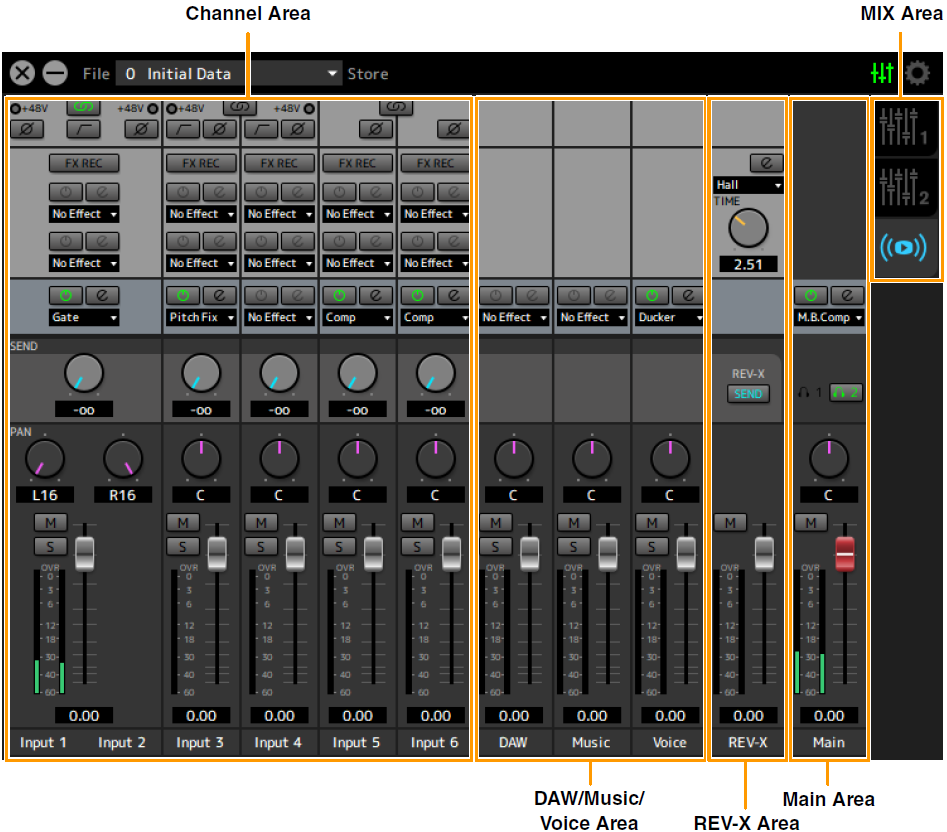
This window is for configuring the entire signal flow. The Main Window consists of five areas.
・
Channel Area
・
DAW/Music/Voice Area
・
REV-X Area
・
Main Area
・
MIX Area
UR24C only
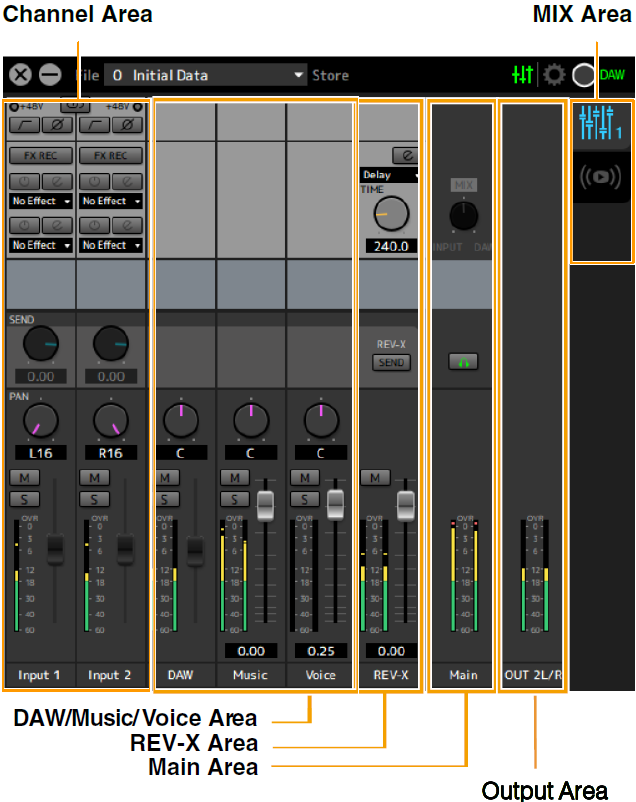
The Main Window consists of six areas: the five areas mentioned above and an Output Area.
・
Output Area (UR24C only)
Channel Area
This is the area for configuring the input channel settings.
[Example when Streaming is selected (REV-X Send is turned on)]
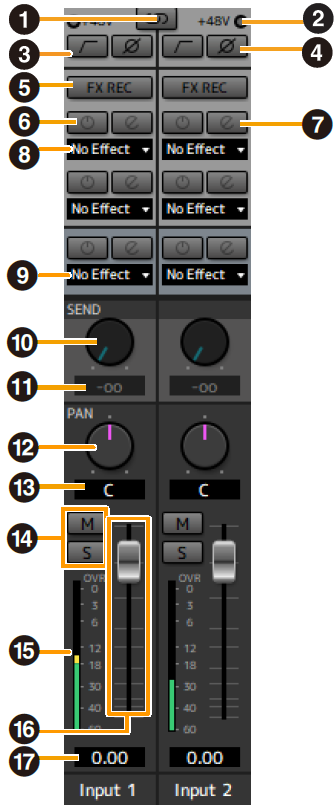
- ➊ Channel Link
-
Turns on (lit) and off (unlit) the channel link function of two adjacent channels. When this is on, two mono channels will become one stereo channel.
- ➋ +48V
-
Indicates the on (lit) and off (unlit) status of the phantom power function of the device.
- ➌ High Pass Filter
-
Turns on (lit) and off (unlit) the high pass filter. To select the cutoff frequency of the high pass filter, use the “Setup Window.”
UR44C/URX44C : Not available on [LINE INPUT 5/6]. - ➍ Phase
-
Turns on (lit) and off (unlit) the phase inversion of the signal.
- ➎ FX REC
-
Turn the FX REC (effect recording) on and off.
| Settings | Description |
|---|---|
|
On (lit) |
Applies an effect to both the monitor signal (sent to the device) and the recording signal (sent to the DAW software). |
|
Off (unlit) |
Applies an effect to only the monitor signal (sent to the device). |
- ➏ Effect On/Off
-
Turns the Effect on (lit) and off (unlit).
- ➐ Effect Edit
-
Opens (lit) and closes (unlit) the selected effect setup window.
- ➑ Effect Type
-
Selects the effect type.
Settings : No Effect, Ch.Strip, Clean, Crunch, Lead, Drive, Pitch FixNOTE
The maximum number of effects that can be used simultaneously is limited. Refer to “Limitations on the use of effects” in the User Guide for your UR-C/URX-C series device. - ➒ Streaming Effects
-
Displayed only when Streaming mix has been selected in the MIX area.
SThis effect is applied only to the audio played in the streaming mix. It does not affect the output signal from each channel to DAW.
No Effect, Gate, or Comp can be selected as the effect type. - ➓ REV-X Send
-
Adjusts the signal level which is sent to REV-X. This setting can only be configured when REV-X Send is enabled in the REV-X area.
Range : −∞ dB–+6.00 dB - ⓫ REV-X Send Value
-
Displays and adjusts the REV-X send value. Enable editing of the value by double clicking the number.
This setting can only be configured when REV-X Send is enabled (lit) in the REV-X area. - ⓬ Pan
-
Adjusts the Pan.
UR22C/URX22C : Displayed only when Streaming mix has been selected in the MIX area.
Range : L16–C–R16 - ⓭ Pan Value
-
Displays and adjusts the Pan value.Enable editing of the value by double clicking the number.
- ⓮ Mute & Solo
-
Turns the Mute (M) & Solo (S) on (lit) and off (unlit).
- ⓯ Level Meter
-
Indicates the signal level. Peak hold is normally set to on.
| Display color | Description |
|---|---|
|
Green |
Up to −18 dB |
|
Yellow |
Up to 0 dB |
|
Red |
If Clipped |
- ⓰ Fader
-
Adjusts the signal level.
On the UR22C, URX22C, and UR24C, this can be used only when Streaming mix has been selected in the MIX area.
When the normal mix is selected, the level value set by the MIX knob on the front panel is displayed and this cannot be operated.
Range : −∞ dB–+6.00 dB - ⓱ Fader Value
-
Displays and adjusts the Fader Value.Enable editing of the value by double clicking the number.
DAW/Music/Voice Area
This is the area for configuring the DAW channel settings.
When connected to a computer, a Music channel and a Voice channel have been added. (The Music channel and Voice channel are not displayed when connected to iPad or iPhone.)
[Example when Streaming is selected]
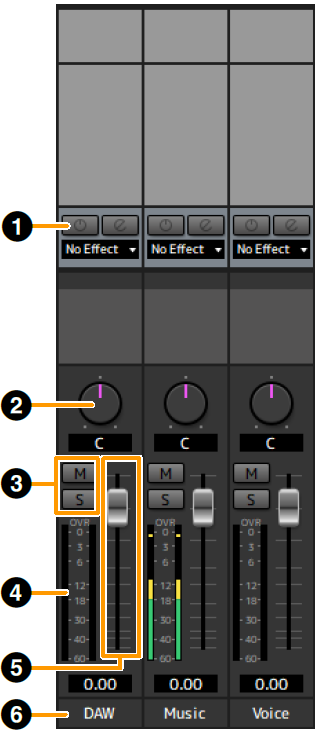
- ➊ Streaming Effects
-
Displayed only when Streaming mix has been selected in the MIX area.
This effect is applied only to the audio played in the streaming mix.
No Effect and Ducker can be selected as the effect type. - ➋ Balance
-
Adjusts the volume balance of the left and right channels.
Range : L16–C–R16 - ➌ Mute & Solo
-
Turns the Mute (M) & Solo (S) on (lit) and off (unlit).
- ➍ Level Meter
-
Indicates the signal level. Peak hold is normally set to on.
| Display color | Description |
|---|---|
|
Green |
Up to −18 dB |
|
Yellow |
Up to 0 dB |
|
Red |
If Clipped |
- ➎ Fader
-
Adjusts the signal level.
On the UR22C, URX22C, and UR24C DAW channel, this can be used only when Streaming mix has been selected in the MIX area.
When the normal mix is selected, the level value set by the MIX knob on the front panel is displayed and this cannot be operated.
Range : −∞ dB–+6.00 dB - ➏ Channel Name
-
You can input text for each channel by double clicking on each channel.
REV-X Area
This is the area for configuring the REV-X channel settings.
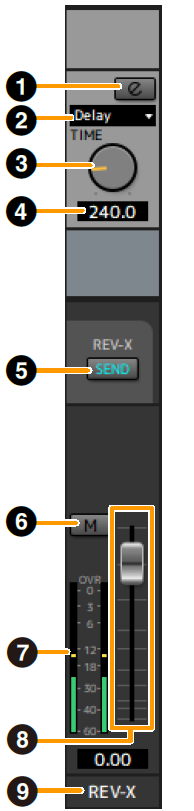
- ➊ REV-X Edit
-
Opens (lit) and closes (unlit) the “REV-X” setup window.
- ➋ REV-X Type
-
Selects the REV-X type.
Settings : Hall, Room, Plate, Delay - ➌ REV-X Time
-
Adjusts the reverb time of REV-X. This parameter links to Room Size. The adjustable range varies depending on REV-X type.
| REV-X Type | Range |
|---|---|
|
Hall |
0.289 sec–29.0 sec |
|
Room |
0.260 sec–26.0 sec |
|
Plate |
0.333 sec–33.3 sec |
|
Delay |
0.0001 sec–1.3 sec |
- ➍ REV-X Time Value
-
Displays and adjusts the REV-X Time value. Enable editing of the value by double clicking the number.
- ➎ REV-X Send
-
Enables the REV-X send for the MIX you want to operate.
- ➏ Mute
-
Indicates the on (lit) and off (unlit) status of the Mute.
- ➐ Level Meter
-
Indicates the signal level. Peak hold is normally set to on.
| Display color | Description |
|---|---|
|
Green |
Up to −18 dB |
|
Yellow |
Up to 0 dB |
|
Red |
If Clipped |
- ➑ REV-X Return Fader
-
Adjusts the return level of REV-X.
- ➒ Channel Name
-
You can input text for each channel by double clicking on each channel.
Main Area
This is the area for configuring the main channel settings.
[Example when Streaming is selected]
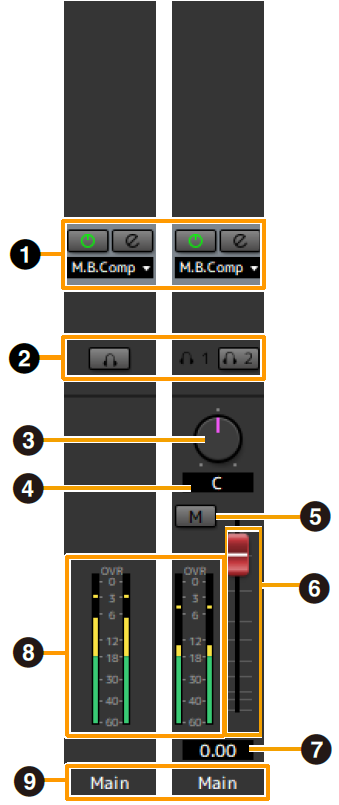
- ➊ Streaming Effects
-
Displayed only when Streaming mix has been selected in the MIX area.
This effect is applied only to final stage of the streaming mix.
No Effect and Multi-Band Compressor (M.B.Comp) can be selected as the effect type. - ➋ MONITOR/PHONES
-
UR22C/URX22C/UR24C : Select the mix that will be output to the MAIN OUTPUT and the PHONES jack.
UR44C/URX44C/UR816C : Turns the two headphones output on (lit) or off (unlit). You can output the MIX selected in the MIX area to the PHONES by turning this on.NOTE
UR44C/URX44C : With [PHONES 2], either MIX 1 / MIX 2/Streaming can be selected.[PHONES 1] is fixed to MIX 1 and cannot be changed.
UR816C : With [PHONES 1] / [PHONES 2], MIX 1, MIX 2, MIX 3, MIX 4, or Streaming can be selected. - ➌ Balance
-
Adjusts the volume balance of the left and right channels.
Range : L16–C–R16 - ➍ Balance Value
-
Displays and adjusts the Balance value. Enable editing of the value by double clicking the number.
- ➎ Mute
-
Turn the mute function on (lit) and off (unlit).
- ➏ Master Fader
-
Adjusts the signal level.
Range : −∞ dB–+6.00 dB - ➐ Master Fader Value
-
Displays and adjusts the Master Fader value. Enable editing of the value by double clicking the number.
- ➑ Level Meter
-
Indicates the signal level.
- ➒ Channel Name
-
You can input text for each channel by double clicking on each channel.
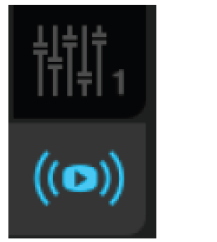
MIX Area
This is the area for selecting the MIX you want to configure.
You can copy the Main Window settings of the MIX by dragging and dropping.
On the UR816C, when Streaming is selected in GENERAL SETTINGS > Mix4 on the setup screen, Mix4 switches to Streaming.
Output Area (UR24C only)
This section indicates the output signal level of the Output area.

- ➊ Level Meter
-
Indicates the signal level. Peak hold is normally set to on.
| Display color | Description |
|---|---|
|
Green |
Up to −18 dB |
|
Yellow |
Up to 0 dB |
|
Red |
If Clipped |
Operating the Setup Window
This window is for configuring the common settings of the device.
When Connected to a Computer
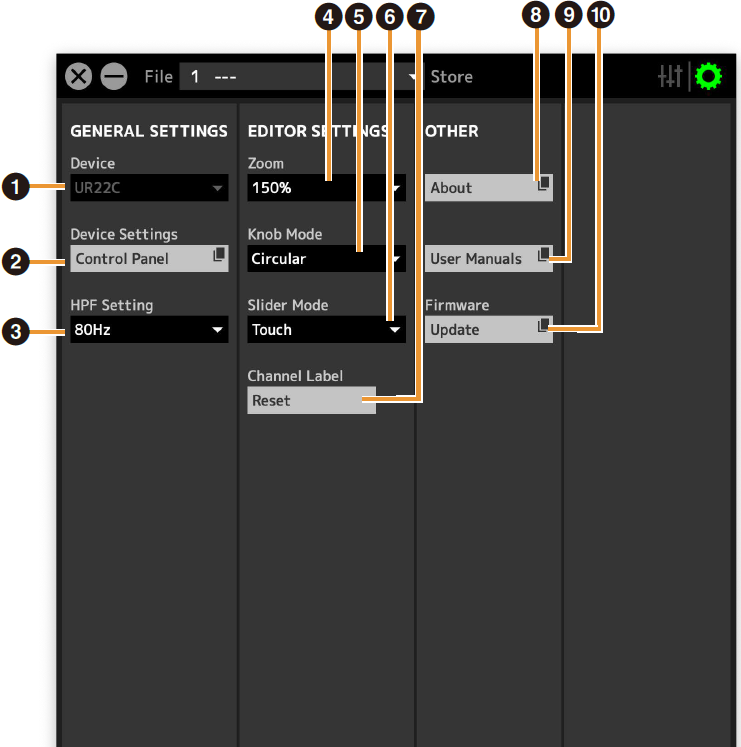
- ➊ Device
-
If multiple dspMixFx devices are connected, select the device you want to operate.
- ➋ Device Settings
-
Opens the Control Panel.
- ➌ HPF Setting
-
Selects the cutoff frequency of the high pass filter.
UR44C/URX44C : Not available on [LINE INPUT 5/6].
Options : 120 Hz, 100 Hz, 80 Hz, 60 Hz, 40 Hz - ➍ Zoom
-
Changes the window size.
Options : 100%, 150%, 200%, 250%, 300% - ➎ Knob Mode
-
Selects the method of operating the knobs on dspMixFx UR-C.
| Settings | Description |
|---|---|
|
Circular |
Drag in a circular motion to increase and decrease the parameter. Drag on a dial clockwise to increase, and counterclockwise to decrease. If you click any point on the knob, the parameter will jump there instantly. |
|
Linear |
Drag in a linear motion to increase and decrease the parameter. Drag upward or rightward to increase, and downward or leftward to decrease. Even if you click any point on the knob, the parameter will not jump there. |
- ➏ Slider Mode
-
Selects the method of operating the sliders and faders on dspMixFx UR-C.
| Settings | Description |
|---|---|
|
Jump |
Click any point on the slider and fader to increase and decrease the parameter. If you click any point on the slider and fader, the parameter will jump there instantly. |
|
Touch |
Drag the handle of the slider and fader to increase and decrease the parameter. Even if you click any point on the slider and fader, the parameter will not jump there. |
- ➐ Channel Label Reset
-
Resets all edited channel names at once.
- ➑ About
-
Indicates the version of the firmware and software.
- ➒ User Manuals
-
Clicks to open the “dspMixFx User Guide” (this guide) in your browser.
- ➓ Firmware
-
Updates the firmware of the device.
UR24C only
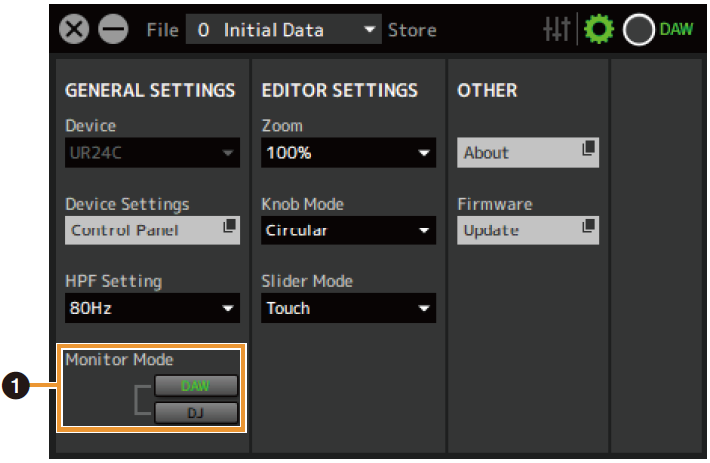
- ➊ Monitor Mode
-
Switches the mode settings.
Options : DAW, DJ
UR44C/URX44C only
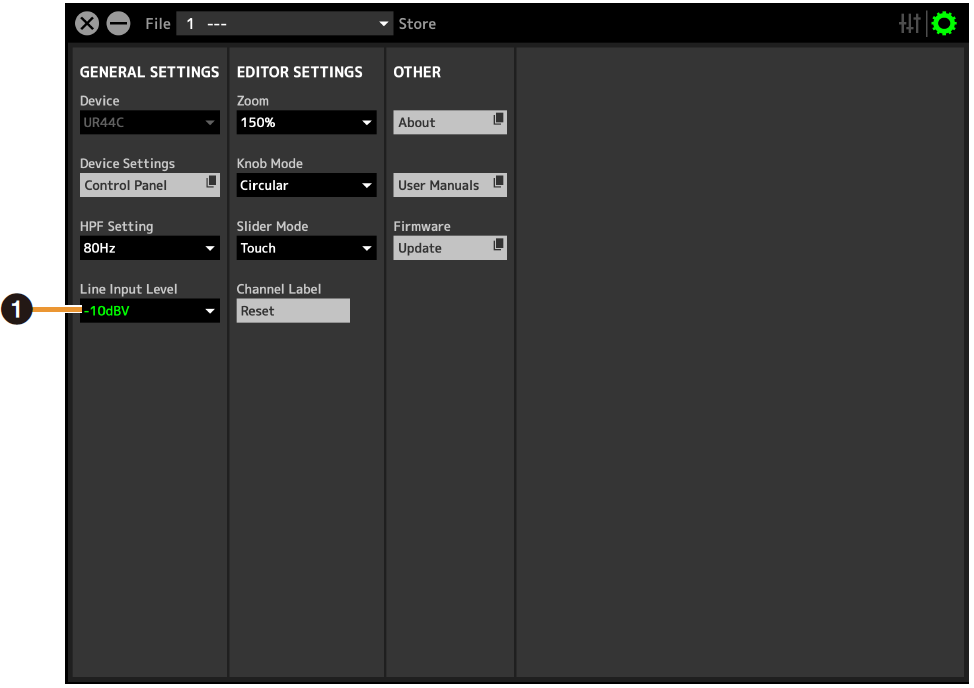
- ➊ Line Input Level
-
Selects the input signal level of [LINE INPUT 5/6].
Options : +4 dBu, −10 dBV
UR816C only
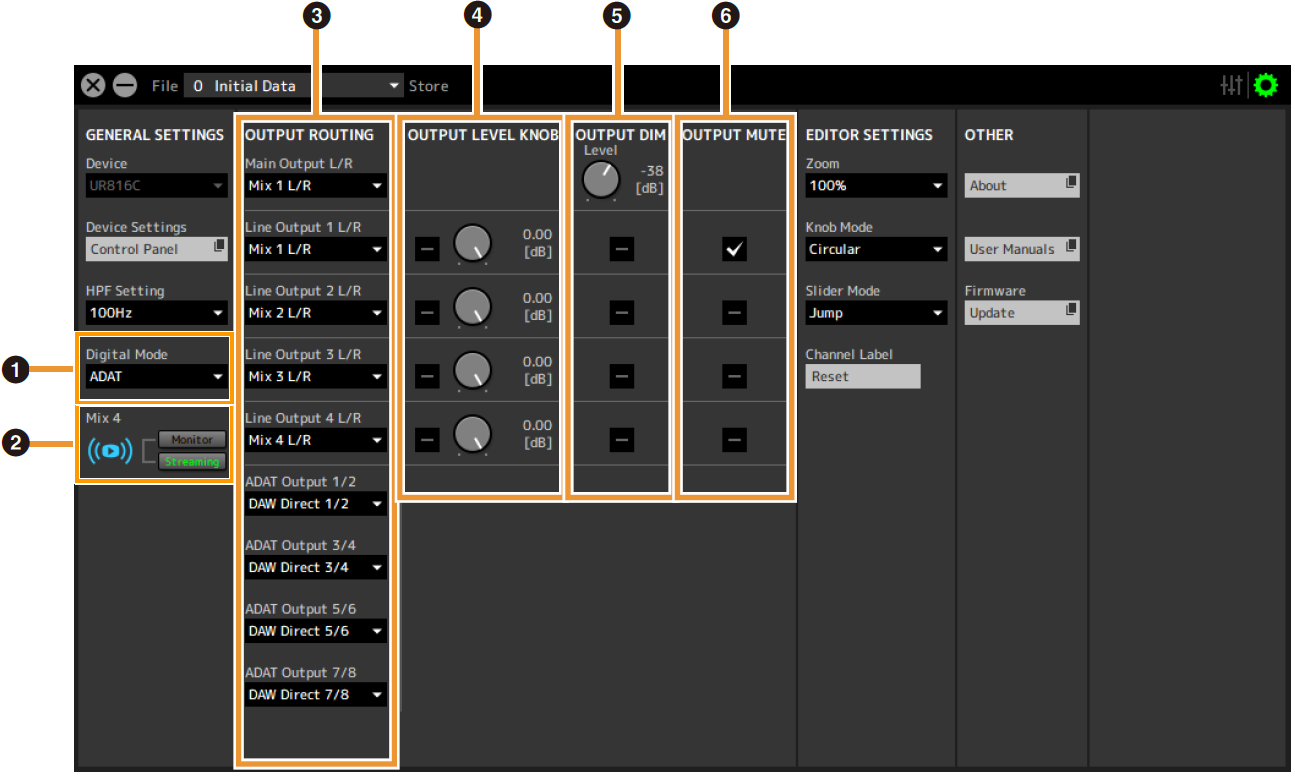
- ➊ Digital Mode
-
Selects the input and output signal format of the [OPTICAL IN] and [OPTICAL OUT] jacks.
Option Description ADAT
Input and output signals of up to 8 channels.
S/PDIF
Input and output of 2-channel (stereo) signals.
When ADAT is selected, the input and output signals of up to eight channels at 44.1 kHz and 48 kHz, or up to four channels at 88.2 kHz and 96 kHz, or up to two channels at 176.4 kHz and 192 kHz.
When S/PDIF is selected, the input and output signals of up to two channels at any available sample rate. - ➋ Mix4
-
Selects whether to use Mix4 as either a streaming mix or as a monitor mix.
- ➌ OUTPUT ROUTING
-
Selects the MIX of the output jacks on the device. The number of OUT options displayed here varies depending on the sample rate or DIGITAL MODE setting.
ADAT
Output jack Options Main Output L/R
MIX1 to MIX4
Line Output 1 L/R to 4 L/R
MIX1 to MIX4
DAW Direct 1/2 to 7/8*
ADAT 1/2 to 7/8*ADAT Output 1/2 to 7/8*
MIX1 to MIX4
DAW Direct 1/2 to 7/8
Input 1/2 to 7/8*The number of channels differs depending on the sample rate.
S/PDIF
Output jack Options Main Output L/R
MIX1 to MIX4
Line Output 1/2 to 7/8
MIX1 to MIX4
DAW Direct 1/2 to 7/8*
S/PDIF In L/RS/PDIF Output L/R
MIX1 to MIX4
DAW Direct 1/2 to 7/8
Input 1/2 to 7/8*The number of channels differs depending on the sample rate.
- ➍ OUTPUT LEVEL KNOB
-
Determines the [LINE OUTPUT] jack which is to be affected by the [OUTPUT] knob on the front panel.
- ➎ OUTPUT DIM
-
Determines the [LINE OUTPUT] jack which is to be affected by the [DIM] switch on the front panel. Also, this adjusts the attenuation level when the [DIM] switch is on.
- ➏ OUTPUT MUTE
-
Determines the [LINE OUTPUT] jack which is to be affected by the [MUTE] switch on the front panel.
When Connected to an iPad/iPhone
This section describes how to operate the dspMixFx app for iPad/iPhone.
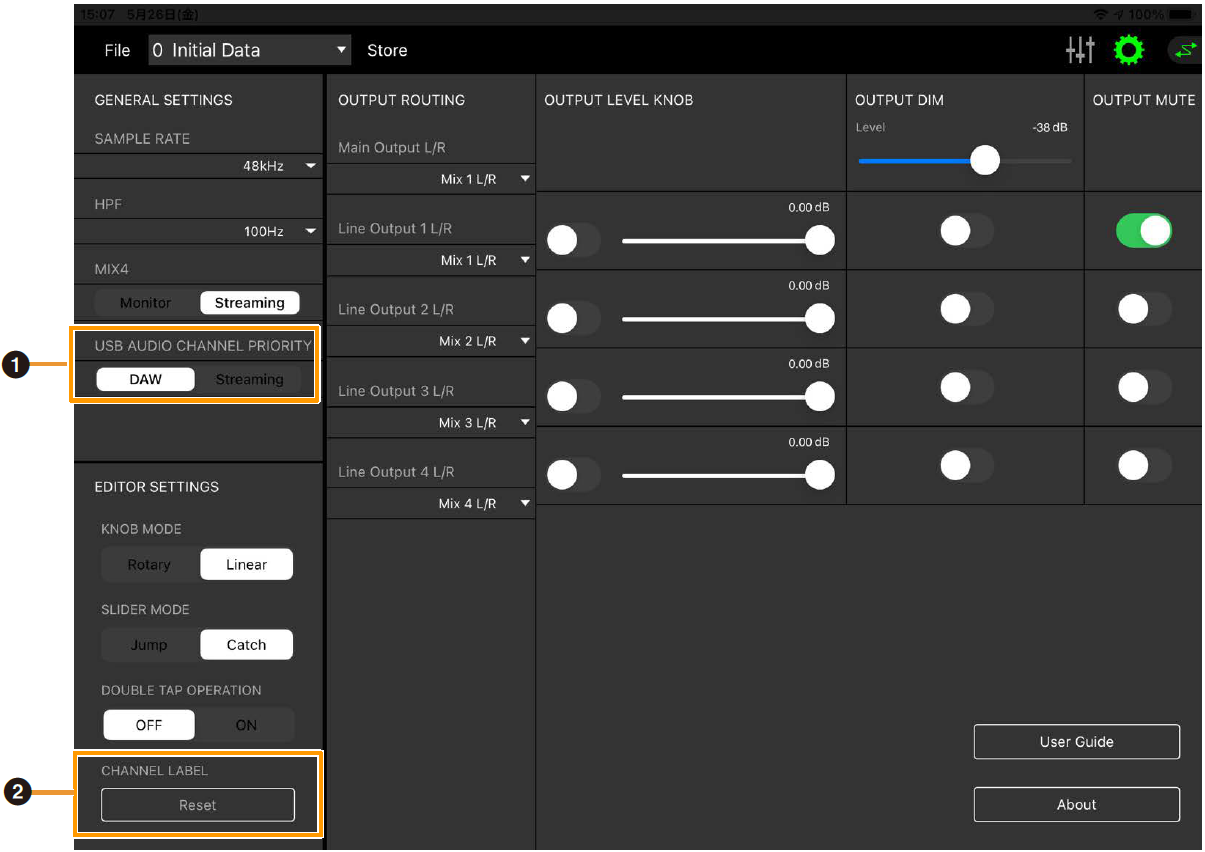
- ➊ USB AUDIO CHANNEL PRIORITY
-
Selects the order of the channels to be output from the UR-C to the iPad/iPhone. If DAW is selected, the signals will be arranged in the order of signals output directly to the DAW from the input channels and the output from the streaming mix will be added to the end. If Streaming is selected, the output from the streaming mix is arranged first. When used for streaming, it is recommended that you select “Streaming.”
- ➋ CHANNEL LABEL
-
Resets all edited channel names at once.
UR22C/URX22C only
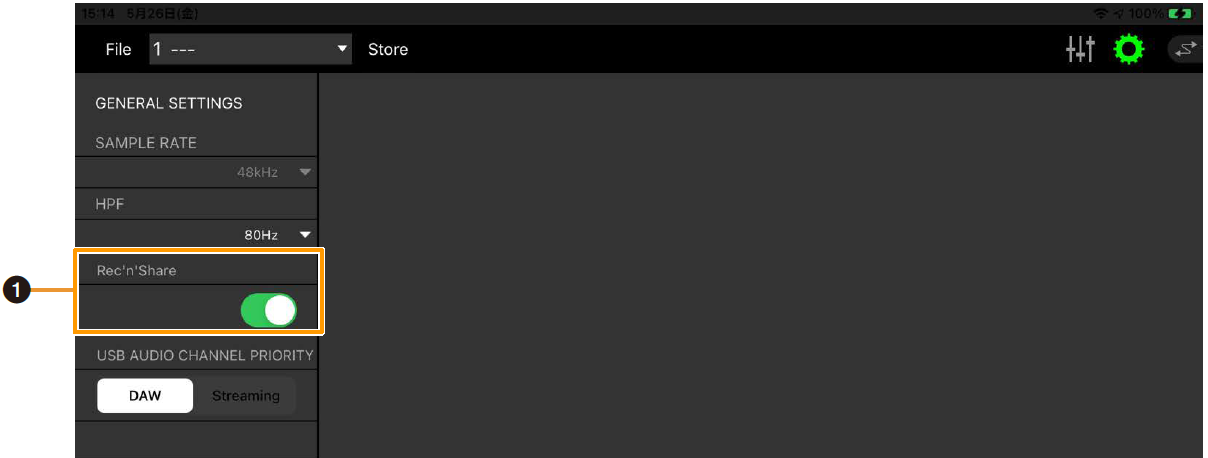
- ➊ Rec’n’Share
-
Please turn this parameter on when using the Rec’n’Share application. There are 2IN/2OUT send & receive channels for the iPad/iPhone and USB audio, which allows audio to be sent to and received from the Rec’n’Share application.
UR816C only
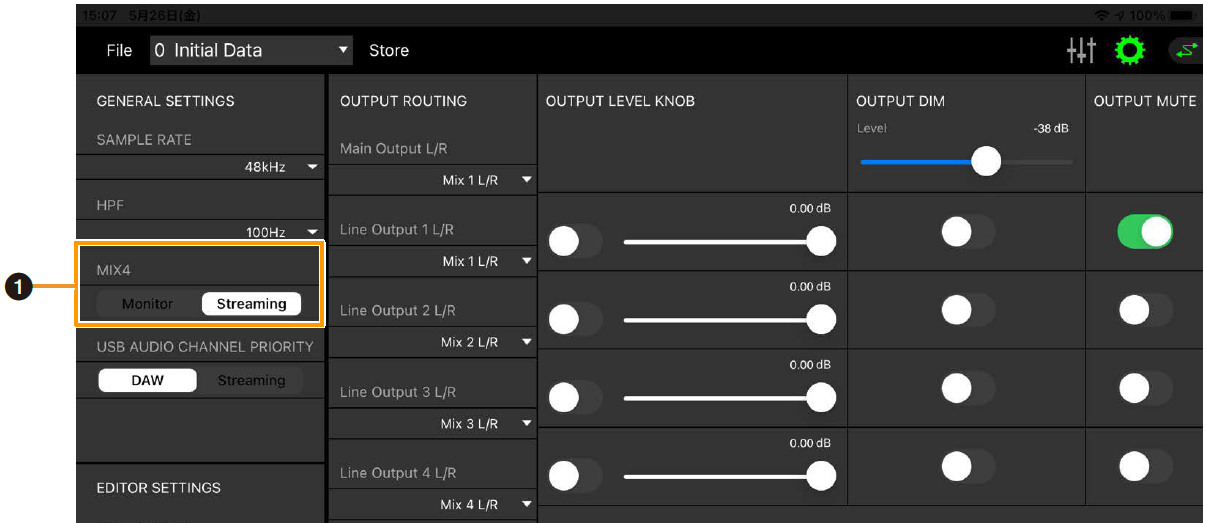
- ➊ Mix4
-
Selects whether to use Mix4 as either a streaming mix (Streaming) or as a monitor mix (Monitor).