


Connecting to the network using the dedicated app
When connecting to the network wirelessly, use the dedicated app “Audio Connect” to connect to the network. If using a wired connection, skip this step.
| You can also connect this product to the network using the dedicated app “Audio Connect”. With “Audio Connect”, you can also use network content. To use the Google Cast™ function, setup using this app is required. “Audio Connect” can be installed using the QR code displayed on the TV screen or from the QR code below.
|
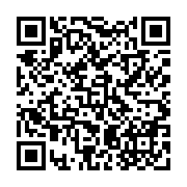
- Install “Audio Connect”.
- Open “Audio Connect” and connect to the wireless network.
- Follow the on-screen instructions in the app to connect to the wireless network.
NOTICE
- Even when using a wired network connection, app-based setup or operation is required to use Internet radio, podcasts, and Google Cast.
- Web-based settings are available to configure this product via a web browser on a network. These settings provide similar functionality to the app.
NOTE
- You can also display the QR code from: SETTINGS menu > “Wireless Connection” > “Connect with App”.
Next step
- If connecting an AV device by HDMI:
- If connecting an AV device by method other than HDMI:
 RX500A