


Registering wireless speakers to the sound bar
NOTE
- Before registering the wireless speakers to the sound bar, it is recommended to update the firmware to Ver.1.07 or later.
- The firmware version can be checked and updated in the Setup menu, in “Function” > “Firmware Update”.
To connect TRUE X SURROUND wireless speakers to the sound bar for the first time, follow the order of the procedure described below to register the wireless speakers you connect to the sound bar. Registration is required for initial connection only.
If registering only one wireless speaker
- It is also possible to register and use only one wireless speaker. In this case, you do not need to register the second wireless speaker. When the registration of one wireless speaker is complete, proceed to set it up.
How-to video You can also watch a video about the registration procedure. |
Preparation for registration
- Turn on the wireless speakers and sound bar.
- Place the wireless speakers near the sound bar during registration to avoid interference from other nearby wireless devices and help the registration complete successfully.
- To turn on the wireless speakers, hold down the power button of the wireless speakers for 2 seconds.
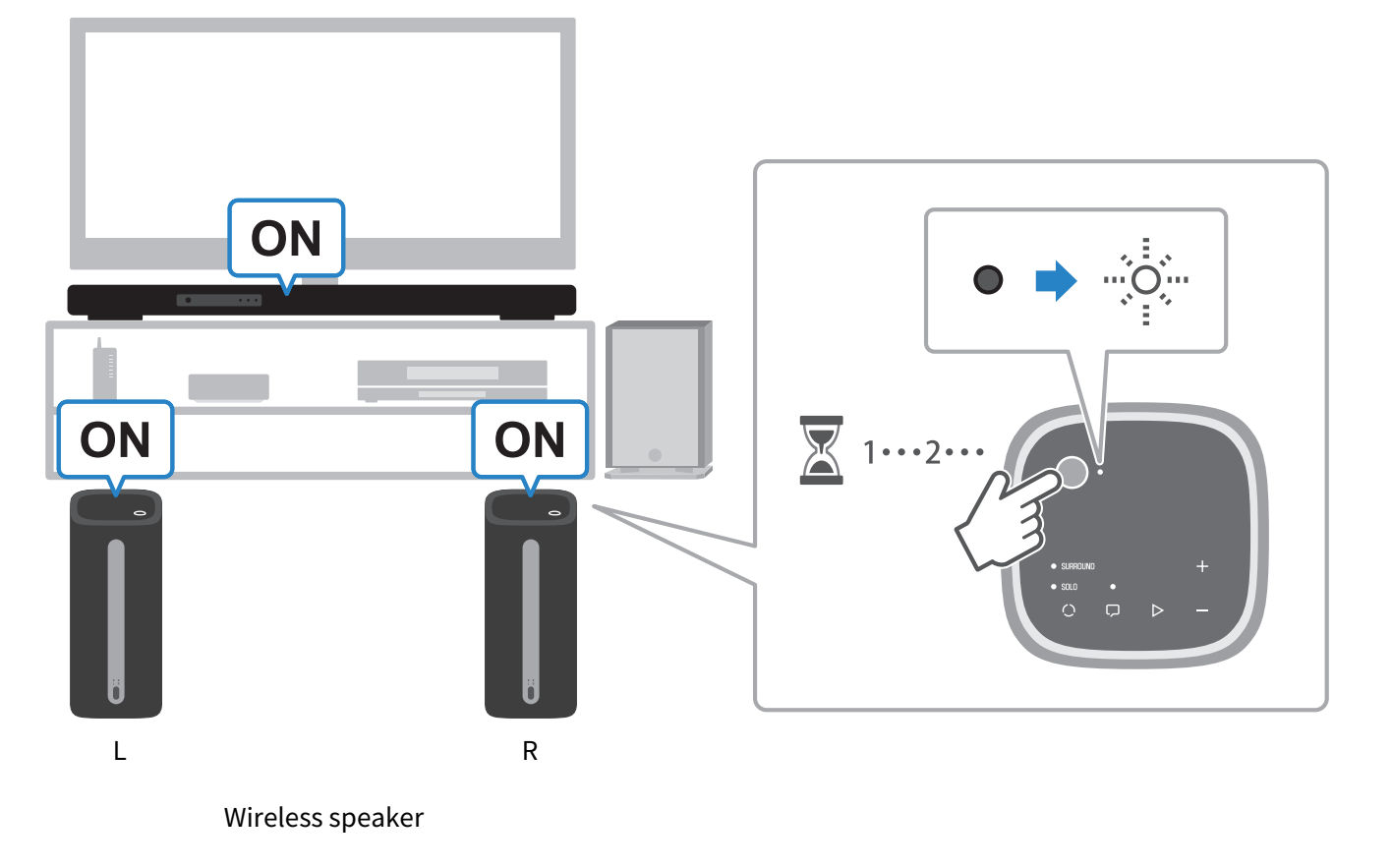
Registering the first wireless speaker
Register the wireless speaker (L) as Surround Speaker (Left).
If you want to register only one wireless speaker, perform the following procedure.
NOTE
- The wireless speakers do not have a right or left side. It does not matter which of the two speakers you register first.
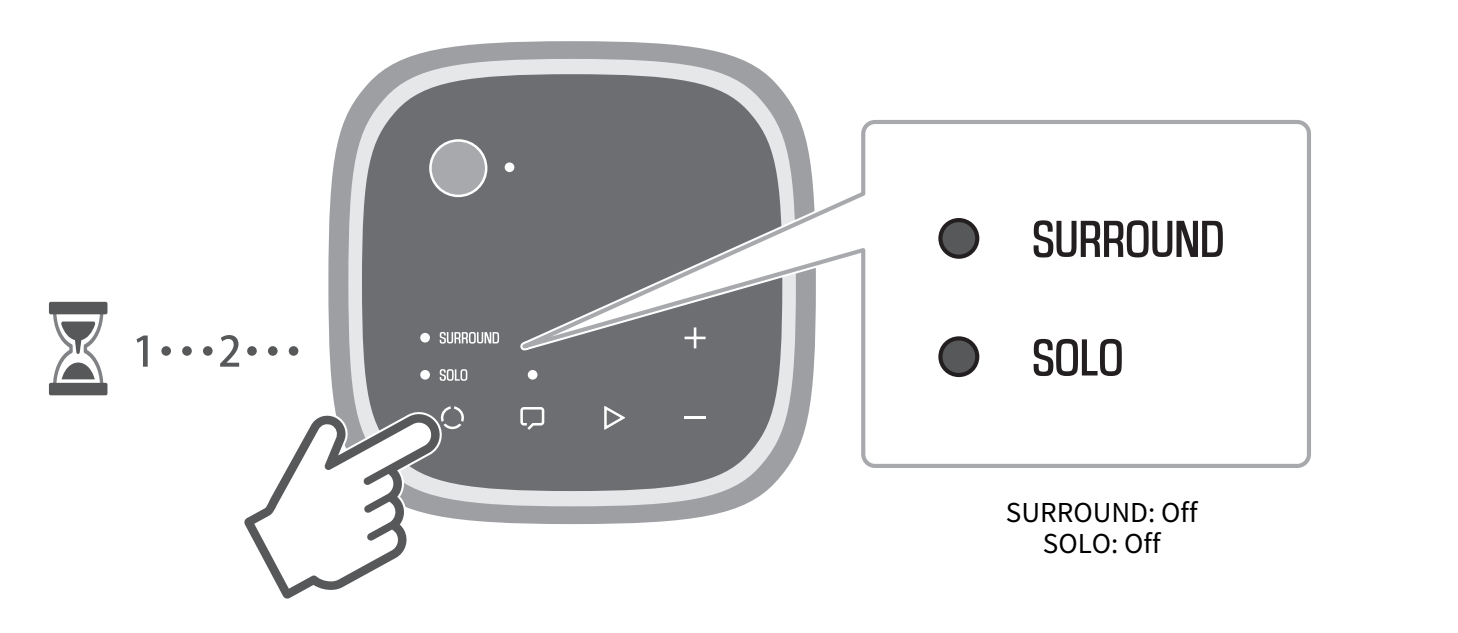
- Hold down P (mode) for at least three seconds on the wireless speaker.
- A notification tone will be heard making it possible to select the Left (L) or Right (R) speaker.
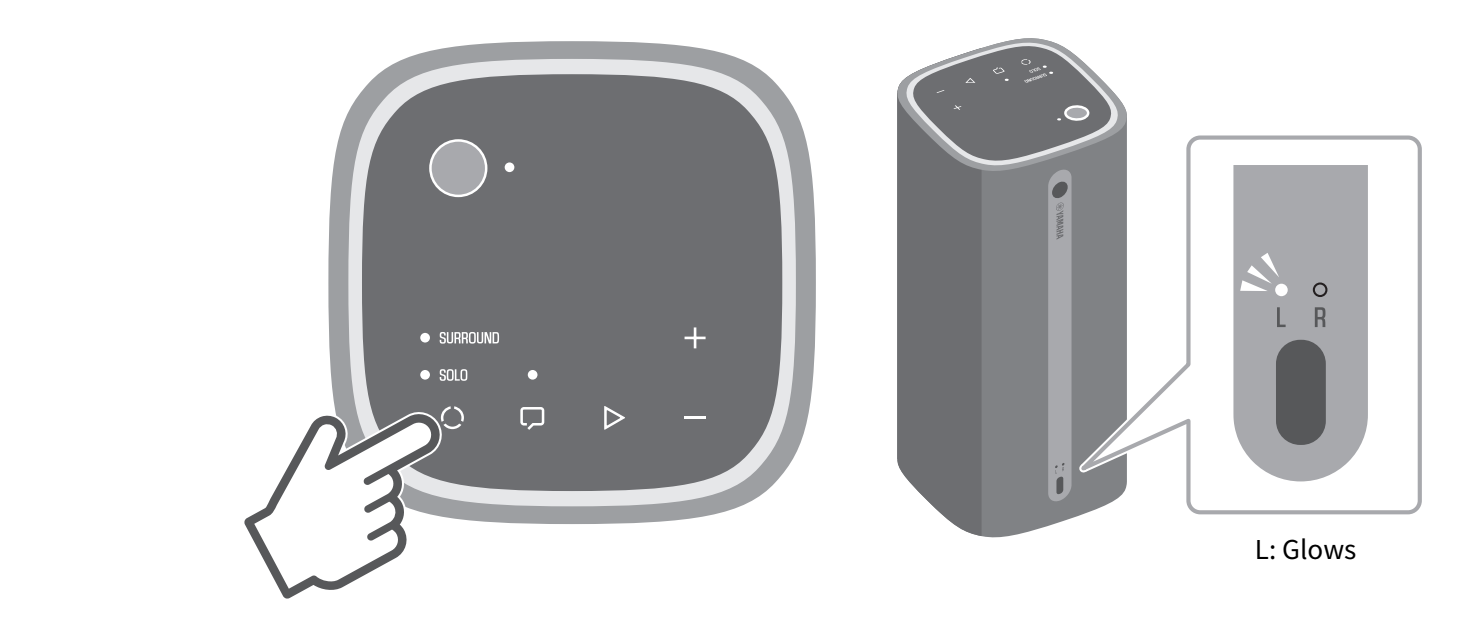
- Press P (mode) to turn on the L indicator.
- Each press of the button switches between L and R. The default setting is “L” (Surround (Left)).
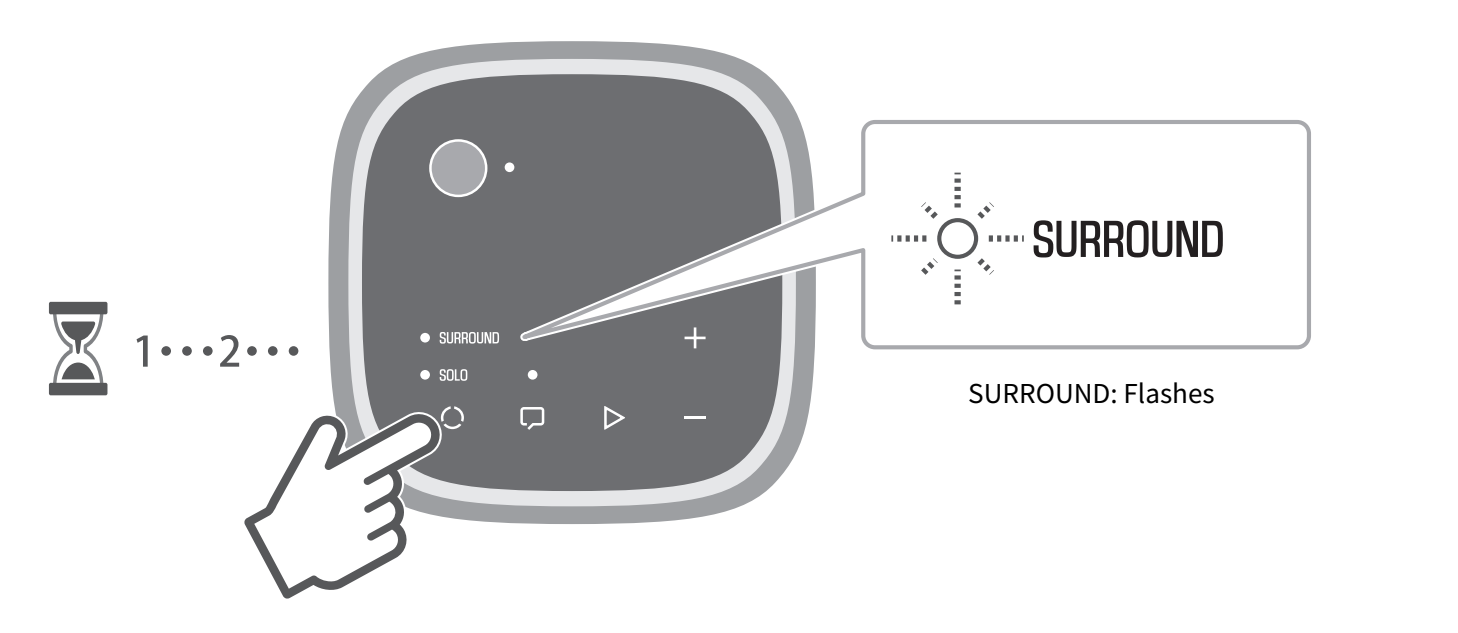
- Hold down P (mode) for at least three seconds on the wireless speaker.
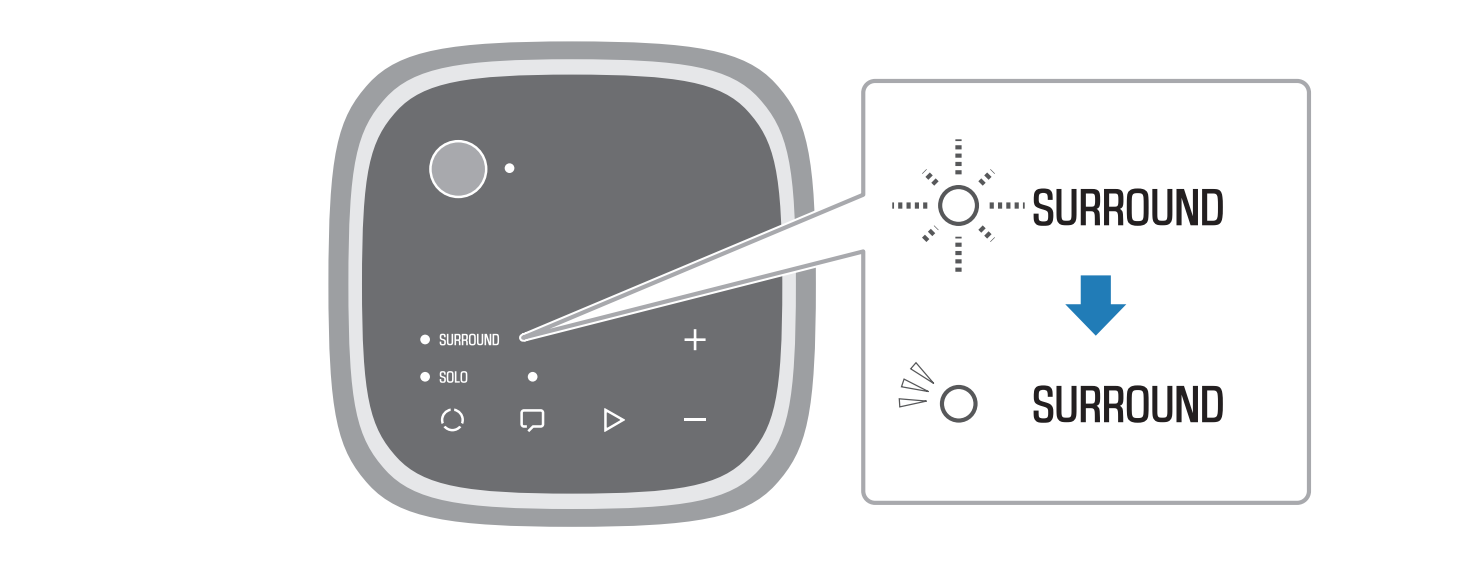
- The notification tone indicates that the wireless speakers have entered the registration wait status, and the SURROUND indicator on the wireless speaker will start to flash.
- In the next step, operate the controls of the sound bar. Operate the controls of the sound bar within two minutes after the wireless speaker has entered the registration wait status.
- The wait status is canceled after two minutes have elapsed. If this happens, start over from step 1.
- On the remote control of the sound bar, hold down the ~ (Setup) key for at least three seconds.
- “Registering” appears on the front display, and the wireless speakers are registered to the sound bar.

NOTE
- Also on the TV screen, the “Registration” screen is displayed as shown below.
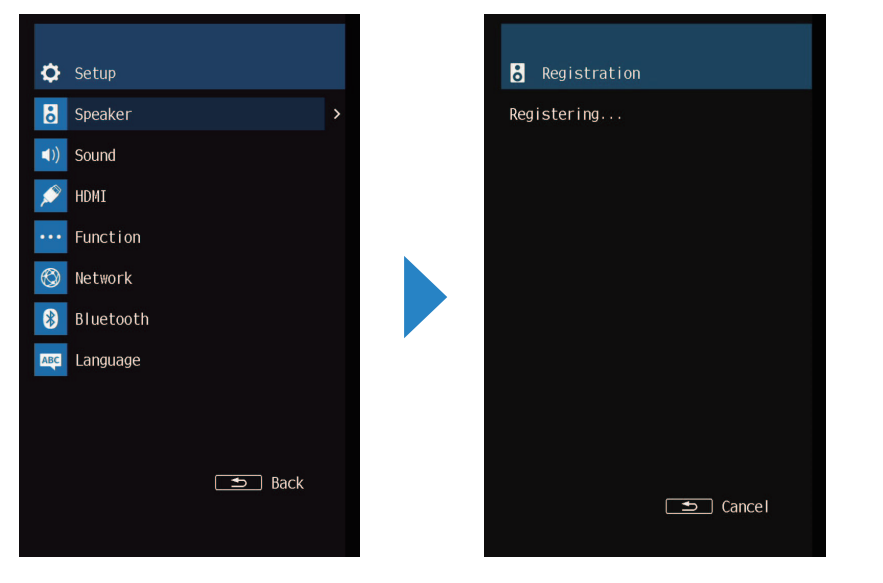
If the Setup menu is already open on the TV screen, the “Registration” screen is displayed directly.
- If you are using a firmware version older than Ver.1.07, in the Setup menu, go to “Speaker” > “Registration” and select “Registration”, and register the wireless speakers.
- When the SURROUND indicator on the control panel of the wireless speaker changes from flashing to glowing, and “Finished” appears on the front display and on the TV screen, the registration is complete. The wireless speaker is registered as Surround Speaker (Left).
- If you only want to connect one wireless speaker, the registration procedure is complete. Proceed to install the wireless speaker.
- If you want to connect two surround speakers, use the procedure below to register the second surround speaker.
NOTE
- If only one wireless speaker is registered, both the L and R indicators on the rear of the wireless speaker are glowing.
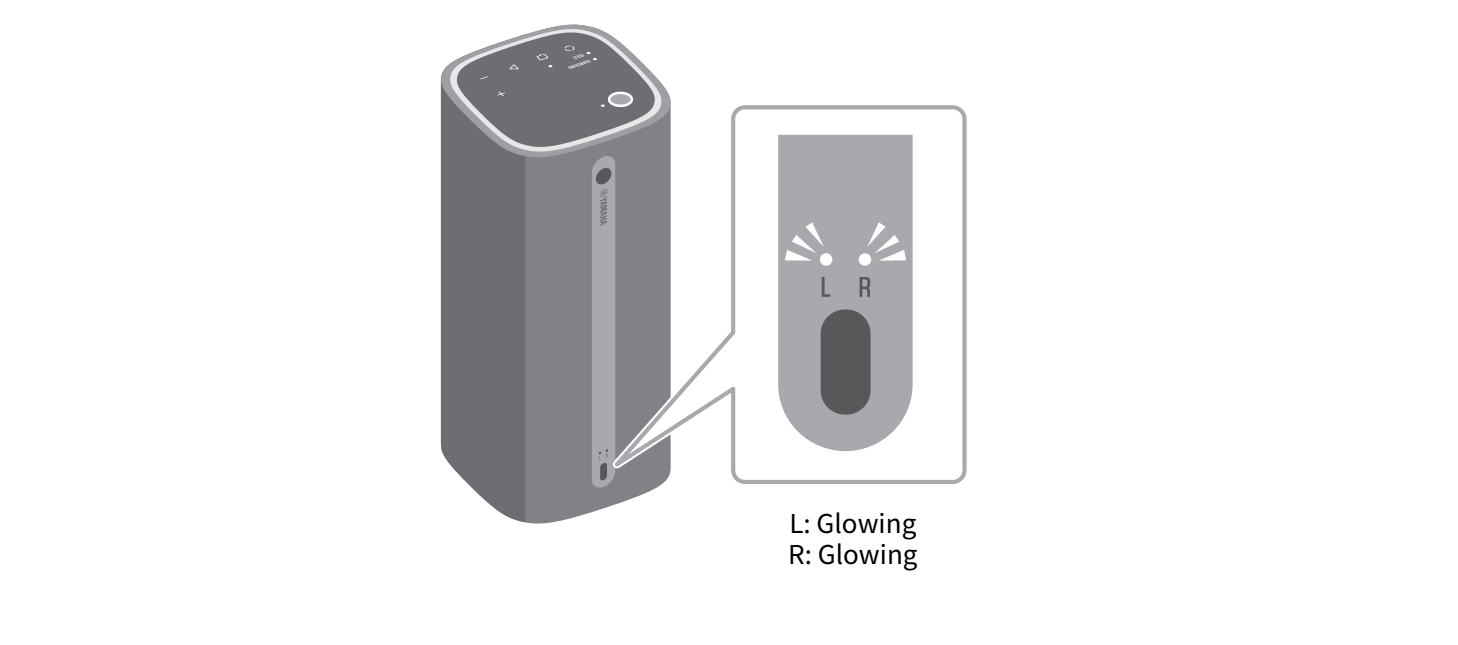
- If the registration is not complete within two minutes after the wireless speaker has entered the registration wait status, the registration wait status will be canceled.
- To interrupt the registration procedure, hold down the power button for at least three seconds to turn off the wireless speaker.
- If there is a firmware update after completing the registration, the update will start automatically.
- If you update sound bar firmware manually after registration, you may also have to update the firmware of the wireless speakers. The wireless speaker firmware will be updated automatically and “Wireless SP : FW Updating..” will appear on the front display.
When “Update success” appears on the front display, turn off the sound bar and then turn it back on.
Depending on the number of connected wireless speakers, you may have to repeat the firmware update process several times.
- If the Wireless Speakers are connected to a power source, turning on the sound bar will automatically turn on the Wireless Speakers.
- When the True X Ready function is set to “On”, the wireless speakers turn on with the sound bar earlier than when the function is set to “Off”.
Registering the second wireless speaker
Perform the same operation as the first wireless speaker (L) to register the second wireless speaker (R) as Surround Speaker (Right).
- Hold down P (mode) for at least three seconds on the wireless speaker.
- A notification tone will be heard making it possible to distinguish Left (L) and Right (R) speakers.
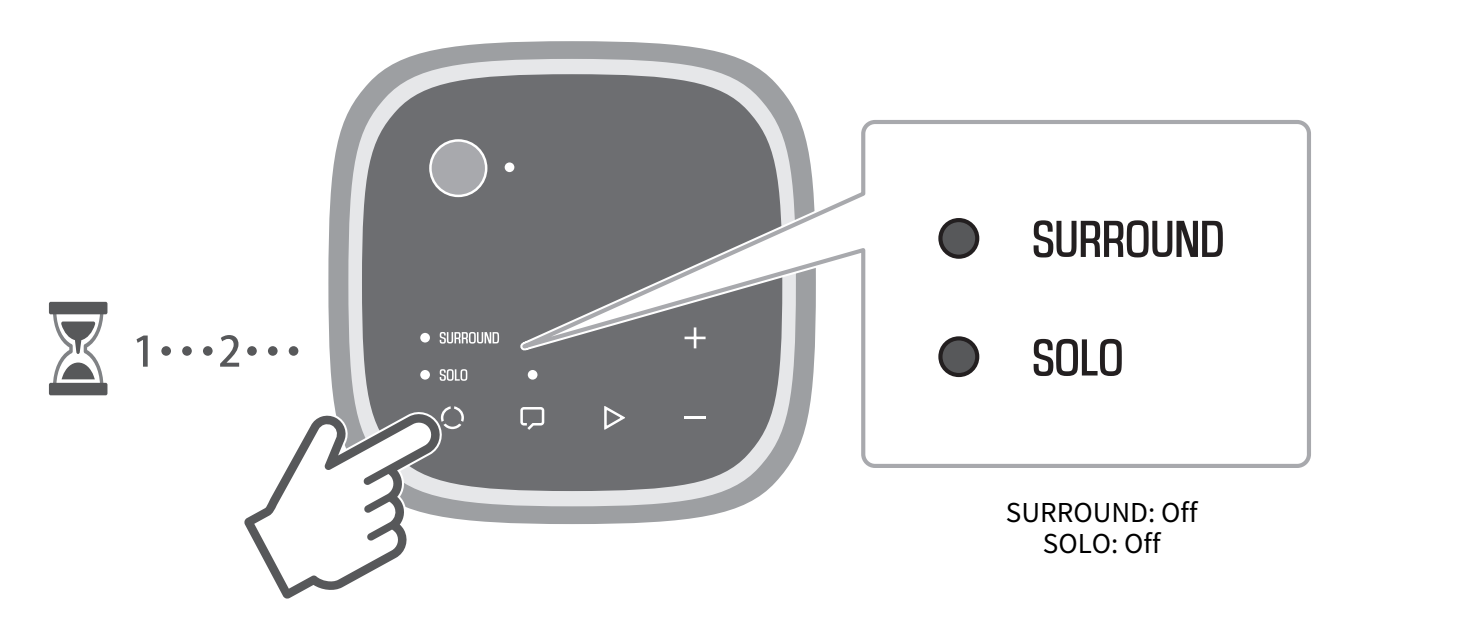
- Press P (mode) to turn on the R indicator.
- Each press of the button switches the indication between L and R and the notification tone is heard. The default setting is “L” (Surround (Left)).
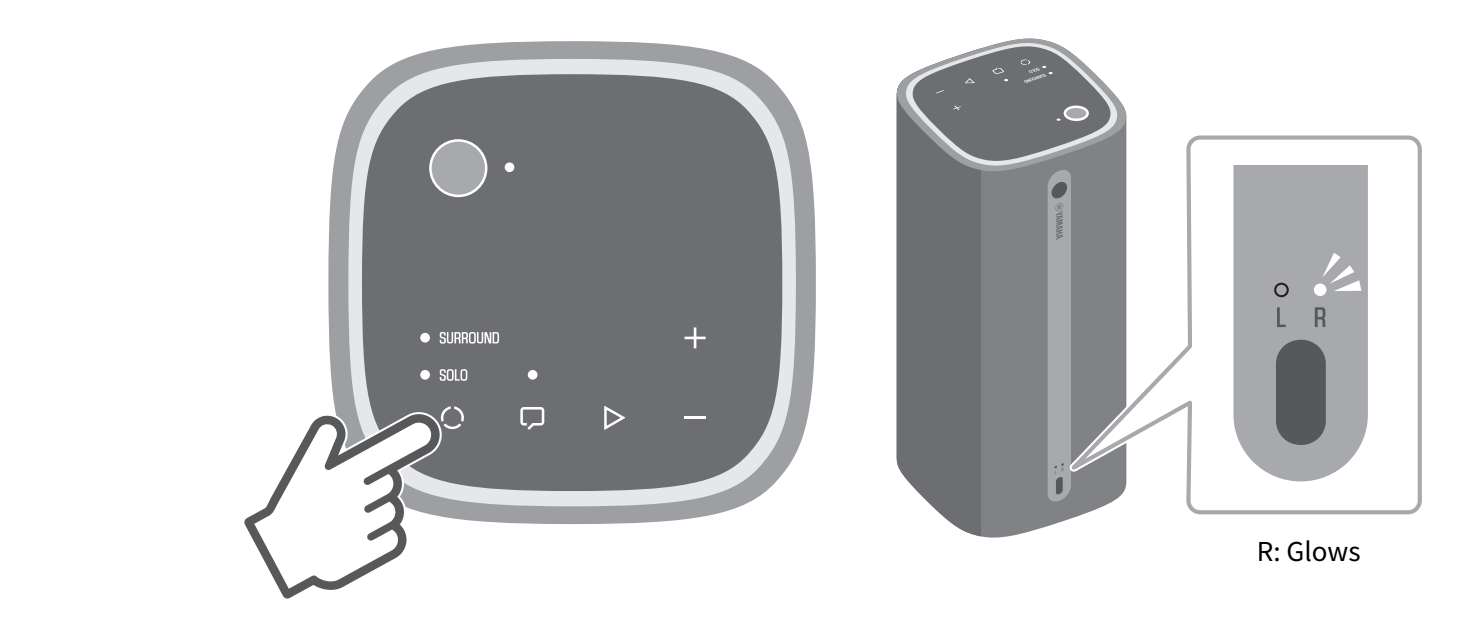
- Hold down P (mode) for at least three seconds on the wireless speaker.
- The notification tone indicates that the wireless speakers have entered the registration wait status, and the SURROUND indicator on the wireless speaker will start to flash.
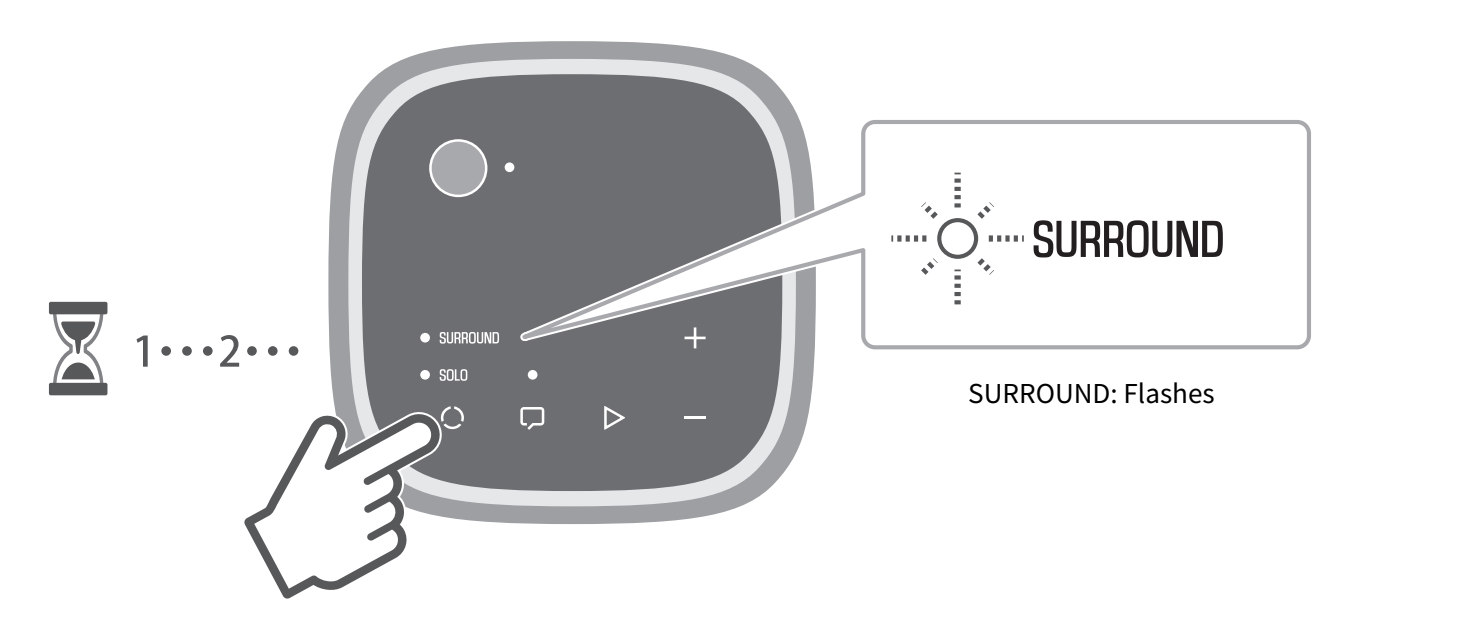
- In the next step, operate the controls of the sound bar. Operate the controls of the sound bar within two minutes after the wireless speaker has entered the registration wait status.
- The wait status is canceled after two minutes have elapsed. If this happens, start over from step 1.
- On the remote control of the sound bar, hold down the ~ (Setup) key for at least three seconds.
- “Registering” appears on the front display, and the wireless speakers are registered to the sound bar.
NOTE
- Also on the TV screen, the “Registration” screen is displayed as shown below.
If the Setup menu is already open on the TV screen, the “Registration” screen is displayed directly.
- If you are using a firmware version older than Ver.1.07, in the Setup menu, go to “Speaker” > “Registration” and select “Registration”, and register the wireless speakers.
- When the SURROUND indicator on the control panel of the wireless speaker changes from flashing to glowing, and “Finished” appears on the front display and on the TV screen, the registration is complete. The wireless speaker is registered as Surround Speaker (Right).
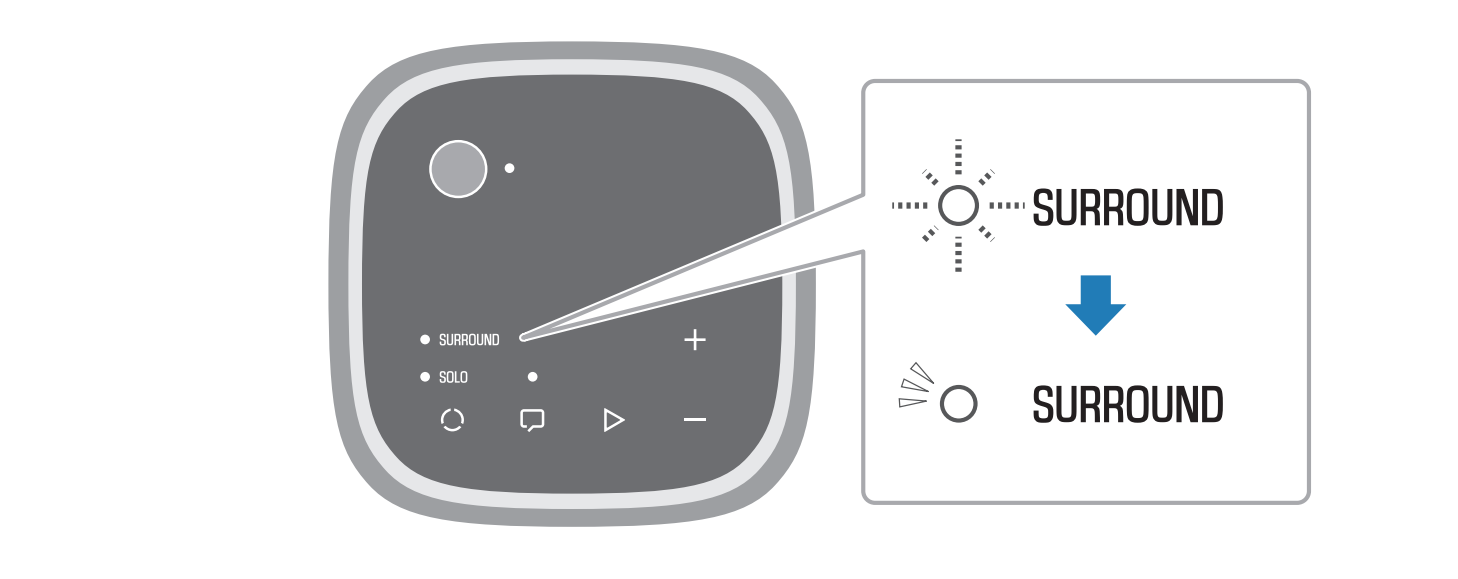
- The L or R indicator on the rear of each wireless speaker glows according to the channel it is registered as.
- Check the following if the registration status of a speaker shows “Not registered” on the “Registration” screen.
- The same channel (L/R) registered for the first wireless speaker is also selected for the second wireless speaker.
- Hold down P (mode) for at least three seconds to select a different channel, and then hold down P (mode) for at least three seconds again.
- The wireless speaker’s registration wait status is expired.
- The registration wait status will be canceled after more than two minutes have elapsed. Start over the registration procedure again.
- Press the ~ (Setup) key on the remote control of the sound bar to open the Setup menu.
- In the Setup menu, under “Power Management” > “True X Ready”, select “On”.
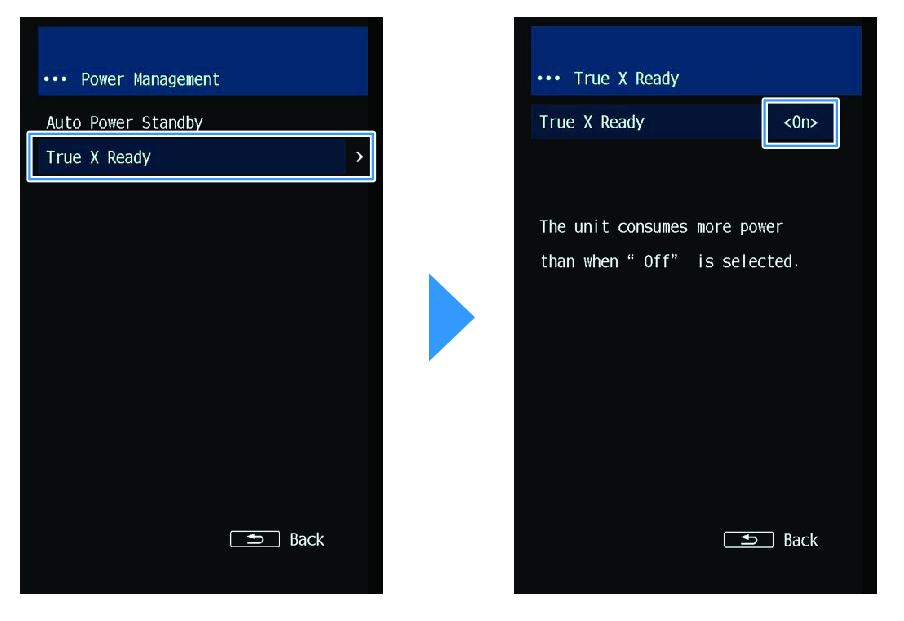
Proceed to install the wireless speakers in their respective positions.
NOTE
- If the registration is not complete within two minutes after the wireless speaker has entered the registration wait status, the registration wait status will be canceled.
- To interrupt the registration procedure, hold down the power button for at least three seconds to turn off the wireless speaker.
- If there is a firmware update after completing the registration, the update will start automatically.
- If you update sound bar firmware manually after registration, you may also have to update the firmware of the wireless speakers. The wireless speaker firmware will be updated automatically and “Wireless SP : FW Updating..” will appear on the front display.
When “Update success” appears on the front display, turn off the sound bar and then turn it back on.
Depending on the number of connected wireless speakers, you may have to repeat the firmware update process several times.
- If the Wireless Speakers are connected to a power source, turning on the sound bar will automatically turn on the Wireless Speakers.
- When the True X Ready function is set to “On”, the wireless speakers turn on with the sound bar earlier than when the function is set to “Off”.
- Setting the “True X Ready” to “On” consumes more power than when it is set to “Off”.
 TRUE X BAR 90A (SR-X90A)