
Voice screen
On this screen, you can search for sounds, edit them, and send them to the instrument.
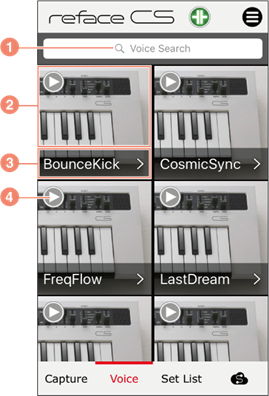
a) Tap this button to display a keyboard and search for sounds by name and tags. Tap a tag to display only those sounds to which that tag has been assigned. Tap the tag once again to stop the tagbased filtering.
b) Tap this button to send the sound to the instrument as bulk data. Tap and hold to switch to Edit mode and delete the sound.
c) Shows the name of the sound. Tap to switch to the sound Details screen.
d) For playing the audition phrase assigned to the sound. (This icon will not be displayed when the smart device is disconnected from the instrument, or connected to the MONTAGE or MODX series.)
 NOTE
NOTE
• You can change the size of sound icons by pinching and spreading the screen.
Detail screen
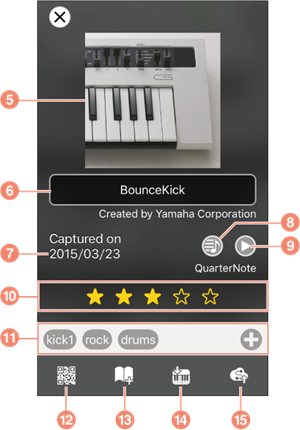
e) The image assigned to the sound. Tap on an image to change it.
f) Shows the name of the sound. You can tap here to display a keyboard and change the name.
g) The date on which the sound data was captured.
h) For selecting a MIDI audition phrase.
i) For playing the MIDI audition phrase. Tap once again to stop playback of the phrase. (h and i will not be displayed when you connect to the MONTAGE or MODX series.)
j) For setting the sound’s rating.
k) The tags assigned to the sound. Tap “+” to switch to a screen for adding and editing tags.
l) For generating the sound’s QR code. (This icon will not be displayed when you connect to the MONTAGE or MODX series.)
m) For switching to a screen for adding and editing set lists.
n) For sending the sound to the instrument as bulk data.
o) For uploading the sound to the Soundmondo.