


Connecting to an iPad/iPhone
This explains what to do to power this unit, up through connecting to an iPad/iPhone.
What you need
- Apple Lightning to USB 3 Camera Adapter and a commercially available USB-A to USB-C cable (for iPads and iPhones with a Lightning connector)
- Apple USB-C Digital AV Multiport Adapter and the included USB-C to USB-C charging cable (when using an iPad/iPhone with a USB-C connector)
NOTE
- When using this product for streaming or for long periods of time, have a power supply on hand to power your iPad/ iPhone.
- For a list of compatible operating systems, see the following Yamaha website.
- Make sure that the volume on this product and on the connected device is turned all the way down.
- Connect the included AC adapter to the [12V] DC port on the rear panel, and slide the [POWER SOURCE] selector switch to [12V] DC (left side).
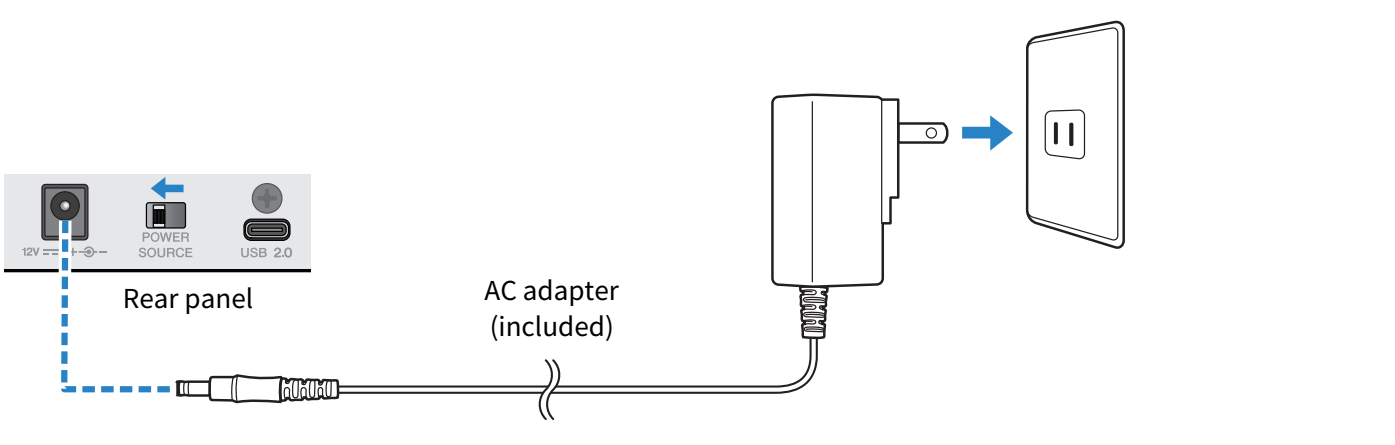
- Turn the [z] (standby/on) switch on.
- After the LED light animation on the top panel of this unit finishes, check whether the LED of the [z] (standby/on) switch on this product is lit.
- Use a commercially available USB-A to USB-C cable to connect this product to an Apple Lightning to USB 3 Camera Adapter.
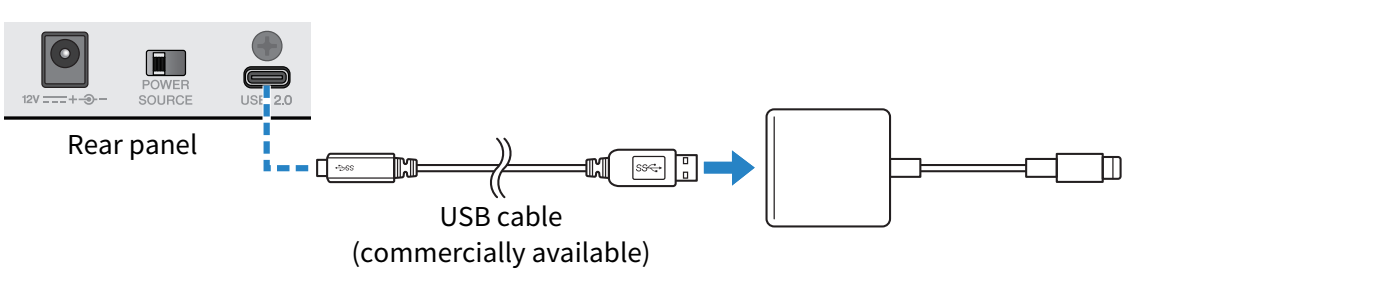
- Connect the Apple Lightning cable to the iPad/iPhone.

NOTE
- If you’re using an iPad/iPhone that features a USB-C connector, use the Apple USB-C Digital AV Multiport Adapter. You can also use the included USB-C cable to connect your iPad/iPhone directly to this product. However, the amount of time you can use the iPad/iPhone is limited by how much battery charge remains on that device.
- This product is automatically recognized by the iPad/iPhone once connected.
- There is no need to configure any settings on the iPad/iPhone.
 AG08
AG08