


DSP popup window
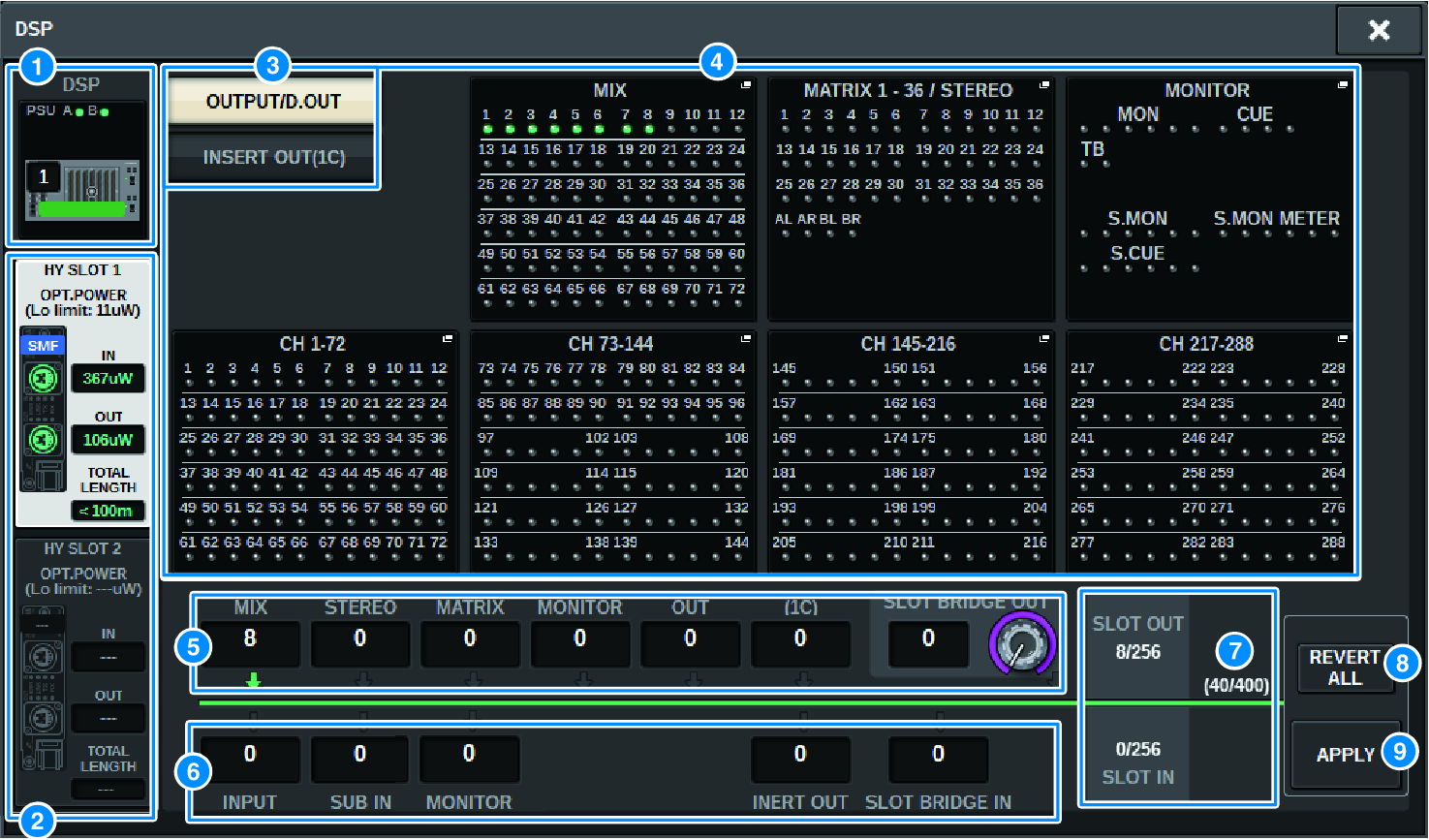
This screen contains the following items.
a | DSP engine indicator This button represents the DSP engine that is connected to the system. The row at the top of the button shows the power supply status of POWER A and B (green: power on, red: power off). The device icon indicates the device status (green: normal; yellow: abnormal, red: critical error). |
b | HY SLOT select buttons These buttons allow you to select the HY SLOT (TWINLANe network) for which you will assign channels. (You can select only HY SLOT1 for the CSD-R7.) The optical reception power status and value on the TWINLANe network are also shown here. HY SLOT1 is for the main network, and HY SLOT2 is for the sub network. Green: Normal Yellow: Optical reception power is getting low. Red “LOW”: Optical reception power is too low to communicate. It also indicates the type of HY cards (MMF:HY256-TL; SMF:HY256-TL-SMF) and the total length of the cables. |
c | Display switch buttons for the channel assign popup button area These buttons enable you to select which channels will be assigned to the TWINLANe: either output bus/direct out or insert out. |
d | Channel assign popup buttons When you press a button, a “TWINLANe CONFIGURATION popup window” appears, in which you can assign the direct out to the TWINLANe network. The number of channels varies depending on the system configuration. |
e | SLOT OUT channel assignment This area indicates the number of output channels currently used by the TWINLANe network. |
f | SLOT IN channel assignment This area indicates the number of input channels currently used by the TWINLANe network. |
g | TWINLANe resource section Indicates the total number of channels currently used by the TWINLANe network. - SLOT OUT resource counter: The maximum number of channels is 256. - SLOT IN resource counter: The maximum number of channels is 256. - TWINLANNe network resource counter: The maximum number of channels is 400. You cannot assign more than the maximum number of channels. |
h | REVERT ALL button If you press this button, all changes in channel assignments that you made up to that point will be canceled, reverting to the state prior to the changes. |
i | APPLY button If you press this button, the channel assignment changes you made will be applied to the TWINLANe network. |
 RIVAGE PM Series