Basic Operations
Basic Operations
This section explains the basic operations of the Control Center.
Selecting a device
To control a Yamaha product ( device ), select the device in the Control Center.
Procedure
-
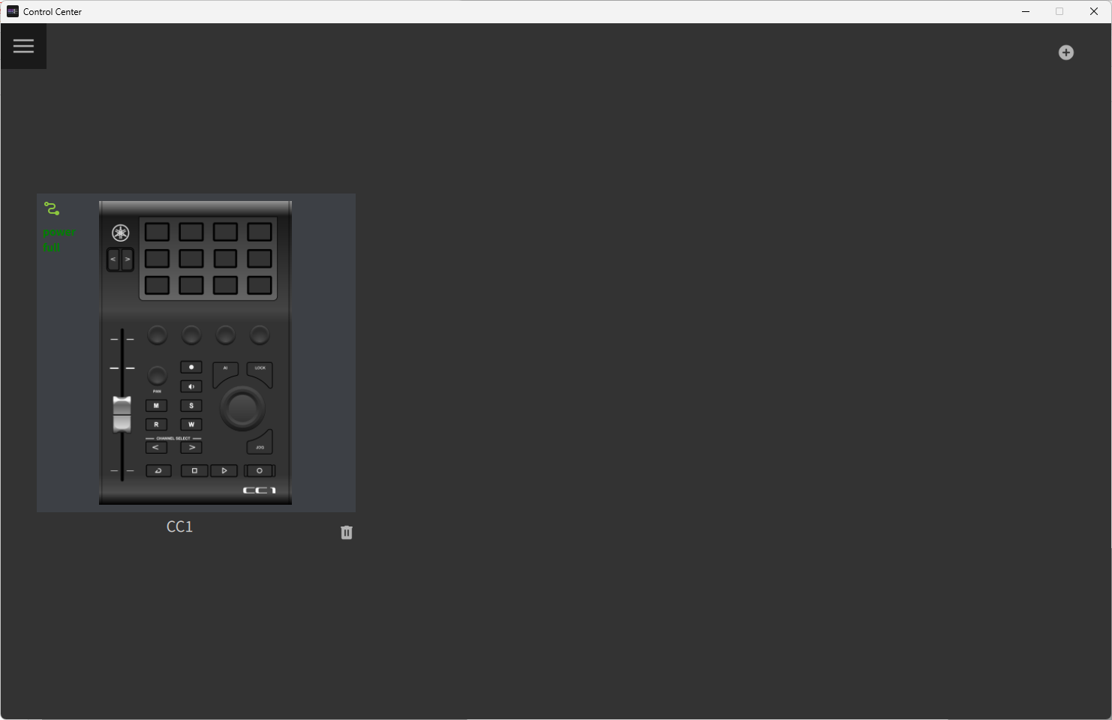
Connect the device to your computer. Once connected to your computer, the device image will appear in the Control Center’s Device List screen.
-
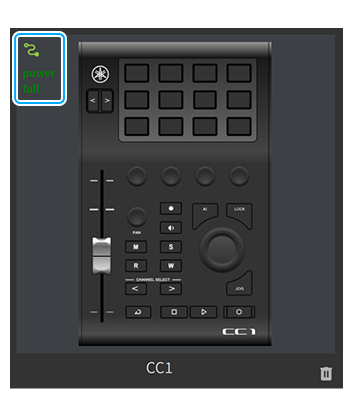
Check the indicator in the top left corner of the device image. If the indicator is solid green and "power full" is displayed, you can control that device in the Control Center.
-
Select the device. Once you select the device, a screen for controlling the device (profile preview screen) will be displayed.
Switching profiles
The Control Center allows you to switch and manage the sets of functions ( profiles ) that you assign to each control on the device. By switching profiles to suit your needs, you can minimize operations and create a more comfortable and efficient work environment.
Procedure
Use one of the following methods to switch profiles:
-
Switch in the Profile List
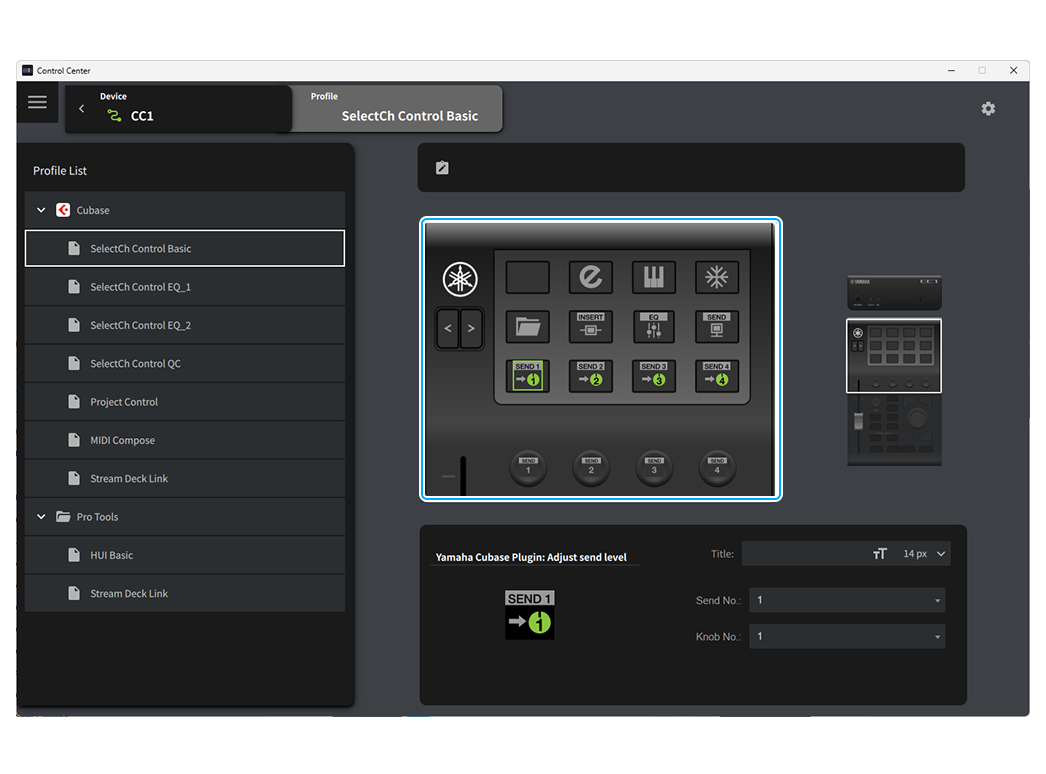
Select a profile from the Profile List on the left side of the profile preview screen.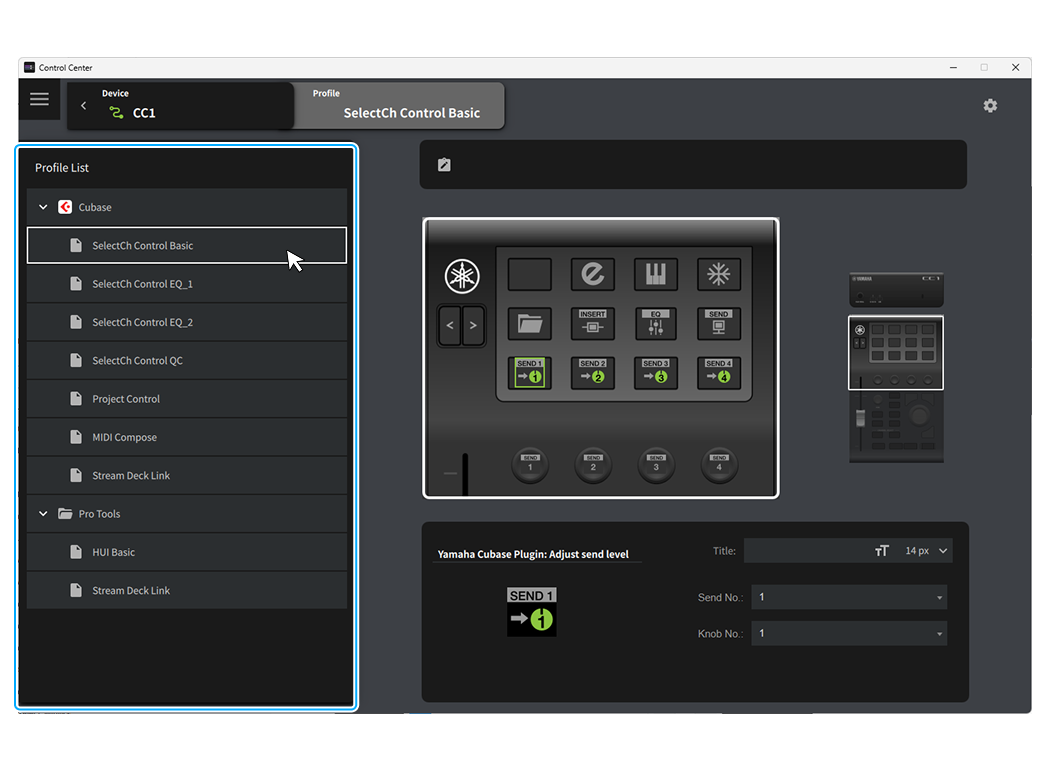
-
Switch with Mini Navigation
For more information, see Using Mini Navigation . -
Switch with the device’s buttons (some products only)
Press the buttons on the device to switch profiles.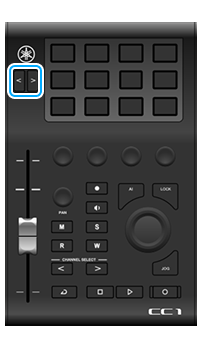
You can check the contents of the switched profile in the profile preview on the right side of the screen.
Configuring action details
In the Control Center, you can configure the details of each function ( action ) assigned to each control on the device. By customizing the action titles and parameters, you can create a personalized operating environment that suits your work style.
Procedure
-
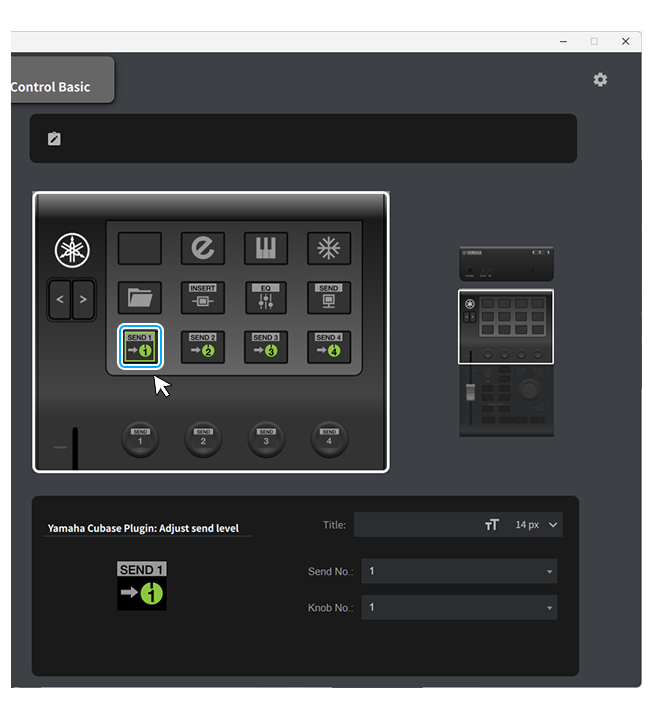
In the profile preview, click the action you want to configure details for.
-
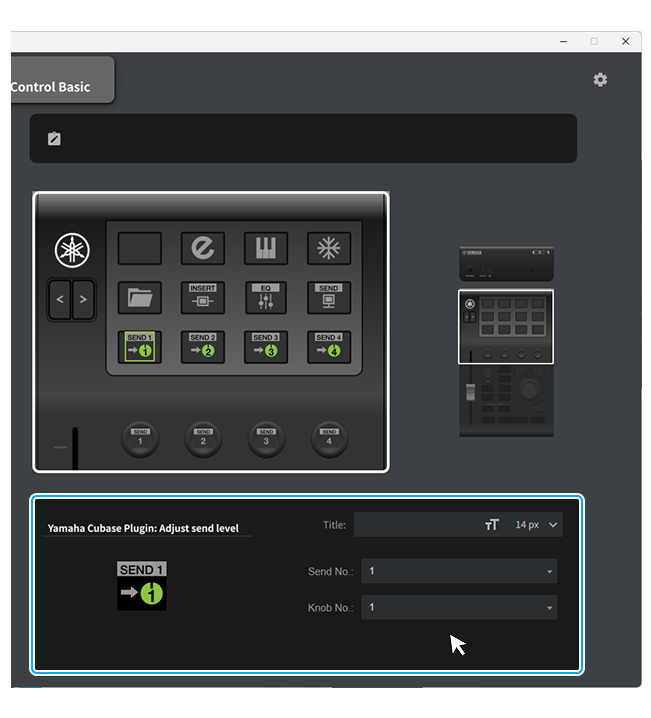
Configure the details of the action in the Property Inspector below the profile preview.
Using Mini Navigation
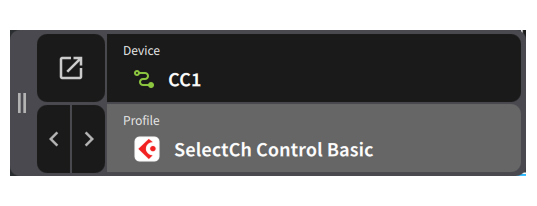
Enabling Mini Navigation allows you to use the Control Center with a compact view. Quickly switch between devices and profiles to stay focused on your work.
Procedure
Switching the display
-
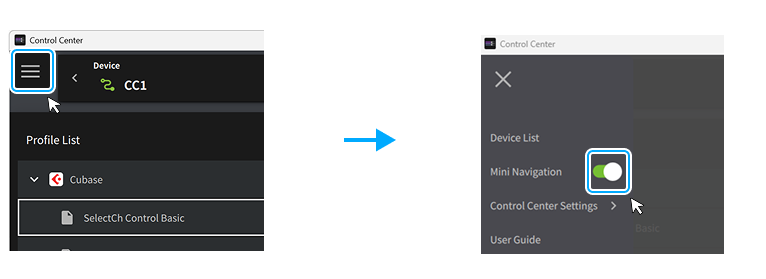
Enable Mini Navigation on menu screens.
-
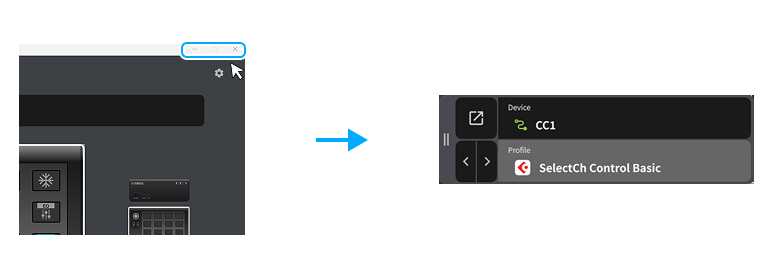
Close or minimize the Control Center window and switch the display to Mini Navigation.
-
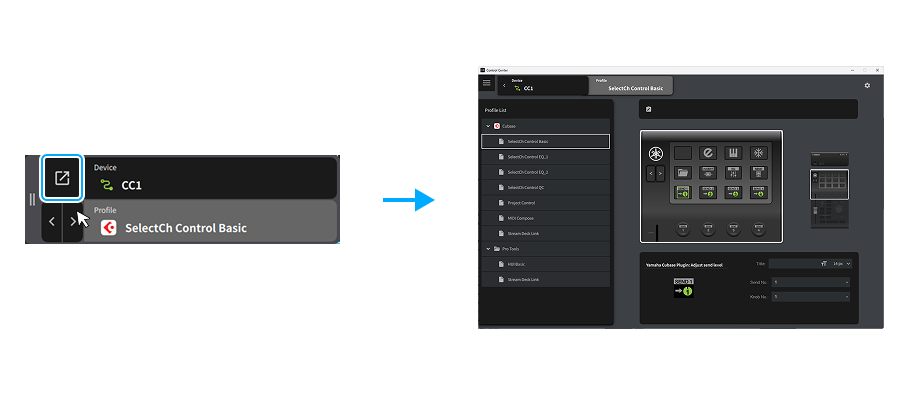
To return to the original screen, click the button at the top left.
Switching devices
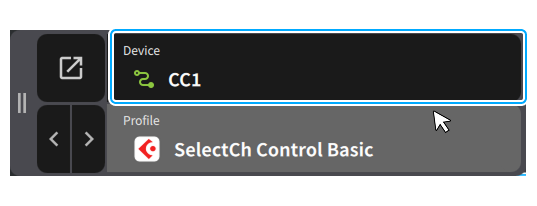
Clicking on the device name area in Mini Navigation will display a list of devices, allowing you to select other devices.
Switching profiles
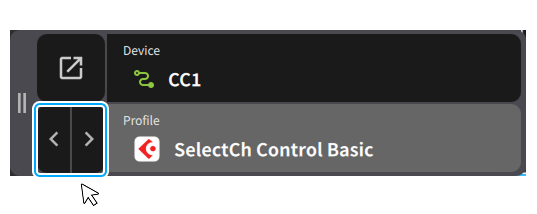
Click the profile switch buttons in Mini Navigation to switch between profiles one by one.
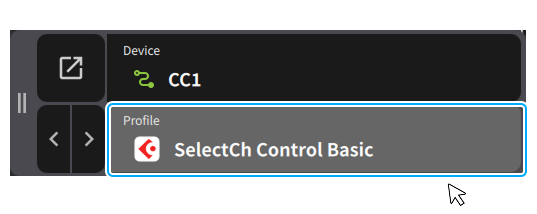
Clicking on the profile name area in Mini Navigation will display a list of profiles, allowing you to select other profiles.
Setting up the device itself
The Control Center allows you to update the firmware of the device itself and configure various settings.
Procedure
-
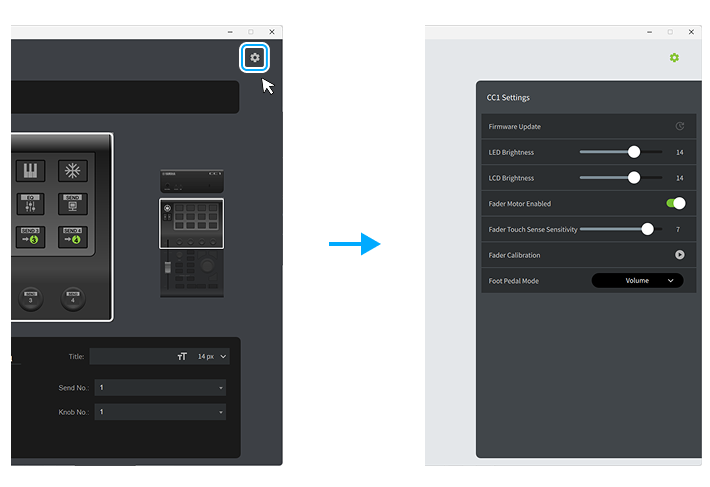
Click the gear button in the top right corner of the profile preview screen.
-
Configure the device. For details on the settings for each device, see Device Settings .