
Linking with the Stream Deck app
Linking with the Stream Deck app
The Control Center can be used in combination with Elgato’s control application, Stream Deck. Actions configured in the Stream Deck app can be assigned to devices through the Control Center.
This allows you to take advantage of a wide range of plug-ins available in the Elgato Marketplace, giving you control over even more applications. It also enables control of the livestreaming software OBS and Yamaha products that are compatible with the Stream Deck app and connected to the same computer.
Preparation
-
Download the Stream Deck app from the website below and install it on your computer.
https://elgato.com/download/ -
Launch the Control Center and Stream Deck app.
-
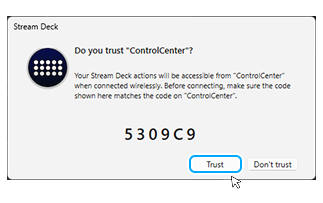
If the Stream Deck app displays the message 'Do you trust "Control Center"?' click [Trust].
Procedure
-
Connect the device to your computer.
-
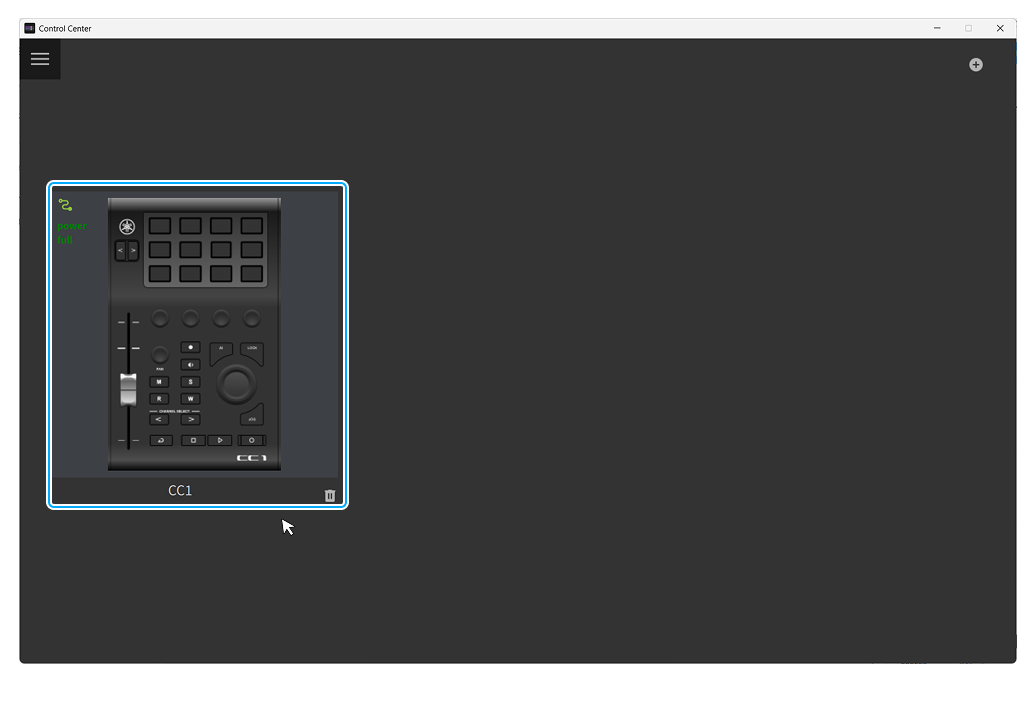
Select the device on the Control Center’s Device List screen.
-
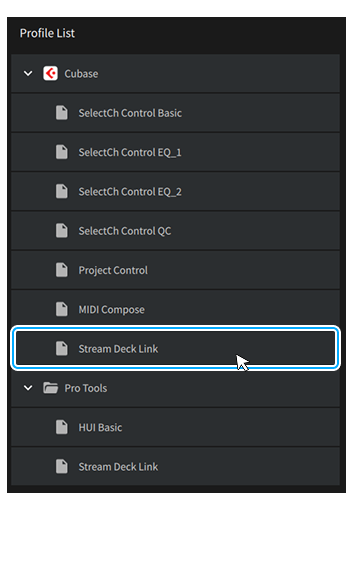
In the Control Center, select the [Stream Deck Link] profile.
-
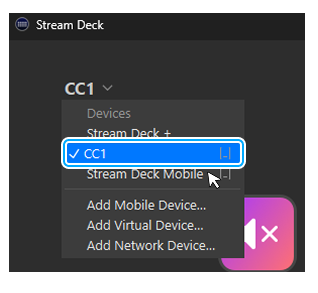
In the Stream Deck app, switch the device to the one you selected in step 2.
-
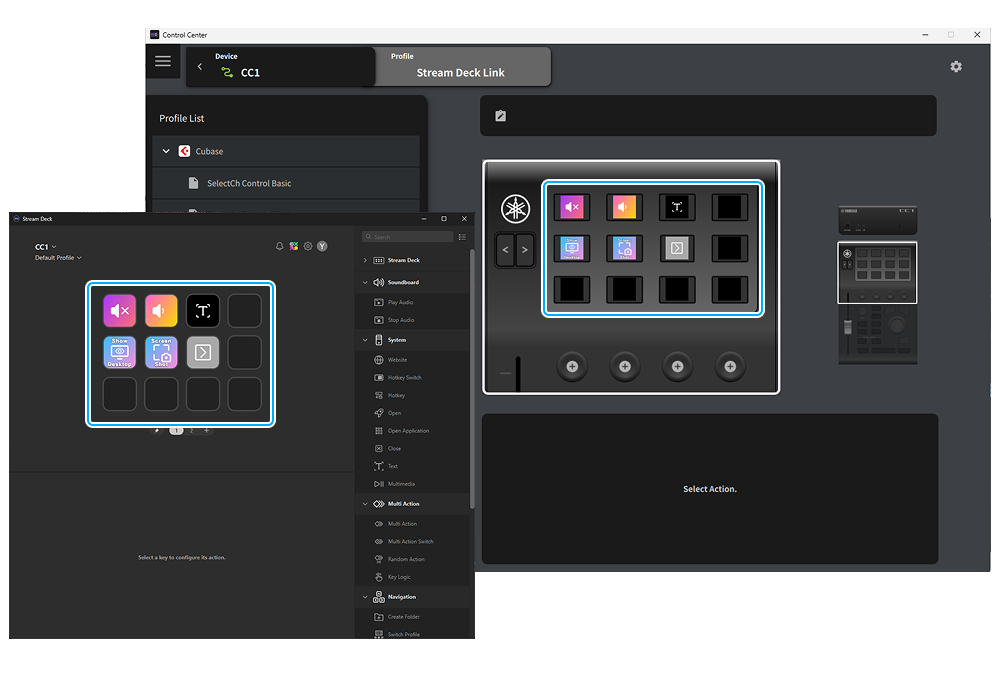
Check the profile preview in the Control Center. If the same actions as in the Stream Deck app are displayed, the Control Center and the Stream Deck app are linked properly.
-
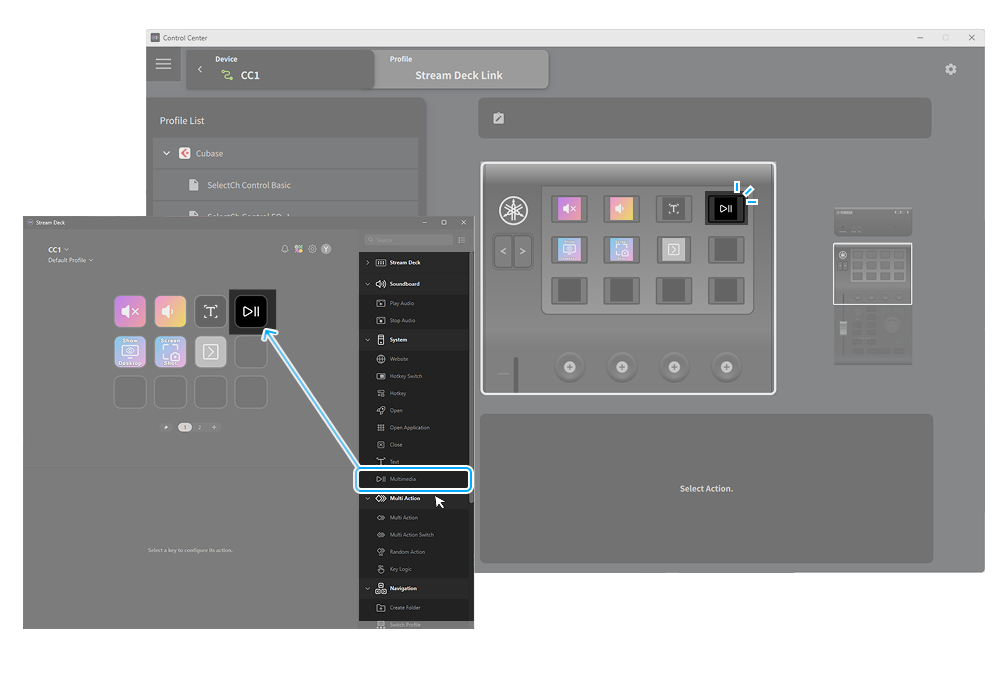
Customize action assignments and parameters in the Stream Deck app. Settings in the Stream Deck app are reflected on your device through the Control Center.
For more information about using the Stream Deck app, see the Elgato website.
https://elgato.com/ -
Operate the device to perform actions.