
Screen layout
Screen layout
This section explains the Control Center screen.
Device List screen
This is the screen for managing the Yamaha products ( devices ) you want to control.
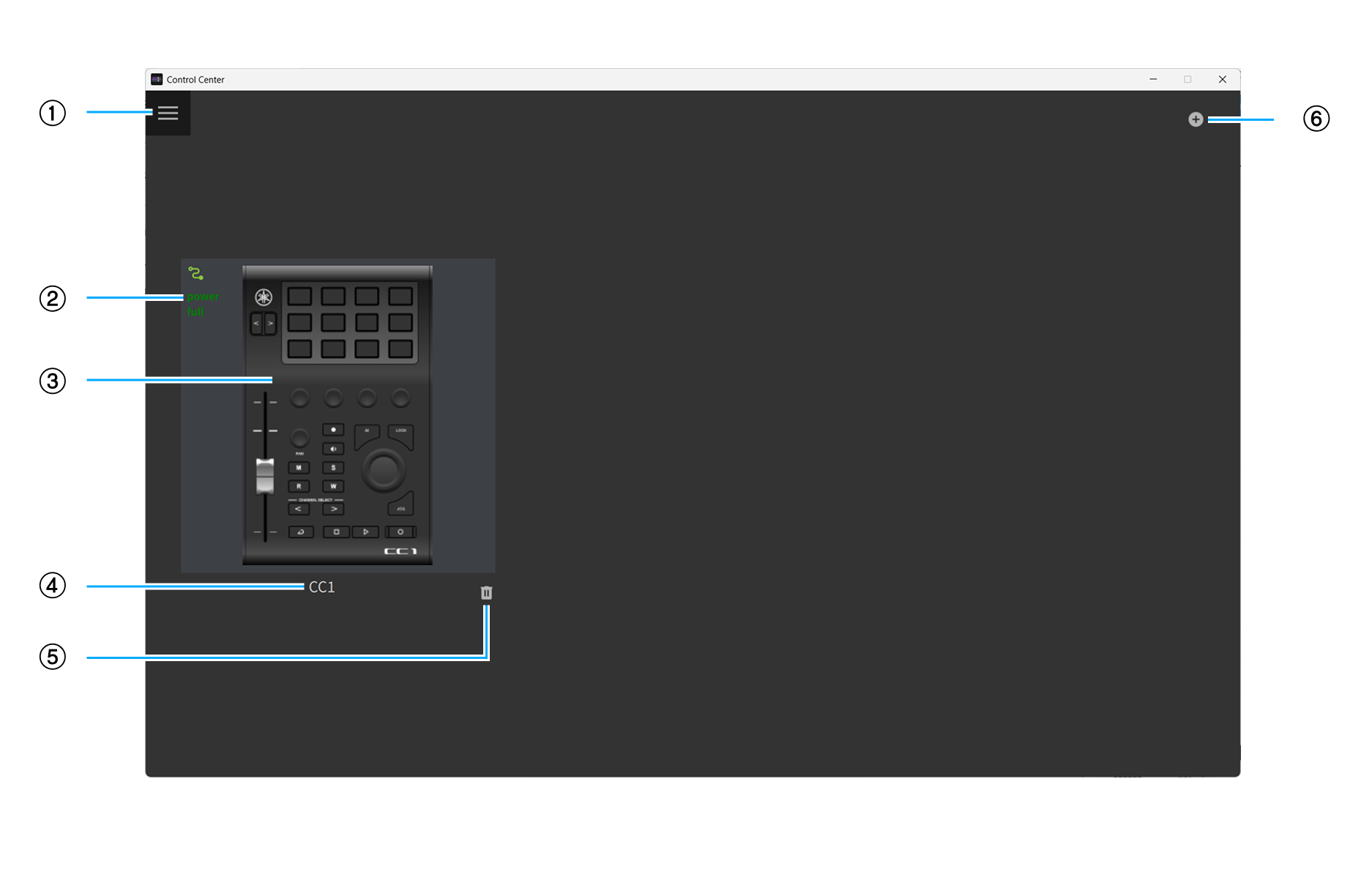
① Displays the Menu .
② Displays the connection status of the device.
| Indicator | Explanation |
|---|---|

|
The device is connected and has sufficient power. |

|
The device is connected but has insufficient power. Refer to your device’s instruction manual to power it. |

|
The device is not connected. |
③ The device connected to your computer. Click to display the Profile Preview screen .
④ The device name set for the device. Click to change the device name.
⑤ Delete the device.
⑥ Add a demo device.
| Adding a demo device allows you to see the functionality of Control Center-enabled products before you buy them. |
Profile Preview screen
This screen allows you to manage the sets of functions ( profiles ) assigned to each control on the device, configure the details of each function ( action ) assigned to each control, and configure the device itself.
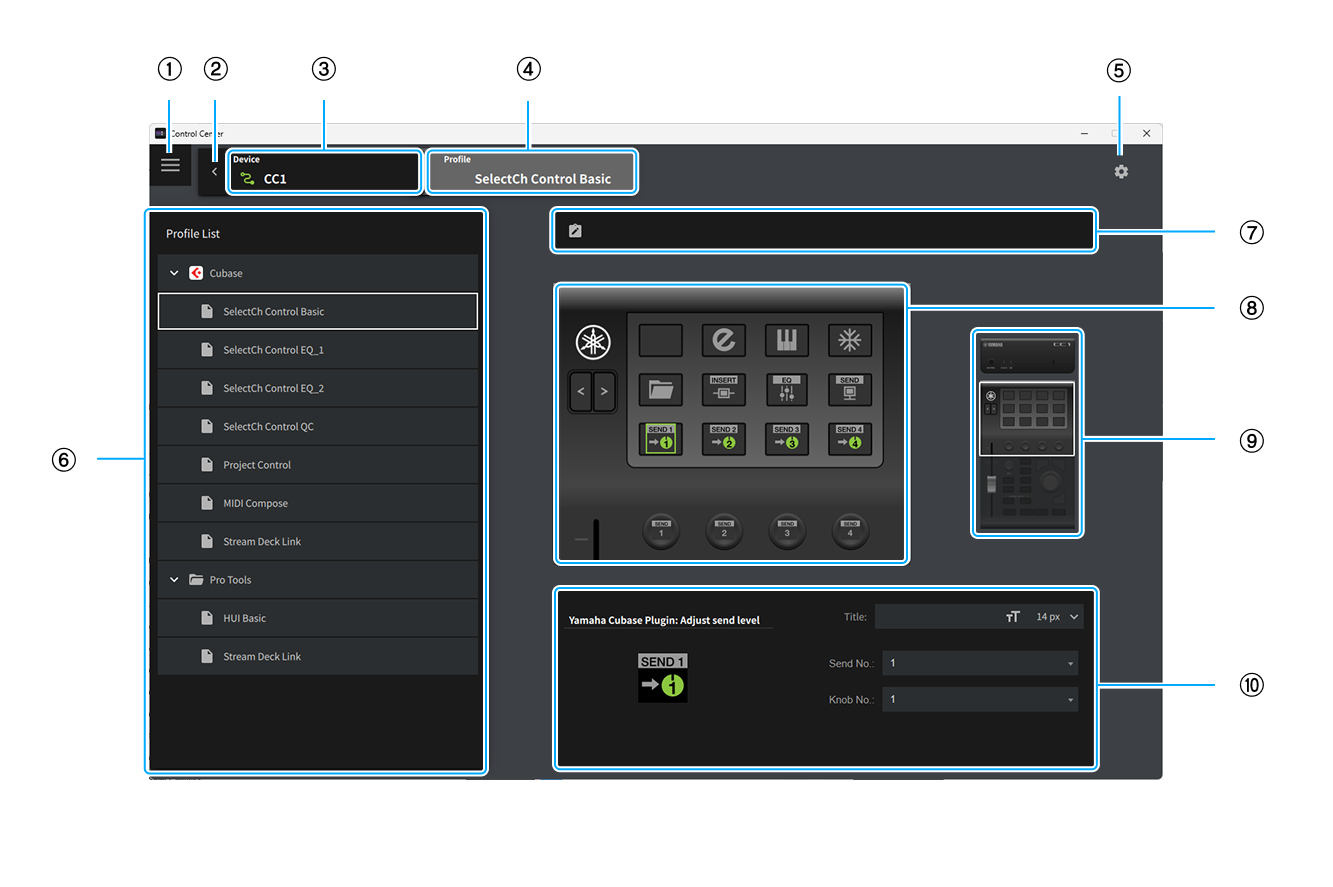
① Displays the Menu .
② Displays the Device List screen .
③ The connection status of the device and device name.
④ The name of the profile applied to the device.
⑤ Displays the Device Settings .
⑥ Select and manage your profiles. For more information, see Profile List .
⑦ Enter a description and notes for the profile.
⑧ The details of the profile applied to the device. For more information, see Profile Preview .
⑨ Change the area of the device displayed in ⑧.
⑩ Set the details of the action selected in ⑧. For more information, see Property Inspector .
Profile List
Select and manage your profiles.
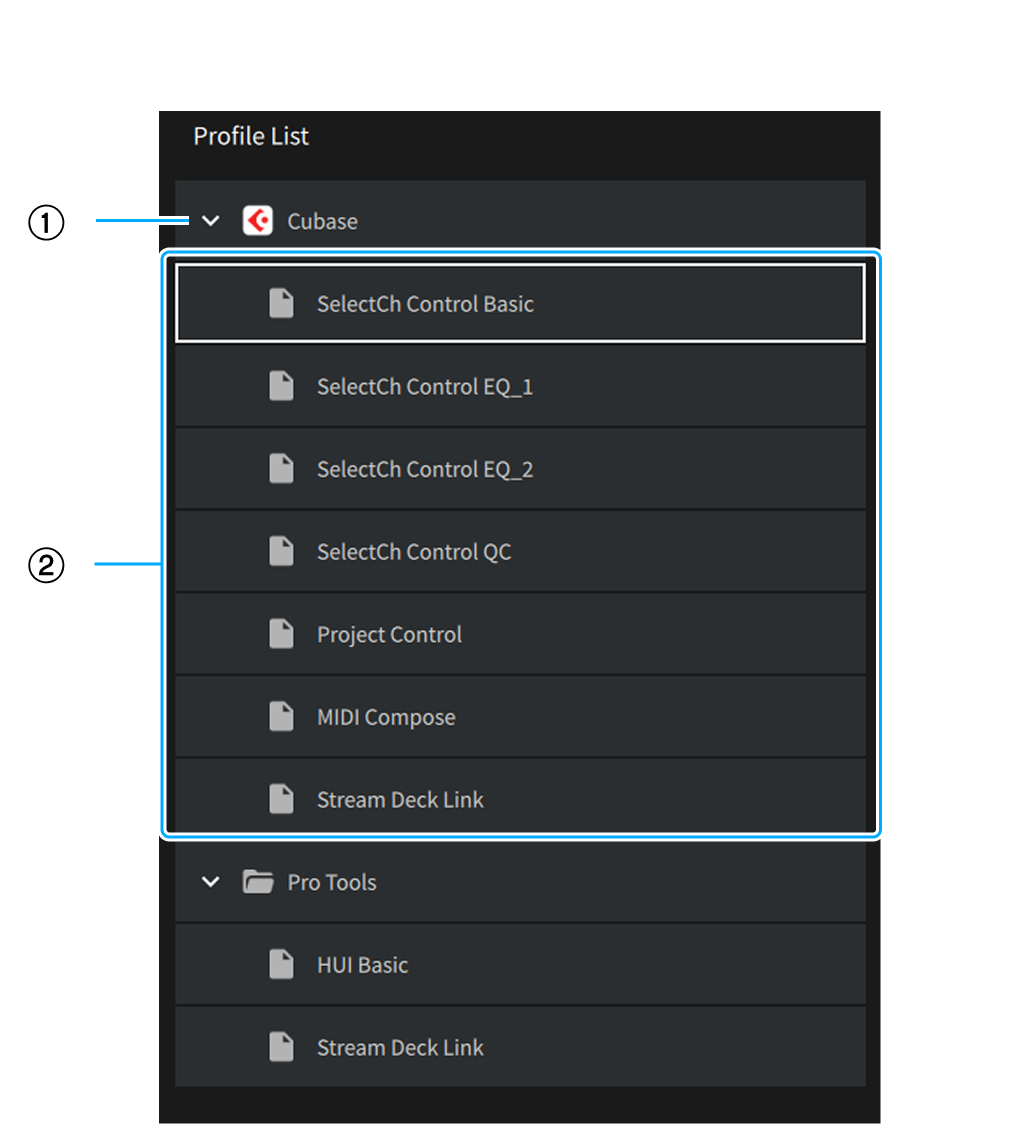
① This is a folder that contains profiles. Click to show or hide profiles in the folder.
② Select the profile to be applied to the device.
Profile Preview
Check the details of the profile applied to the device.
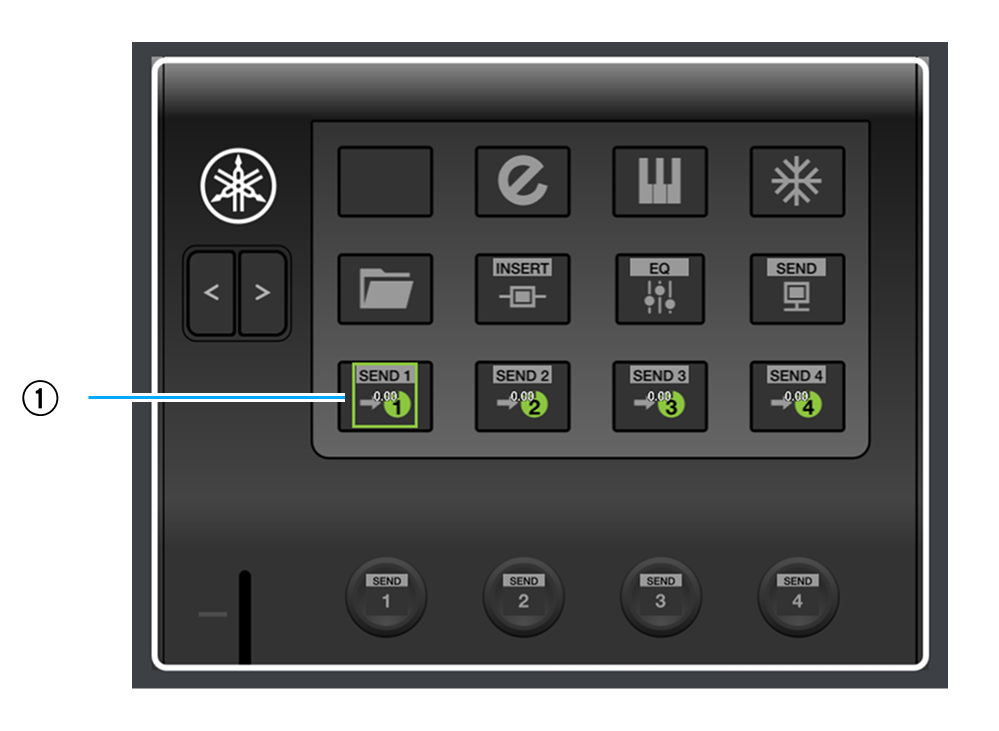
① The action assigned to the control. Click to set the details of the action in Property Inspector .
Property Inspector
Set the details of the action selected in Profile Preview .
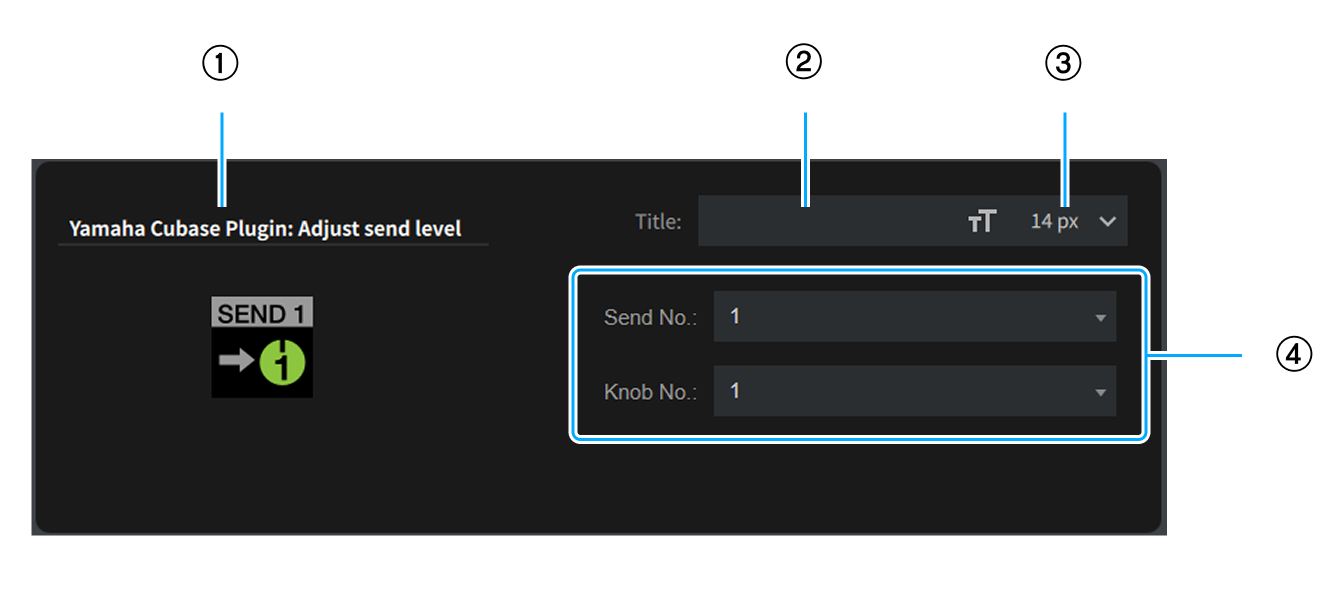
① The type of action.
② Set the title of the action.
③ Change the font size of the title.
④ Set the details of the action. The settings vary depending on the action.
Device Settings
Configure the device settings.
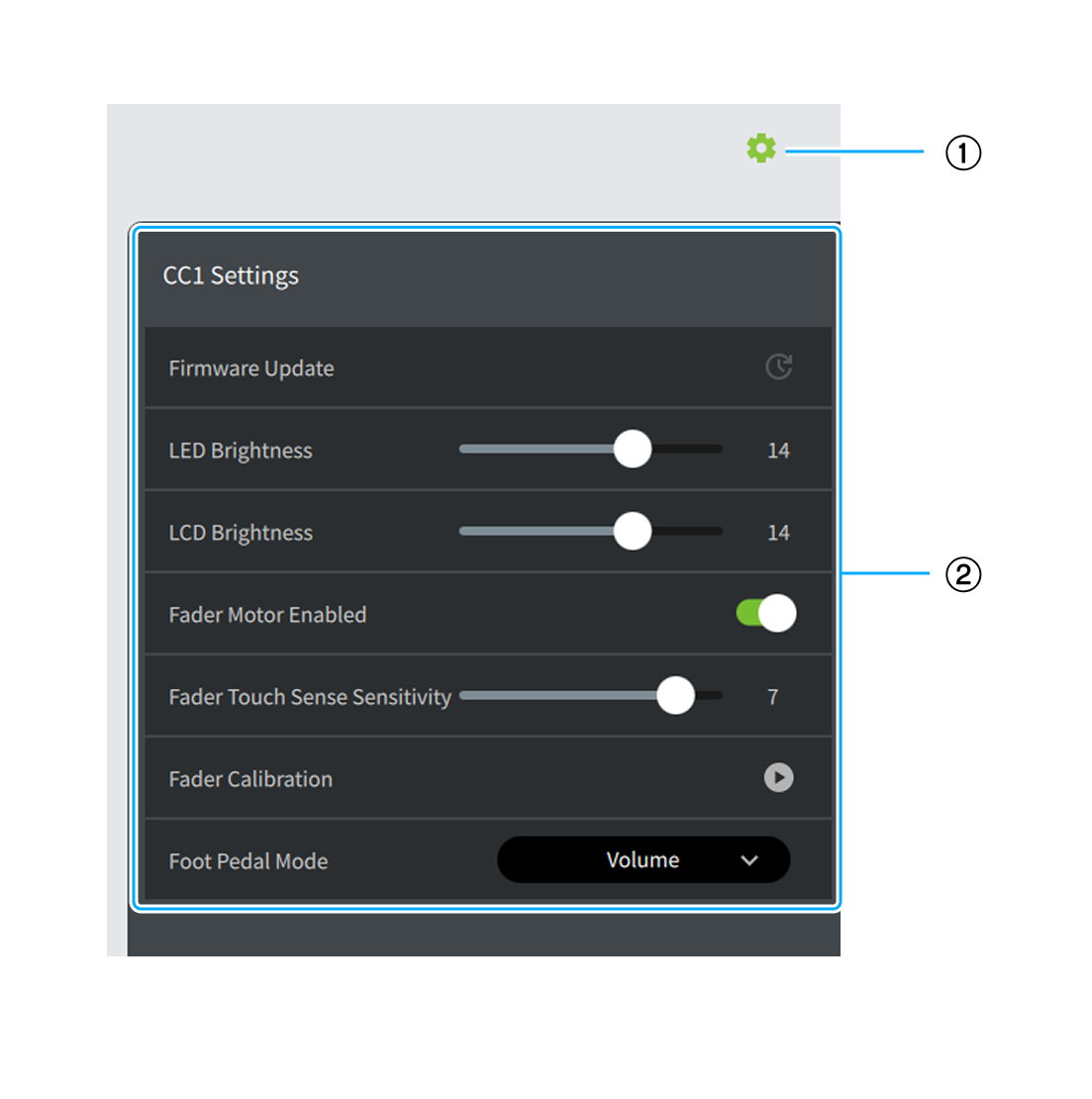
① Close the device settings.
② Configure the device settings. The settings vary depending on the device. For more information, see Device Settings .
Menu
This is the Control Center menu.
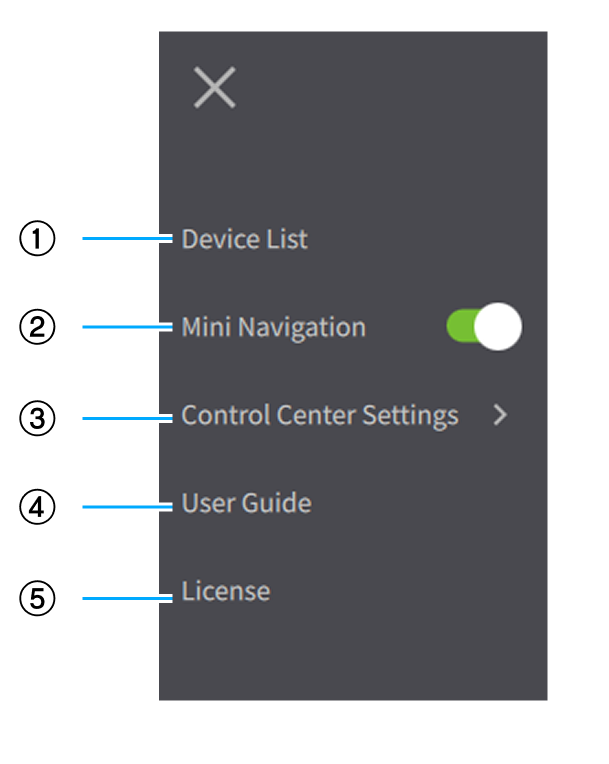
① Display the Device List screen .
② Enable/disable the Mini Navigation .
③ Configure the Control Center.
④ Display the Control Center User Guide.
⑤ Display the Control Center license.
Mini Navigation
Use this to switch the Control Center to a compact view.
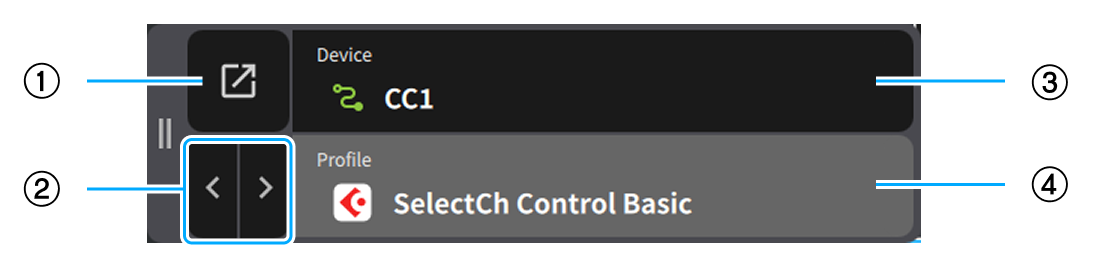
① Return the screen to its original display.
② Switch between profiles one by one.
③ The connection status of the device and device name. Clicking this area will display a list of devices, allowing you to select another device.
④ The profile applied to the device. Clicking this area will display a list of profiles, allowing you to select another profile.