
Frequently asked questions
Frequently asked questions
I can’t operate apps like Cubase on my device
-
Control Center communication and access has not been permitted
When you first launch the Control Center, you may see a pop-up screen asking you to set app communication and access permissions. If so, please configure the following PC or Mac settings.-
Windows settings
On the pop-up screen where you can set app communication permissions, check "Public" and "Private." If the pop-up screen does not appear, go to [Control Panel] > [System and Security] > "Allow an app through Windows Firewall" and check "Public" and "Private" for ControlCenter.exe. -
Mac settings
From the pop-up screen, go to "System Settings" and configure the following settings:-
Go to Privacy & Security and turn on Control Center permissions near the bottom of the page
If the screen for setting use permissions is not displayed, skip this step. -
Go to Privacy & Security > Accessibility and turn on permission for Control Center to control your computer
-
-
-
The device is not connected to your computer
Connect the device to your computer. -
If the above does not solve the problem
Restart the Control Center as follows:-
Windows
-
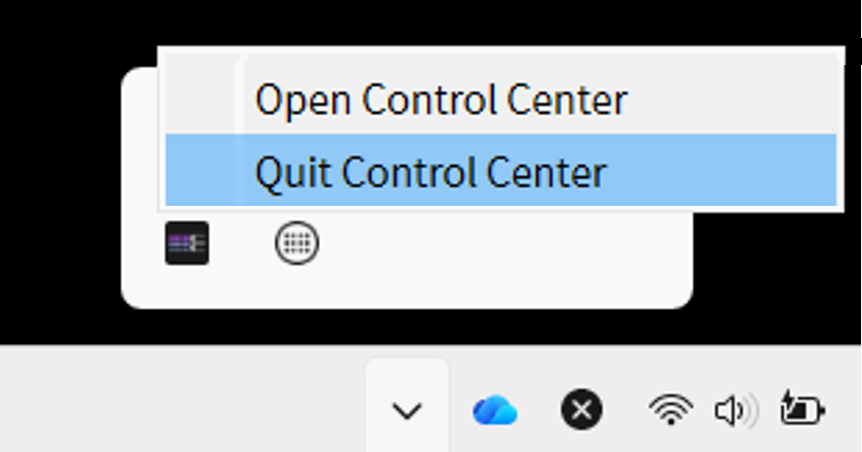
Right-click the Control Center icon in the notification area and click "Quit Control Center"
-
Launch Control Center from the Start menu or the desktop shortcut. Alternatively, go to \Users\xxxxx\AppData\Local\Yamaha\ControlCenter and double-click "ControlCenter.exe" ("xxxxx" indicates the user name)
-
-
Mac
-
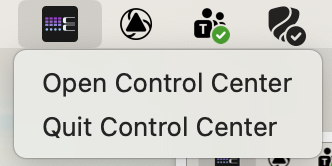
Right-click the Control Center icon in the menu bar and click "Quit Control Center"
-
Go to the Applications folder (Applications/), then double-click "ControlCenter.app" to launch Control Center. Alternatively, launch Control Center from Spotlight or Launchpad
-
-
I can’t link with the Stream Deck app
-
The Control Center and Stream Deck app are not communicating
In the Control Center, do the following to reconnect with the Stream Deck app:-
Select the [Stream Deck Link] profile
-
In the profile preview, click the action for the Stream Deck app
-
Check the Property Inspector display
-
If you see the message "Communication with Stream Deck has been disconnected," click the [Launch Stream Deck] or [Reconnect] button below the message
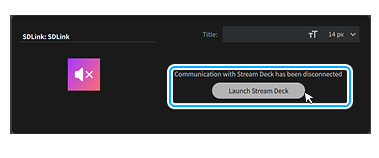
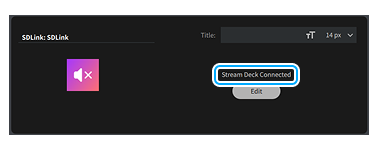
Once the Control Center and Stream Deck app are successfully linked, "Stream Deck Connected" will appear in the Property Inspector.
-
-
You clicked [Don’t trust] on the screen asking whether you want to trust the Control Center
If the Stream Deck app displays the message 'Do you trust "Control Center"?' click [Trust]. -
The Stream Deck app is not running
If you want to use Control Center and the Stream Deck app together, launch the Stream Deck app. -
The device is not connected to your computer
Connect the device to your computer.
Preset hotkeys don’t work
-
Current hotkey settings are not compatible with your computer or shortcut key settings
Preset hotkeys may not work correctly if they are not compatible with your computer’s keyboard settings, OS language, or DAW shortcut key settings. If necessary, update your hotkey settings for your environment. Hotkey settings can be changed using the Property Inspector. For details, refer to Configuring action details .