


About the SELECTED CHANNEL VIEW Screen
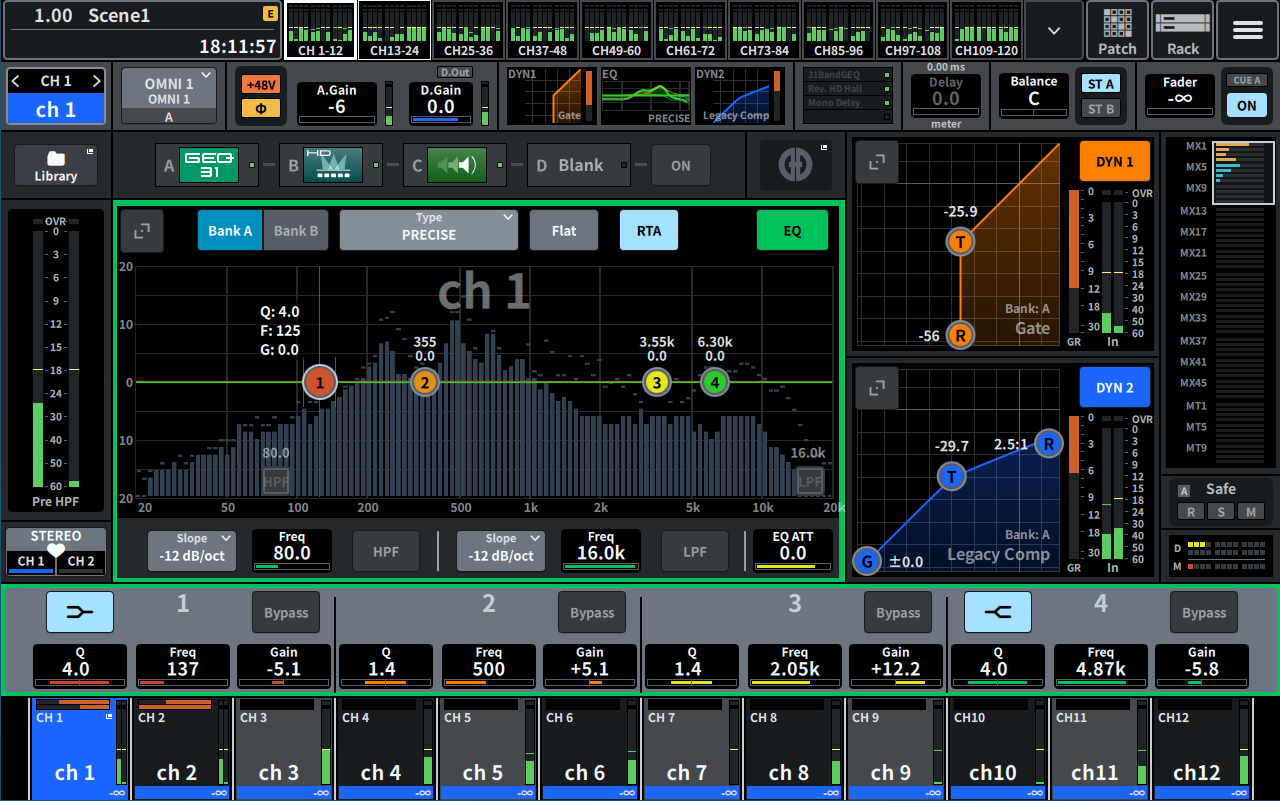
This screen shows all mix parameters of the currently-selected channel.
a | Selected channel This area shows the number, name, icon, and channel color of the channel that is currently selected for operation. Press < to switch to the previous channel and > to switch to the next channel. Press ∨ to display a list of channels and you can switch to any channel. |
b | Input Select button Press to open the Input Select screen, where you can switch between Input A and B and change the patches. |
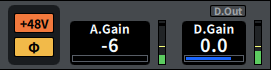
c | HA indicator Displays the on/off status of the HA's phantom power (+48V) and the input phase. When pressed, a popup screen is displayed that allows you to turn the phantom power on/off and switch between forward (gray) or reverse (orange) phase. |
d | A.Gain Displays the HA analog gain. If the Gain Compensation function is turned on, a blue indicator appears, showing the analog gain position at the time the function was turned on. The level immediately after the analog HA is displayed on the right. When the screen is pressed to select, the value can be changed by sliding vertically or horizontally or using the [TOUCH AND TURN] knob; the Gain screen is displayed by pressing it again. |
e | D.Gain Displays the digital gain setting value. The on/off status of the Direct Out is displayed in the upper area. When the screen is pressed to select, the value can be changed by sliding vertically or horizontally or using the [TOUCH AND TURN] knob; the Gain screen is displayed by pressing it again. |
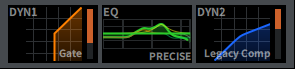
f | Switches between the expanded display and collapsed display of DYN1. |
g | Switches between the expanded display and collapsed display of EQ. If you touch and hold EQ or DYN2 and slide to the side, the order of EQ and DYN2 will be switched. |
h | Switches between the expanded display and collapsed display of DYN2. |
i | Press this to display the screen for effects and inserts. |

j | Delay Displays the delay time. When the screen is pressed to select, the value can be changed by sliding vertically or horizontally or using the [TOUCH AND TURN] knob; the Delay screen is displayed by pressing it again. |

k | Pan/Balance Displays the signal location. When the screen is pressed to select, the value can be changed by sliding vertically or horizontally or using the [TOUCH AND TURN] knob; the To Stereo screen is displayed by pressing it again. |

l | ST A/B Displays the on/off for signals sent to the STEREO A bus and B bus. Press to display the popup window used to switch on/off. |

m | Fader Displays the fader level. When the screen is pressed to select, the value can be changed by sliding vertically or horizontally or using the [TOUCH AND TURN] knob; the Fader screen is displayed by pressing it again. |

n | ON/CUE The channel and cue out on/off and the selected cue bus are displayed. Press to display the pop-up window used to switch on/off. |
o | Opens the “CH LIBRARY Screen”. |
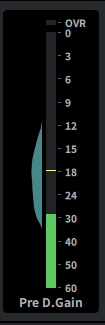
p | LEVEL meter The signal level set in the channel Metering Point is displayed. When A.Gain is present and the Metering Point is Pre GC or Pre D.Gain, the input level distribution is displayed next to the meter as a histogram. The width is displayed thicker as the levels being observed in an area increases. When pressed, a popup screen is displayed to switch Metering Point, turn Peak Hold on/off, and reset the histogram. |
q | Pair setting popup button When pressed, the screen used for CHANNEL PAIRING is displayed. |

r | Insert button Press this to display the screen for effects and inserts. |
s | Automixer button Opens the “AUTOMIXER Screen”. |
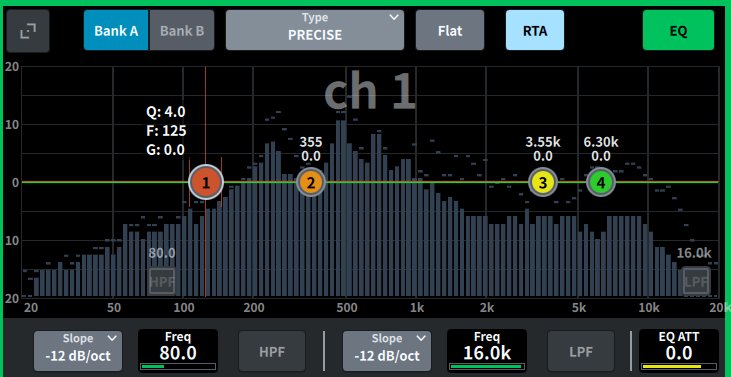
t | EQ Displays the EQ graph, bank, type, HPF, LPF, EQ ATT, etc. Pressing this field displays the parameter name and value, and they can be adjusted using the screen encoder. Pressing the expand button displays the EQ screen. |
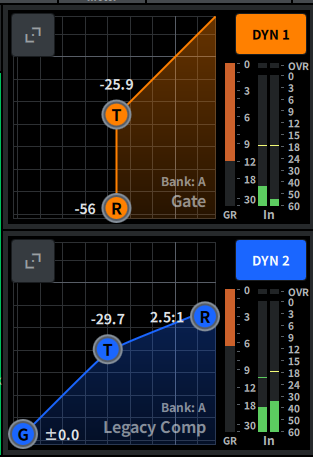
u | DYN1 Displays the selected dynamics type, threshold value, input/output frequency response graph, GR (gain reduction) meter, and input/output level indicators for Dynamics 1. Pressing this field displays the parameter name and value in the upper portion of the channel name area, and they can be adjusted using the screen encoder. Pressing the expand button displays the DYN1 screen. |
v | DYN2 Displays the selected dynamics type, threshold value, input/output frequency response graph, GR (gain reduction) meter, and input/output level indicators for Dynamics 2. Pressing this field displays the parameter name and value in the upper portion of the channel name area, and they can be adjusted using the screen encoder. Pressing the expand button displays the DYN2 screen. |
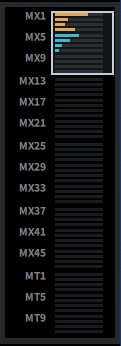
w | MIX/MATRIX Sends Displays the level of the signal sent from the channel selected as the input channel to the MIX and MATRIX bus. The send parameters can be adjusted using the screen encoder by pressing this. Pressing again switches to the Send screen. |
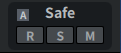
x | Safe The Recall Safe, Solo Safe and Mute Safe statuses are displayed. Press to display the pop-up window used to switch on/off. |
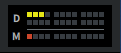
y | DCA/Mute Displays the DCA and mute group to which the selected channel is assigned. The DCA/Mute Assign screen is displayed by pressing this. |
- When MUTE GROUP CONTROL is on and the channel is muted and DCA MAIN is off, each indicator blinks.
 DM7 Series