


USER DEFINED KEYS Screen
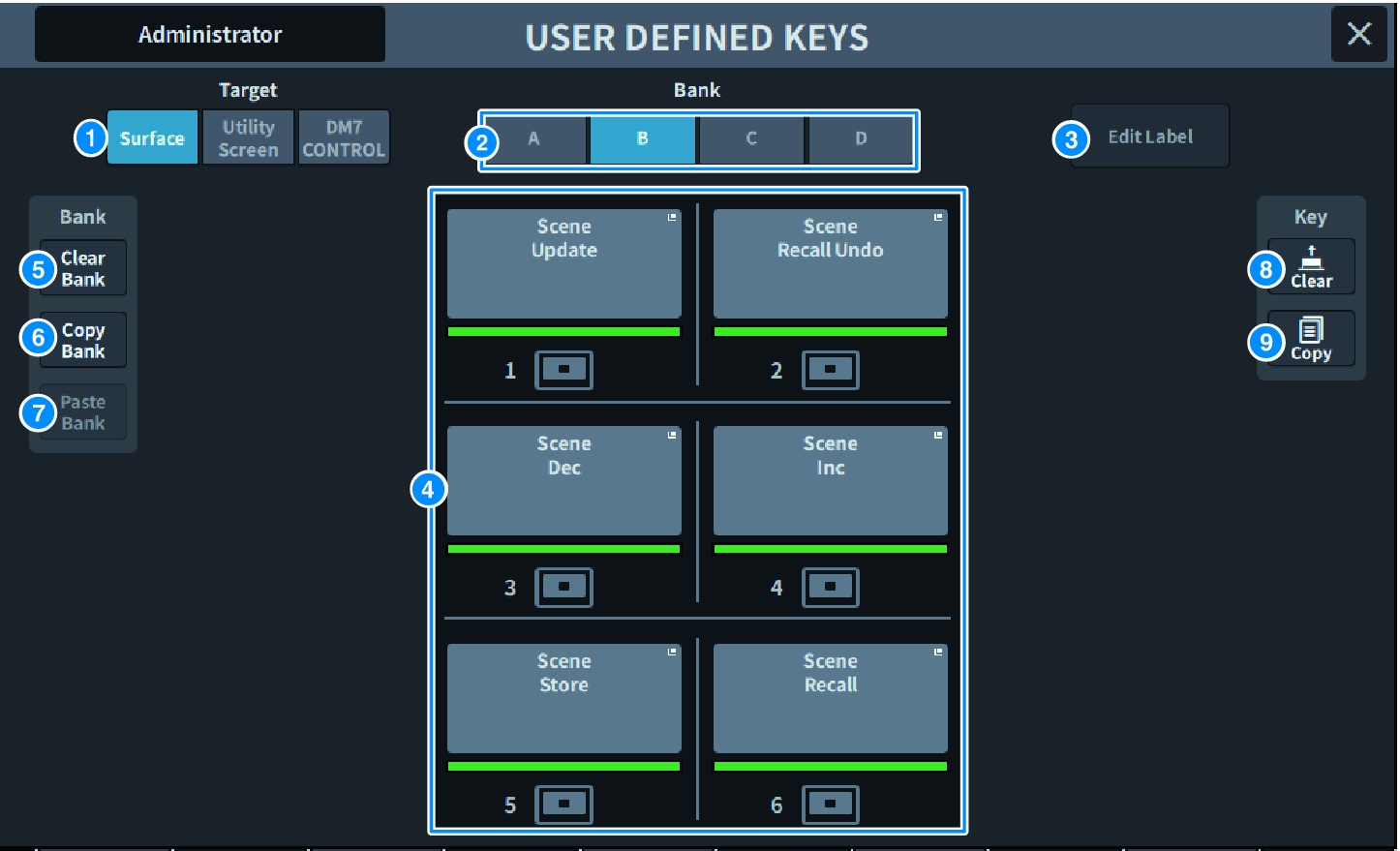
This screen contains the following items.
a | Target button Select the USER DEFINED key to be set from the panel (Surface), Utility screen, or DM7 Control. |
b | Bank tab Switches the bank of USER DEFINED keys ([A] to [D] on the panel and DM7 Control, 1 to 4 on the Utility screen). |
c | Edit Label button Press this button to enter edit mode, which allows you to set the title and color. |
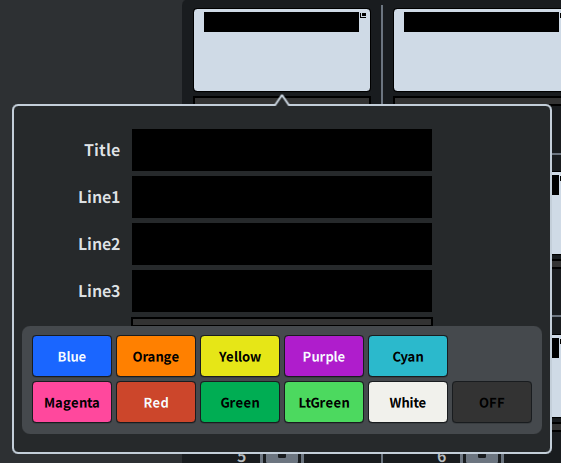 Press it again to return to normal mode.
d | USER DEFINED KEYS These buttons correspond to USER DEFINED keys [1] to [6] on the panel (or USER DEFINED keys 1 to 12 on the Utility screen). Press to display the USER DEFINED KEY screen for assigning functions. If nothing is assigned to the button, "No Assign" is displayed. |
e | Clear Bank button Press this button to display a confirmation message. Press OK to clear all current Banks. |
f | Copy Bank button Press this button to copy the current Bank. |
g | Paste Bank button Press this button to display a confirmation message. Press OK to paste the copied Bank settings. Since the number of banks is different between the Surface and Utility screens and DM7 Control, the method of copying and pasting is different. Patterns (Left, Middle, Right) will be displayed, so select one and execute. |
h | Clear button Press this button to enter clear mode. Select the key you want to clear and press the Clear button. |
i | Copy button Press to enter copy mode. Select the key you want to copy. |
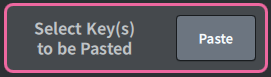
Paste button Press the key you want to paste to select it. (Multiple selections are allowed) |
 DM7 Series