


Using with an iPhone/iPad
This explains how to use this product with your iPhone/iPad to configure the settings and make the necessary operations to livestream your voice or your singing to 17LIVE, Twitch, YouTube Live or other such services. (17LIVE, Twitch and YouTube Live are the names of streaming apps.) When using your iPhone/iPad for these voice chat apps, the sound from this product will not be heard even when connected via USB cable. You’ll need to connect using a 3.5 mm 4-conductor (TRRS) stereo mini cable.
What you need
- This product
- iPhone/iPad (on which the AG Controller and livestreaming apps are installed)
- Search for the “AG Controller” app on the App Store and install it on your iPhone/iPad.
- Headphones or earphones with a stereo mini-plug cable
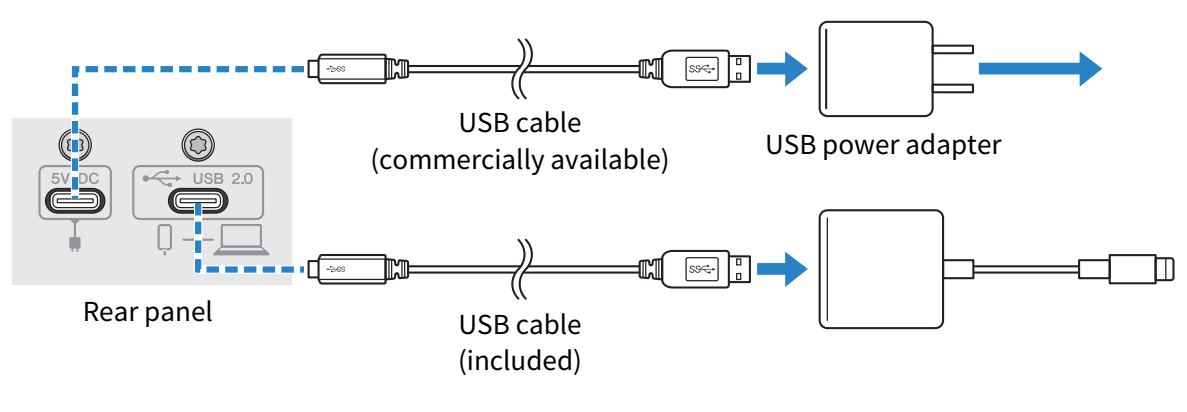
- Apple Lightning-USB3 Camera Adapter (when using an iPhone/iPad with a Lightning connector)
- USB-C charging cable included with the iPad, or a commercially available USB-C to USB-C cable (when using an iPad with USB-C connector)
- USB power adapter
- USB cable (included)
Steps to follow
- Connect the iPhone/iPad
- Make the necessary connections by referring to “Getting ready to use this product” → “Connecting to an iPhone/iPad”.
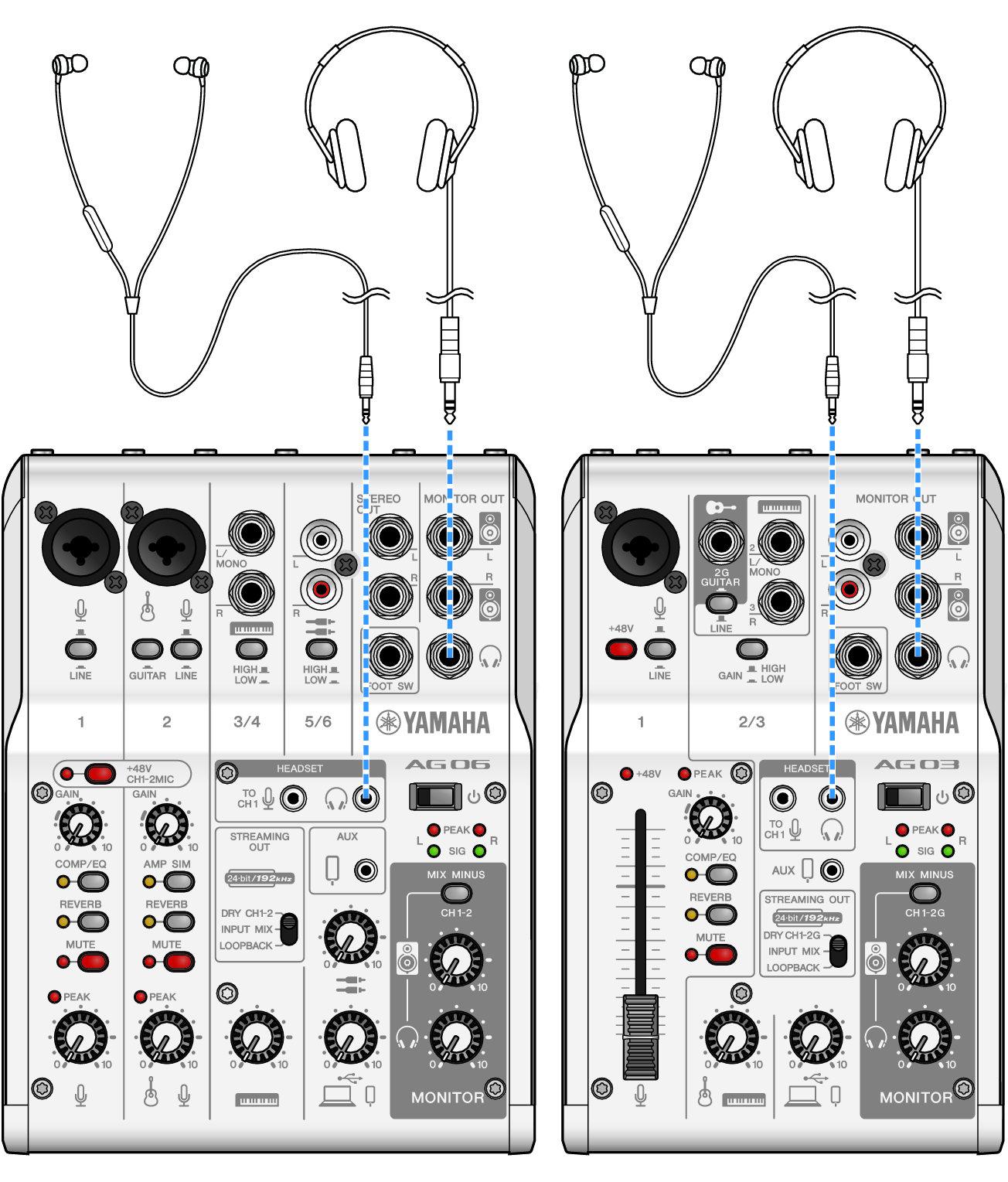
- Connect headphones or earphones
- Connect your headphones or earphones to the output jack.
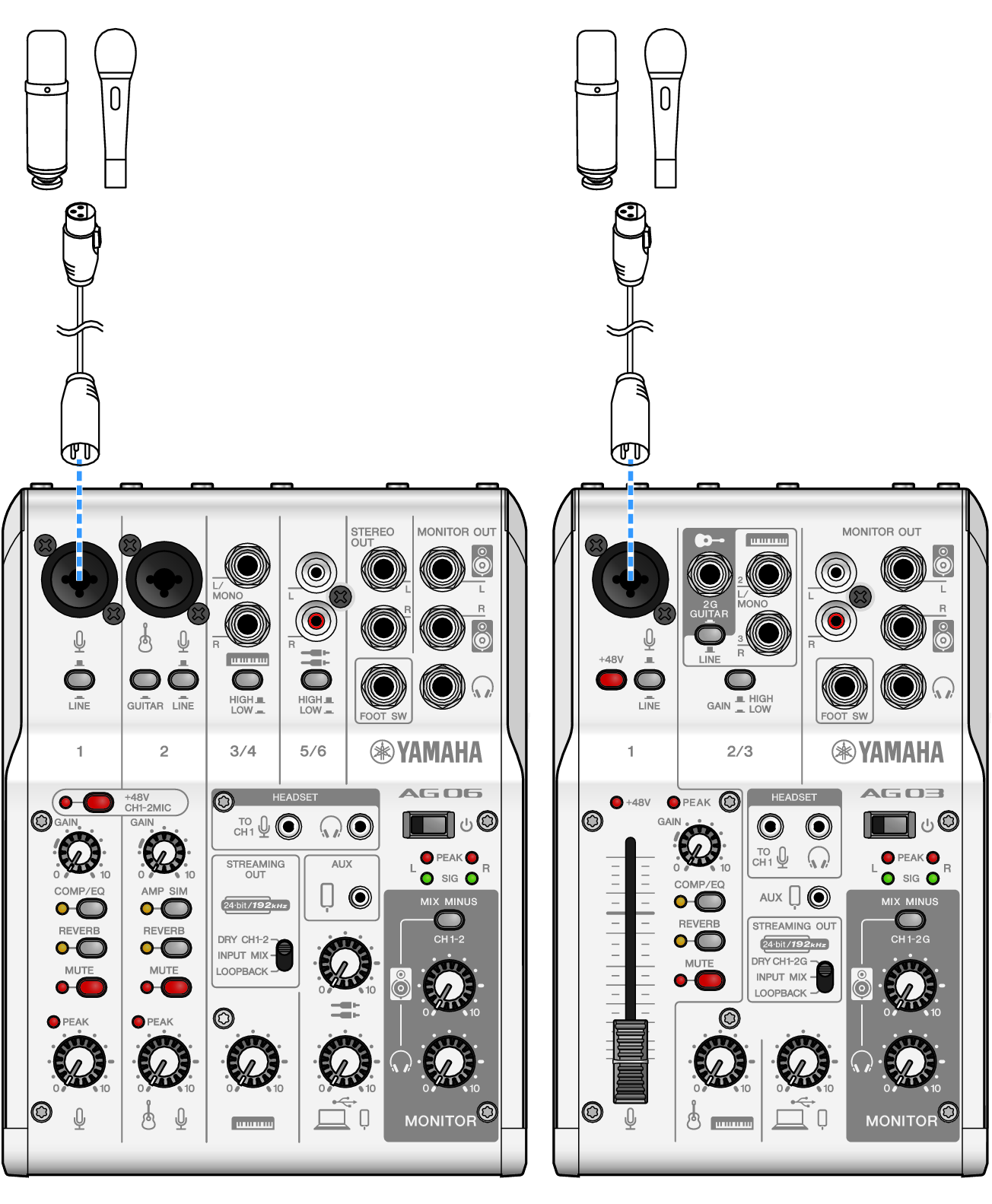
- Connect the mic
- Connect the mic to the channel 1 mic/line input jack.
- Now that you’ve made these connections, configure the settings for this unit.
- Turn the [z] (standby/on) switch on.
- Turn the [z] (standby/on) switch on.
- Configure the settings for the AG
- Make the settings for each switch on the front panel as follows.
- [LINE] switch: off
- Phantom [+48V] switch: on (when using a condenser mic)
- Channel 1 [GAIN] knob, level knob, fader: as appropriate (see illustration)
- [STREAMING OUT]: [INPUT MIX]
- [MIX MINUS]: off
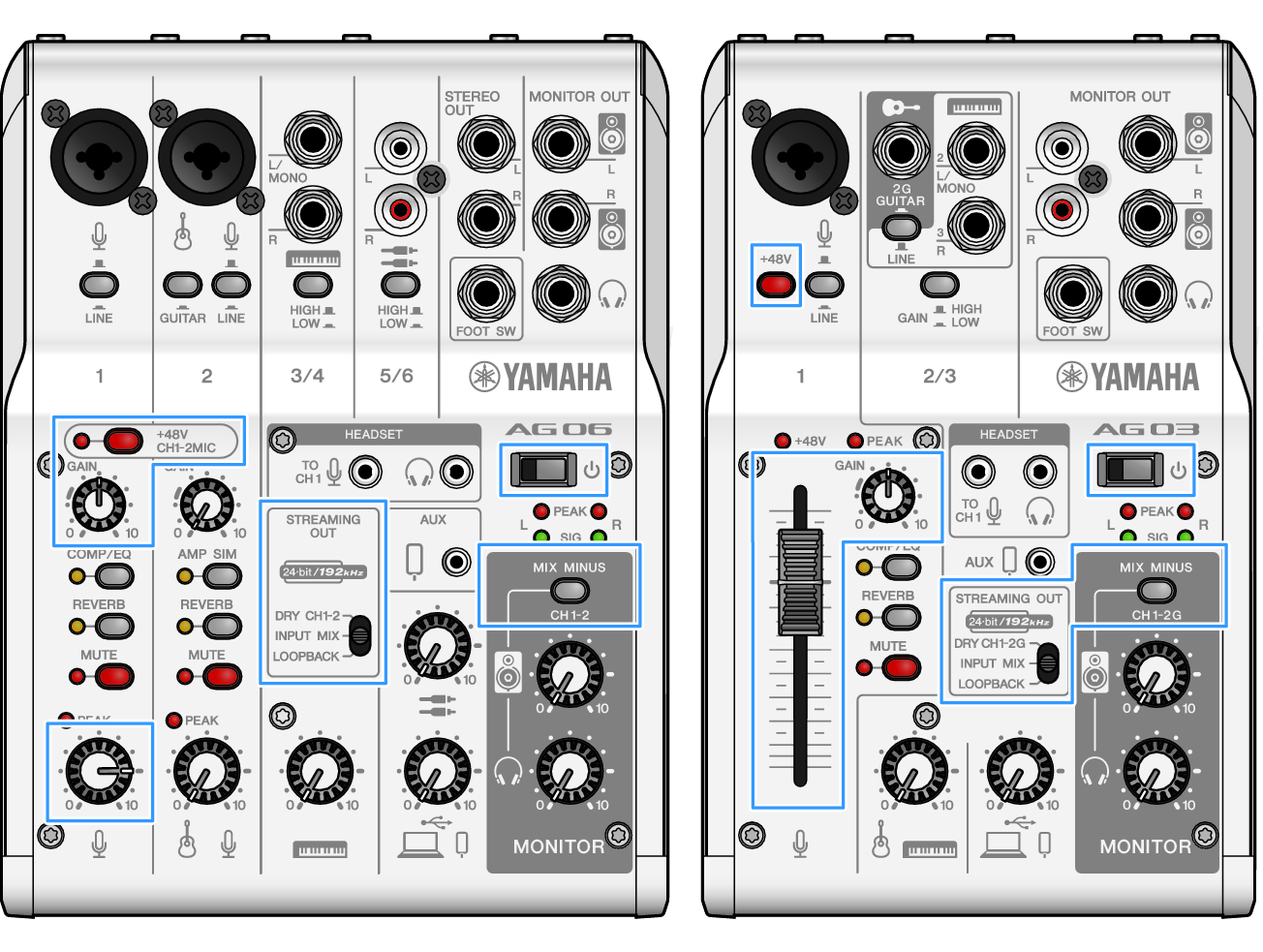
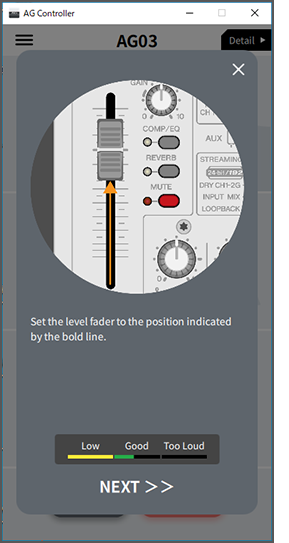
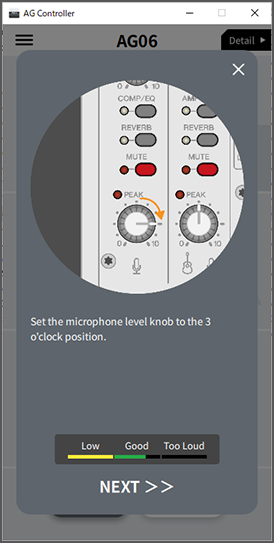
- Once you’ve made the settings on this product, launch the “AG Controller” app and click “Sound Check” at the bottom of the screen.
- Adjust the volume to check the sound on the “Sound Check” screen.
- Adjust the headphone/earphone volume
- Adjust the volume using the headphone [H] knob while speaking into the mic. Adjusting the volume using the headphone [H] knob has no effect on the volume of the livestreaming audio.
- Starting the livestream
- Use the fader (only on the AG03MK2) or the level knob to adjust the respective volumes.
- Launch the livestreaming app and check the balance for the listeners.
NOTE
- See “Audio-related and other issues” if you don’t hear any sound.
 AG03MK2 AG06MK2