
Setting up the unit
3. Setting up the unit
3.1. Downloading and installing D-Remote
-
Search for “D-Remote” on App Store or Google Play and download it.
-
Follow the on-screen instructions to install the D-Remote app.
3.2. Bluetooth® pairing
-
Turn on the Bluetooth setting on the speaker you want to connect to.
-
Turn on the Bluetooth function on your mobile device.
-
Tap the D-Remote icon on your mobile device to launch the app.
 NOTE
NOTE
-
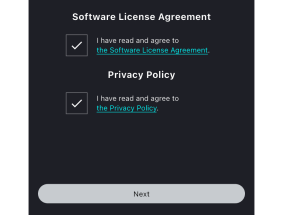
When you start the app for the first time, you will be asked to agree to the software license agreement and privacy policy. You cannot use the app until you agree to them.
-
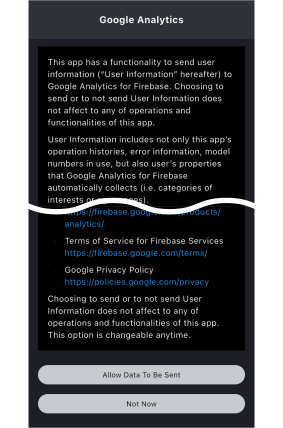
When you start the app for the first time, you will be asked for permission to send data to Google Analytics. This setting can be changed later in the app’s settings.
-
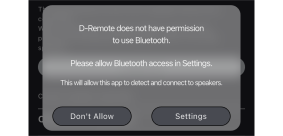
If you do not turn on “Allow Bluetooth use” when you start the app for the first time, you may not be able to connect to the speaker itself. In this case, set the Bluetooth settings on your device again.
-
The speaker connection screen appears when you start the app. If you move to the speaker list screen, you will be asked to allow access to the microphone. You can later change whether or not to allow access in your mobile device settings.
-
The speaker list screen does not display speakers already connected to other mobile devices.
-
When you start the app, you will be asked to allow notifications on your mobile device. You can later change whether or not to allow notifications in the settings of your mobile device.
When you start the app, the logo will be displayed.
-
-
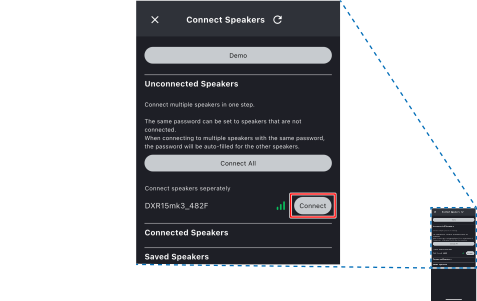
When the [Speaker Connection] screen appears, tap the speaker you want to connect to and then tap [Connect].
-
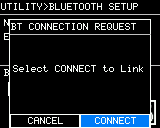
Select [CONNECT] on the speaker screen the first time only.
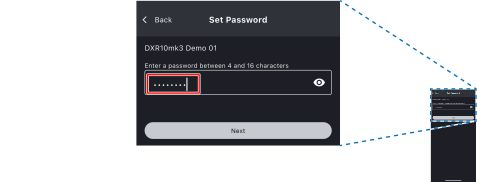
When you connect the speaker for the first time, a password setup screen appears. Enter a password of 4 to 16 characters, and then tap [Next].
-
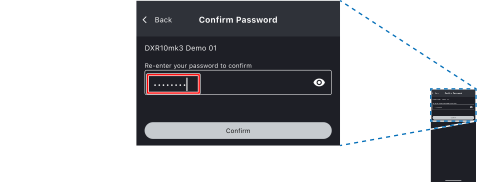
Enter your password and tap [Confirm].
NOTE
-
The speaker cannot be connected unless you set a password.
-
If you forget the password you set, initialize the speaker. For instructions on how to initialize, refer to the speaker’s instruction manual or Initializing the speaker in this user guide.
-
The next time you connect the speaker for which you have set a password, step 5 is not necessary.
-
The step 5 screen will not be displayed for a while immediately after you turn on the speaker. In this case, step 5 is not necessary.
-
If you want to change the password you set, refer to Changing your password .
-
The number of speakers that can be connected at the same time depends on the device’s performance.
Password protection
This function is designed to prevent third parties from illegally connecting to and operating the speakers at live venues, etc.
In addition, to prevent unauthorized connections via remote control, as a rule, you need to set the password on the device itself.
This enhances security, allowing you to use the service with peace of mind.
3.3. Disconnecting Bluetooth
To disconnect the speaker from D-Remote, use one of the following methods:
-
Disconnect from the D-Remote speaker connection screen.
Tap the [Disconnect] button to disconnect. -
Disconnect from the speaker’s screen displayed when the speaker is connected.
On the BLUETOOTH settings screen, selecting the option to turn off the Bluetooth connection will disconnect the speaker.