
Speaker list screen
6. Speaker list screen
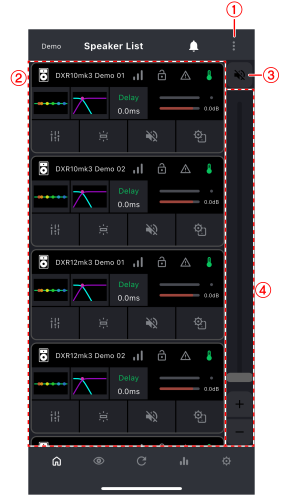
On the speaker list screen, you can view a list of all speakers that have completed Bluetooth pairing and are ready for operation (online). You can also adjust the main level across multiple units together.
①
Menu button
Tap to display the menu screen. Refer to
Menu screen
.
②
Speaker list
This area displays the speakers connected to D-Remote.
③
 :
Mute button
:
Mute button
Tap to mute or unmute. You can operate the selected speakers individually or simultaneously.
④
Main level fader/button
Operate the fader or button to set the main level. You can operate the selected speaker alone or multiple speakers in the selected group.
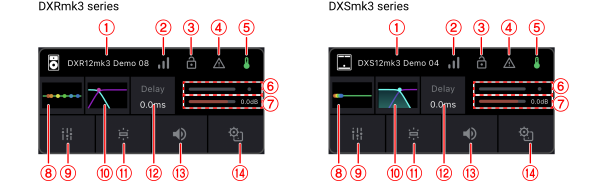
6.1. Display content for each speaker
①
Speaker name
This field displays the speaker name.
②
 :
Bluetooth signal
:
Bluetooth signal
This icon indicates the strength of the Bluetooth signal.
③
 :
Panel lock
:
Panel lock
This icon indicates the panel lock status of the speaker.
④
 :
Alert
:
Alert
This icon indicates whether an alert notification has been issued for the speaker. Refer to
Notification screen
.
⑤
 :
Temperature
:
Temperature
This icon indicates the temperature status of the speaker.
⑥
Output level meter, LIMIT indicator
This field displays the speaker output volume in real time. The indicator lights up red when the limiter is activated.
⑦
Output level setting
This field displays the output level setting for the speaker output.
⑧
 ,
,
 :
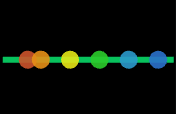
6-band EQ button
:
6-band EQ button
Tap to display the
6-band EQ screen
for the Main channel.
⑨
 :
Mixer button
:
Mixer button
Tap to display the
Mixer screen
for each speaker.
⑩
 ,
,
 :
X-Over button
:
X-Over button
Tap to display the X-Over screen (
X-Over HPF
or
X-Over LPF
) for the Main channel.
⑪
 :
Identify button
:
Identify button
When you tap this button, the panel on the selected speaker flashes for a while.
⑫
 :
Delay button
:
Delay button
Tap to display the
Processing screen
for the Main channel.
⑬
 :
Mute button
:
Mute button
Tap to mute or unmute.
⑭
 :
Speaker settings button
:
Speaker settings button
Tap to display the
Speaker settings screen
.
 NOTE
NOTE
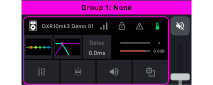
When you tap a speaker registered in a group, the group name is displayed at the top of the screen, and the speakers are surrounded by frames. Refer to Group creation screen .
6.2. Mixer screen
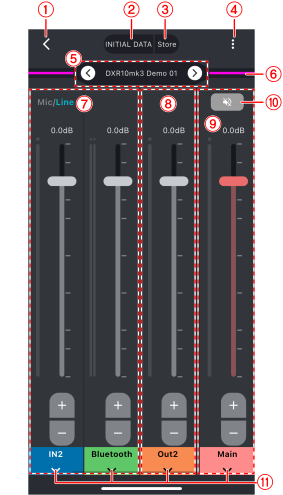
①
Back button
Tap to return to the previous screen.
②
Preset
Tap to display the saved presets. To load a preset, tap the desired preset.
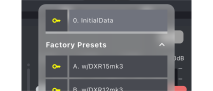
-
Each time you tap the [Lock] field of a preset, the lock status toggles between locked (key icon displayed) and unlocked (key icon hidden).
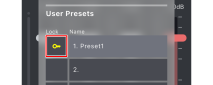
-
INITIAL DATA and Factory Presets cannot be unlocked.
③
Store button
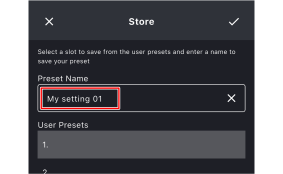
Tap to display the Store screen. You can name and save the current settings to a slot.
④
Menu button
This icon displays the mixer screen menu.
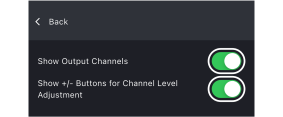
-
Show output channels : Enable this item to display output channels on the mixer screen.
-
Show channel level +/- buttons : Enable this item to display the + and - buttons for each channel.
⑤
Speaker name,
 and
and
 buttons
This field displays the speaker name. Use the
and
buttons to switch the speaker to be displayed.
⑥
Group display
If a speaker is registered in a group, a line in the color set for the group is displayed.
⑦
Input channel fader, meter, and PEAK indicator
Set the output level of the audio signal for the input channel. The meter indicates the input level of the input channel in real time.
⑧
Output channel fader, meter, and PEAK indicator
Set the output level of the audio signal for the output channel. The meter indicates the output level of the output channel in real time.
⑨
Main channel fader, meter, and LIMIT indicator
Set the output level of the audio signal for the Main channel (speaker). The meter indicates the output level of the Main channel in real time.
⑩
Mute button
Tap to mute or unmute the Main channel.
⑪
Advanced settings button
Tap to display the advanced settings screen for the channel.
On the advanced settings screen for the channel, the displayed contents differ depending on the channel type (input or output).
■ Advanced settings screen for input channels
|
DXRmk3 series |
DXSmk3 series |
|||||
|---|---|---|---|---|---|---|
|
IN1 |
IN2 |
Bluetooth |
IN1 |
IN2 |
Bluetooth |
|
|
- |
- |
- |
- |
- |
||
|
- |
- |
- |
- |
|||
|
- |
- |
- |
- |
|||
■ Advanced settings screen for output channels and main channels
|
DXRmk3 series |
DXSmk3 series |
|||||
|---|---|---|---|---|---|---|
|
Out1 |
Out2 |
Main |
Out1 |
Out2 |
Main |
|
|
- |
- |
- |
- |
|||
|
- |
- |
- |
||||
|
- |
- |
- |
||||
|
- |
- |
- |
- |
|||
|
- |
- |
- |
- |
|||
6.2.1. HPF + 4-band EQ

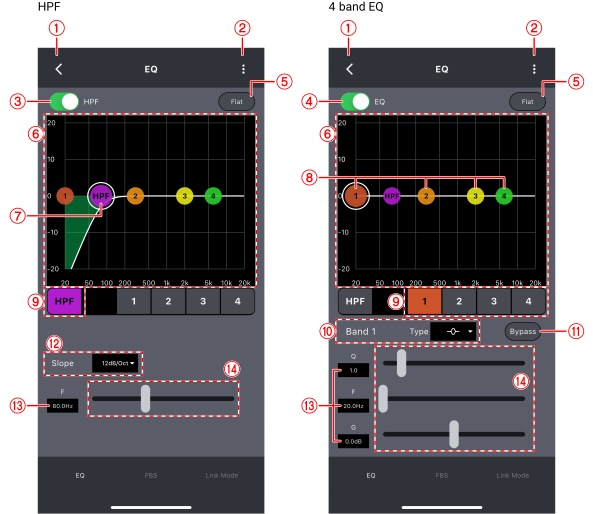
Set the HPF and 4-band EQ for the audio signal input to the INPUT 2 connector of the DXRmk3 series.
①
Back button
Tap to return to the previous screen.
②
Menu button
Tap to display the settings screen.
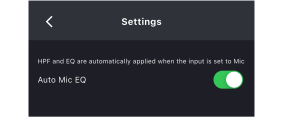
-
Auto Mic EQ : When this item is enabled, the HPF and EQ are automatically set when [MIC] is selected for the [MIC/LINE] switch of the speaker.
③
[HPF] switch
This switch turns the high-pass filter on or off.
④
[EQ] switch
This switch turns the equalizer on or off.
⑤
[Flat] button
Tap to set the gain of all bands to 0.
⑥
EQ graph
This graph shows the characteristics.
⑦ HPF handle
-
Drag : Drag this handle to adjust the cutoff frequency of the high-pass filter.
⑧ Band handle
-
Drag : Drag this handle on the EQ graph to adjust each parameter other than the Q parameter.
-
Pinch in/out : Pinch in or out on the EQ graph to adjust the Q parameter.
⑨
Band selection buttons
Select the band for which to adjust parameters.
⑩
EQ type list box
Select the type of filter to be applied to each band.
⑪
[Bypass] button
Specify whether to bypass each band. The band whose button is clicked and lit will be bypassed.
⑫
Slope list box
Select the slope to set for the high-pass filter.
⑬
Current parameter value display
This field displays the current value of each parameter. Tap this field to enter a value directly.
⑭
Slider
Drag the slider to change the value of each parameter.
6.2.2. Ducker

When audio is input to the INPUT 2 connector on the DXRmk3 series, the volume of the INPUT 1 connector and Bluetooth is lowered.
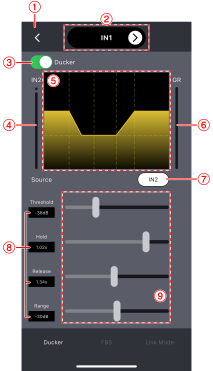
①
Back button
Tap to return to the previous screen.
②
Channel display,
and
buttons
This field displays the channel name. Use the
and
buttons to switch the channel to be displayed.
③
[Ducker] switch
This switch turns Ducker on or off.
④
[IN2] meter
This meter indicates the input level to the INPUT 2 connector of the speaker in real time.
⑤
Ducker graph
This graph shows Ducker settings.
⑥
[GR] meter
This meter indicates the amount of gain reduction.
⑦
[IN2] button
This button turns the INPUT 2 audio signal on or off.
⑧
Current parameter value display
This field displays the current value of each parameter. Tap this field to enter a value directly.
⑨
Slider
Drag the slider to change the value of each parameter.
6.2.3. FBS

The Feedback Suppressor (FBS) is a function that prevents unpleasant acoustic feedback (howling) caused when audio output from a speaker is fed back into a microphone.
-
Dynamic mode
The acoustic feedback that occurs during use is detected and suppressed in real time. This mode is designed for handheld microphones. -
Fixed mode
Set the FBS in advance at a point where the acoustic feedback is likely to occur. This mode is designed for fixed microphones.
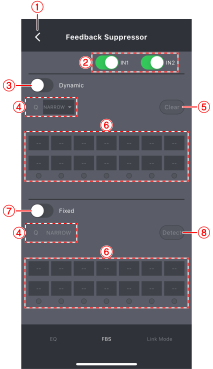
①
Back button
Tap to return to the previous screen.
②
[IN1] switch, [IN2] switch
Enable the switch to apply the FBS to IN1 or IN2.
③
[Dynamic] switch
This switch turns Dynamic mode on or off.
④
Q list box
Set the Q (the width of the effect range) of the filter applied in Dynamic mode or Fixed mode to NARROW or WIDE.
-
NARROW : Has little effect on sound quality and is suitable for playing music or live instruments. Because the filter for each band that eliminates acoustic feedback uses a narrow Q, many bands may be required in environments where the positions of the microphone and speaker change, such as when using a handheld microphone.
-
WIDE : Has a greater impact on sound quality than NARROW, making it suitable for speeches, etc. The filter for each band that eliminates acoustic feedback uses a wide Q, making it easier to eliminate the feedback.
⑤
[Clear] button
Tap to clear all filters that have been applied.
⑥
Feedback point list
This area displays the frequencies and attenuation levels that the filter is applied to.
⑦
[Fixed] switch
This switch turns Fixed mode on or off.
-
If no filter has been applied, a confirmation screen appear. Tap [Yes] to display the Feedback Points Detection screen .
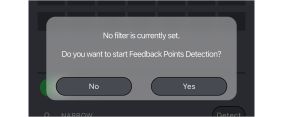
⑧
[Detect] button
Tap to display the
Feedback Points Detection screen
.
■ Feedback Points Detection screen
You can pre-configure Fixed mode. This function detects in advance the frequencies that may cause acoustic feedback.
-
Tap [Start] to perform the Feedback Point search.
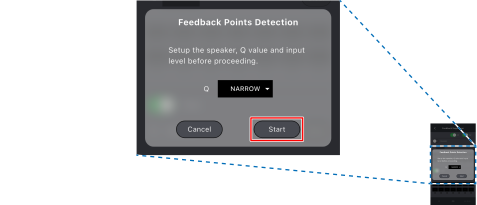
-
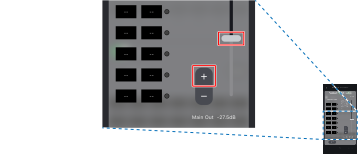
Slowly move the fader up or tap [+] to gradually increase the signal level output from the speaker.
-
As the signal level increases, audio feedback will begin to occur, but it will automatically be suppressed. The filter frequency and gain applied when audio feedback is suppressed are stored and displayed on the screen.
-
-
Tap [End] to stop the DETECT function.
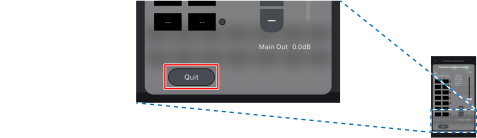
The detected frequency and set gain value are displayed for each band.
NOTE
-
The DETECT function can be executed any number of times. However, previous measurement results are not carried over and are overwritten with the latest results each time the function is executed.
-
If Dynamic mode of ③ is on, the mode will automatically be turned off. Once the DETECT function processing is completed, Dynamic mode will automatically be turned back on.
6.2.4. Link Mode

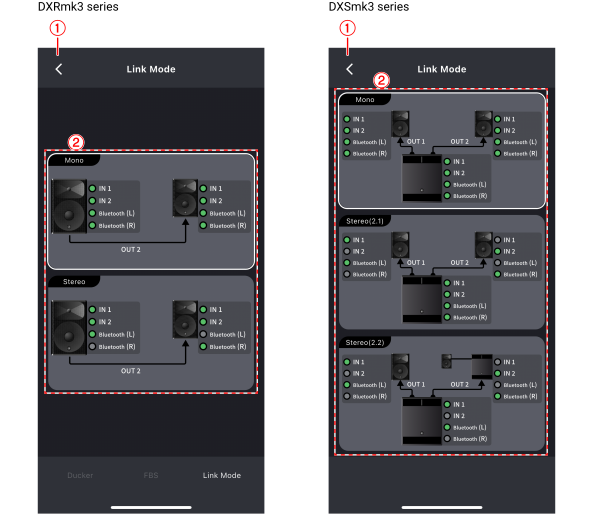
Set the link mode (mono or stereo) according to how the speakers are connected to each other and their input channels.
①
Back button
Tap to return to the previous screen.
②
Mode selection button
This button switches the Link Mode.
6.2.5. 6-band EQ

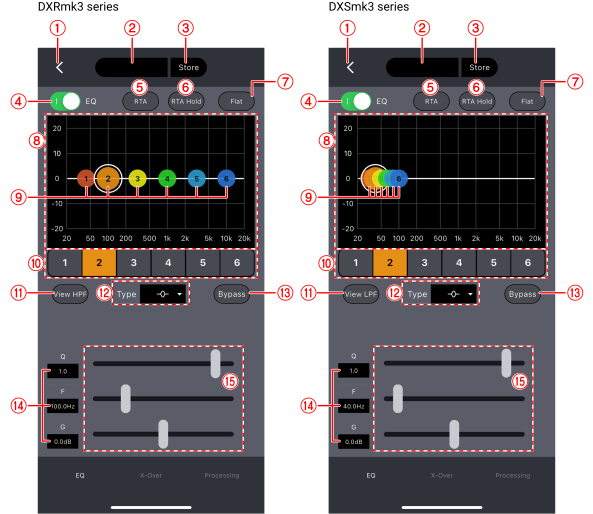
Set the 6-band EQ for the audio signals output from the DXRmk3 series (excluding those from the OUTPUT 1 connector) and the audio signals output from the DXSmk3 series.
①
Back button
Tap to return to the previous screen.
②
Preset
Tap to display the saved presets. To load a preset, tap the desired preset.
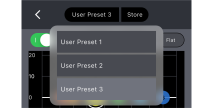
-
If there is no preset to load, use the [Store] button to save a preset.
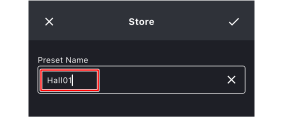
③
Store button
Tap to display the Store screen. You can name and save the current settings to a slot.
④
[EQ] switch
This switch turns the equalizer on or off.
⑤
[RTA] button
Tap to show or hide the RTA graph.
⑥
[RTA Hold] button
Tap to freeze and display the RTA graph at that point. How RTA Hold is displayed can be changed on the
RTA settings screen
.
⑦
[Flat] button
Tap to set the gain of all bands to 0.
⑧
EQ graph
This graph shows the characteristics.
⑨ Band handle
-
Drag : Drag this handle on the EQ graph to adjust each parameter other than the Q parameter.
-
Pinch in/out : Pinch in or out on the EQ graph to adjust the Q parameter.
⑩
Band selection buttons
Select the band for which to adjust parameters.
⑪
[View HPF] / [View LPF] button
Specify whether to display the
X-Over HPF
or
X-Over LPF
on the EQ graph.
⑫
EQ type list box
Select the type of filter to be applied to each band.
⑬
[Bypass] button
Specify whether to bypass each band. The band whose button is clicked and lit will be bypassed.
⑭
Current parameter value display
This field displays the current value of each parameter. Tap this field to enter a value directly.
⑮
Slider
Drag the slider to change the value of each parameter.
6.2.6. Delay

Set the delay for the audio signals output from the DXRmk3 series (excluding those from the speaker and OUTPUT 1 connector) and the audio signals output from the DXSmk3 series (excluding those from the speaker).
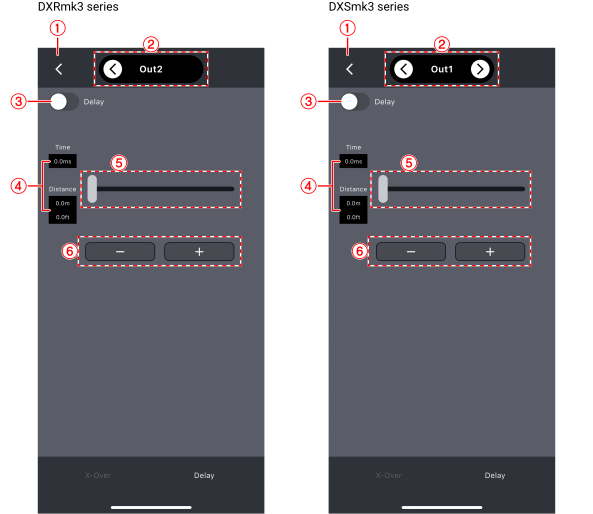
①
Back button
Tap to return to the previous screen.
②
Channel display,
and
buttons
This field displays the channel name. Use the
and
buttons to switch the channel to be displayed.
③
[Delay] switch
This switch turns Delay on or off.
④
Current parameter value display
This field displays the current value of each parameter. Tap this field to enter a value directly.
⑤
Slider
Drag the slider to change the value of each parameter.
⑥
-/+ button
Tap to increase or decrease the parameter value.
6.2.7. X-Over HPF

Set the crossover high-pass filter for the audio signals output from the DXRmk3 series (excluding those from OUTPUT 1 and OUTPUT 2) and the audio signals output from the DXSmk3 series (excluding those from the speaker).
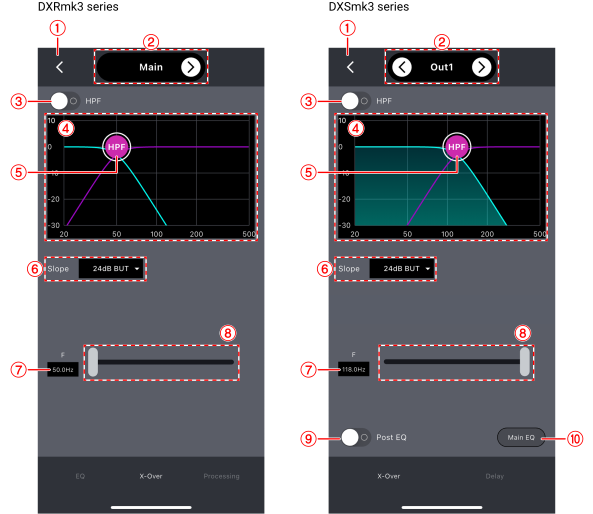
①
Back button
Tap to return to the previous screen.
②
Channel display,
and
buttons
This field displays the channel name. Use the
and
buttons to switch the channel to be displayed.
③
[HPF] switch
This switch turns the HPF on or off.
④
X-Over HPF graph
This graph shows X-Over HPF settings.
⑤ Band handle
-
Drag : Drag this handle to adjust the cutoff frequency of the high-pass filter.
⑥
Slope list box
Select the slope to set for the high-pass filter.
⑦
Current parameter value display
This field displays the current value of each parameter. Tap this field to enter a value directly.
⑧
Slider
Drag the slider to change the parameter value.
⑨
[Post EQ] switch
Enable the switch to pass the audio signal through the HPF after the Main EQ.
⑩
[Main EQ] button
Tap to display the Main EQ screen.
6.2.8. X-Over LPF

Set the crossover low-pass filter for the audio signals output from the DXRmk3 series (excluding those from the speaker and OUTPUT 1) and the audio signals output from the DXSmk3 series (excluding those from OUTPUT 1 and OUTPUT 2).
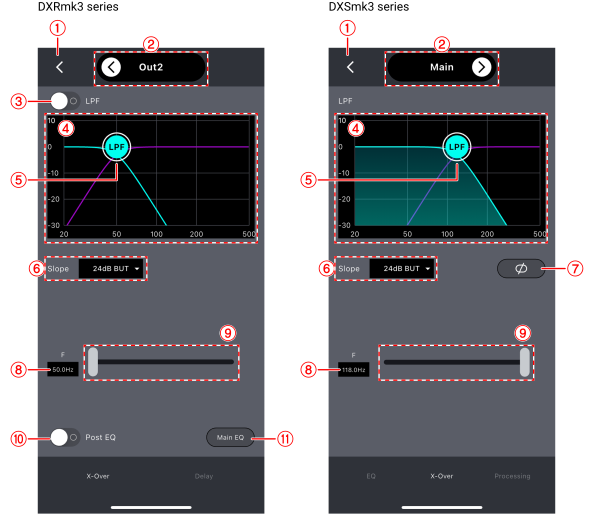
①
Back button
Tap to return to the previous screen.
②
Channel display,
and
buttons
This field displays the channel name. Use the
and
buttons to switch the channel to be displayed.
③
[LPF] switch
This switch turns the LPF on or off.
④
X-Over LPF graph
This graph shows X-Over LPF settings.
⑤ Band handle
-
Drag : Drag this handle to adjust the cutoff frequency of the low-pass filter.
⑥
Slope list box
Select the slope to set for the low-pass filter.
⑦
 :
Polarity button
:
Polarity button
Tap to invert the polarity.
⑧
Current parameter value display
This field displays the current value of each parameter. Tap this field to enter a value directly.
⑨
Slider
Drag the slider to change the parameter value.
⑩
[Post EQ] button
Enable the button to pass the audio signal through the HPF after the Main EQ.
⑪
[Main EQ] button
Tap to display the Main EQ screen.
6.2.9. Processing

Specify whether to apply the Processing process to the audio signal output from the DXRmk3 series and DXSmk3 series speakers.
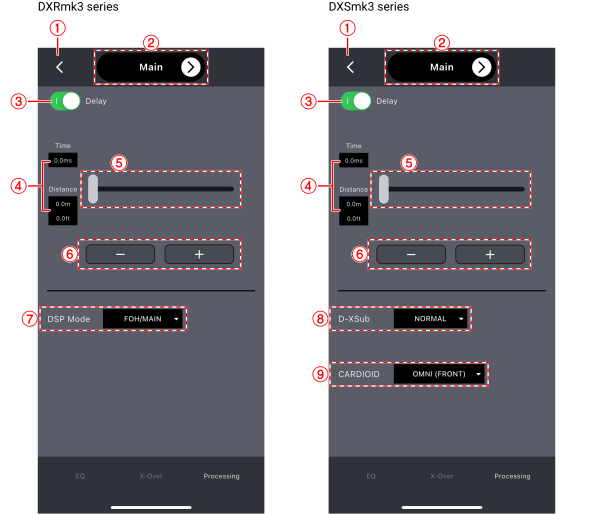
①
Back button
Tap to return to the previous screen.
②
Channel display,
and
buttons
This field displays the channel name. Use the
and
buttons to switch the channel to be displayed.
③
[Delay] switch
This switch turns Delay on or off.
④
Current parameter value display
This field displays the current value of each parameter. Tap this field to enter a value directly.
⑤
Slider
Drag the slider to change the parameter value.
⑥
-/+ button
Tap to increase or decrease the parameter value.
⑦
[DSP Mode] list box
Select the mode to set for DSP mode.
⑧
[D-XSub] list box
Select the mode to set for D-XSub.
⑨
[CARDIOID] list box
Select the mode to set for CARDIOID.
6.3. Speaker settings screen
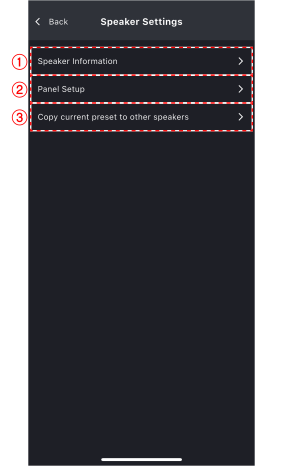
①
Information
Tap to display the
Information screen
.
②
Panel settings
Tap to display the
Panel settings screen
.
③
Copy the current preset to another device
Tap to display the
Copy screen for the current preset
.
6.3.1. Information screen
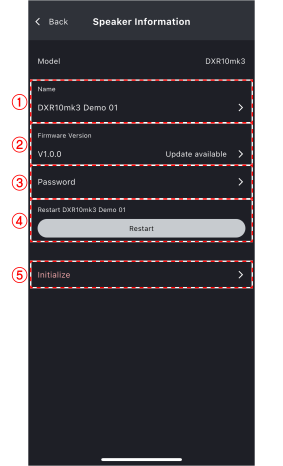
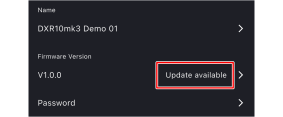
①
Name
Tap to display the speaker name setting screen. Refer to
Renaming a speaker
.
②
Firmware version
Tap to display the current firmware version.
③
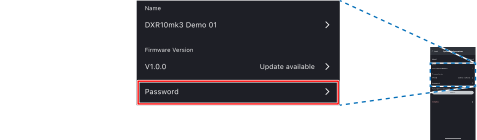
Password
Tap to display the password setting screen. Refer to
Changing your password
.
④
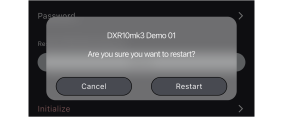
[Reboot] button
Tap to display the reboot confirmation screen.
-
Tap [Reboot] to reboot the speaker.
⑤
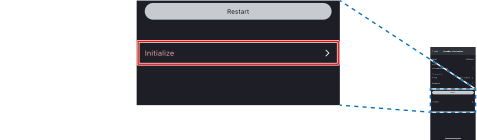
Initialize
Tap to display the initialization screen. Refer to
Initializing the speaker
.
Renaming a speaker
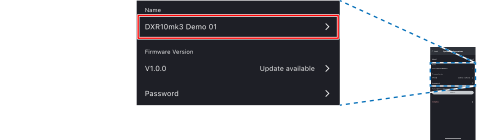
-
Tap the speaker name on the information screen.
-
Enter the desired speaker name and confirm.
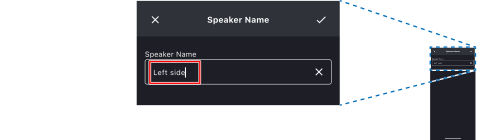
The speaker name is changed.
NOTE
There are restrictions on the types of characters that can be used in speaker names.
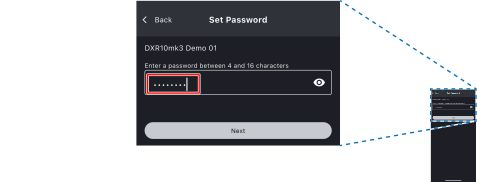
Changing your password
-
On the information screen, tap [Password].
-
Enter a password between 4 and 16 characters, then tap [Next].
-
Enter the password again and tap [Confirm].
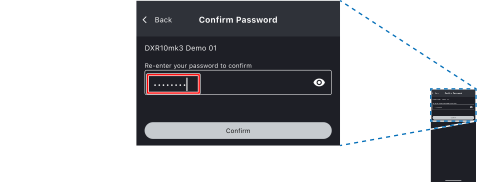
The password is changed.
Initializing the speaker
-
On the information screen, tap [Initialize].
-
Check the items to be initialized.
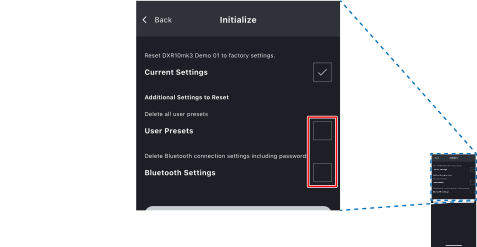
-
User presets : Deletes all user-defined speaker settings.
-
Bluetooth connection settings : Deletes Bluetooth connection settings, including the password.
-
-
Tap the [Initialize] button.
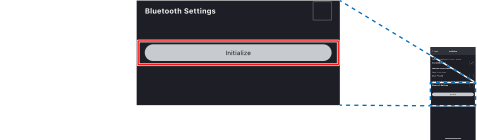
The initialization is performed.
6.3.2. Panel settings screen
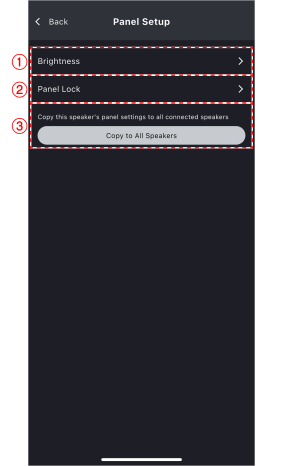
①
Brightness
Tap to display the brightness settings screen. Refer to
Changing the speaker panel brightness
.
②
Panel lock
Tap to display the panel lock screen. Refer to
Locking the speaker panel
.
③
[Set to all speakers] button
Tap to apply the settings configured on the panel settings screen to all speakers currently connected.
Changing the speaker panel brightness
-
On the panel settings screen, tap [Brightness].
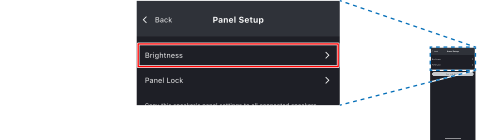
-
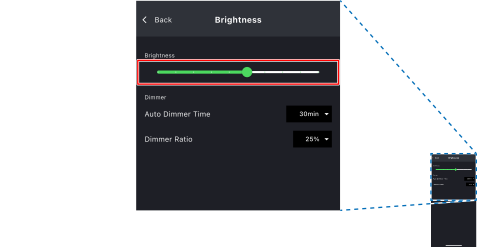
Operate the slider to adjust the screen brightness, and set other items as needed.
-
Screen brightness : Set the screen brightness.
-
Auto-dimming time : Set the time until dimming begins.
-
Dimming ratio : Set the dimming ratio.
-
-
Tap the [Back] button.
The brightness setting is changed.
Locking the speaker panel
-
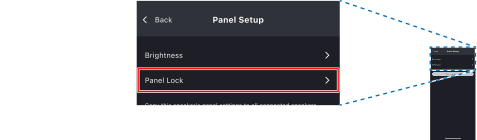
On the panel settings screen, tap [Panel lock].
-
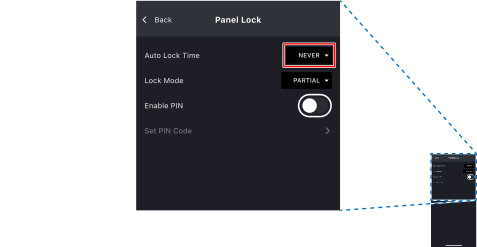
In the [Auto-lock time] list box, set the time until the panel is locked, and set other items as necessary.
-
Auto-lock time : Set the time until the panel is locked.
-
Lock mode : Set the panel lock mode.
-
Enable PIN : When you enable this item, you will need to enter the PIN code to unlock the panel.
-
PIN setting : Set the PIN to unlock the panel.
-
-
Tap the [Back] button.
The panel lock setting is changed.