
Speaker monitoring screen
7. Speaker monitoring screen
 NOTE
NOTE
We recommend that you keep only this screen open during operation or production.
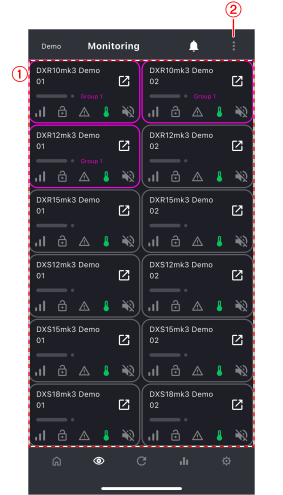
①
Speaker list display
This area displays the status of all connected speakers.
②
Menu button
Tap to display the menu screen. Refer to
Menu screen
.
7.1. Display content for each speaker
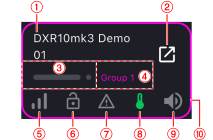
①
Speaker name
This field displays the speaker name you have chosen.
②
 :
Mixer screen display button
:
Mixer screen display button
③
Output level meter, LIMIT indicator
This field displays the speaker output volume in stereo in real time. The indicator lights up red when the limiter is activated.
④
Group name
If a speaker is registered in a group, the group name is displayed. Refer to
Group creation screen
.
⑤
 :
Bluetooth signal
:
Bluetooth signal
This icon indicates the Bluetooth signal strength.
⑥
 :
Panel lock
:
Panel lock
This icon indicates the panel lock status of the speaker.
⑦
 :
Alert
:
Alert
This icon indicates whether an alert notification has been issued. Refer to
Notification screen
.
⑧
 :
Temperature
:
Temperature
This icon indicates the speaker temperature.
⑨
 :
Mute button
:
Mute button
This icon indicates whether the speaker is muted or unmuted.
⑩
Group frame
If a speaker is registered in a group, a frame in the group color is displayed. Refer to
Group creation screen
.
7.2. Menu screen
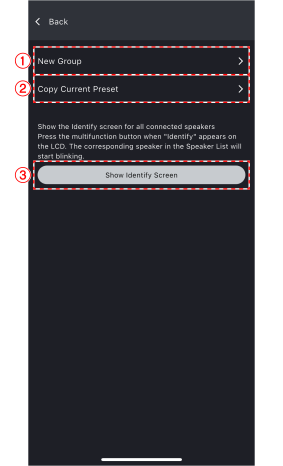
①
Create a group
Tap to display the
Group creation screen
.
②
Copy the current preset
Tap to display the
Copy screen for the current preset
.
③
[Open Identify screen] button
Tap to display the Identify screen on the panels of all speakers connected to D-Remote. When you press [Identify] on a speaker, the corresponding speaker will flash for a while on the D-Remote speaker list screen.
7.2.1. Group creation screen
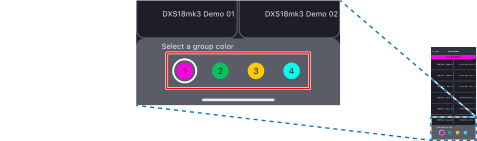
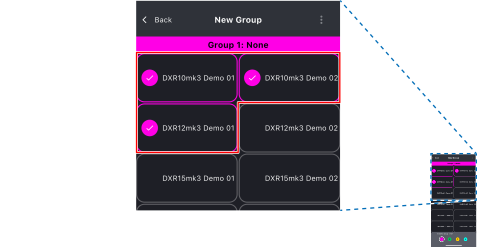
You can create a group by combining multiple speakers, rename the created group, or ungroup it.
Creating a group
-
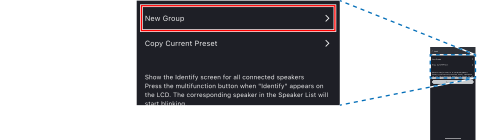
Tap [Create a group].
-
Select the group number.
-
Tap the speaker you want to add to the group.
-
Tap the [Back] button.
The group is created.
Renaming a group
-
Tap [Create a group].
-
Select the group number.
-
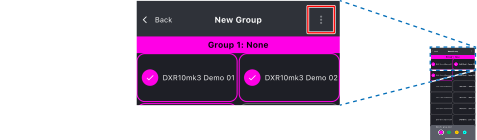
Tap the menu button.
-
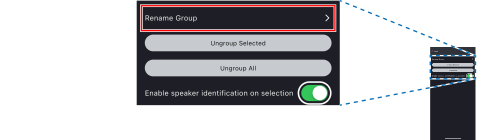
Tap [Rename the group].
-
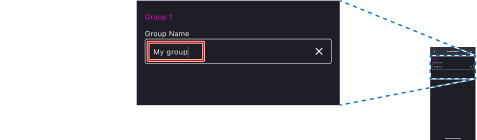
Enter a desired group name and confirm.
-
Tap the [Back] button.
The group is renamed.
Ungrouping
-
Tap [Create a group].
-
Select the group number.
-
Tap the menu button.
-
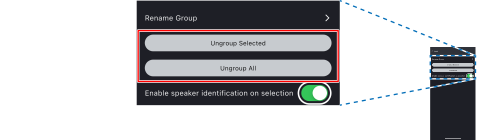
Tap [Ungroup the selected group] or [Ungroup all].
-
A confirmation screen appears, so tap [Yes].
The group is ungrouped.
NOTE
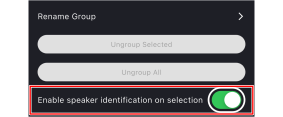
If you enable [Send identification signal when selecting a speaker], the panel on a speaker will flash for a while when you tap the speaker on the screen to create a group.
7.2.2. Copy screen for the current preset
You can paste the settings of the copy source speaker to the destination speaker.
Copying the current preset
-
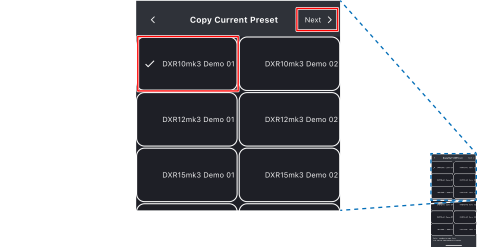
Select the copy source speaker and tap [Next].
-
Select the copy destination speaker and tap the [
 ] button.
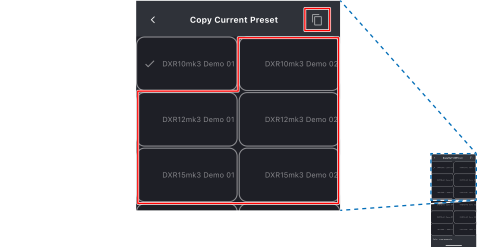
The settings of the source speaker are copied to the destination speaker.