
RTA screen
8. RTA screen
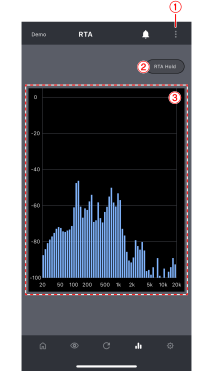
①
Menu button
Tap to display the
RTA settings screen
.
②
[RTA Hold] button
Tap to freeze and display the contents of the graph at that point.
③
RTA graph
This graph shows the audio input to the mobile device’s microphone in real time.
8.1. RTA settings screen
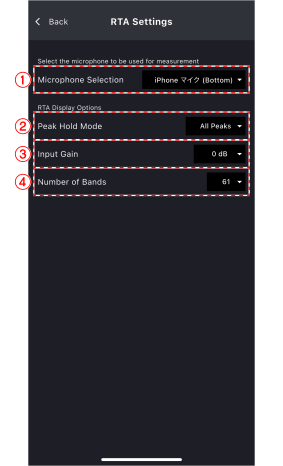
①
[Microphone selection] list box
Select the microphone to use to measure the input audio.
 NOTE
NOTE
You can only select the built-in microphone of the device (smartphone or tablet) running D-Remote.
②
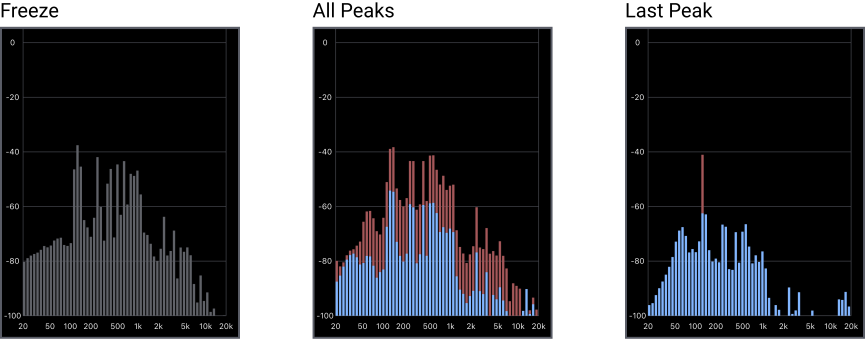
[Peak Hold Mode] list box
Select the peak hold mode.
③
[Input Gain] list box
Select the gain for the input audio.
④
[Number of Bands] list box
Select the number of bar charts to display on the RTA graph.