


Connection example: scenario #1
This example shows how to make connections for livestreaming the broadcast commentary from a game while holding a voice chat. You’ll need a video capture device to stream video.
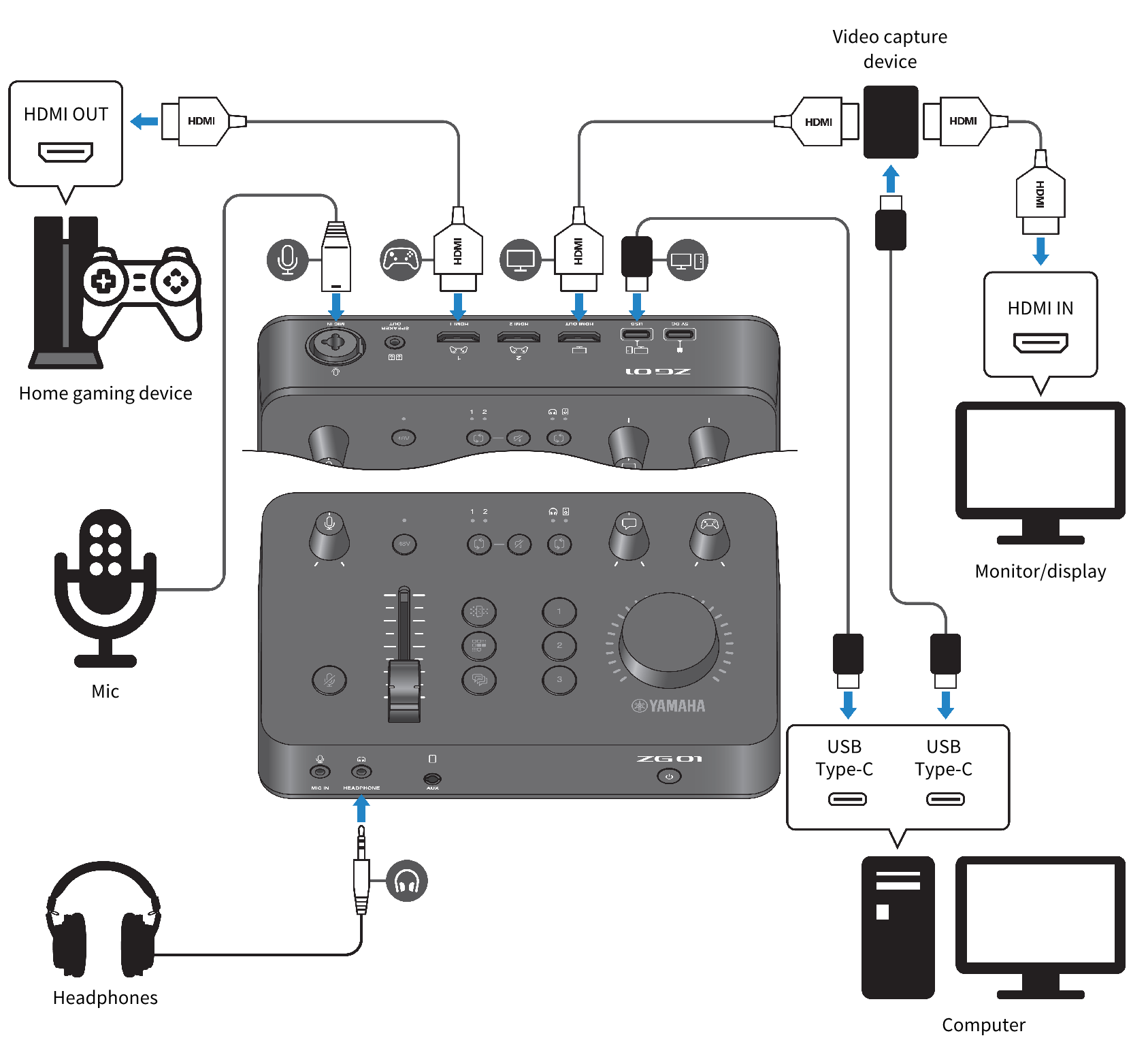
What you need
- Home gaming device that supports HDMI output
- Monitor/display that supports HDMI input
- HDMI cables (× 3)
- Computer (with a USB Type-C™ port)
- Included USB 2.0 cable (Type C-Type C)
- Mic and headphones
- Video capture device
- USB cable (for connecting the video capture device)
Connecting
- Use an HDMI cable to connect the [HDMI 1] jack (or the [HDMI 2] jack) of the ZG01 with the HDMI output of your gaming device.
- Use an HDMI cable to connect the [HDMI OUT] jack of the ZG01 to the HDMI input of your video capture device.
- Use an HDMI cable to connect the HDMI input of your monitor/display to the HDMI OUT jack of your video capture device.
- Use a USB cable to connect the USB port of your computer to the video capture device.
- Use the USB 2.0 cable (included) to connect the [USB] jack of the ZG01 to the USB port on your computer.
- Connect the mic to the [MIC IN] jack on the rear panel
- Connect your headphones to the [HEADPHONE] jack.
Protection of copyright
Observe the following precautions when distributing content via livestreaming.
- Do not use this product for any purpose that may infringe upon the rights of any third party including copyrights, as established by law in each country or region.
- Yamaha bears no responsibility for any infringement upon third party rights that may occur as a result of using this product.
NOTE
- When connecting a condenser mic, turn on the ZG01 and then hold down the phantom [48V] button to turn the phantom power on. ()
- Do not connect anything to the [MIC IN] jack on the front panel when you have already connected a mic to the [MIC IN] jack on the rear panel. If mics are connected to both jacks, the [MIC IN] jack on the front panel will be given priority.
- The audio for livestreaming can be output to the [HDMI OUT] jack and to the [USB] port. Configure the output destination in the STREAMING OUTPUT MIXER screen of the “Yamaha ZG Controller”. A warning message will appear when output to the [USB] port is set to “ON”. If this happens, you must carefully read the message and agree.
- The method shown for connecting to a video capture device is just one example. Read the Owner’s Manual for the product in question before connecting.
 ZG01
ZG01