


LIBRARY screen
The LIBRARY screen calls up the presets that are saved.
Presets are saved settings that are customized for certain mikes, speakers, etc.
By recalling a preset, you can set up a channel quickly and easily according to the type of input, and then fine-tune the settings to your specific needs. You can also save your own presets.
The LIBRARY screen opens when the library button on the menu is touched.
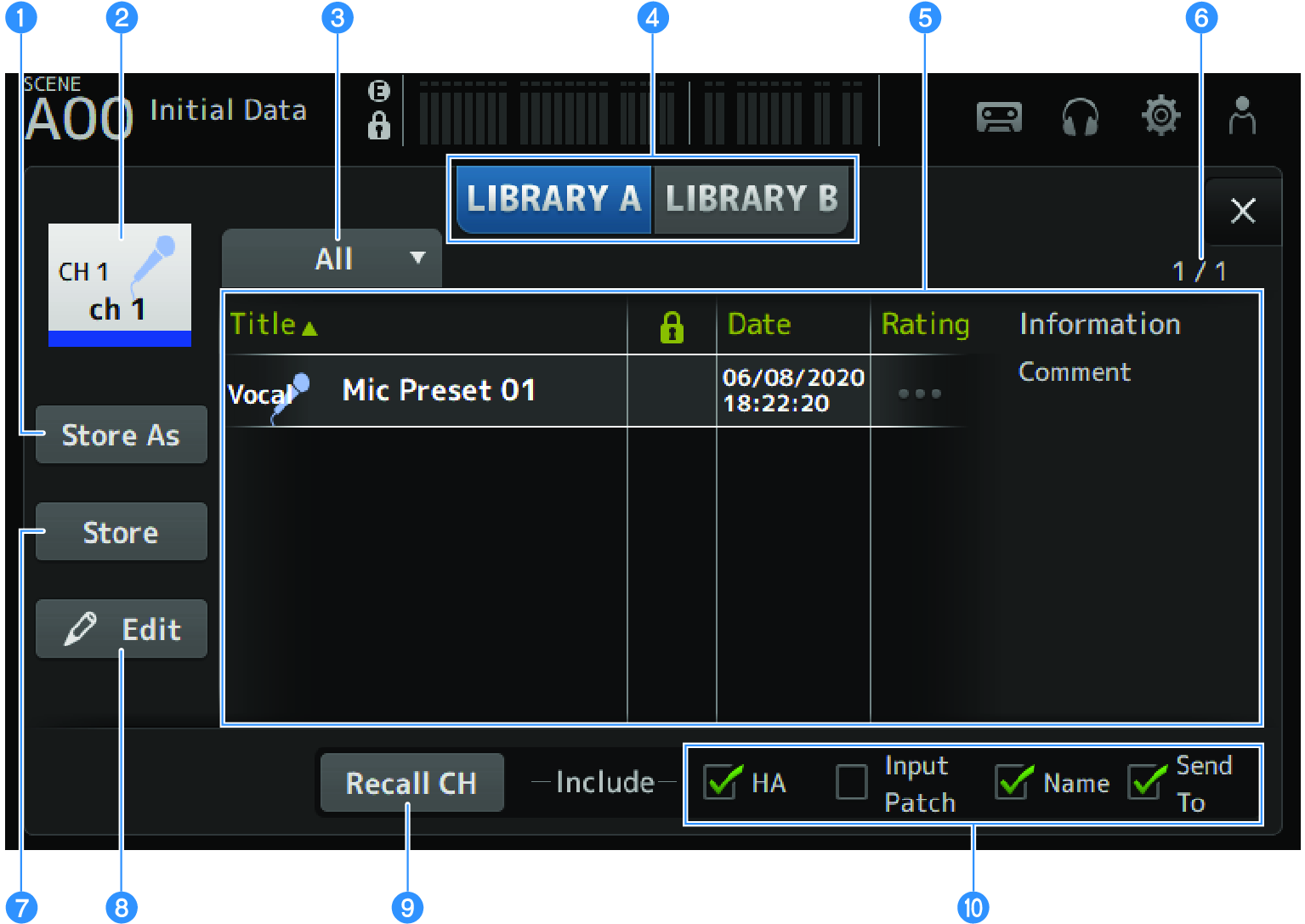
a | Store As button Saves the settings for the current channel as a new Preset. Touch to display the SOFT KEYBOARD so you can enter the preset name. |
b | Channel name display Displays the name of the channel. |
c | Category selection button Touch to display the category selection options. Presets that match the selected category are displayed in the library list. |
d | Library selection buttons Allow you to switch between the available libraries. The presets that are stored in the selected Library are displayed in the list.
|
e | List You can touch a header in the list to sort the items by that header (except for Information). Touch a preset to select it. The selected preset is highlighted, and can then be saved, recalled, or edited. A lock icon is displayed or cleared each time you touch the column. When the icon is displayed, the scene is write-protected. The date on which the preset was last saved is displayed in the Date column. Touch the Rating column to change the number of star icons. Giving more stars the more you like a preset allows you to then sort them by the number of stars. |
f | Preset number display Displays the preset number. The first number indicates the number of presets in the selected category, and the second number indicates the total number of presets. |
g | Store button Overwrites the current channel settings to the selected preset in the list. |
h | Edit button Touch to open the SOFT KEYBOARD for editing the title and comments. |
i | Recall CH button Recalls the preset to the selected channel.
Displayed when called out from the EQ screen, and it only recalls EQ settings. Displayed when called out from the DYN1 screen, and it only recalls DYN1 settings. Displayed when called out from the DYN2 screen, and it only recalls DYN2 settings. Displayed when called out from the FX screen, and it only recalls effect settings. Displayed when called out from the GEQ screen, and it only recalls GEQ settings. |
j | Recall on/off checkboxes Parameters of checkboxes that are checked are enabled for recall. CH 1-16, ST IN, FX RTN
MIX 1-6, STEREO channel
FX BUS 1-2
MATRIX channel
|
LIBRARY screen menu
Swipe left on the menu swipe indicator on the right of the LIBRARY screen to open the following menu.
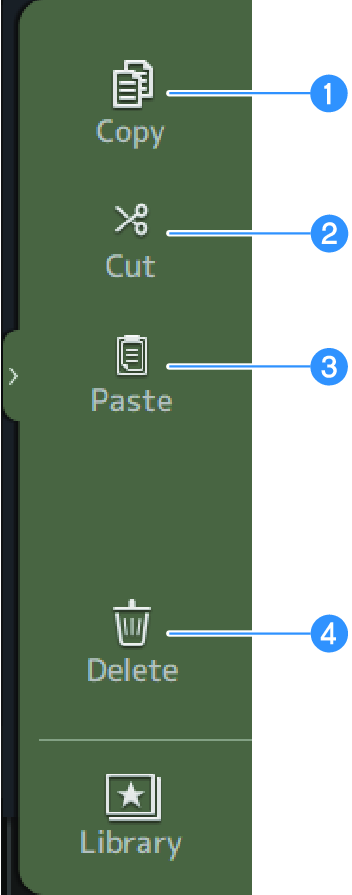
a | Copy Copies the selected preset. |
b | Cut Cuts the selected preset. |
c | Paste Pastes the copied or cut preset to the displayed list. |
d | Delete Deletes the selected preset. |
 DM3 Series