
Panel Operation
3. Panel Operation
3.1. Basic Operation
You can use the display, main knob, and [
 ] (back) key on the rear panel to configure various parameters.
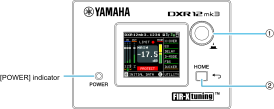
①
Main knob
You can move the cursor position and change parameter values. When a parameter value has a wide changing range, the speed of change will increase according to the speed of the rotation.
②
[
] (Back) key
Each time you press this key, the displayed screen moves up one level or back one level from the current level. Press and hold it for one second or more to return to the HOME screen.
-
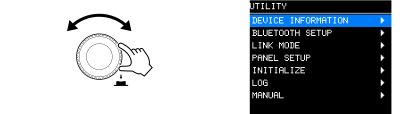
Turn the main knob to select a parameter to configure. The selected item is highlighted in blue and black.
An arrow ▶ on the right indicates that there is sub menu.
-
Press the main knob to confirm a selection.

-
Repeat steps 1 and 2 until you reach the desired editing or settings screen.
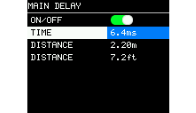
To edit parameters that feature continuous values
Turn the main knob to change the value for the parameter. The value is changed in real time as you turn the knob.
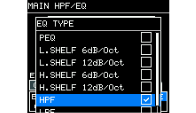
To edit parameters with selected values
Turn the main knob to highlight a value. The value will not be updated and the sound will not change until you press the main knob to confirm the selection.
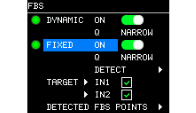
To edit the ON/OFF or check box settings
Press the main knob repeatedly to toggle the settings.
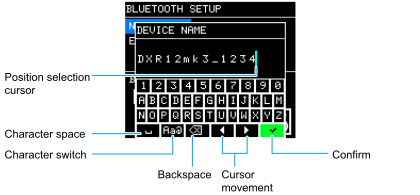
● How to enter characters
-
Turn the main knob to select [◀] or [▶] for cursor movements.
-
Press the main knob to use the cursor to select the position where you want to enter characters.
-
Turn the main knob to select the character you want to enter, and press the main knob to confirm the character.
-
Turn the main knob to select [✓], and press the main knob to confirm your selection.
 NOTE
NOTE
If you press the [
] key while entering a character, the selection moves to [✓].
3.2. HOME Screen and Its Functions
The HOME screen will appear when the power switch is turned on. Refer to the HOME screen for the model in use.
NOTE
-
Even while displaying other than the HOME screen, if you do not operate the panel for 5 minutes, the screen automatically returns to the HOME screen.
-
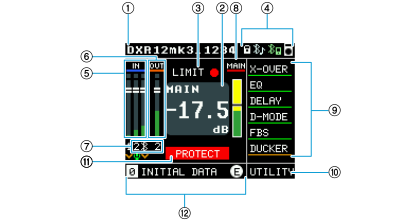
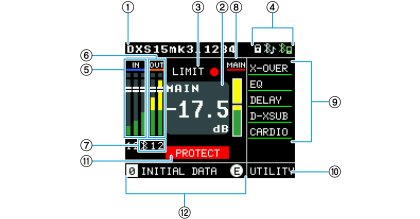
The screens in the images below are the HOME screens displayed when the DEVICE NAME in ① is set to "DXR12mk3" and "DXS15mk3," respectively.
DXRmk3
DXSmk3
①
DEVICE NAME
Displays the device name. Select this item with the cursor and press the main knob to display "BLUETOOTH SETUP."
-
From "NAME," you can move to the screen where you set the device name. Up to 16 characters can be displayed. When this product is shipped from the factory, the model name and alphanumeric characters are displayed.
The device name set here will be displayed on Bluetooth devices such as mobile devices. -
For Bluetooth function settings, refer to UTILITY Screen > BLUETOOTH SETUP .
②
LEVEL
Normally displays the main level. When the cursor is placed on the level meter for each channel, it indicates the respective level (unit: dB).
This item is displayed in blue while the level of each channel is being adjusted. If no operation is performed for 30 seconds, the cursor will return to the selection-ready state.
③
LIMIT
The indicator lights up when the limiter function is activated.
④
ICON
Always displays the speaker status.
| Icon | Status |
|---|---|
|
|
Panel locked |
|
|
Bluetooth® Audio is connected. |
|
|
D-Remote is connected. |
|
|
AUTO V/H POSITION is operating. (Only for the DXRmk3 series) |




⑤
INPUT
Simultaneously displays the level meter and level parameter of input signals for the channels (IN1, IN2, and Bluetooth Audio). Using the main knob, select the level meter for each channel to set the level.
For settings, refer to
INPUT/OUTPUT/MAIN Screen
.
A [v] icon is displayed on channels where the
DUCKER
function is activated (only for the DXRmk3 series).
If the HPF or EQ settings are automatically enabled in conjunction with the operation of the [MIC/LINE] switch, a microphone icon is displayed on IN2 (only for the DXRmk3 series).
⑥
OUTPUT
Simultaneously displays the level meters and level parameters for the output signals of OUT1 (only for the DXSmk3 series) and OUT2. Using the main knob, select the level meter for each channel to set the level.
For settings, refer to
INPUT/OUTPUT/MAIN Screen
.
⑦
CHANNEL PARAMETER
Set the details for each channel.
● Applicable channels
DXRmk3: IN2, Bluetooth Audio, OUT2
DXSmk3: Bluetooth Audio, OUT1, OUT2
Select the channel name with the main knob to display the settings screen.
For settings, refer to
INPUT/OUTPUT/MAIN Screen
.
⑧
MAIN
Simultaneously displays the level meter and level parameter of the speaker output signals. Select them with the main knob and set the level. For settings, refer to
INPUT/OUTPUT/MAIN Screen
.
⑨
PROCESSING
You can set and display DSP processing. For settings, refer to
PROCESSING Screen
. When the effect is active, the item will be underlined in green.
⑩
UTILITY
Displays various settings and information for the unit. For settings, refer to
UTILITY Screen
.
⑪ INFORMATION
-
PROTECT: Displayed when the protection function is activated.
-
THERMAL: Displayed in yellow when temperature is at WARNING level and in orange at ERROR level. If the temperature is at the ERROR level (orange), the output signals will be muted. ② The LEVEL screen displays an ALERT (screen) for muted situations.
-
ALERT: Displayed if an ALERT of ERROR level or higher occurs. This indication will disappear when the ALERT is resolved. Move the cursor to this message and press the knob to move to UTILITY Screen > LOG .
⑫
PRESET
Displays the preset number and title of the preset recalled. You can save, recall, and edit sound-related settings. When you change a parameter, the
 symbol will be displayed. For settings, refer to
PRESET Screen
.
symbol will be displayed. For settings, refer to
PRESET Screen
.
3.3. Alert Messages
If an abnormality occurs in this product, an alert message will appear on the display.
For details on each message, refer to "Message List" in
Reference
.
Example)
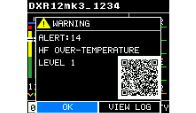
Select [OK] to return to the original screen.
Select [VIEW LOG] to display the "LOG LIST."
Scan the QR code with your smartphone or tablet to view a detailed description of the alert.
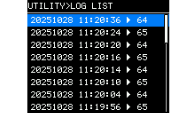
3.4. Initialization
There are three ways to initialize this product.
●
Initializing to the default settings by navigating from the HOME
screen and selecting UTILITY → INITIALIZE
You can select specific data that you want to initialize. Refer to
INITIALIZE (Initialization)
.
●
Initializing to the default settings when you cannot remember the PIN code
If you cannot select INITIALIZE in the UTILITY screen because you cannot remember the PIN code set for the panel lock in PANEL SETUP or other reasons, initialize this product from the MAINTENANCE screen > INITIALIZE. Refer to
MAINTENANCE Screen
.
●
Initializing to the default settings from D-Remote
You can select specific data that you want to initialize. For operational instructions, refer to the "D-Remote User Guide."