
Screen Functions
4. Screen Functions
4.1. MAINTENANCE Screen
This screen allows you to quickly and easily perform operations that are common when this product is used as a rental item, allowing for efficient operation even with a large number of speakers.
There are two ways to display the MAINTENANCE screen.
● While pressing and holding the main knob, turn on the power switch.

● Turn on the power switch. Press the main knob while the product logo is displayed.

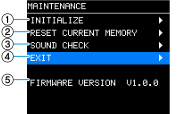
① INITIALIZE
-
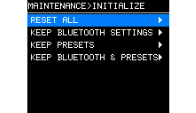
Select the items to be initialized.
The items to be initialized are as follows:
-
RESET ALL: Initializes settings to the factory-set defaults.
-
KEEP BLUETOOTH: Keeps the Bluetooth settings.
-
KEEP PRESETS: Keeps the PRESETS settings.
-
KEEP BLUETOOTH & PRESETS: Keeps the Bluetooth settings, passwords, and PRESETS settings.
-
-
On the confirmation screen, select [OK].
②
RESET CURRENT MEMORY
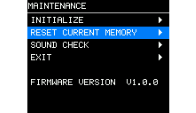
This function resets only the current memory to the initial settings.
-
Select "RESET CURRENT MEMORY."
-
On the confirmation screen, select [OK].
③
SOUND CHECK
Pink noise emitted from the speaker can be used to check whether the speaker unit is damaged or not functioning properly.
-
Select "SOUND CHECK."
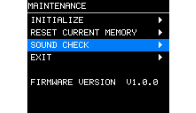
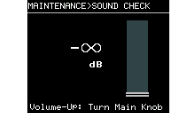
When the SOUND CHECK screen is displayed, the volume will always be displayed as "-∞ dB" (silent).
-
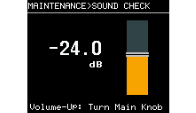
Turn the main knob to increase the volume. Listen to the pink noise that corresponds to the volume value to determine whether the speaker unit is normally working or is malfunctioning.
-
Press the main knob or [
 ] (back) key to return from the SOUND CHECK screen to the MAINTENANCE screen. At this time, the volume will return to "-∞ dB" (silence).
④
EXIT
If this item is selected, a confirmation screen will appear. Select [YES] to return to the HOME screen.
⑤
FIRMWARE VERSION
Displays the firmware version.
4.2. INPUT/OUTPUT/MAIN Screen
4.2.1. Level Settings for IN1/IN2/BT IN/OUT1 (Only for the DXSmk3 Series)/OUT2/MAIN
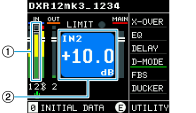
① Use the cursor to select the level meter for each channel, and press the main knob.
② Turn the main knob to set the input and output signal levels for each channel. Press the main knob for confirmation.
Example) DXR12mk3 IN2
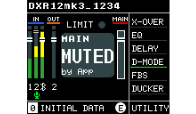
● If MUTE is ON in the D-Remote settings "MUTED by App" will be displayed.
-
How to unmute
Press the main knob while "MUTED by App" is displayed. Select [OK] on the confirmation screen to unmute.
4.2.2. CHANNEL PARAMETER
●
IN2 detailed settings (only for the DXRmk3 series)
Use the cursor to select the channel name "2" on the HOME screen.
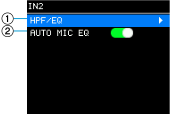
① HPF/EQ
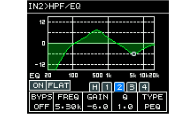
Configure the HPF and EQ settings for the microphone input.
-
The upper row displays the frequency response, which also shows the HPF and EQ simultaneously.
-
The lower row switches between "H" for HPF and "1" to "4" for EQ bands and displays the respective parameter values. For details on setting each parameter value, refer to PROCESSING Screen > EQ .
②
AUTO MIC EQ
Pressing the main knob toggles between on and off. When this item is set to on, the position of the [MIC/LINE] switch on the unit is detected, and the appropriate EQ is automatically set.
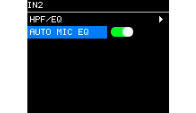
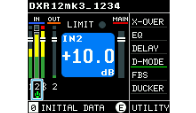
When the setting is enabled, a microphone icon will appear in IN2 on the HOME screen.
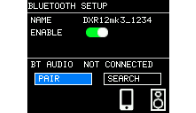
● Connection of Bluetooth® Audio
Use the cursor to select IN[
 ], and configure the setting on the "BLUETOOTH SETUP" screen.
The setting method is the same as for BLUETOOTH SETUP on the UTILITY screen.
Refer to
UTILITY Screen > BLUETOOTH SETUP
.
●
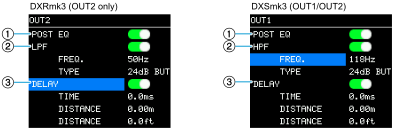
OUT1/OUT2 detailed settings
Use the cursor to select the channel name "1" or "2" on the HOME screen.
①
POST EQ
Set whether to output audio with or without MAIN EQ applied.
②
LPF (DXRmk3)/HPF (DXSmk3)
The setting method is the same as for X-OVER on the PROCESSING screen. Refer to
X-OVER
.
③
DELAY
The setting method is the same as for DELAY on the PROCESSING screen. Refer to
DELAY
.
4.3. PROCESSING Screen
4.3.1. X-OVER
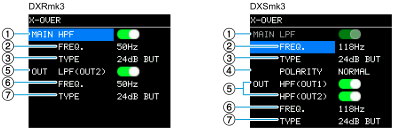
Apply X-OVER (HPF/LPF) when using a full-range speaker and a subwoofer in combination.
We assume two configurations: one in which the audio is received by the DXSmk3 series and sent to the full-range speaker, and one in which the audio is received by the DXRmk3 series and sent to the subwoofer.
You can apply a filter to send the audio to a destination other than the DXRmk3 series or DXSmk3 series.
 NOTE
NOTE
When the DXRmk3 series and DXSmk3 series are used in combination, the optimal X-OVER settings will be applied by recalling PRESET Screen > FACTORY PRESET .
①
MAIN HPF/MAIN LPF
DXRmk3: Turn on or off the HPF for the audio output to the speaker.
DXSmk3: The LPF for the audio output to the speakers is always turned on.
②
MAIN FREQ.
Set the crossover frequency.
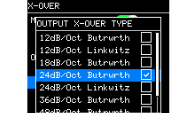
③
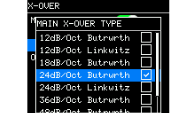
MAIN TYPE
Select the filter type.
④
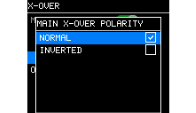
MAIN POLARITY (only for the DXSmk3 series)
Setting this item to “NORMAL” results in normal phase, while setting it to “INVERTED” results in reversed phase.
⑤
OUT LPF/OUT HPF
DXRmk3: Turn on or off the LPF for the audio output to OUTPUT connector 2.
DXSmk3: Turn on or off the HPF for the audio output to OUTPUT connector 1 or 2.
⑥
OUT FREQ.
Set the crossover frequency.
⑦ OUT TYPE Select the filter type.
4.3.2. EQ
Adjust the overall frequency response of the speaker. You can edit the parameters of the HPF (H), LPF (L), and six bands (1 to 6) of EQ to suit your applications and preferences.
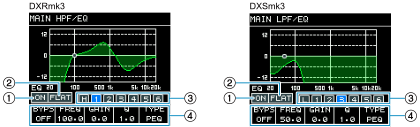
①
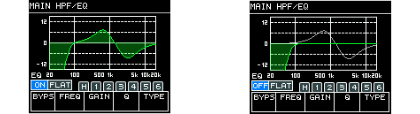
ON/OFF
Turn on or off the EQ.
When the EQ is [ON], the graph is displayed filled with green. When the EQ is [OFF], only the outline of the graph is displayed.
②
FLAT
Set the GAIN for all bands to 0 dB.
③
Band: DXRmk3 (H, 1 to 6)/DXSmk3 (L, 1 to 6)
Select the band for which to display parameters. Pressing the main knob on the selected band will move the cursor to the parameter display.
④
Parameter display
Displays the parameters for each band. Move the cursor to the parameter name and press the main knob to set the parameter value. Pressing the [
] (back) key will move the cursor back to the parameter name. If you press the [
] (back) key again, the cursor will return to band selection.
Also, if you continue to turn the main knob while the cursor is on the parameter name, you can move to the parameter of the adjacent band.
●
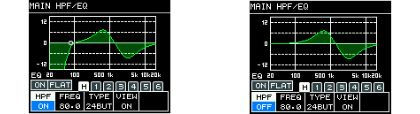
Band [H] setting
When the HPF is ON, the graph is displayed filled with green. When the HPF is OFF, it will not be displayed on the graph.
NOTE
The [VIEW] parameters for the [H] and [L] bands of the MAIN EQ allow you to turn on or off the display of the HPF and LPF frequency responses.
●
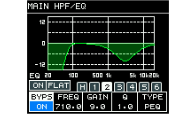
Setting bands [1] to [6]
When BYPS is ON, the corresponding bands are displayed as THRU.
4.3.3. DELAY
Set the delay time. Use this item for correcting the distance between speakers, etc.
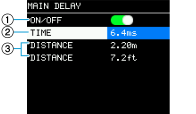
①
ON/OFF
Turn on or off the delay.
②
TIME
Set the delay time in milliseconds.
③
DISTANCE [m, ft]
Displays the delay time as distance (in meters and feet).
NOTE
The three delay time displays will change in tandem.
4.3.4. DSP MODE (D-MODE) – Only for the DXRmk3 Series
Configure the DSP MODE setting. Set the frequency response that is optimal for your application.
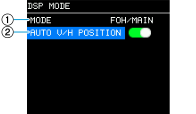
①
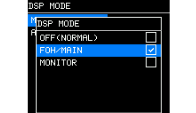
MODE
Set the mode of the DSP MODE.
-
OFF (NORMAL): Disables the DSP MODE. A general-purpose frequency response is set.
-
FOH/MAIN: This setting boosts the high and low frequencies to create the frequency response suitable for the main speakers. When the initial settings are used or the settings are initialized, FOH/MAIN is selected.
-
MONITOR: This setting ensures clarity, which is important for a floor monitor, and reduces the low-frequency bloat (boominess) that tends to occur when the speaker is placed on the floor.
②
AUTO V/H POSITION
Turn on or off AUTO V/H POSITION.
When this item is turned on, the DSP MODE will be automatically set. The mode will be set to "FOH/MAIN" when this product is placed vertically, and the mode will be set to "MONITOR" when it is placed horizontally.
The speaker installation status is displayed as an icon on the HOME screen.
4.3.5. FBS (Only for the DXRmk3 Series)
Apply FBS. This function prevents unpleasant feedback that occurs when the audio output from the speaker is routed back to the microphone.
-
DYNAMIC type
Detects and suppresses feedback that occurs during use in real time. This type is intended for handheld microphones. -
FIXED type
Applies FBS in advance at points where feedback tends to occur. This type is intended for fixed microphones.
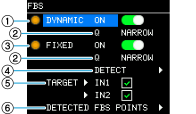
①
DYNAMIC ON/STATUS
Turn on or off the DYNAMIC type. When this type is turned on, the indicator lights up green. If the effect is applied to at least one band, the indicator lights up orange.
②
DYNAMIC Q/FIXED Q
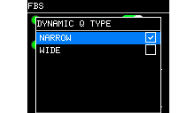
Set the Q (width of the effect range) of the DYNAMIC or FIXED type filter to NARROW or WIDE.
-
NARROW: This setting has little effect on sound quality, which is suitable for music playback and live instrument performances. Because the Q of a per-band filter for eliminating feedback is narrow, multiple bands may be required in environments where the positions of microphones and speakers change, such as when a handheld microphone is used.
-
WIDE: This setting has a greater effect on sound quality than NARROW, which makes it suitable for speeches. The Q of a per-band filter for eliminating feedback is wide, making it easy to eliminate feedback.
Example) DYNAMIC type Q
③
FIXED ON/ STATUS
Turn on or off the FIXED type. When this type is turned on, the indicator lights up green. If the effect is applied to at least one band, the indicator lights up orange.
④
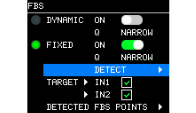
FIXED DETECT
Pre-set the FIXED type. This function detects in advance the frequencies that may cause feedback.
-
With the microphones and speakers installed, select [DETECT] for the FIXED type.
-
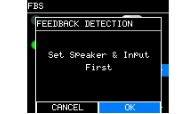
On the confirmation screen of the DETECT function, select [OK].
-
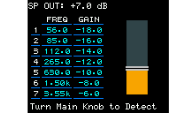
Turn the main knob to gradually increase the level of signals output from the speaker.
-
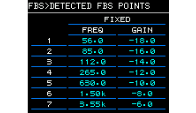
As the signal level increases, feedback will begin to occur, but will be automatically suppressed. The filter frequency and gain when the feedback is suppressed are saved and displayed on the screen.
-
Press the main knob or back [
] key to stop the DETECT function.
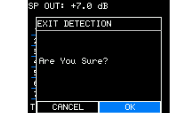
On the confirmation screen, select OK.
-
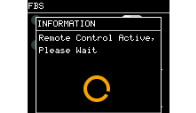
While the DETECT function is executed from D-Remote, the standby screen will be displayed to prevent parameter changes on the main unit.
⑤
TARGET
Apply FBS to IN1 (CH1) or IN2 (CH2).
⑥
DETECTED FBS POINTS
Displays the detected frequency and set gain value for each band.
NOTE
-
You can execute the DETECT function any number of times. However, the previous measurement results will not be carried over and will be overwritten with the latest results each time the function is executed.
-
If the DYNAMIC type in ① is turned on, it will be automatically turned off. Once the DETECT function processing finishes, the DYNAMIC type will automatically turn back on.
4.3.6. DUCKER (Only for the DXRmk3 Series)
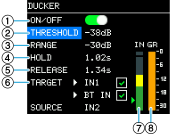
Set the ducker function to automatically lower the volume of other channels (IN1, Bluetooth Audio) when the audio from a microphone or instrument is input to IN2.
①
DUCKER ON/OFF
Turn on or off the ducker function.
②
THRESHOLD
Set the signal level at which to apply the ducker effect. If the input signals of IN2 exceeds this level, the volume of IN1 or BT IN will begin to decrease.
③
RANGE
Set how much to lower the volume of IN1 or BT IN when the ducker effect is applied.
④
HOLD
Set the time for which the ducker effect will be maintained after the input signals of IN2 fall below THRESHOLD.
⑤
RELEASE
Set the time by which the volume of IN1 and BT IN returns to the original level after the HOLD time has ended.
⑥
TARGET
Select the target of the ducker effect from IN1 and BT IN.
⑦
IN 2 METER
Displays the input level of IN2. You can also check the THRESHOLD setting value with the [▶] icon.
⑧
GR METER
Displays the degree of the ducker effect applied.
4.3.7. D-XSUB (Only for the DXSmk3 Series)
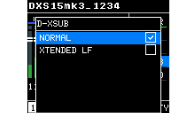
Configure the D-XSUB setting. Set the frequency response that is optimal for your application and music genre.
-
NORMAL: Turns off D-XSUB. This is the general-purpose frequency response setting.
-
XTENDED LF: This setting extends the playback frequency to a lower range.
4.3.8. CARDIOID (Only for the DXSmk3 Series)
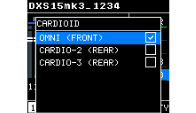
Configure the cardioid mode setting. Refer to
Cardioid Mode Setup
.
Change the setting depending on the orientation and number of speakers. When you do not use the cardioid mode, set it to OMNI (FRONT).
4.4. UTILITY Screen
This screen displays various settings and information for this product.
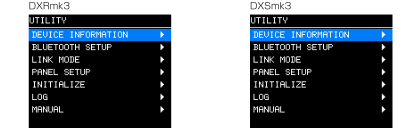
4.4.1. DEVICE INFORMATION
You can set and display information about this product.
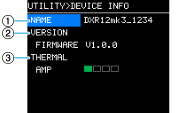
①
NAME
Set the device name. The device name set here will be displayed on Bluetooth devices such as mobile devices.
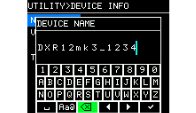
NOTE
-
For the device name, you can enter up to 16 characters.
-
Characters that can be entered are as follows:
ABCDEFGHIJKLMNOPQRSTUVWXYZ
abcdefghijklmnopqrstuvwxyz
1234567890
! “ # $ % & ‘ ( ) * + , - . / : ; < = > ? @ [ \ ] ^ _ ` { | } ~ (space) -
The factory-default device name is set to the format of this product’s model name plus a four-digit string that identifies the individual product.
Example: DXR12mk3_1234
This format allows you to identify the individual product even if there are multiple units of the same model.
②
VERSION
Displays the firmware version.
③
THERMAL
Displays the temperature of the amplifier section in four levels. Limiters and mutes are applied depending on the temperature.
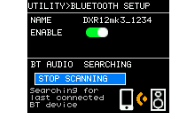
4.4.2. BLUETOOTH SETUP
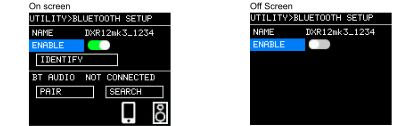
Configure the Bluetooth function settings.
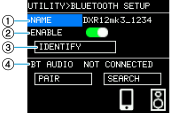
①
NAME
Displays the name of this product set in DEVICE INFORMATION. You can also set the device name from this screen.
②
ENABLE
Turn on or off the Bluetooth function. When this item is turned on, information about Bluetooth Audio will be displayed at the bottom of the screen. If this item is turned off, the information will not be displayed.
③
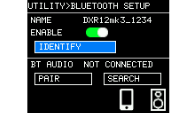
IDENTIFY
If this product and D-Remote are connected via Bluetooth, you can send an identification (IDENTIFY) signal from this product to D-Remote.
When you select [IDENTIFY], the virtual device displayed on D-Remote will flash.
④ Bluetooth® Audio
● Pairing (registering) a Bluetooth device for the first time
-
Select [PAIR].
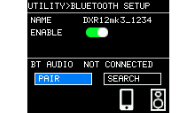
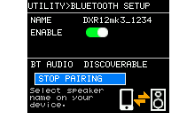
The screen will change to the one showing that pairing is in progress. To cancel pairing, select [STOP PAIRING].
-
Turn on the Bluetooth setting on the Bluetooth device.
For detailed operational instructions, refer to the owner’s manual for your Bluetooth device.
-
When the connection list is displayed on the Bluetooth device, select this product you want to connect to from the list.
The list displays the device name set in ① NAME.
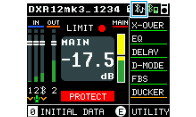
Once pairing is completed, the connection will be automatically established. The connected icon will appear on the HOME screen.
NOTE
The DXRmk3 series and DXSmk3 series can be paired with (register) up to eight Bluetooth devices. When the ninth Bluetooth device is successfully paired, the registration information for the Bluetooth device with the oldest connection date and time will be deleted. Note that only one connected device can be operated at the same time.
● Disconnecting a Bluetooth® device
To disconnect a Bluetooth device, use one of the following methods:
-
Turn off the Bluetooth setting on the Bluetooth device.
-
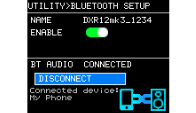
Disconnect from the connected screen.
Select [DISCONNECT] to disconnect the device.
● Reconnecting the last-connected Bluetooth® device from this product
-
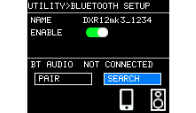
Select [SEARCH].
Search for the last-connected Bluetooth device. -
Turn on the Bluetooth setting on the Bluetooth device.
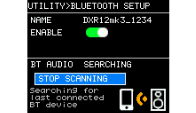
Once the connection is completed, the connected icon will appear on the HOME screen. Select [STOP SCANNING] to stop the search.
● Automatic reconnection
If you turn off this product while it is connected via Bluetooth, the next time you turn it on, it will automatically search for the last-connected Bluetooth device.
4.4.3. LINK MODE
Select MONO or STEREO when connecting multiple DXRmk3 or DXSmk3 series units.
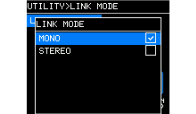
A screen corresponding to the selected mode will appear to show the audio signal routing.
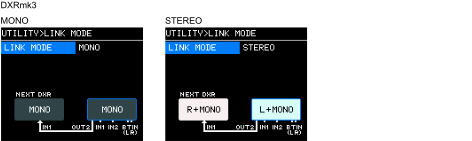
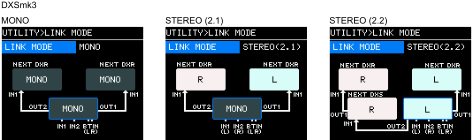
●LINK MODE and sound routing
| Model | LINK MODE | SP OUT | OUT1 | OUT2 | Application |
|---|---|---|---|---|---|
|
DXRmk3 |
MONO |
IN 1+2(FBS)
|
IN 1+2
|
MONO on one speaker, extended to second speaker |
|
|
STEREO |
IN 1+2(FBS)
|
IN 1+2
|
BT (Bluetooth) STEREO playback on two speakers |
||
|
DXSmk3 |
MONO |
IN 1+2
|
← |
← |
All MONO use |
|
STEREO (2.1) |
IN 1+2
|
IN 1
|
IN 2
|
STEREO use with 2.1 structure |
|
|
STEREO (2.2) |
IN 1
|
IN 1
|
IN 2
|
STEREO use with 2.2 structure |
4.4.4. PANEL SETUP
Set the display format.
NOTE
D-Remote allows you to simultaneously control the display settings for all these products connected via Bluetooth.
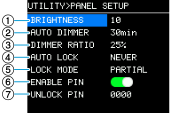
①
BRIGHTNESS
Set the brightness of the display and the [POWER] indicator. You can set it between 1 to 10 levels.
②
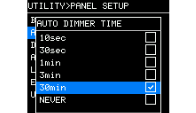
AUTO DIMMER (AUTO DIMMER TIME)
Select the time by which the display dims. "NEVER" does not apply the AUTO DIMMER effect.
③
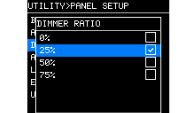
DIMMER RATIO
Select the brightness of the display when it dims.
-
The [POWER] indicator will not turn off even if the brightness is set to 0%.
-
When you operate the main knob or back [
] key while the effect is applied, DIMMER will temporarily be canceled.
④
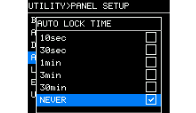
AUTO LOCK (AUTO LOCK TIME)
Select the time by which the panel automatically locks if no operation is performed for a while.
-
Once the panel is locked, you will be taken to the HOME screen. A lock icon will be displayed in the top right corner of the HOME screen.
-
When you restart this product, it will start up in a locked state.
-
The panel cannot be operated while it is locked, but this product can be operated from D-Remote.
●
Unlocking the panel
When you operate the main knob or back [
] key while the panel is locked, an unlock message will be displayed. If you have set a PIN code (4-digit authentication number), enter the PIN code to unlock. Once you unlock the panel, you can operate it until it automatically locks again.
-
If no PIN code has been set
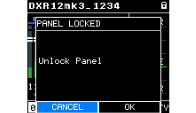
There is no need to enter a PIN code. Select [OK] to unlock.
-
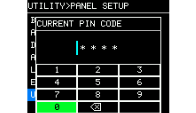
If a PIN code has been set: The PIN code entry screen will be displayed.
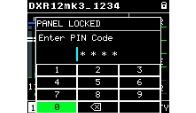
Enter the 4-digit PIN code you set. The panel will be unlocked and you will return to the HOME screen.
⑤
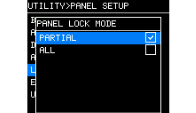
LOCK MODE (PANEL LOCK MODE)
Configure the panel lock setting.
-
PARTIAL: Locks the display-related operations. Only the MAIN LEVEL operations are enabled.
-
ALL: All operations except for unlocking the panel are disabled.
⑥
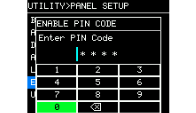
ENABLE PIN
Enable or disable the PIN code used for panel lock. Enter the PIN code to set it.
⑦
UNLOCK PIN
Set the PIN code (any 4-digit number) for panel lock.
If you set a PIN code, you will be required to enter the PIN code to unlock the panel.
4.4.5. INITIALIZE (Initialization)
Select and initialize the internal data of this product.
-
Turn the main knob to select the target you want to initialize, and press the main knob for confirmation.
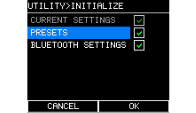
The items to be initialized are as follows:
-
CURRENT SETTINGS: All settings except PRESET and Bluetooth settings. This item is always selected for initialization.
-
PRESET: Preset settings
-
BLUETOOTH SETTINGS: Bluetooth settings
-
On the confirmation screen, select [YES].
During execution, the message "Do not turn off!" will be displayed.
Once initialization is completed, this product will reboot automatically.
4.4.6. LOG
You can check the operation history of alerts that have occurred on this product and events that have occurred during normal operation (such as power-on and PRESET RECALL). System log data is useful for analyzing a trouble or malfunction.
NOTE
If the number of log data items exceeds the capacity of the internal memory, the oldest log data will be deleted and new log data will be saved.
●
LOG LIST
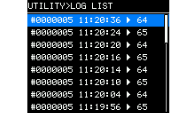
Displays the entire operation log internally recorded. Logs are displayed in the order of events that occurred.
There are two ways to display time information.
① "#NNNNNNN HH:MM:SS▶NN" format
In this product, logs are recorded in the following format:
#NNNNNNN: Total number of times this product has been started since production
HH:MM:SS: Elapsed time since this product was started
NN: Alert number
② "YYYYMMDD HH:MM:SS▶NN" format
When D-Remote is connected, logs are recorded with the time of the connected mobile device.
YYYYMMDD: Date HH:MM:SS: Time
NN: Alert number
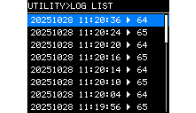
When you select the target log list item and press the main knob, the DETAIL VIEW screen will be displayed.
For details on messages, refer to
Reference > "Message List"
in this manual.
To view the message details, scan the QR code with your mobile device.
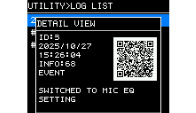
NOTE
When you turn the main knob when this screen is displayed, the contents will switch to the previous or next log information.
4.4.7. MANUAL
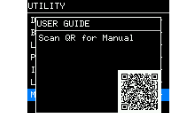
A QR code will be displayed to scan for the "User Guide."
By scanning the QR code with your mobile device, you can view the "User Guide" which provides detailed explanations of the functions and operational instructions.
4.5. PRESET Screen
You can recall sound-related settings as presets, and configure the save, delete, title-editing, and protect settings. Recall-only presets are always protected.
When you change a parameter, the
 symbol will be displayed on the
HOME screen
.
symbol will be displayed on the
HOME screen
.
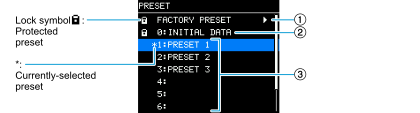
①
FACTORY PRESET
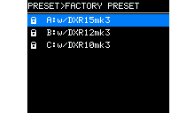
When the DXRmk3 series and DXSmk3 series are used in combination, you can optimize crossover frequencies, levels, and delay values by recalling presets named after the respective models. These presets are recall only.
Example) DXSmk3 FACTORY PRESET
②
INITIAL DATA
Returns to the initial settings. These presets are recall only.
③
User preset list
You can save up to eight settings. You can configure the recall, save, delete, title-editing, and protect settings.
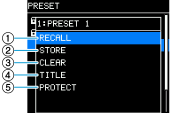
● Select the preset you want to operate. A screen for selecting an operation will be displayed.
Example) List of presets to operate: PRESET1
①
RECALL
Recalls a saved preset.
The selected preset number and title are displayed.
②
STORE
Saves the current settings as a preset with a title.
Once the settings are saved, "EXECUTED!"will be displayed. Press OK to return to the PRESET list screen. If they cannot be saved, "FAULT" will be displayed. You cannot overwrite a protected preset.
③
CLEAR
Deletes the saved presets.
You cannot delete protected presets and the currently-selected preset.
④
TITLE
Edit the title of the saved preset.
Once the settings are saved, "EXECUTED!"will be displayed. Press OK to return to the PRESET list screen. If they cannot be saved, "FAULT" will be displayed. You cannot edit the title of a protected preset.
⑤
PROTECT
Turn on or off the protection for saved presets.
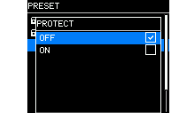
When this item is set to ON, you will not be able to overwrite (STORE) or delete (CLEAR) presets or edit the title (TITLE). Also, the lock symbol [
 ] will be displayed on the left side of the preset title on the PRESET screen.