


On-line monitoring/operation
- Connect a computer (that has PM Editor installed) to the DSP engine (or to the control surface) using an Ethernet cable.
- For more information on configuring the network, please refer to the “RIVAGE PM Editor Installation Guide.”
NOTE
- Up to two instances of PM Editor can be connected. If you want to connect two instances of PM Editor to the DSP engine (or to the control surface), use a network hub to make connections. Alternatively, you can connect one instance of PM Editor to the DSP engine and another instance to the control surface.
- Start PM Editor.
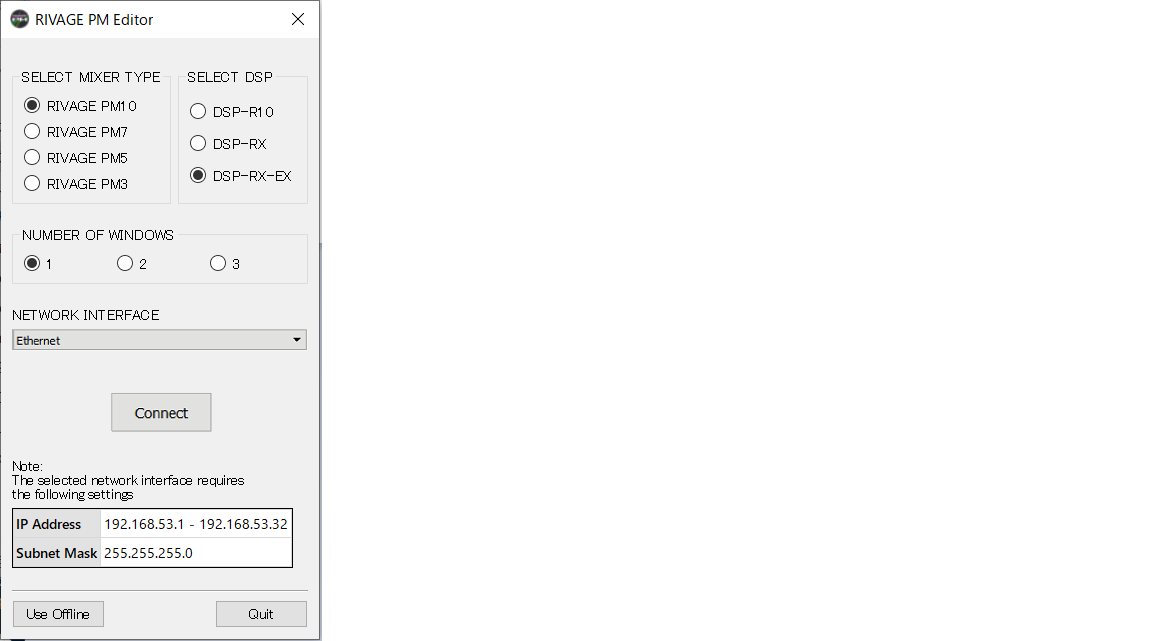
- The following screen appears at start-up.
NOTE
- Although the screen (that is displayed in response to differently-configured panel elements, such as User Defined Keys) varies depending on the MIXER TYPE setting, the same data will be processed. In addition, on-line connection to PM Editor will be unaffected.
- If the DSP selection does not match the actual DSP engine, you will be unable to connect to the DSP engine on-line. Select the type of the DSP engine that you are actually using, because the number of available input channels varies depending on the DSP type.
- In SELECT MIXER TYPE, select the RIVAGE PM Series unit; and in NETWORK INTERFACE, select the network that you will use.
- If an IP address that can be connected to the selected network is specified, the Connect button can be pressed.
- Click the Connect button so that the RIVAGE PM series will be linked to PM Editor.
NOTE
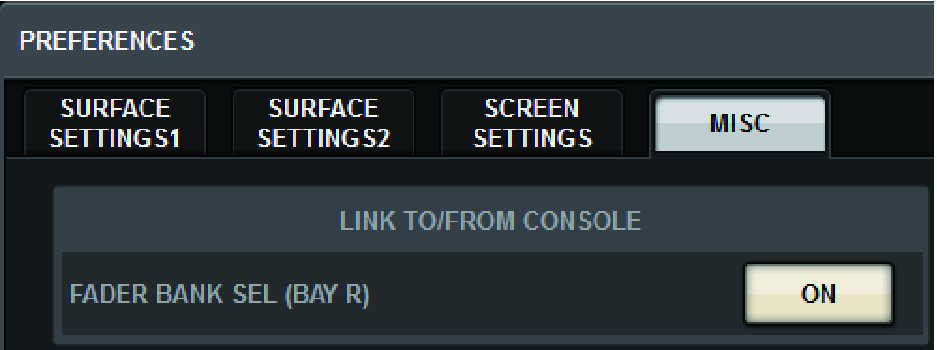
- If you plan to link channel block selection in PM Editor with that of console bay R, press [SETUP] -> [PREFERENCES] -> MISC tab to access the LINK TO/FROM CONSOLE field, and then set FADER BANK SEL (BAY R) to “on”.
- Once the DSP engine detects PM Editor on-line, the DEVICE SYNC screen appears.
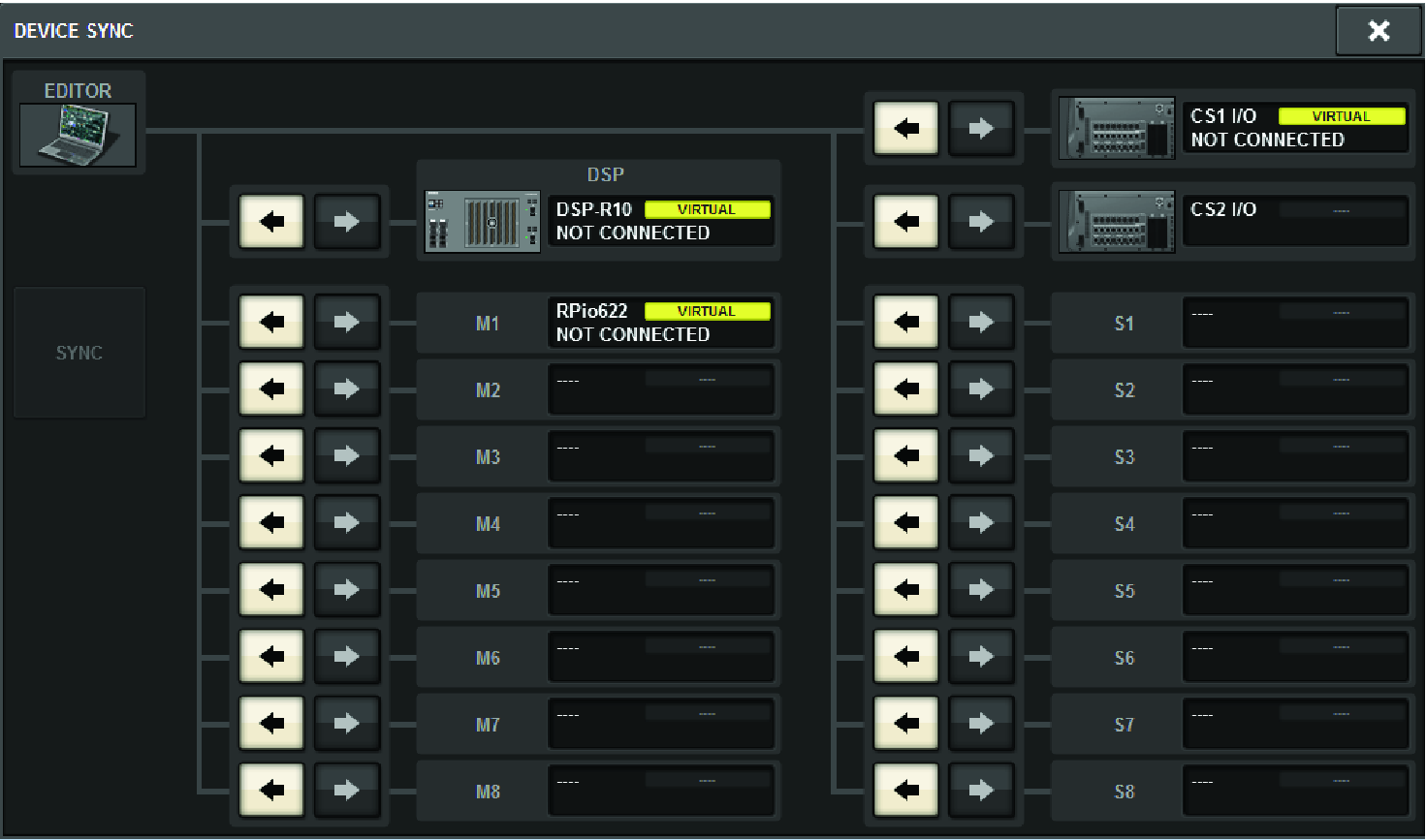
- When connecting PM Editor, you must specify the data sync direction for the DSP engine.
- Select “EDITOR ← DSP.”
- Press the SYNC button.
- Parameter settings on the RIVAGE PM series will be copied to PM Editor. Once data synchronization is completed, the line indicating synchronization is displayed in green.
- Edit the mixing data.
 RIVAGE PM Series