
Basic Operations of ProVisionaire Cloud
Using ProVisionaire Cloud
In order to use the ProVisionaire Cloud service, sign in from the sign in screen of ProVisionaire Cloud.
Access the ProVisionaire Cloud
-
Open the ProVisionaire Cloud window in the browser.
-
Click the [Sign In] button.
 ProVisionaire Cloud > [Sign In]
The Sign In screen for Yamaha Music ID for Business opens.
Signing in
-
Type in the email address and password.
Type in the email address and password for the Yamaha Music ID for Business account. If the password has been lost, click “Reset Password” to reset the password.
-
Click the [Sign In] button.
 Yamaha Music ID for Business > Sign in or Register Screen
A confirmation screen appears. A verification email is sent to the email address that was entered.
-
In the screen, type the verification code provided in the email, and then click the [Submit] button.
 Yamaha Music ID for Business > Confirmation Screen
ProVisionaire Cloud starts.
For details, refer to the link below.
-
When ProVisionaire Cloud first starts: The top screen of License Management * appears.
-
For the second and subsequent times: The top screen of the feature last used appears.
* License Management: A web service for managing licenses of Yamaha professional audio products
-
Selecting a feature
When ProVisionaire Cloud first starts, the top screen of License Management appears. For the second and subsequent times, the top screen of the feature last used appears. Switch features from the common header of ProVisionaire Cloud.
-
Click
 (feature selection menu) in the left corner of the header.
A list of features appears.
-
Select the feature to be used.

-
The top screen of the selected feature appears.
-
Organization and account operations
The Organization name and user name appear in the ProVisionaire Cloud header. Click one to perform the corresponding Organization or account operations.

Organization menu
View and perform operations related to Organizations with Yamaha Music ID for Business.

- 1 My Organizations
-
Displays the "My Organizations" screen of Yamaha Music ID for Business. View the list of organizations you belong to and your role in the organization.
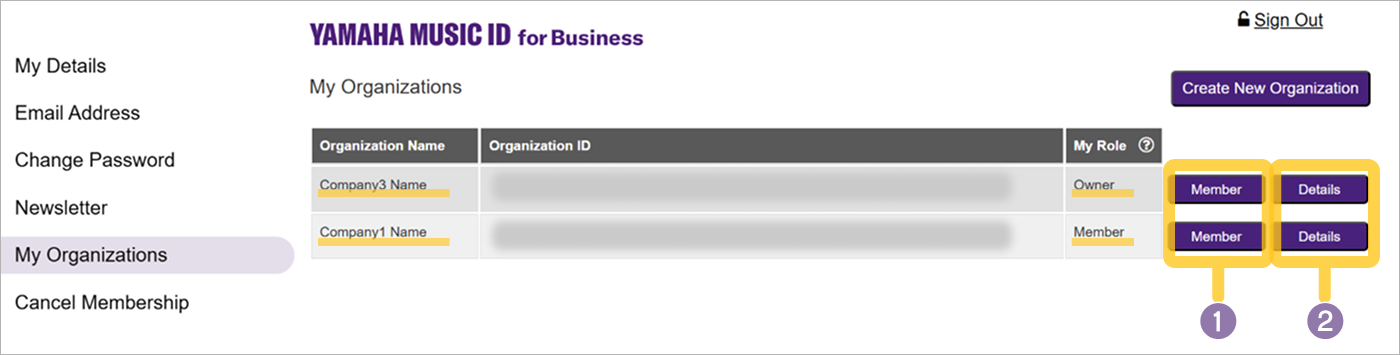 YAMAHA MUSIC ID for Business > My Organizations
- 1 Displays a list of members in the Organization
-
Click the [member] button (1) to display a screen listing the members who belong to that Organization.
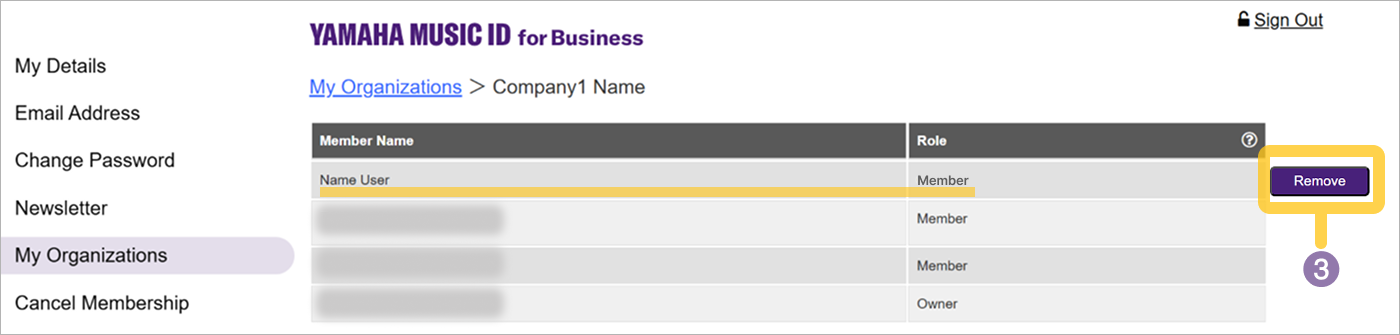 YAMAHA MUSIC ID for Business > My Organizations > Member List
To remove yourself from the Organization, click the [Remove] button (3) in the row with your name in the member list screen.
- 2 Displays information on the Organization.
-
Click the [Details] button (2) to view information on the Organization.
- 2 Create Organization
-
For details, refer to the following link.
- 3 Switch Organaization
-
Click the
 (open) icon to display all organizations you belong to in order to switch between Organizations.
|
For details on managing Organizations, refer to About Organizations. |
User menu
This menu allows operations related to accounts to be performed. It appears on the right side of the common header after signing in to ProVisionaire Cloud.

- 1 My Details
-
Displays the "My Details" screen of Yamaha Music ID for Business. Account information can be viewed and edited.
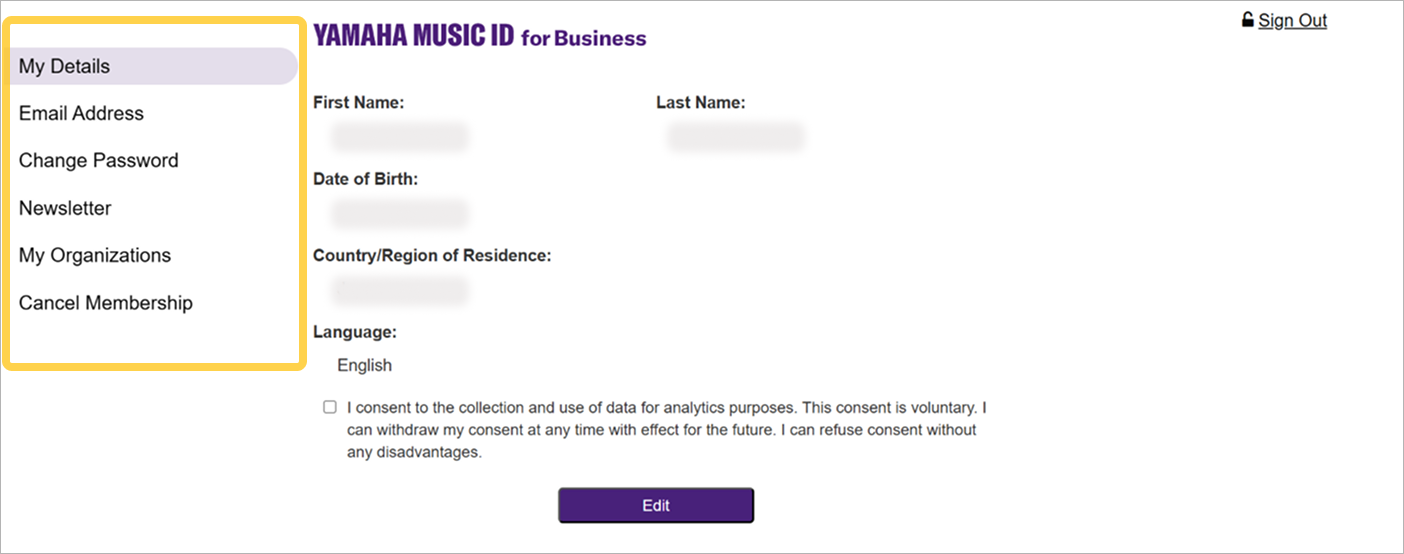 Yamaha Music ID for Business > My Details
- 2 Settings
-
Displays a screen for specifying settings for the features.
- 3 Sign Out
-
Signs out of ProVisionaire Cloud.