
File Operations
Saving a file
The generated room conditions and settings can be saved to a computer as a plan file (.pvplan extension).
The saved plan file can be opened from the top screen of Room Planner.
Procedure for saving a file
-
Click the [Save] button.
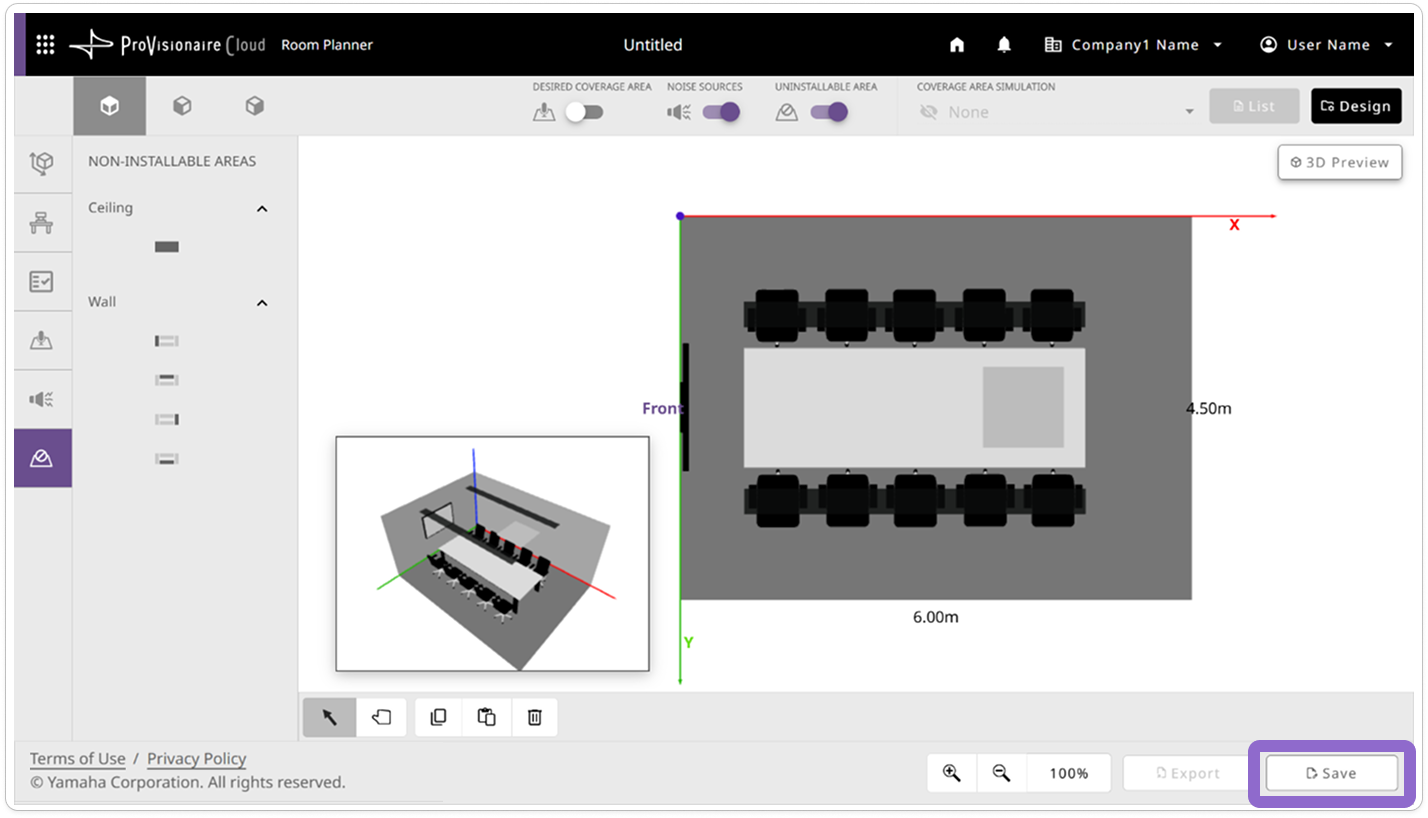
The Save screen appears.
-
In the Save screen, specify the file name, and then click the [Save] button.
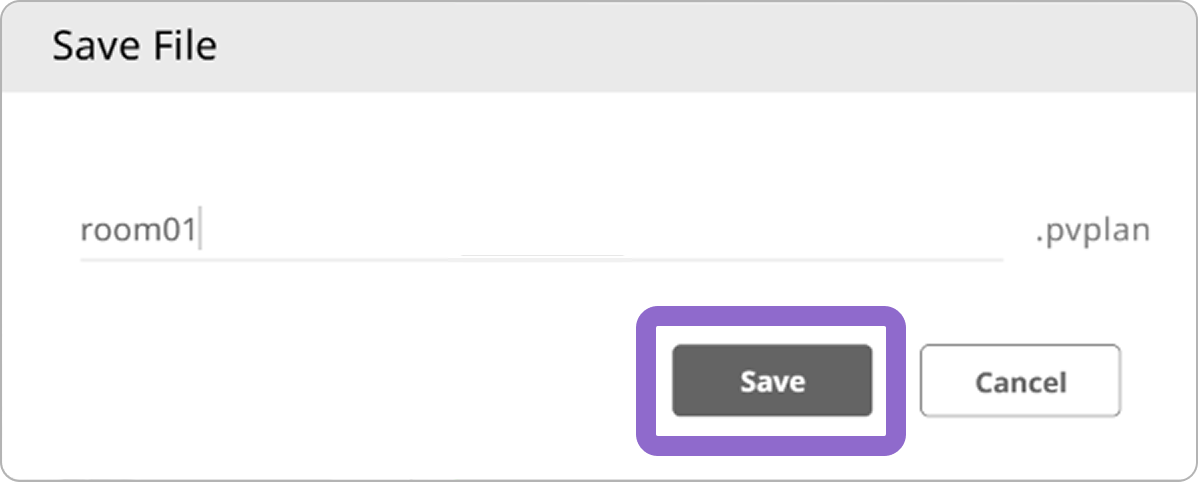
-
The file is saved to the download folder specified in your browser.
|
Files saved with the [Save] button cannot be used for automatic setup with a signal processor. |
|
While creating a new plan, the [Save] button is disabled and the plan cannot be saved. |
Exporting the results
After the plan has been generated, the [Export] button becomes available, and the plan results can be exported.
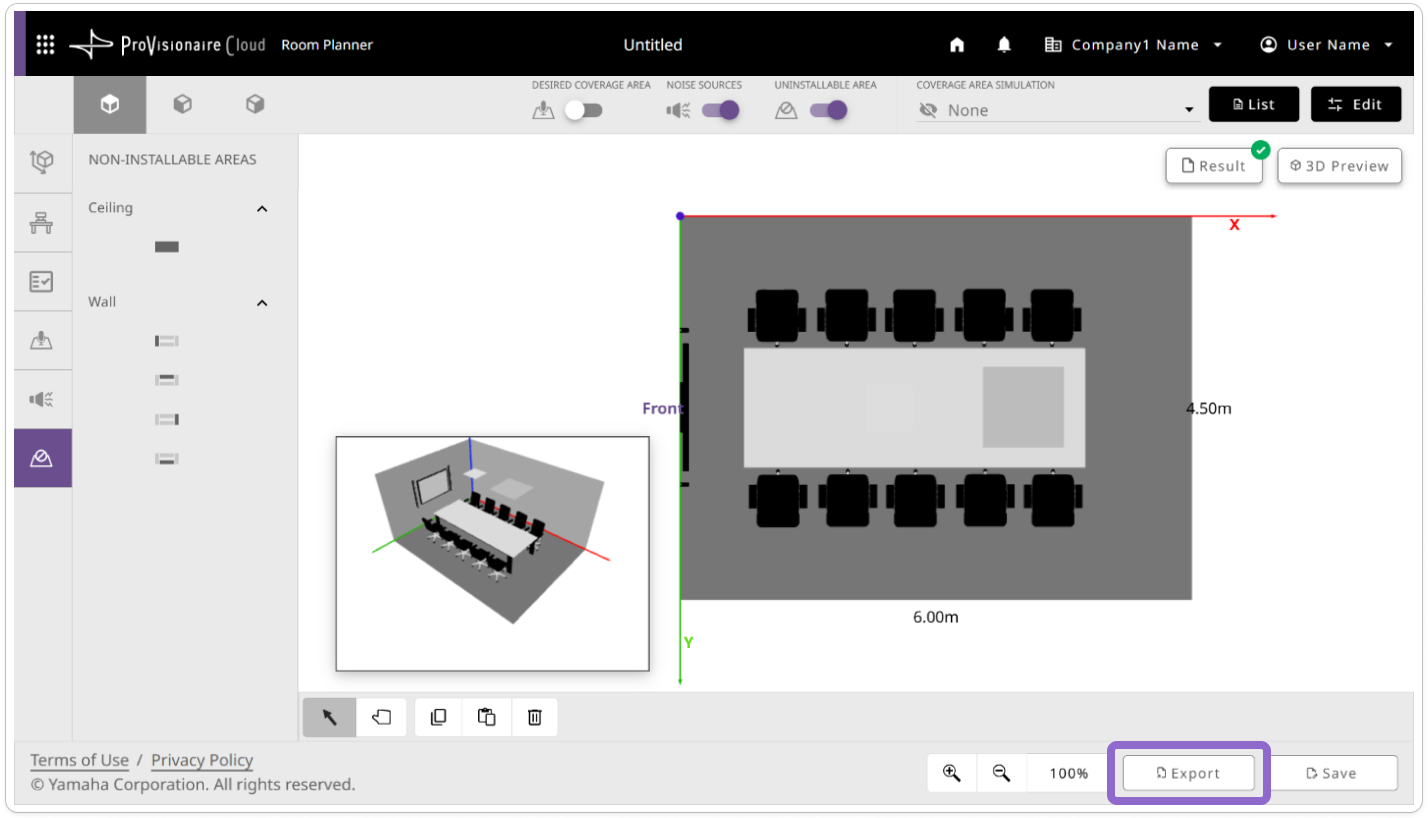
Clicking the [Export] button displays a dialog box where the type of file to be exported can be selected.
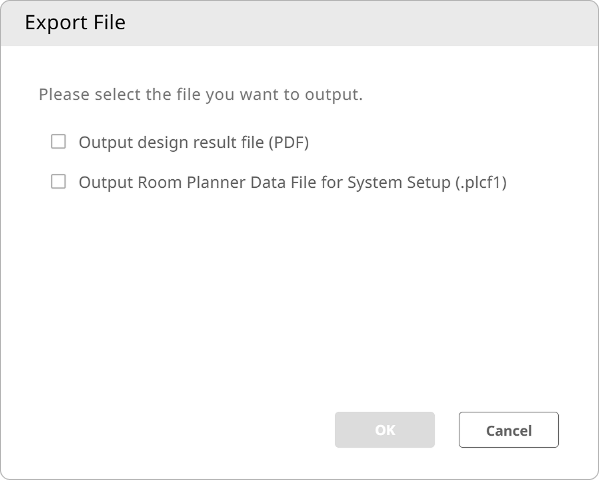
Design Result File (PDF) |
Exports the room conditions and plan results as a PDF file. |
|---|---|
Room Planner Data File for System Setup (.plcf1) |
Exports a Room Planner data file for system setup. |
|
The file is saved to the download folder specified in your browser. |