


Using this product with your computer
This explains how to use this product with your Windows PC or Mac to configure the settings and make the necessary operations to livestream your voice or your singing to 17LIVE, Twitch, YouTube Live or other such services. (17LIVE, Twitch and YouTube Live are the names of streaming apps.)
What you need
- This product
- Windows or Mac computer (on which the AG08 Controller and livestreaming apps are installed)
- Install the “AG08 Controller” app from the following website.
- https://www.yamaha.com/2/ag08/
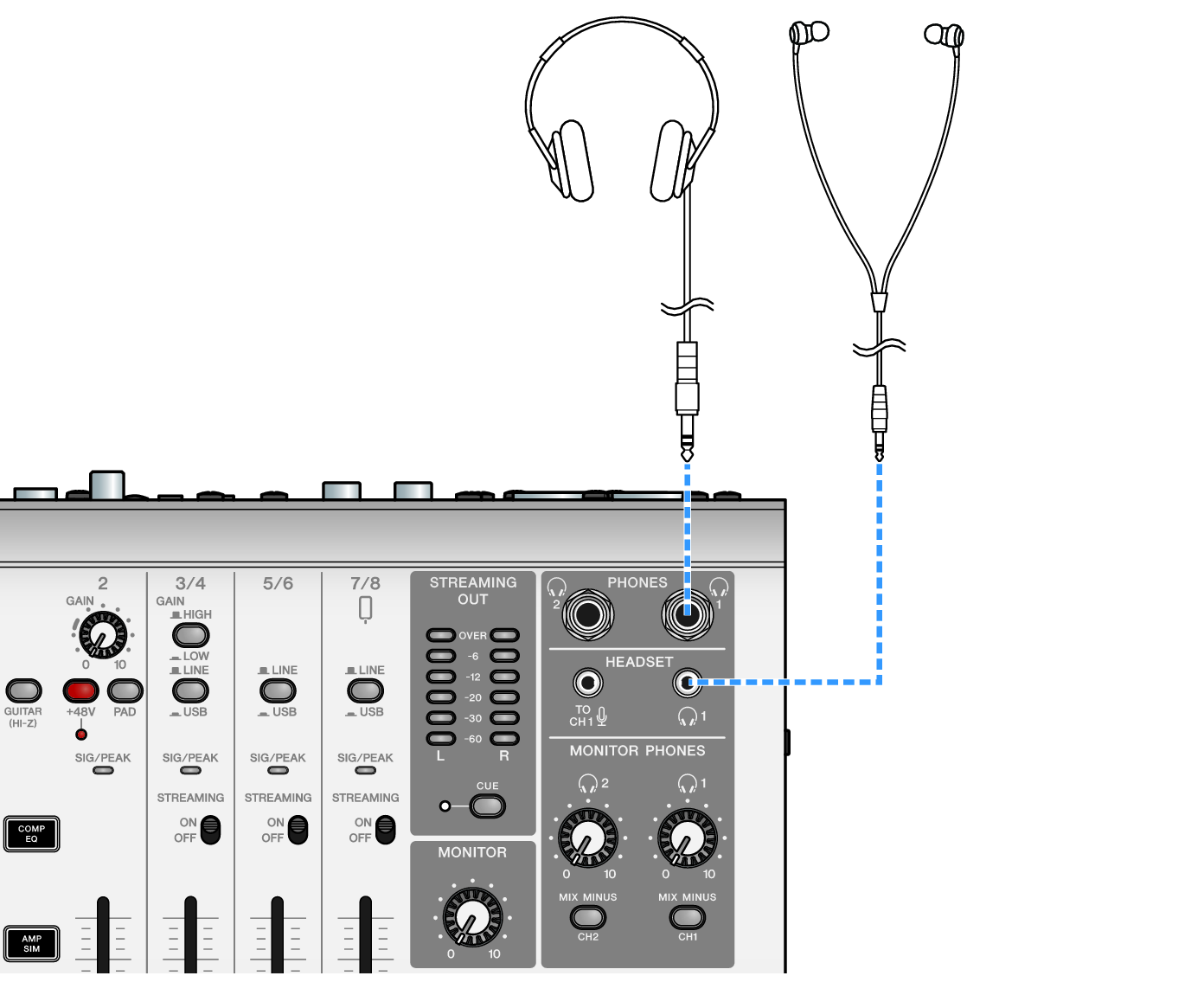
- Headphones or earphones (PHONES 1: stereo phone plug or 3.5 mm stereo mini-plug) (PHONES 2: stereo phone plug)
- USB-C to USB-C cable (included), or a commercially available USB-A to USB-C cable
- AC adapter (included)
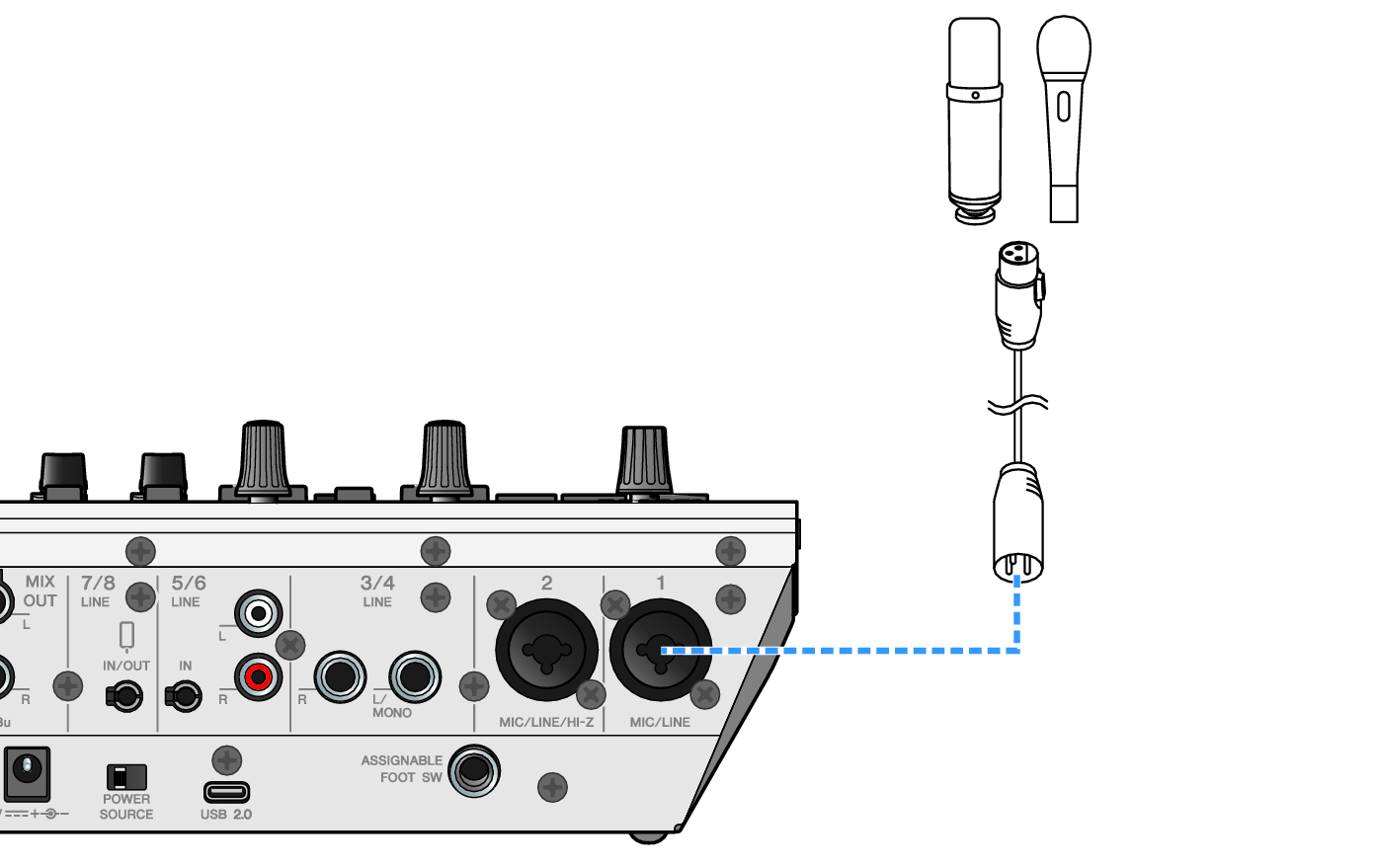
- Microphone
- Connect this unit to your computer.
- Connect by referring to “Getting ready to use this product” → “Connecting to your computer and configuring the settings (Windows)/(Mac)”.
- Connect your headphones or earphones to the output connector.
- Connect the mic to the channel 1 mic/line input connector.
- Connect a headset microphone to the [HEADSET] mic input connector.
- Now that you’ve made these connections, configure the settings for this unit.
- Turn the [z] (standby/on) switch on.
- Configure the settings on the AG.
- Make the settings for each switch on the front panel as follows.
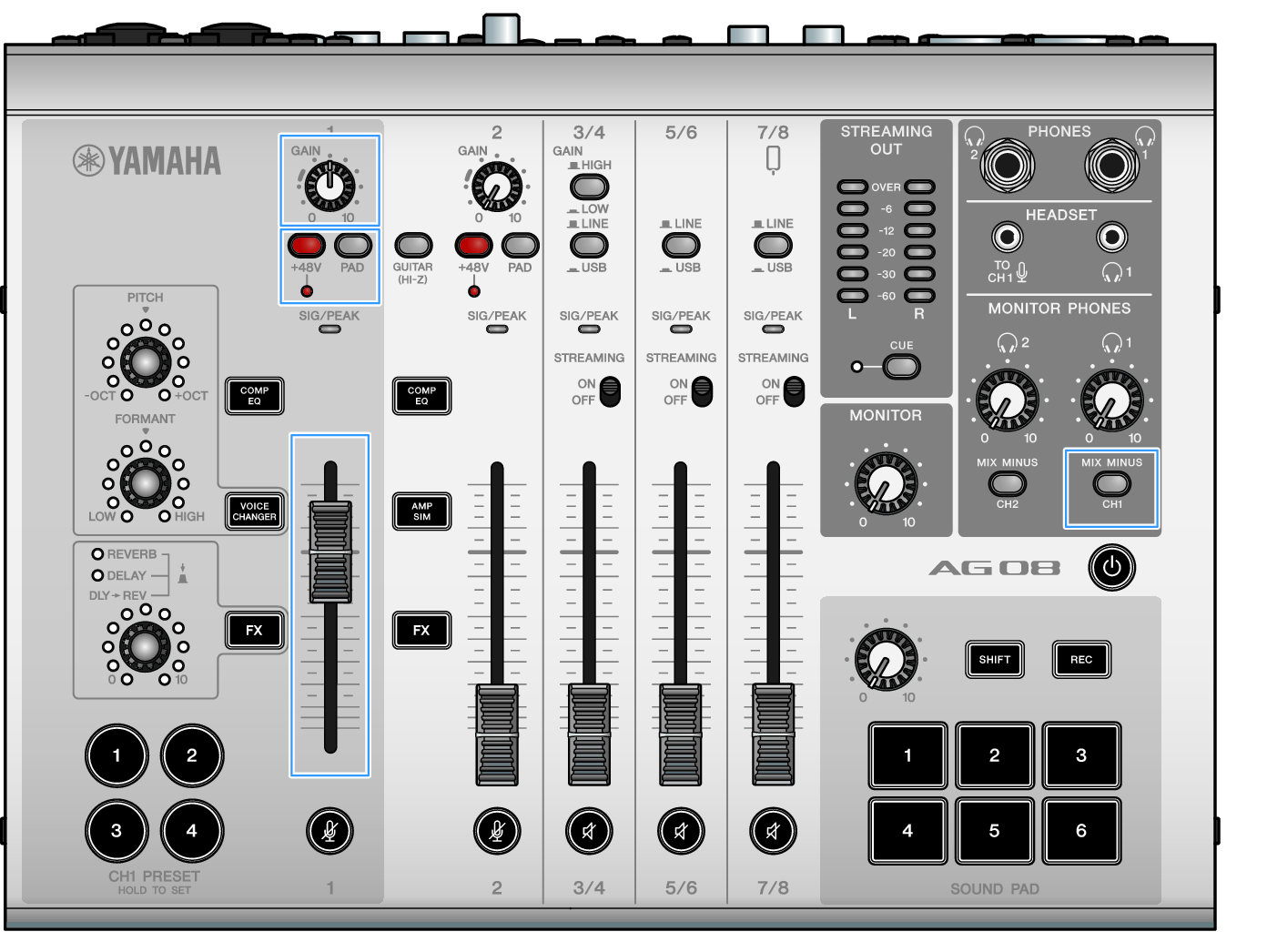
- [PAD] switch: off
- Phantom [+48V] switch: on (when using a condenser mic)
- Channel 1 [GAIN] knob, fader: as appropriate (see illustration)
- [MIX MINUS]: off
- Use the Sound Check function to configure the connection with your computer and the levels on this product.
- About the Sound Check function
- When using a computer, follow the instructions from the Sound Check function in the AG08 Controller app to configure the connection with your computer and the levels on this product.
- Press the menu [
 ] button on the AG08 Controller app and tap Sound Check to start the Sound Check function.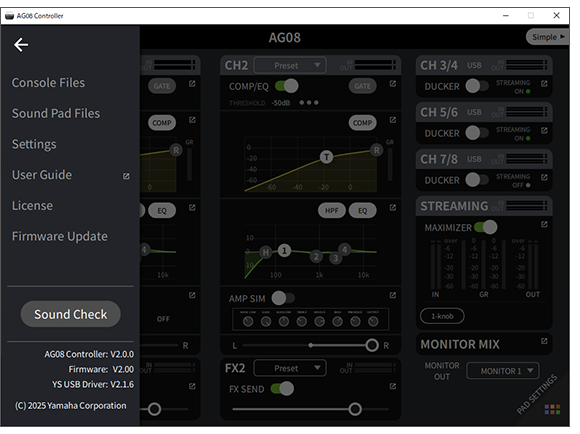
- Follow the instructions from the Sound Check function to configure the connection with your computer and the levels on this product.
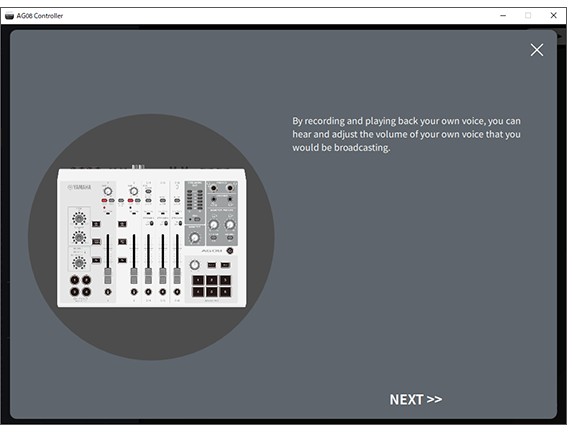
- If the output/input settings for the computer are not finished, a sound settings screen like the one below is shown.
- Set the destination channels for the background music and voice chat audio.
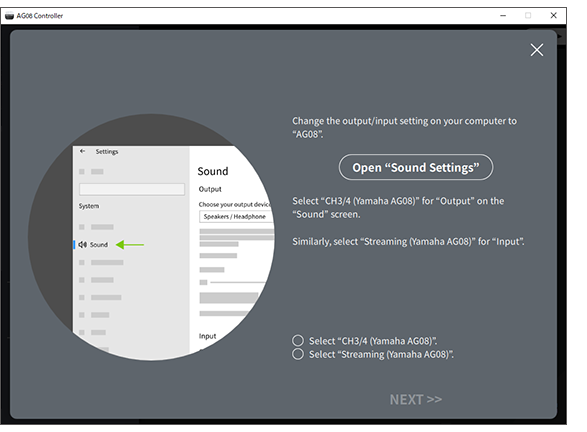
- For Windows, see “Connecting to your computer and configuring the settings (Windows)”.
- For macOS, see “Connecting to your computer and configuring the settings (Mac)”.
- Adjust the volume using the [MONITOR PHONES] [H] knob while speaking into the mic.
- Adjusting the volume using the [MONITOR PHONES] [H] knob has no effect on the volume of the livestreaming audio.
- Start the livestream.
- Use the faders to adjust the respective volumes.
- Launch the livestreaming app and check the balance for the listeners.
- See “Audio-related and other issues” if you don’t hear any sound.
Livestreaming with OBS
Here, we explain how to use OBS, as an example of how to use livestreaming software. To download and install OBS, see the official OBS website.
- Launch OBS, and open the “Settings” screen from “File”.
- On the left-hand navigation menu, click “Audio”.
- For the “Desktop Audio” settings in “Global Audio Devices”, use “Default” or “Disabled”.
- Similarly, for the “Mic/Auxiliary Audio” settings in “Global Audio Devices”, use the [Streaming (Yamaha AG08)] setting.
- On the left-hand navigation menu, click “Stream”.
- Select the streaming service to use, and input the stream key as necessary that you received from the service.
- Close the “Settings” screen.
- Start the livestream.
- To chat on Discord while streaming a game, set the input device in the “Audio Settings” of Discord to “AG08 Voice”, and set the output device to “AG08 CH5/6”. Set the [LINE/USB] selector switch for channels 5/6 to [USB].
Streaming a conversation on your smartphone via computer
When you want to stream the conversation you’re having on your smartphone via the computer (such as when guests are participating via phone call), use a 3.5 mm four-conductor (TRRS) stereo mini cable to connect the [LINE 7/8 IN/OUT] smartphone input/output connector to the headset connector on your smartphone (iPhone, Android device, etc.).
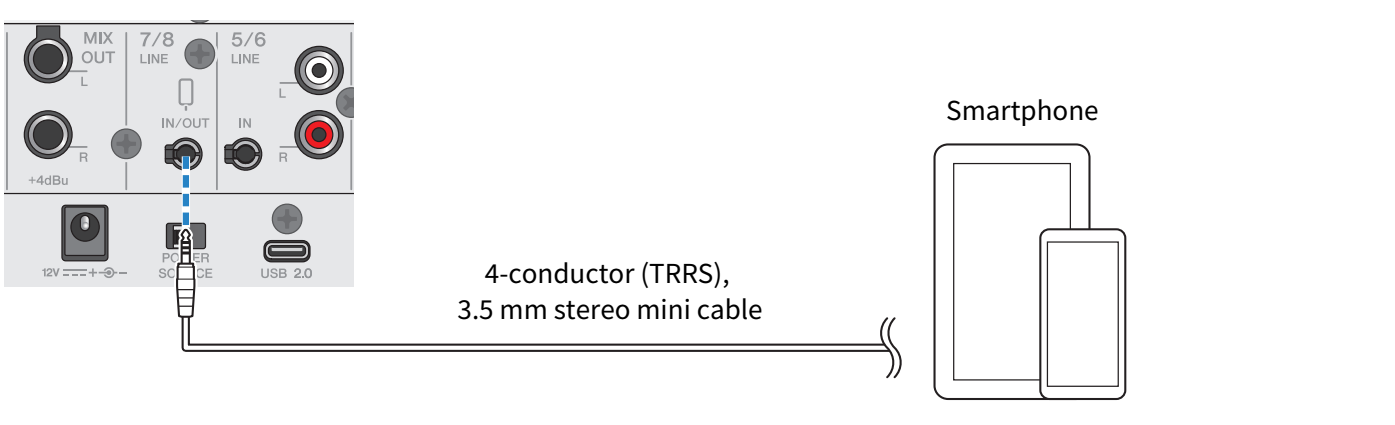
The default output setting for the smartphone input/output connector is AUX, which prevents the other party’s own voice from looping back to them when you are making a smartphone call.
- You will need a conversion adapter cable if your smartphone does not have a connector for connecting stereo mini plugs. For example, for Android devices that use a USB-C port to input/output audio, you’ll need a USB-C to 3.5 mm four-conductor (TRRS) earphone connector conversion adapter cable. For iPhones equipped with a Lightning connector, you will need a Lightning to 3.5 mm Headphone Jack Adapter.
 AG08
AG08